
How to Set Up Your First WordPress Backup (Free, Step by Step)
Your site breaks tomorrow. A plugin update goes sideways, or somebody gets in, or your host has a rough day. How fast could you get it all back?
If your honest answer is “no idea,” keep reading. A first backup takes about twenty minutes and costs nothing. I’ll take you through it with a free plugin, from install to a proper restore test. It’s easier than it sounds.
Table of Contents
What You Need to Set Up Your First WordPress Backup
Not much. Admin access, twenty minutes, and a free Google Drive or Dropbox account.
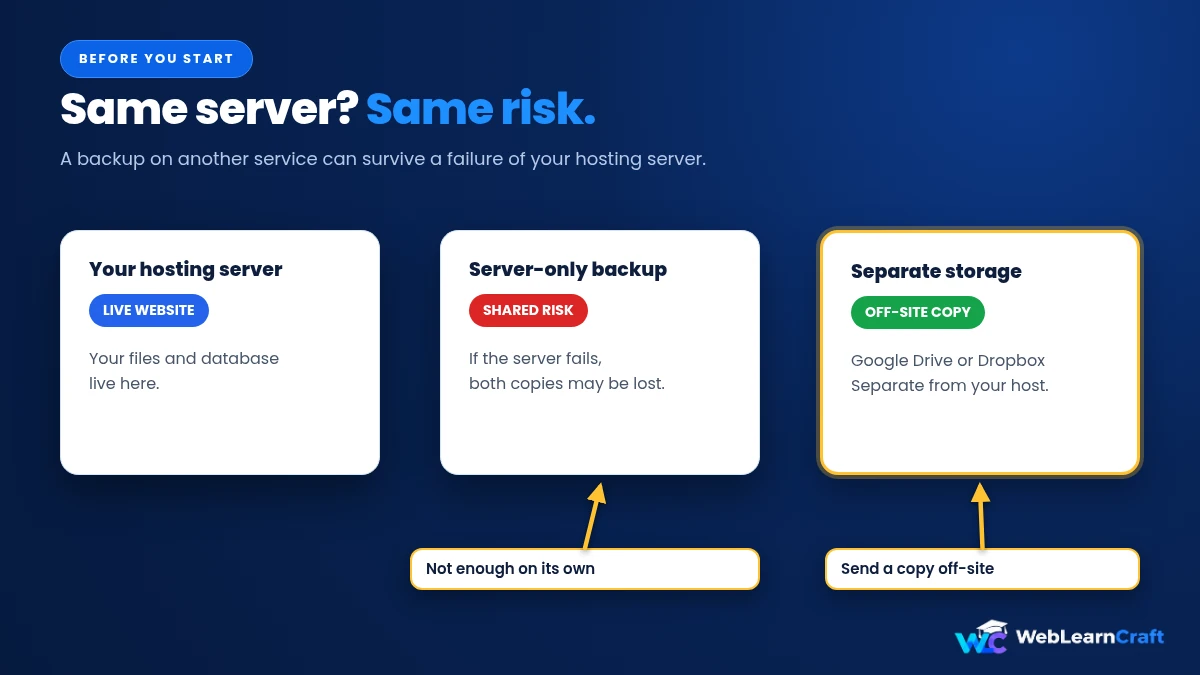
Why the storage account? Because a backup parked on your own server is a weak backup. If the server dies, it takes your site and your backup down together. A copy somewhere else lives on.
I’ll use UpdraftPlus, since it’s free, popular, and easy to follow. WPvivid and BackWPup work similarly, just with other button names.
Install the Plugin
Go to Plugins, then Add New. Search “UpdraftPlus,” find the one on the official UpdraftPlus plugin page, install it, activate it.
You’ll find it under Settings, then UpdraftPlus Backups. Two tabs: Backup / Restore, and Settings. You’ll use both.
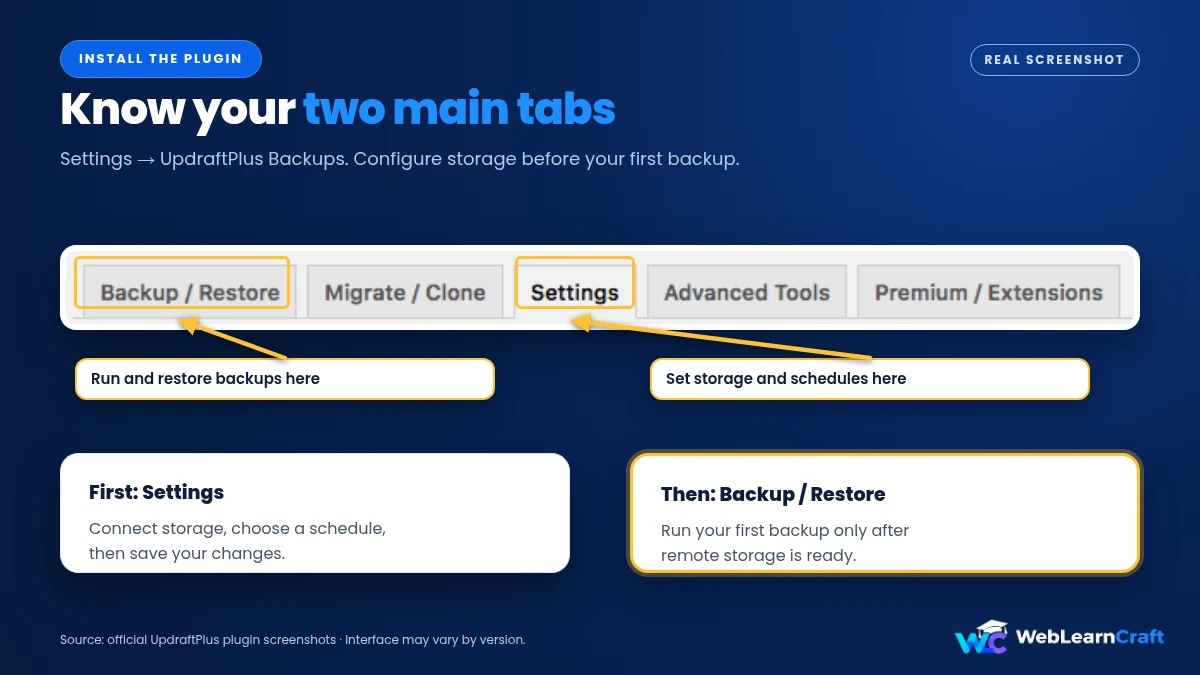
And no, don’t hit Backup Now yet. Set it up first, so your first backup lands in the right place.
Connect Storage
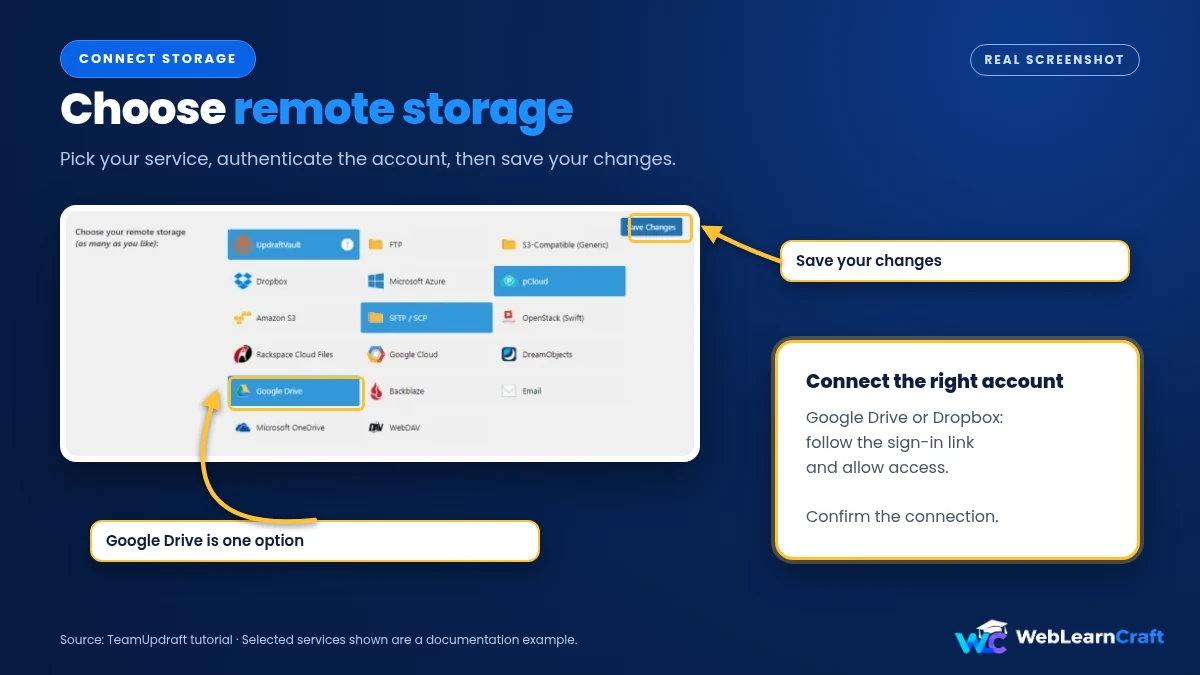
Settings tab. Look for Choose your remote storage. Icons everywhere: Google Drive, Dropbox, Amazon S3, FTP, email. Click whichever one you already use.
For Google Drive or Dropbox, a link appears asking you to authenticate. Click, sign in, allow access. You’ll bounce back to your site with a confirmation. Simple.
Some quick advice. Stick with a service you trust. Check there’s room for the files, because backups aren’t small. And skip email unless the site is tiny, since big backups won’t fit in an inbox.
Then press Save Changes. This is the click that matters most. Check the connection is confirmed before moving on.
Pick a Schedule
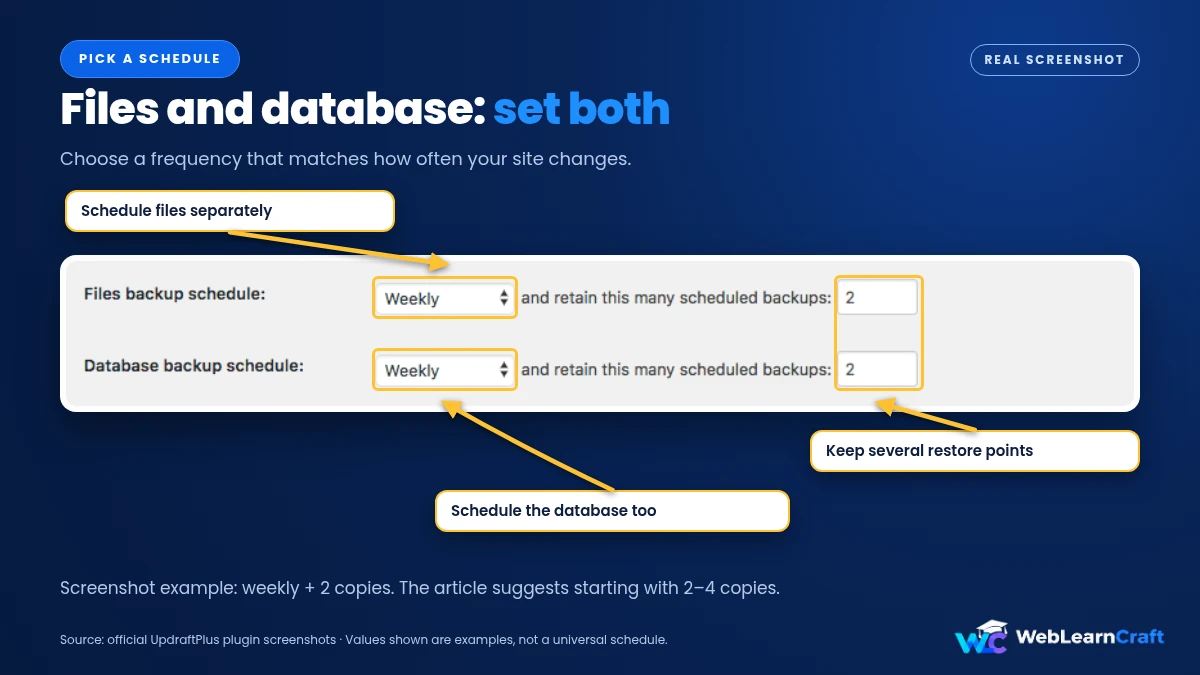
Same tab, further down: Files backup schedule and Database backup schedule. Two separate settings, and that’s on purpose. Your database changes constantly, since every post and comment goes in there.
How often? Depends on your site.
Posting weekly? Weekly files, and weekly or daily database. Running a shop with daily orders? Daily database, maybe more. Barely touching the site? Monthly files is fine.
Next to each schedule sits a box for how many backups to keep. Two to four works well. If something breaks, you’ll want an older copy, not only yesterday’s.
Decide What Goes In
Scroll down more. There’s a section on which files get backed up. By default it grabs your plugins, themes, uploads and other content. That’s what most sites need. Leave it.
You can exclude stuff, like big cache folders, to keep the file small. Not sure? Don’t. Too big beats missing.
There’s also an email option. It sends a short report after every backup. Switch it on. It’s the easiest way to catch a failure early.
Save Changes again. Yes, again.
Run It
Now the Backup / Restore tab, and the big Backup Now button.
A small window opens. It asks whether to include the database, the files, and whether to send the backup to remote storage. For your first run, keep all three ticked. Hit Backup Now.
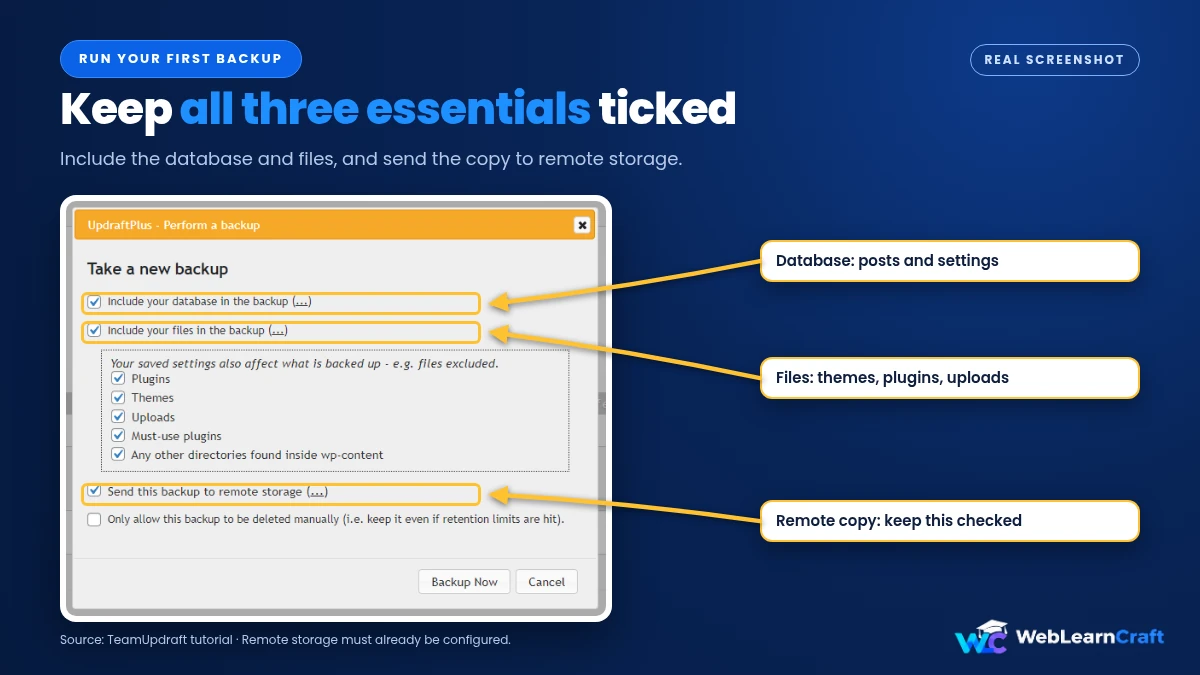
Takes a while, depending on the site and the host. A small blog might need a couple of minutes. A big one full of images? Longer. Keep the page open, at least for a bit.
When it’s finished, the backup shows up in Existing backups a little lower on the page, with a date and buttons for each part: database, plugins, themes, uploads, others.
Check It Landed
Don’t just trust it. Open Google Drive or Dropbox and look for a folder made by UpdraftPlus. Today’s files should be inside.
There? Good. Your backup survives a dead server now. Not there? Back to the Settings tab, and make sure the connection really is confirmed. Check you’re in the right account, too.
Bonus move: download a copy to your own computer as well. It doesn’t replace cloud storage, but a spare never hurts.

Try a Restore
A backup nobody has restored is just a hope. Let’s turn it into a fact.
The safe way is a staging site or a local WordPress copy, not your live site. Install UpdraftPlus there, connect the same storage, and in the Backup / Restore tab click Rescan remote storage so it finds your backups. Press Restore next to the newest one. It asks what to restore, like plugins, themes, uploads or the database. Choose, confirm.
Then look around. Do posts load? Images? Menus and settings? Click through a few pages.
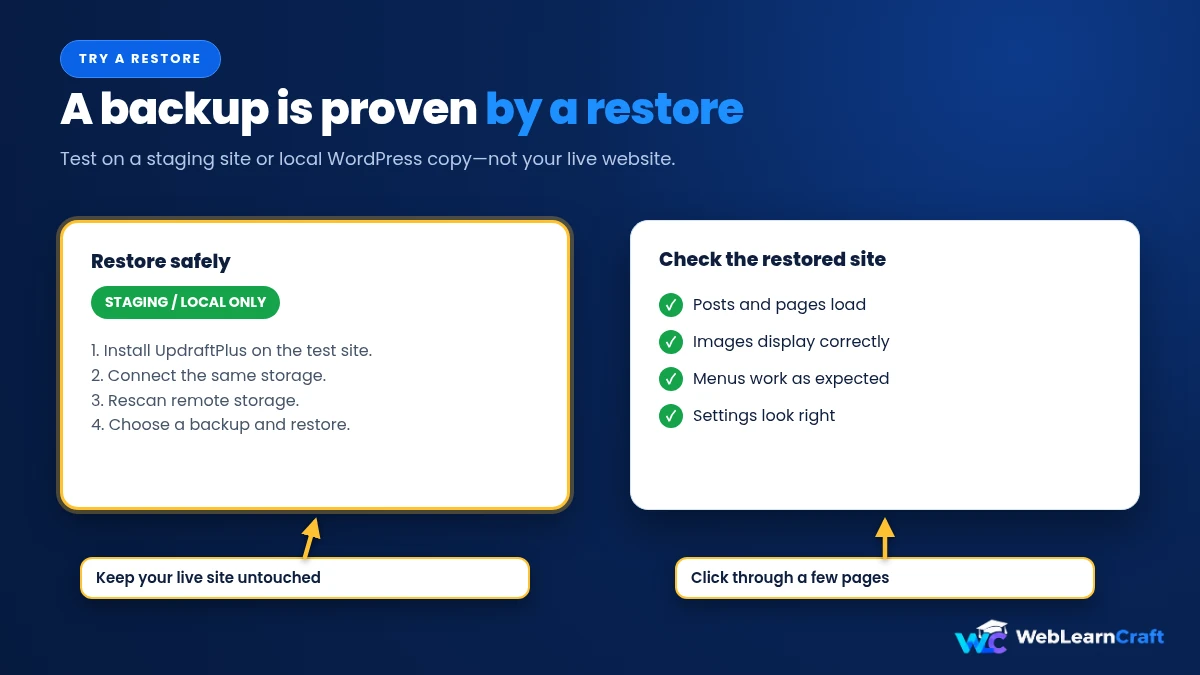
Once or twice a year is plenty. But do it once, now. It tells you what no feature list can: whether your backups actually work.
If you ever move WordPress from localhost to a live server, this is brilliant practice.
Extra Backups
Scheduled backups handle ordinary days. Some moments deserve a manual one, right before you start.
Updating WordPress, a theme or a major plugin. Switching themes. Editing code, for instance when you add JavaScript to WordPress without a plugin. And anything touching the database. Fixing a mixed content error means rewriting URLs in your database, so back up first.
Two minutes. Could save you a weekend.
When It Goes Wrong
Usual suspects first.
Backup hangs or fails? A big site may be hitting your host’s time or memory limits. Try files and database separately, or ask your host to raise the limits.
Storage won’t connect? Remove it, save, authenticate again. Make sure you’re in the right account.
Old backups missing? Click Rescan remote storage under Existing backups. It makes the plugin look again.
No report email? Check spam. And if your site struggles to send emails at all, here’s how to fix WordPress not sending emails.
Storage full? Keep fewer backups, or clear out the old ones.
Mistakes
Keeping backups only on your own server. Always send a copy elsewhere.
Never testing a restore. Don’t find out on the day you need it.
Setting it up and forgetting it. Peek at your backups monthly, just to see the latest ones are real.
Backing up too rarely. A site that changes daily and backs up monthly has a huge gap.
Ignoring failure emails. Fix them the same day.
Running two backup plugins at once. Pick one.
Frequently Asked Questions
How do I set up my first WordPress backup?
Install a plugin like UpdraftPlus, connect storage such as Google Drive, set a schedule, run your first backup, and check the files arrived.
Is UpdraftPlus free?
Yes, there’s a free version with scheduled backups, off-site storage and restore. Extras like incremental backups need the paid plan.
How often should I back up?
Depends how often your site changes. Weekly suits a weekly blog. A busy shop may want daily database backups.
Where should I store backups?
Off-site: Google Drive, Dropbox, Amazon S3. Keeping them only on your server is risky.
How many should I keep?
Two to four is a good start. You get several restore points without filling your storage.
How do I know it works?
Restore it on a staging site or a local copy and check everything loads.
Do I need my own backup if my host makes one?
Host backups help, but they’re not always in your control, and they may only be kept briefly. Your own off-site copy is safer.
Wrapping Up
A backup is the cheapest insurance your site will ever get, and it takes twenty minutes. Install a plugin, send copies off-site, pick a schedule that matches how often you publish, run the first backup, test a restore.
Do it properly once and it mostly runs itself. Just check in now and then, and take an extra backup before anything risky.
For more beginner guides, browse the WebLearnCraft blog. Need help with your site? Contact us and we’ll point you the right way.
3 Responses