
Mixed Content Error in WordPress: How to Fix It After Installing SSL
SSL installed. Site switched to HTTPS. You reload the page, ready to admire that little padlock, and it says “Not secure.” Or the padlock has a warning on it. Or half your images have vanished.
Frustrating, I know. But here’s the thing: your SSL probably works fine. A handful of stray http:// links are sneaking onto a secure page, and you can find every one of them. Let’s fix the mixed content error in WordPress, step by step, without any guesswork.
Table of Contents
What Mixed Content Really Is
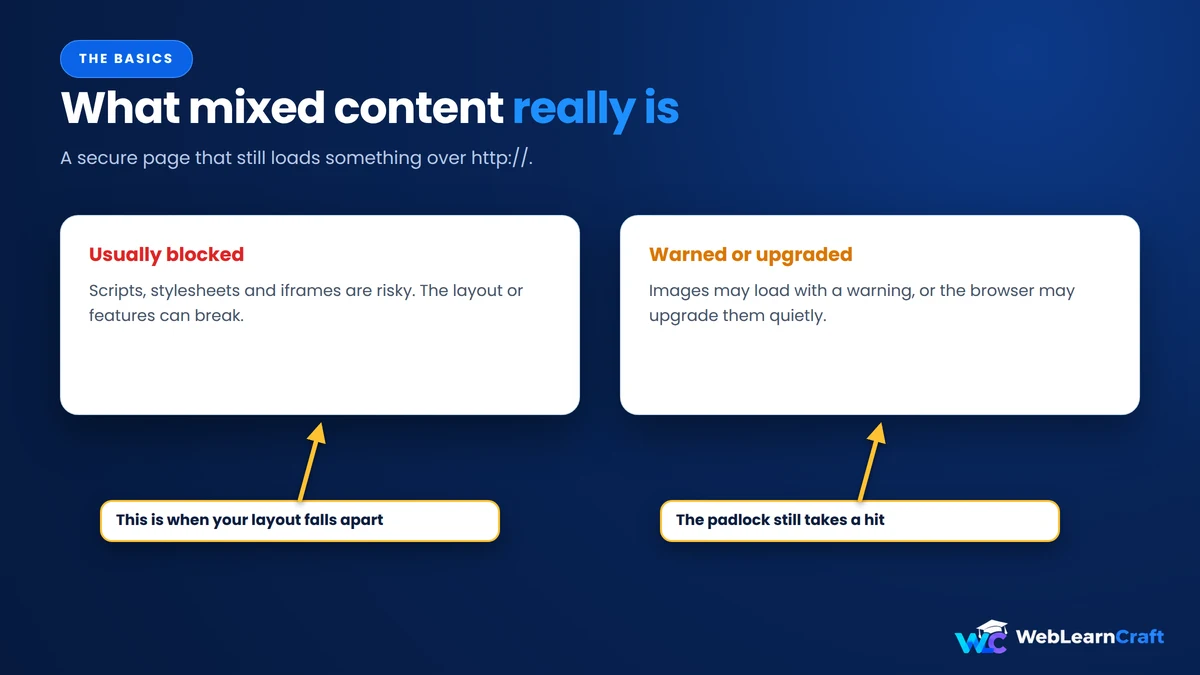
Picture a secure page that’s supposed to load everything over HTTPS: images, scripts, styles, fonts, videos. Now picture one image on it still loading over plain http://. That’s mixed content. One leak, and the whole page gets flagged.
How the browser reacts depends on what leaked. Scripts, stylesheets and iframes are risky, so they usually get blocked outright. That’s when your layout breaks. Images are less risky, so they may load with a warning, or the browser may quietly upgrade them. Either way, the padlock takes a hit.
And on WordPress, the cause is nearly always the same. Your content, settings or theme still remember the old http:// address.
Back Up First
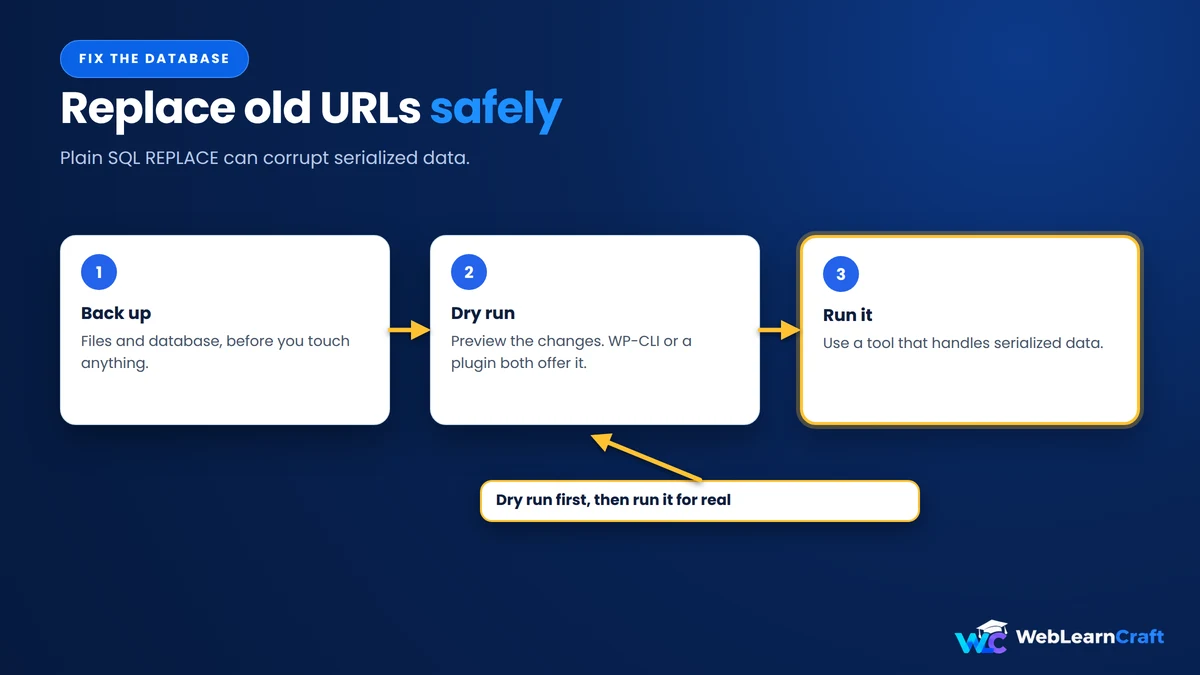
Some fixes below change your database. So back up your files and database before anything else. Most hosts have a one-click option. If something goes wrong, you want to restore in minutes, not rebuild for days.
Got a staging copy? Test there first.
Find the Insecure Links
Don’t guess. Ask the browser.
Open the page with the warning and hit F12. Click Console, then reload. You’ll see messages saying a resource “was loaded over HTTPS, but requested an insecure resource,” along with the exact URL.
Write those URLs down. A pattern appears quickly. Old images? A font from your theme? A script from some plugin? The pattern tells you which fix to try first.
Free scanners like Why No Padlock can list insecure items too. But the Console is my pick, since it shows exactly what your visitors’ browsers see.

Check Your WordPress URLs
Go to Settings, then General. Look at WordPress Address and Site Address. Both should start with https://.
They don’t? Change them and save. You’ll likely get logged out. That’s normal, so just log back in.
Fields greyed out? Then the URLs live in wp-config.php. Look for these lines and update them:
define( 'WP_HOME', 'https://example.com' );
define( 'WP_SITEURL', 'https://example.com' );
Use your own domain, obviously. And type carefully, because a wrong URL here can lock you out of your dashboard. Keep that backup close.
Fix the Database
Here’s where most sites get cured. Years of posts, pages and widgets may still hold http://yourdomain.com links, mostly images. Every one needs to become https://.
One warning first. Don’t use a plain SQL REPLACE for this. WordPress stores some data in a serialized format, and a naive replace can corrupt it. Use a tool that understands serialized data.
If you’ve got command-line access, WP-CLI is the cleanest option:
wp search-replace 'http://example.com' 'https://example.com' --skip-columns=guid --dry-runSee --dry-run? It shows what would change without changing a thing. If the numbers look sensible, run it again without that flag. And --skip-columns=guid leaves post GUIDs alone, which is the recommended practice.
No command line? A plugin such as Better Search Replace does the same job and handles serialized data. Put the http:// address in the search box, the https:// one in the replace box, pick your tables, and do a dry run first. When you’re done, delete the plugin.
If your site ever used http://www.example.com, repeat the whole thing for that version too.
Hunt Down Hardcoded Links
Database clean, warning still there? Annoying. It means something is hardcoded, and those links love to hide.
Start with theme settings. Logos, background images and custom CSS in the Customizer can hold http:// URLs, so re-save or edit them. Then widgets and menus: custom HTML widgets and custom menu links often keep old addresses.
Next, theme files. Header, footer and CSS files sometimes contain http:// references. If you edit them, use a child theme so updates don’t wipe your work. After that, check plugin settings. Sliders, forms, popups and social plugins sometimes store absolute URLs of their own.
Finally, external stuff: fonts, scripts, embeds from other sites. Most big services support HTTPS, so swapping http:// for https:// usually works. If one doesn’t offer HTTPS at all, replace it.
Remember that Console list? Every URL on it tells you where to look.

Page Builders
Builders like to keep their own copy of your URLs. So a database replacement alone may not be enough.
On Elementor, open Elementor, then Tools. The Replace URL tab lets you enter the old and new address. And Regenerate CSS & Data, in the General tab, rebuilds stylesheets that may still hold old links. Run both, then clear your cache.
Other builders have similar tools. Check the documentation if you use a different one.
Force HTTPS
Links fixed? Good. Now make sure visitors always land on the secure version, using a redirect from http:// to https://.
On Apache, add this to .htaccess, above the # BEGIN WordPress block:
<IfModule mod_rewrite.c>
RewriteEngine On
RewriteCond %{HTTPS} off
RewriteRule ^(.*)$ https://%{HTTP_HOST}%{REQUEST_URI} [L,R=301]
</IfModule>
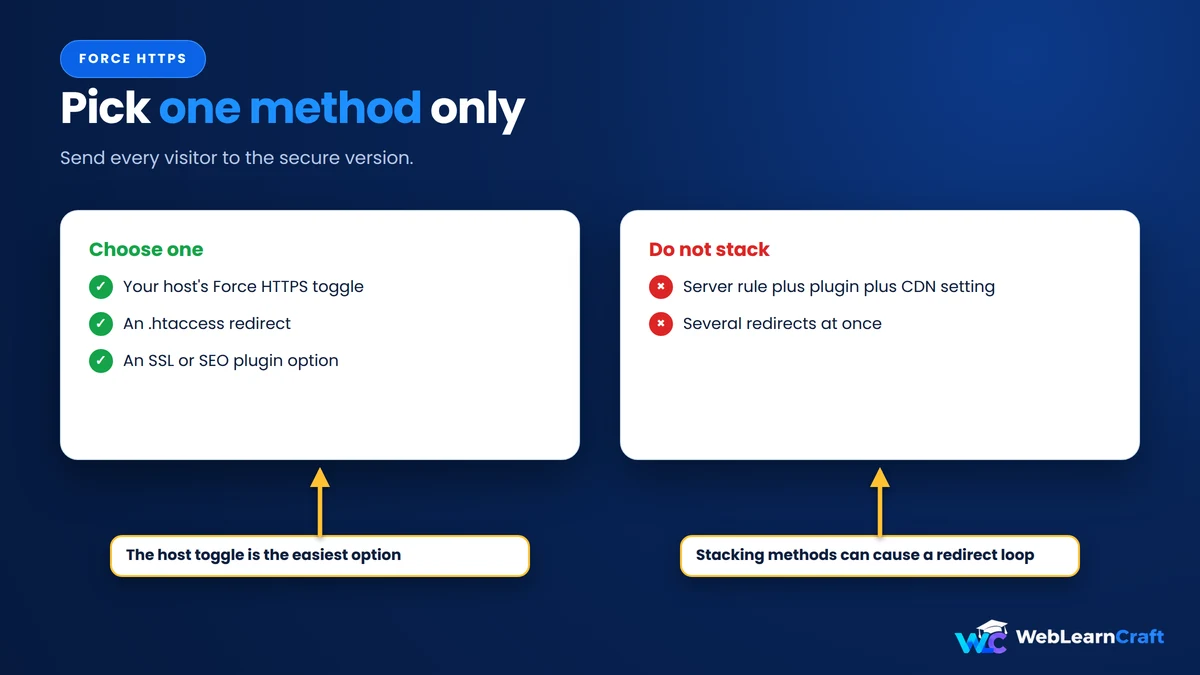
Many hosts also give you a “Force HTTPS” switch in the control panel. That’s easier and safer. SSL and SEO plugins often include one too. Pick one method only. Stack them and you’ll probably create a redirect loop.
One more case. If your site sits behind a proxy or load balancer, WordPress might not realise the connection is secure. This snippet in wp-config.php can help, above the line that says “That’s all, stop editing”:
if ( isset( $_SERVER['HTTP_X_FORWARDED_PROTO'] ) && $_SERVER['HTTP_X_FORWARDED_PROTO'] === 'https' ) {
    $_SERVER['HTTPS'] = 'on';
}
Only use it if you truly need it. Unsure? Ask your host.
Check Your CDN
A CDN like Cloudflare can cause mixed content. It can also fix it.
In Cloudflare, set SSL/TLS to Full or Full (strict) once your server has a valid certificate. The old “Flexible” mode is a classic cause of endless redirect loops. Cloudflare also offers Always Use HTTPS and Automatic HTTPS Rewrites, which can patch some insecure links on the fly. Treat them as a safety net, not a replacement for fixing the links.
If your CDN serves images from its own hostname, make sure that hostname supports HTTPS too, and that your CDN plugin uses it.

Clear Every Cache
More people get stuck here than anywhere else. You fix everything, reload, and the warning’s still there. Why? A cache is serving the old page.
Clear your caching plugin, your host’s server cache, your CDN and your browser. Then open a private window and check the Console again. Clean? You’re done. A few warnings left? The URLs it shows tell you which step to revisit.

Mistakes to Skip
- Skipping the backup. Some database changes can’t be undone.
- Plain SQL find and replace. It can break serialized data, so use WP-CLI or a plugin built for it.
- Stacking redirect methods. A server rule plus a plugin plus a CDN setting equals a loop.
- Relying only on a “fix mixed content” plugin. Some work as a quick patch, but they rewrite links on the fly and add overhead. Fix the source when you can.
- Forgetting the cache. Test in a private window every time.
- Ignoring third-party embeds. One old iframe from another site can keep the warning alive all by itself.
Frequently Asked Questions
What is a mixed content error in WordPress?
A page loads over HTTPS, but some of its resources, like images, scripts or styles, still load over HTTP. Browsers warn visitors or block the insecure items.
Why do I still see “Not secure” after installing SSL?
Usually because old http:// links remain in your content, settings, theme or plugins. The certificate alone doesn’t update them.
How do I find which resource is causing it?
Open the page, press F12, go to the Console tab and reload. The messages list the exact insecure URLs.
Can a plugin fix it automatically?
Some can, by rewriting links as the page loads. That’s a quick patch. Fixing the real URLs in your database and settings is cleaner.
Will fixing it help my SEO?
A secure, error-free site builds trust, and HTTPS is a light ranking signal. Just make sure old HTTP URLs redirect to the HTTPS versions.
Is a database search and replace safe?
Yes, if you back up first, do a dry run, and use a tool that handles serialized data, like WP-CLI or a trusted plugin.
Why does Elementor still show insecure content?
It stores its own data and generated CSS. Use its Replace URL tool and Regenerate CSS & Data, then clear caches.
Final Thoughts
A mixed content error looks scary. It usually isn’t. It’s just old http:// links hiding where you haven’t looked yet. Find them in the Console, fix your WordPress URLs, update the database safely, check your theme and builder, force HTTPS, and clear every cache.
Go one step at a time, and recheck after each. For most sites, the database replacement plus a cache clear does it. And if a stubborn warning hangs around, the Console will point straight at it.
For more beginner guides, browse the WebLearnCraft blog. Need help with your site? Contact us and we’ll point you the right way.
3 Responses