
5 Best Free WordPress Backup Plugins (Compared for 2026)
Nobody thinks about backups until the day they need one. Then it’s a bad plugin update, or a hacked file, or a hosting hiccup, and the same thought hits everyone at once: when was my last backup?
A free backup plugin can make sure you never ask that question. But “free” covers a lot of ground, and some free plugins do far more than others. Here are five of the best free WordPress backup plugins, what each one’s free version really gives you, and how to pick without losing an afternoon.
Table of Contents
What a Good Backup Needs
Before the plugins, a short checklist. If a backup misses any of these, it’s weaker than it looks.
It has to cover both files (themes, plugins, uploads) and your database (posts, pages, settings). Back up one without the other and the restore comes back broken.
It should run by itself. A backup you have to remember is a backup you’ll forget.
It should be stored off-site. A backup sitting beside your site on the same server is only half a backup. If the server goes, both go. Send a copy to Google Drive, Dropbox, or similar.
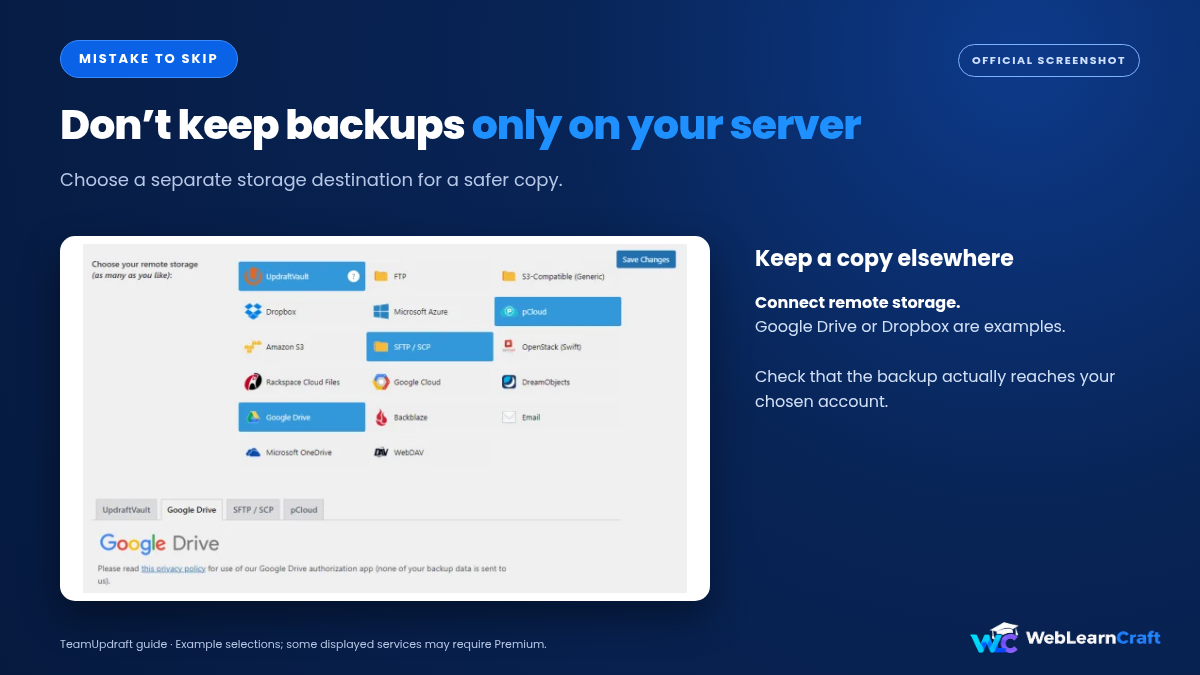
And it must be restorable. A backup you’ve never tried to restore is a hope, not a plan. More on that later.
How I Compared Them
Let me be upfront: I didn’t run a lab. What I did was compare what each plugin’s free version officially offers, read each plugin’s WordPress.org page, and cross-check several independent reviews to see where they agree.
I looked at five things. Scheduling. Off-site storage. Restore options. Ease of use. And what’s locked behind the paid plan.
One warning. Free plans change, and cloud storage lists especially shift between versions. Reviews don’t always agree either. Check the plugin’s current page before you count on a specific feature.
1. UpdraftPlus
UpdraftPlus is the best known dedicated backup plugin in WordPress, with over three million active installs. That matters more than it sounds. A huge user base means plenty of help when something goes wrong.
The free version covers manual and scheduled backups, restore from your dashboard, and remote storage. Depending on your version, that includes services like Google Drive, Dropbox and Amazon S3, plus FTP and email. Sending backups off-site for free is the main reason people pick it.

The catch? No incremental backups in the free version. Every run makes a full copy, which is slow and storage-hungry on big sites. Some extras, like migration tools and more storage options, sit behind the paid plan.
Best for: beginners and small sites that want a reliable, well-known option.
2. WPvivid
WPvivid is popular for how much it fits into the free version. Full files-and-database backups, scheduling, restore, and remote storage. Several reviews also mention free migration and a simple staging feature.
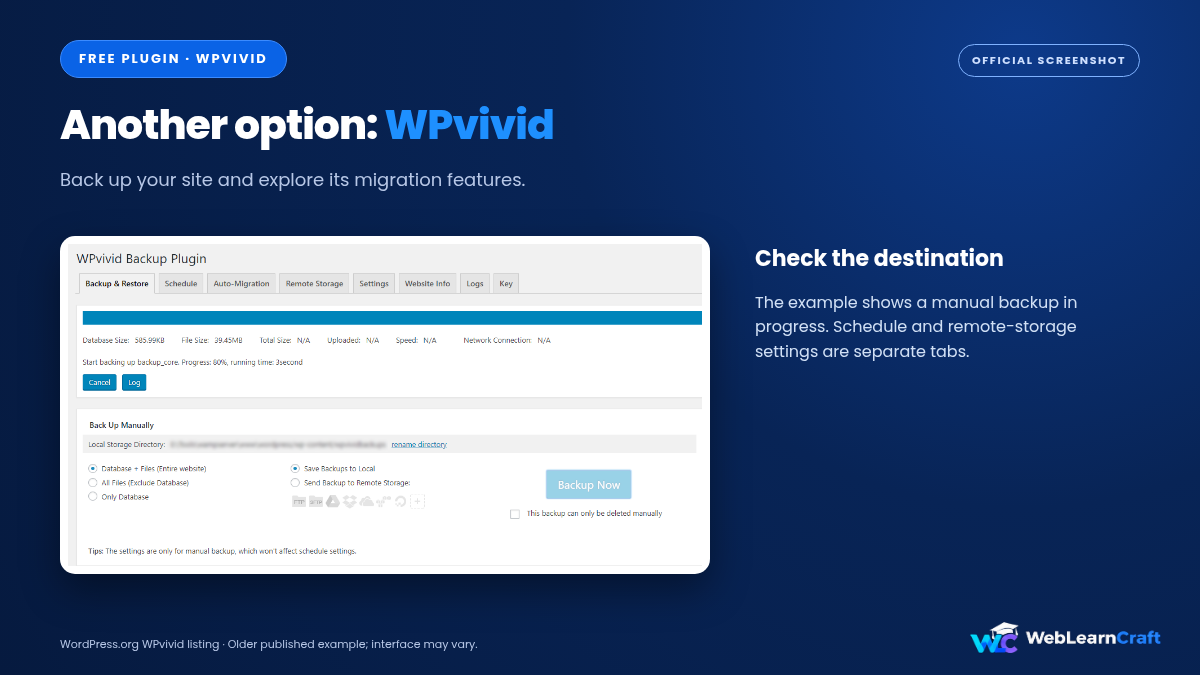
Cloud storage varies by source and version. Some reviews list Google Drive, Dropbox, S3, OneDrive and FTP as free. Others say more destinations need the paid plan. Check its page for the current list.
Same limit as UpdraftPlus: full backups only in the free version. Incremental backups are a paid feature.
Best for: people who want migration and staging tools alongside backups, without paying.
3. BackWPup
BackWPup works differently. It’s built around “jobs,” where you decide exactly what gets backed up, when, and where it goes. That control is its strength. It’s also why the interface feels less beginner-friendly than UpdraftPlus.
The free version supports scheduling and sends backups to places like Dropbox, Amazon S3 and Azure. Some others, such as Google Drive and OneDrive, are reported to need the paid version, so check before you plan around them.
It’s also known for being light on server resources, which helps on small hosting plans.
Best for: people who like control, or who run on limited hosting.
4. Backuply
Backuply comes from the Softaculous team, and it’s aimed at simplicity. Reviews describe a friendly interface, and the free version supports scheduled backups. For off-site storage, reviews mention options like Google Drive and FTP, with more on the paid plan.
It’s the newest name here, so its track record is shorter than UpdraftPlus or BackWPup. That doesn’t make it bad. It just means fewer long-term reviews to lean on.
Best for: beginners who want a clean, simple setup.
5. Duplicator
Duplicator belongs on this list, with an asterisk. It’s famous for moving and cloning sites, and it does that very well. Duplicator Lite can also connect to Duplicator Cloud with a paid storage plan. Scheduled backups require Pro.
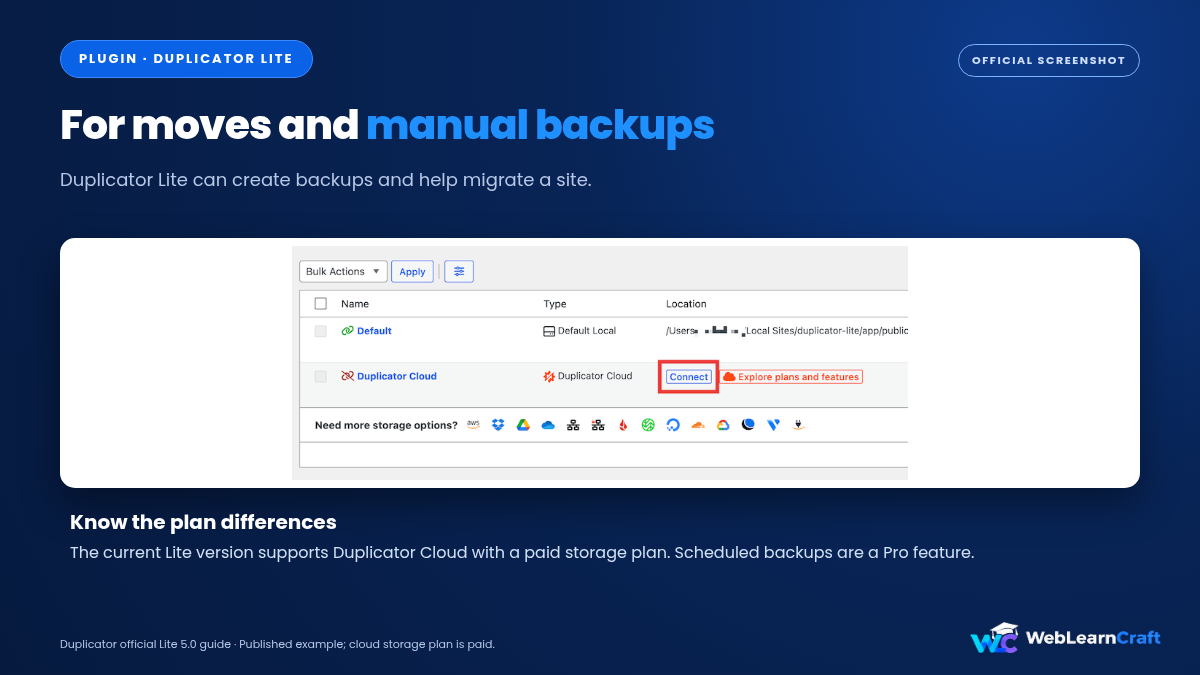
So think of Duplicator Lite as a migration tool that can also make a one-off manual backup. It isn’t an everyday backup system. If you’re moving a site, say from a local setup to a live server, it’s a handy pick. Our guide on how to move WordPress from localhost to a live server shows the process.
Best for: moving or cloning a site, not routine backups.
Which One Should You Pick?
A simple way to decide.
Want the safest, most widely used choice? UpdraftPlus. Want extra free tools like migration and staging? WPvivid. Prefer control and light server use? BackWPup. Want the simplest interface? Backuply. Moving a site? Duplicator.
Still stuck? Pick UpdraftPlus or WPvivid. Both have free versions with scheduling, off-site storage and restore, which covers most sites.
And you only need one. Two backup plugins at once waste resources and can clash.
Getting Your First Backup Running
The steps are much the same for any of them.
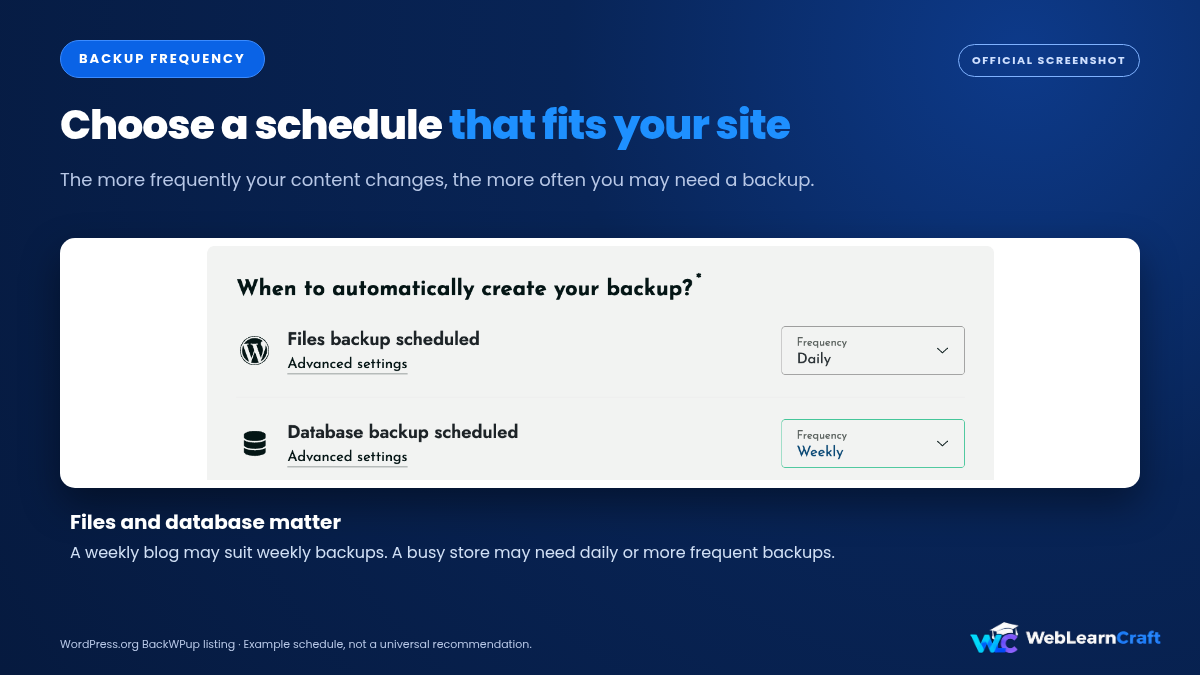
Install and activate the plugin. Pick a schedule that matches how often your site changes. A weekly blog can back up weekly. A shop with daily orders should back up daily, with the database more often than the files.
Connect off-site storage. This is the step people skip, and it’s the one that matters most.
Decide how many backups to keep. Three to five is a sensible start, so storage doesn’t fill up.
Then run your first backup by hand. Don’t wait for the schedule. Make sure it finishes and the files actually appear in your storage.
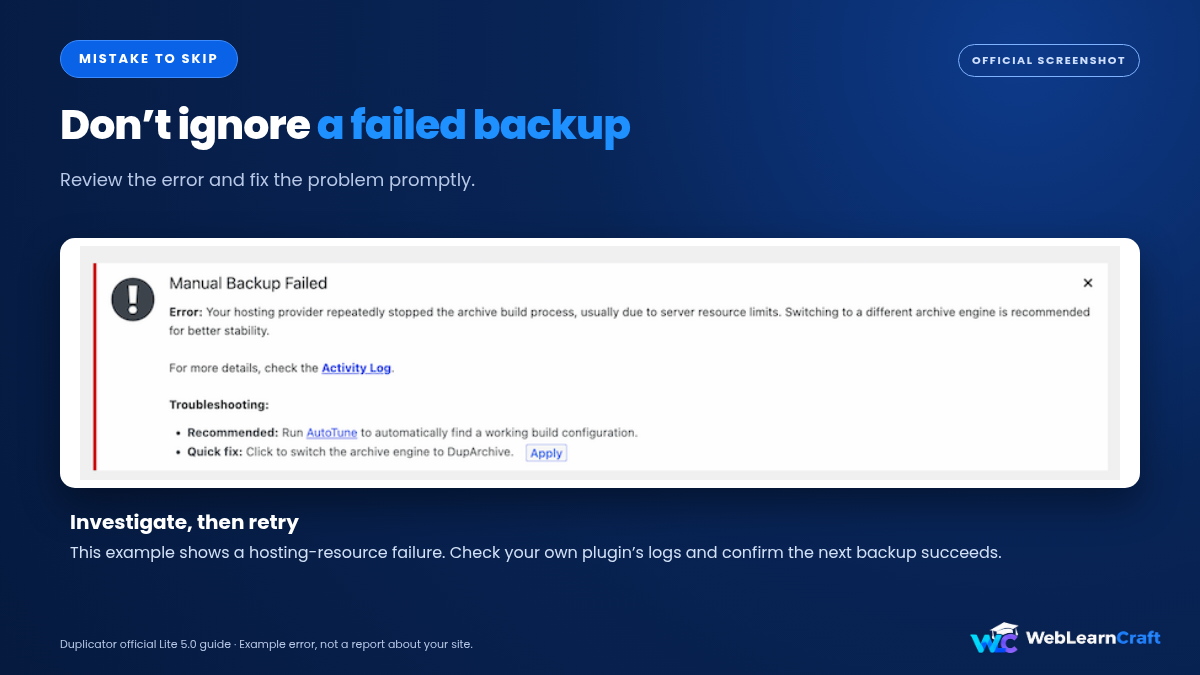
If you want a full walkthrough with one plugin, we’ve written a step-by-step guide to setting up your first WordPress backup. And if a backup fails on a big site, hosting limits are the usual cause.
Run Your Own Test
A backup you haven’t restored is a guess.
Make a staging site or a local copy, and restore your latest backup there. Does the site load? Are posts and images there? Do menus and settings look right? Click through a few pages.
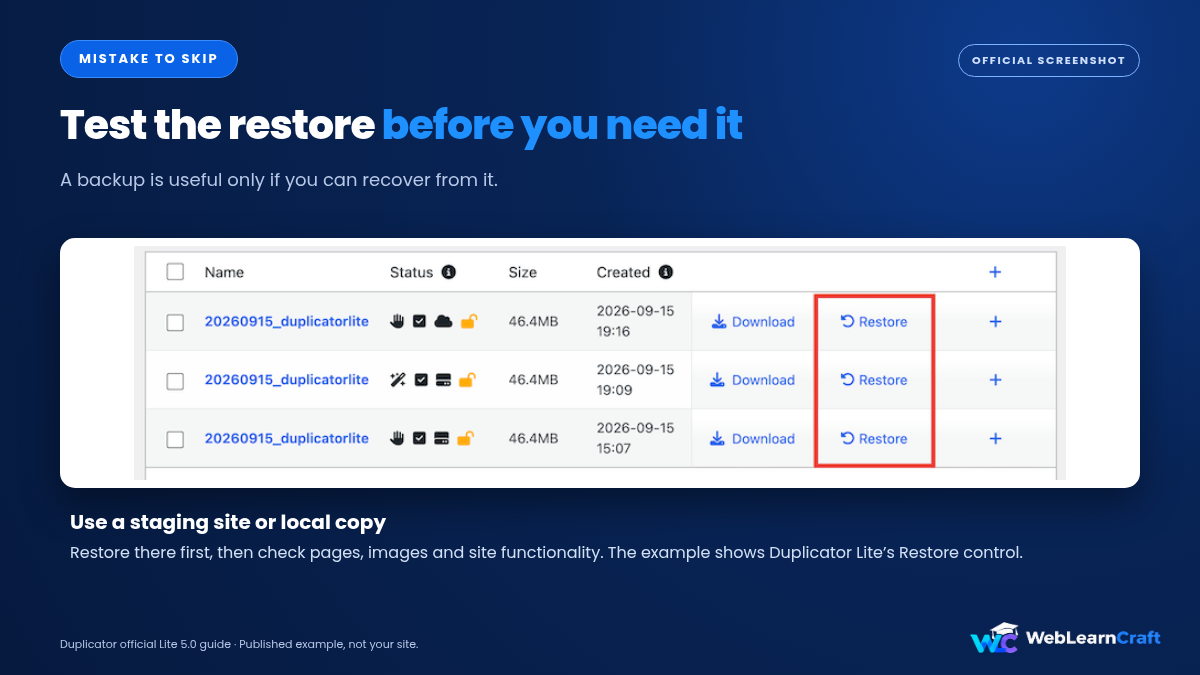
Do it at least once, and again after big changes. It takes about fifteen minutes, and it’s the difference between thinking you’re safe and knowing you are.
And if you’d like to say you “tested” these plugins, do exactly this for each one and note what worked and what didn’t. Real results beat any list, including this one.
Mistakes to Skip
- Keeping backups only on your own server. If the server dies, so do they.
- Never testing a restore. You’ll find the problem on the worst possible day.
- Running two backup plugins together. Choose one.
- Forgetting to back up before risky changes. Before editing the database or theme files, take a fresh backup. Our guide on how to fix a mixed content error involves database changes, so it’s a perfect example of when to do it.

- Ignoring failure emails. If a backup fails, fix it that day. And if your site struggles to send those emails, here’s how to fix WordPress not sending emails.
- Choosing by popularity alone. The most popular plugin isn’t automatically right for your site.

Frequently Asked Questions
What is the best free WordPress backup plugin?
UpdraftPlus is the most widely used, and it’s a safe choice for most sites. WPvivid is a strong free alternative with extras like migration.
Are free backup plugins good enough?
For most small sites, yes. UpdraftPlus and WPvivid both offer scheduling, off-site storage and restore for free. Larger or busier sites may need paid features like incremental backups.
Does Duplicator work as a backup plugin?
Duplicator Lite works for manual backups and migrations. It can connect to Duplicator Cloud with a paid storage plan, while scheduled backups require Pro. For routine free scheduled backups, choose another plugin.
How often should I back up my WordPress site?
It depends on how often your site changes. Weekly suits a weekly blog. A busy shop may need daily backups.
Where should I store my backups?
Off-site, like Google Drive, Dropbox or Amazon S3. Keeping them only on your own server is risky.
Do I need more than one backup plugin?
No. One is enough. Running several wastes resources and can cause conflicts.
How do I know my backup works?
Restore it on a staging site or a local copy and check everything loads properly.
Final Thoughts
You don’t have to pay for a decent backup. UpdraftPlus and WPvivid give you scheduled backups, off-site storage and restores for free, which covers what most sites need. BackWPup and Backuply are solid if their style suits you, and Duplicator is the one to grab when you’re moving a site.
Pick one, schedule it, send copies off-site, and test a restore. Do that, and the next time something breaks, you just restore and move on. WebLearnCraft publishes clear, beginner-friendly guides on WordPress, SEO and blogging. Browse the latest guides, or contact us if you need help with your site.
One Response