
How to Add JavaScript to WordPress Without a Plugin (3 Safe Methods)
You’ve got a small JavaScript snippet and a WordPress site. Maybe it’s a button, a widget, or something that should only show up on one page. So where does the code actually go?
Most people reach for a plugin straight away. That works, but it isn’t your only option. You can load JavaScript through your theme or paste it right into a page. The trick is choosing a spot that fits the code, and knowing how to undo it fast if something breaks.
Before You Start
Don’t skip this part. It takes five minutes and can save you hours.
Back up everything. That means your files and your database. Never done it? Our guide on setting up your first WordPress backup covers the basics.
Use a child theme. Methods 1 and 2 involve editing functions.php. If you edit the parent theme, the next update will quietly erase your work. Here’s our child theme guide if you need one.
Test on staging if you can. A staging copy lets you break things without any visitor noticing. You can create a free WordPress staging site in a few minutes.
Make sure you can reach your files. Check that your hosting file manager or SFTP works. A single PHP typo can lock you out of the dashboard, and file access is how you’ll get back in.

Method 1: Enqueue a JavaScript File
Good for: scripts you’ll keep, edit, and reuse.
“Enqueueing” is just WordPress’s proper way of loading a script. You make a JavaScript file, then tell WordPress where to find it. It can even handle dependencies if your code needs another registered script.
Step 1: Create the file
Open your child theme folder through the file manager or SFTP. You’ll find themes here:
wp-content/themes/Inside your child theme, create a js folder if it’s not there yet, then add a file called custom.js. The full path looks like this:
wp-content/themes/your-child-theme/js/custom.js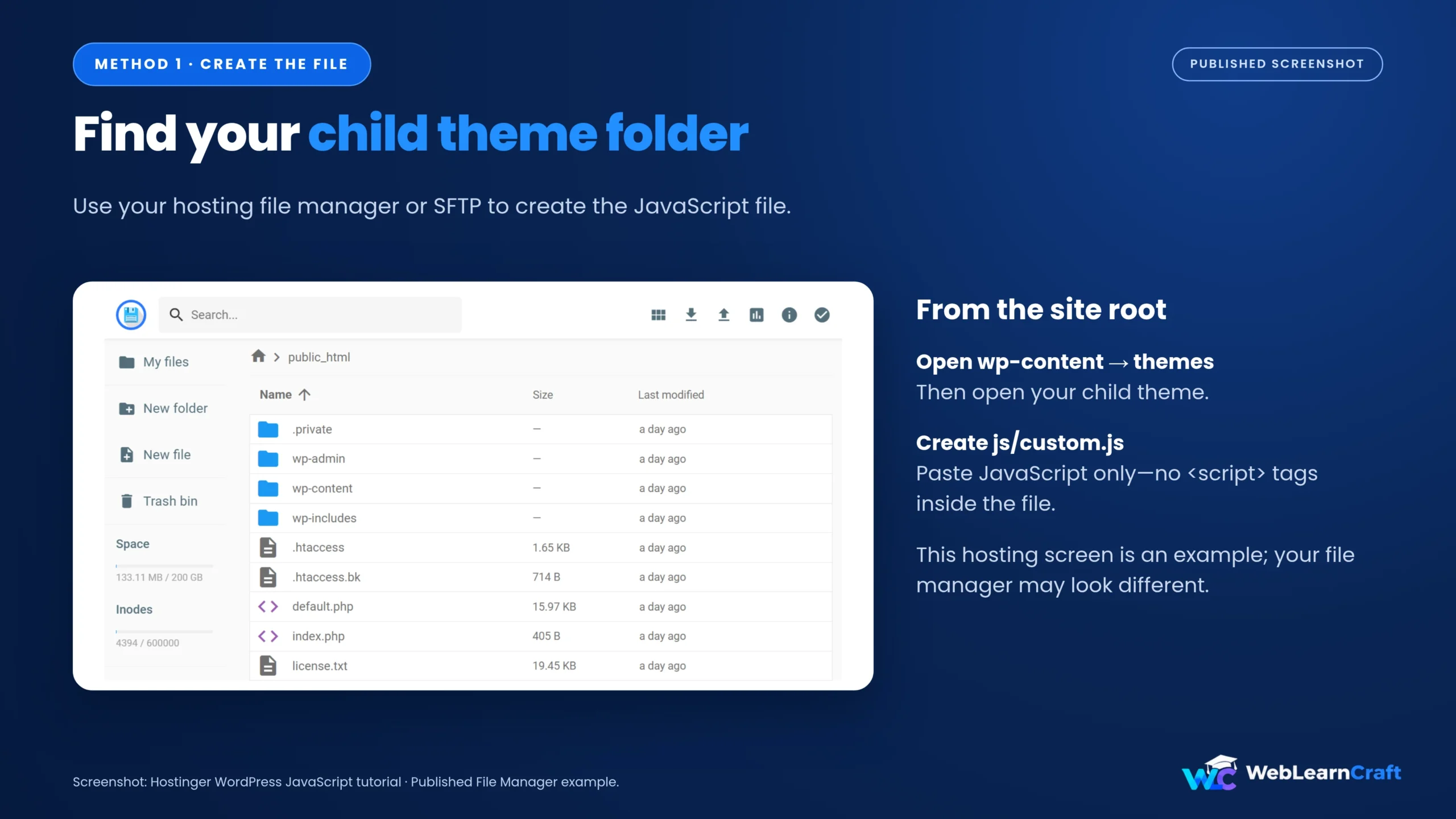
Paste in this test code and save:
document.addEventListener('DOMContentLoaded', function () {
  console.log('Custom JavaScript is running.');
});
Nothing will appear on the page itself. The message only shows up in your browser console, which we’ll check in a minute.
One thing trips people up all the time: don’t wrap the code in <script> tags inside a .js file. That file is pure JavaScript.
Step 2: Tell WordPress to load it
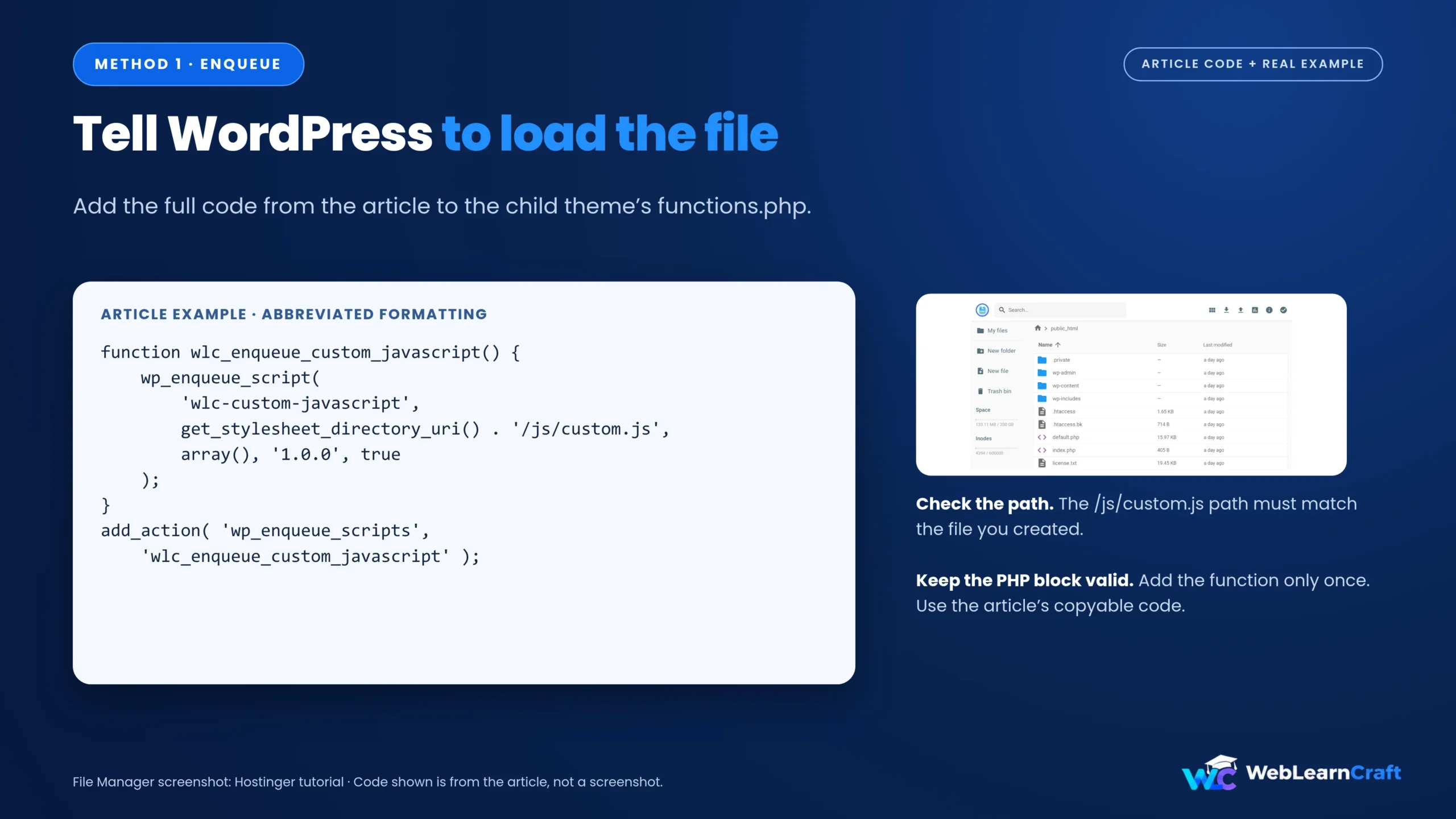
Open your child theme’s functions.php and add this inside the existing PHP:
function wlc_enqueue_custom_javascript() {
    wp_enqueue_script(
        'wlc-custom-javascript',
        get_stylesheet_directory_uri() . '/js/custom.js',
        array(),
        '1.0.0',
        true
    );
}

add_action( 'wp_enqueue_scripts', 'wlc_enqueue_custom_javascript' );
Leave your existing code alone. If you’re already inside a PHP block, don’t add another <?php tag. And make sure you paste this function only once.
The path points to the file you just made. 1.0.0 is the version number, and the final true loads the script in the footer.
Step 3: Check that it works
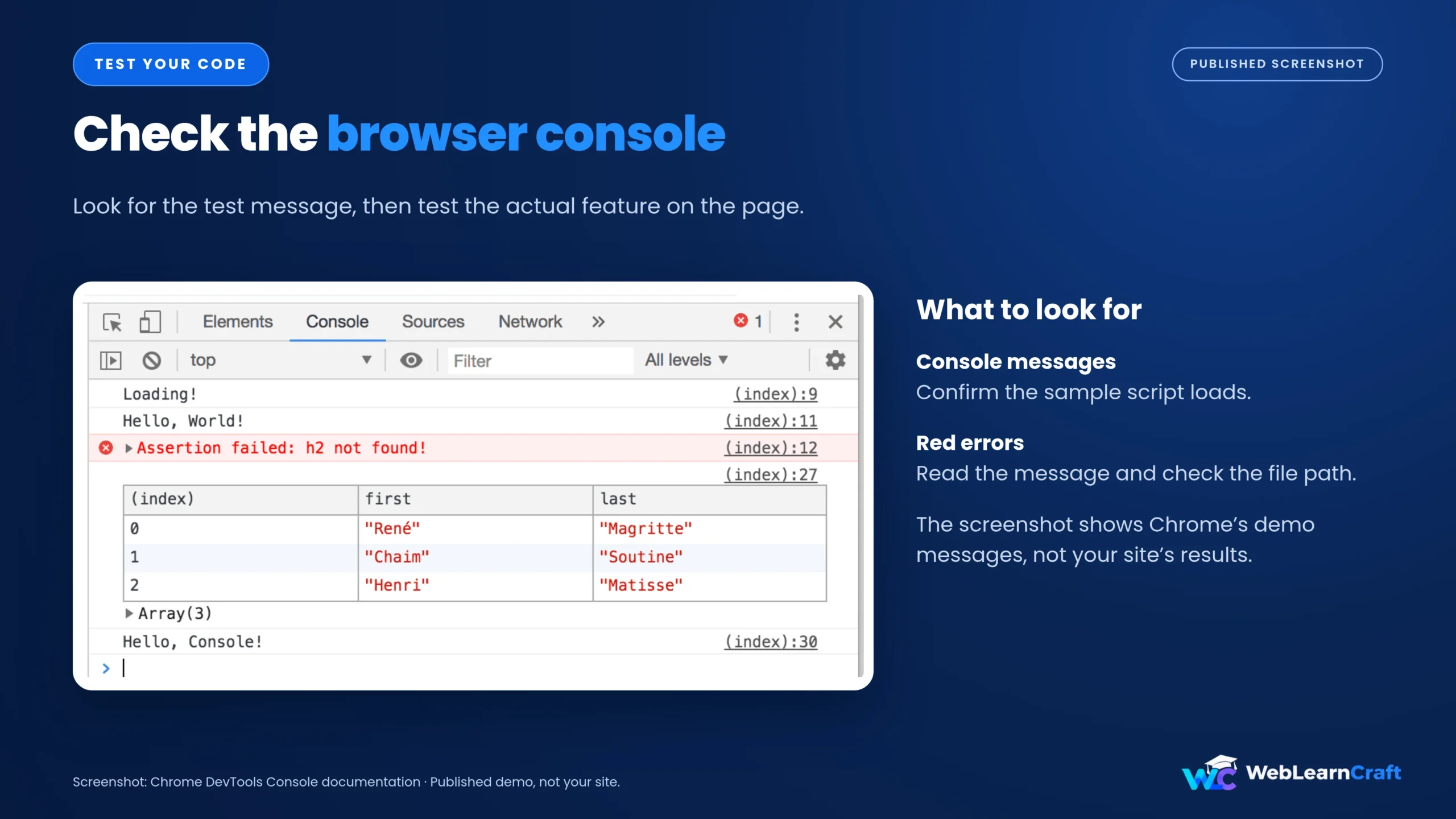
Open your site’s front end, right-click, choose Inspect, and switch to the Console tab. You should see:
Custom JavaScript is running.Seeing it means the setup works. Now replace the test code with your real script and test the actual feature. A console message only proves the file loads. It says nothing about whether your new code does its job.
Load the script on one page only
Say you only need it on a page with the slug contact. Add this inside your existing function, right above wp_enqueue_script():
if ( ! is_page( 'contact' ) ) {
    return;
}
Swap contact for your own slug. Edit the function you already have instead of making a second one.
Method 2: Add a Small Inline Script
Good for: short, trusted snippets that don’t deserve their own file.
An inline script gets printed straight into the page’s HTML. This version uses the footer hook. Add it inside the PHP section of your child theme’s functions.php:
function wlc_add_inline_footer_script() {
    echo '<script>console.log("Inline script is running.");</script>';
}

add_action( 'wp_footer', 'wlc_add_inline_footer_script' );
Save, reload your site, and look in the console. You should see:
Inline script is running.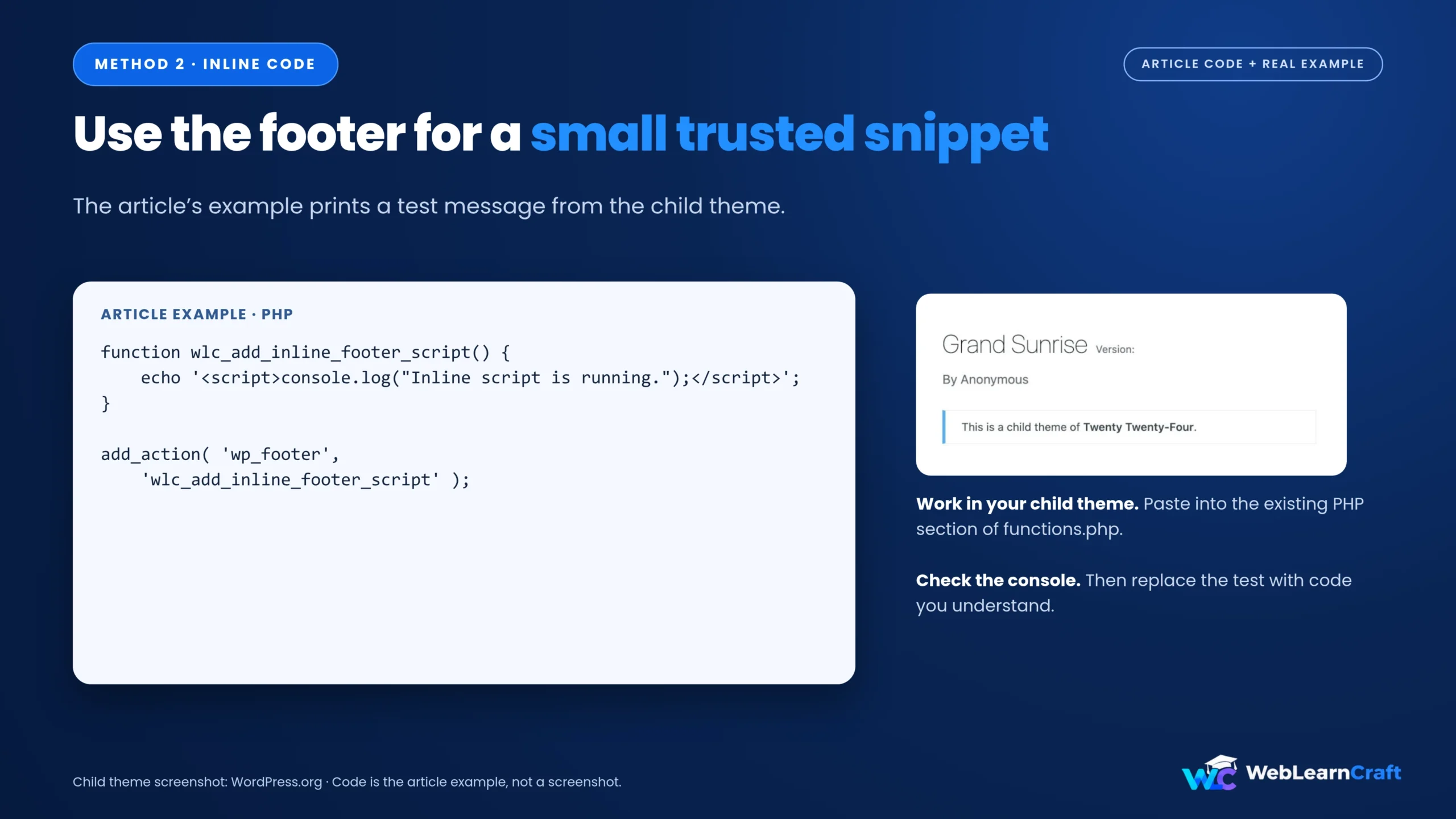
A word of caution on third-party code: only paste something if you know where it came from and what it does. If a service gave you the snippet, follow its install instructions closely, because some scripts need a specific position or loading order. For tracking and ad code, also check the consent rules that apply to your visitors.
Method 3: Use a Custom HTML Block
Good for: code that belongs on a single post or page, with no theme editing at all.
In the block editor:
- Click the + button.
- Search for Custom HTML and add it.
- Paste your trusted snippet into the block.
- Preview the page, test it, then update.

Here’s a quick test you can paste in:
<script>
console.log('JavaScript on this page is running.');
</script>
Open the page on the front end and check the console. Remember, this code lives inside that one page’s content. It isn’t installed site-wide.
Why did WordPress delete my script?
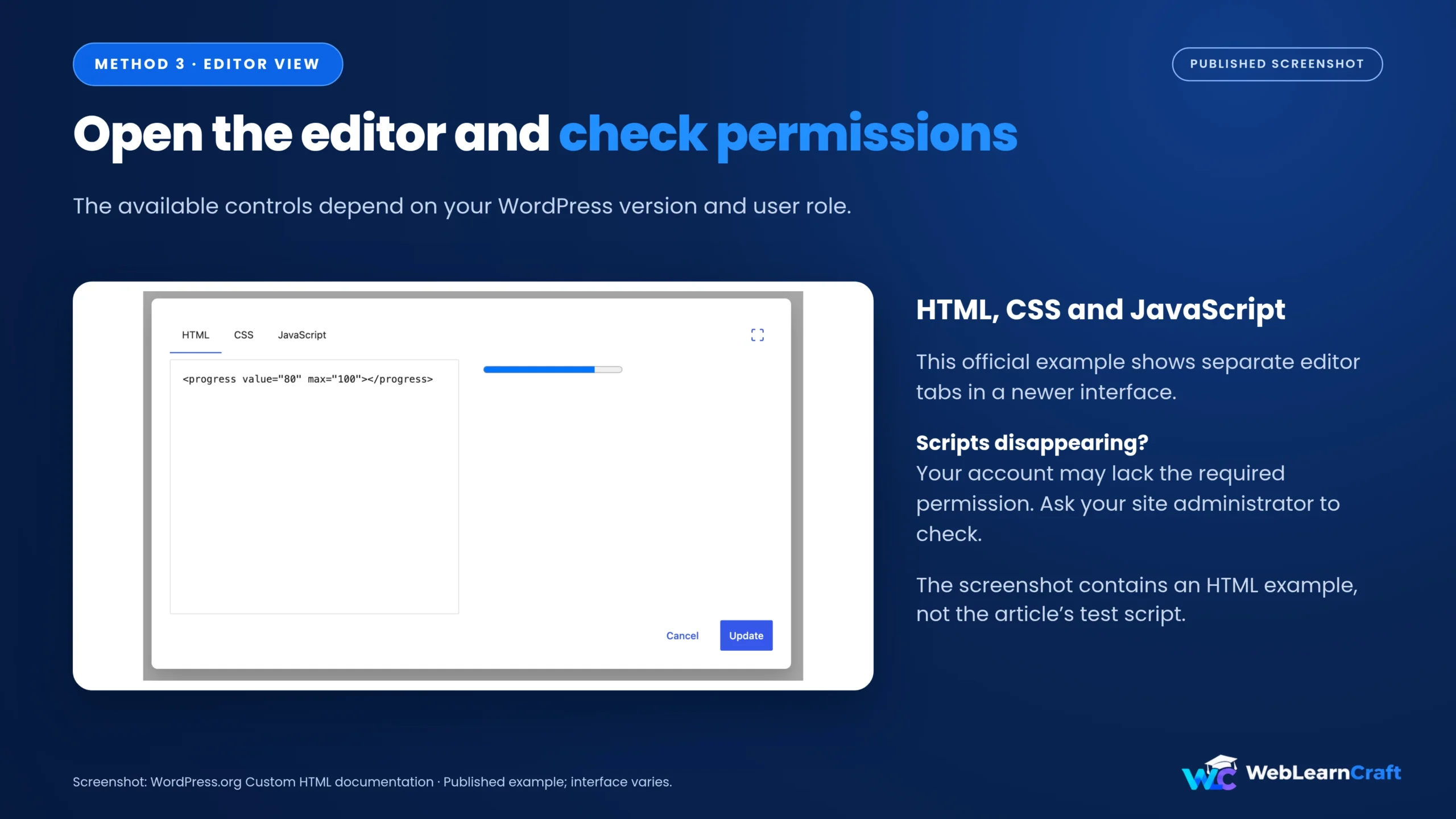
Not every user can save <script> tags. If your account doesn’t have the unfiltered_html capability, WordPress strips them out. Multisite setups, hosting rules, and security settings can add their own limits too.
In WordPress 7.0, the Custom HTML block can show separate HTML, CSS, and JavaScript panels for users with the right permissions. What you see depends on your version and access level.
If your script keeps disappearing, ask your site admin to check your permissions. Don’t try to bypass the restriction unless you understand why it’s there.
Which Method Should You Pick?
- A separate file is best for anything you’ll maintain. It’s easy to find later and keeps
functions.phpclean. - An inline script is fine for something tiny and trusted.
- A Custom HTML block makes sense when the code only matters on one page.
If your snippet comes from a third-party service, read its instructions first. Some scripts must load in the head or after a specific library, and moving them can break things.
How to Test Your JavaScript
Console messages are a nice first check, but the real test is the feature itself. Built a menu? Click it. Changed a button? Press it. Then look at the page on a phone-sized screen too.
If it’s not working, open the console and look for red errors first. After that, double-check the file path. On many servers, Custom.js and custom.js are two different files.
Caching is another usual suspect. Clear your browser, site, and CDN cache, then reload. If you edited an enqueued file, changing the version from 1.0.0 to 1.0.1 pushes browsers to grab the fresh copy.
Last, make sure the same script isn’t loading from somewhere else. This matters most for tracking tags. If you’re adding analytics, read our guide to adding Google Analytics 4 without a plugin so you don’t install the tag twice.
What If Your Site Breaks?
Don’t panic. If something goes wrong right after you edit functions.php, undo your last change. Open the file through the file manager or SFTP and restore the previous working version. Can’t get in at all? Use your backup, or ask your host for help.

Once the site is back, hunt for the usual culprits: a missing bracket, an extra PHP opening tag, or a function name that already exists. Test the fix on staging before going live again.
If the site loads but the JavaScript doesn’t run, make sure your child theme is active and the file path is right. Your theme also has to call the standard WordPress header and footer hooks, or scripts won’t print.
Common Mistakes
- Editing the parent theme and losing the change after an update
- Changing PHP with no backup and no file access
- Adding the same function or tracking script twice
- Putting
<script>tags inside a.jsfile - Pasting code you haven’t read
- Checking only the editor preview instead of the live page
FAQs
Can I add JavaScript to WordPress without a plugin?
Yes. Enqueue a file through a child theme, add a short inline script with a hook, or drop a Custom HTML block into a single page.
Do I need a child theme?
If you’re editing theme files like functions.php, yes. It protects your work from parent theme updates. For a Custom HTML block, you don’t need one.
Can I load JavaScript on just one page?
Yes. Use a Custom HTML block on that page, or add an is_page() condition when enqueueing your file. Just make sure the slug matches.
Why does my script vanish after saving?
Your account probably isn’t allowed to save script tags. Multisite, hosting, or security settings can also be the cause.
Will JavaScript slow my site down?
It can. A tiny snippet barely matters, while a heavy third-party tool can hurt load times. Only load code where you need it, and test your site afterward.
Final Thoughts
Go with the smallest change that gets the job done. A Custom HTML block might be enough for one page. For code you’ll keep working on, a separate JavaScript file is the better long-term choice.
Whatever you choose, back up first, test the real feature, and know how to roll back. If something fails, check the console and the file path before adding more code.
Want more WordPress and SEO tutorials? Browse our latest guides. Need a hand with your site? Get in touch.
5 Responses