
WordPress Not Sending Emails? Fix It With Free SMTP in 10 Minutes
Imagine a small shop. A customer pays for an order, and nothing happens. No receipt, no “thanks for your purchase,” nothing. The customer waits two days, then asks for a refund.
The shop isn’t broken. WordPress is simply failing to send emails, and nobody noticed. If your contact form, password reset or order emails never show up, you’re probably dealing with the same thing. The good news is that fixing WordPress not sending emails is quick, free, and easier than it sounds.
Table of Contents
Why WordPress Stops Sending Emails
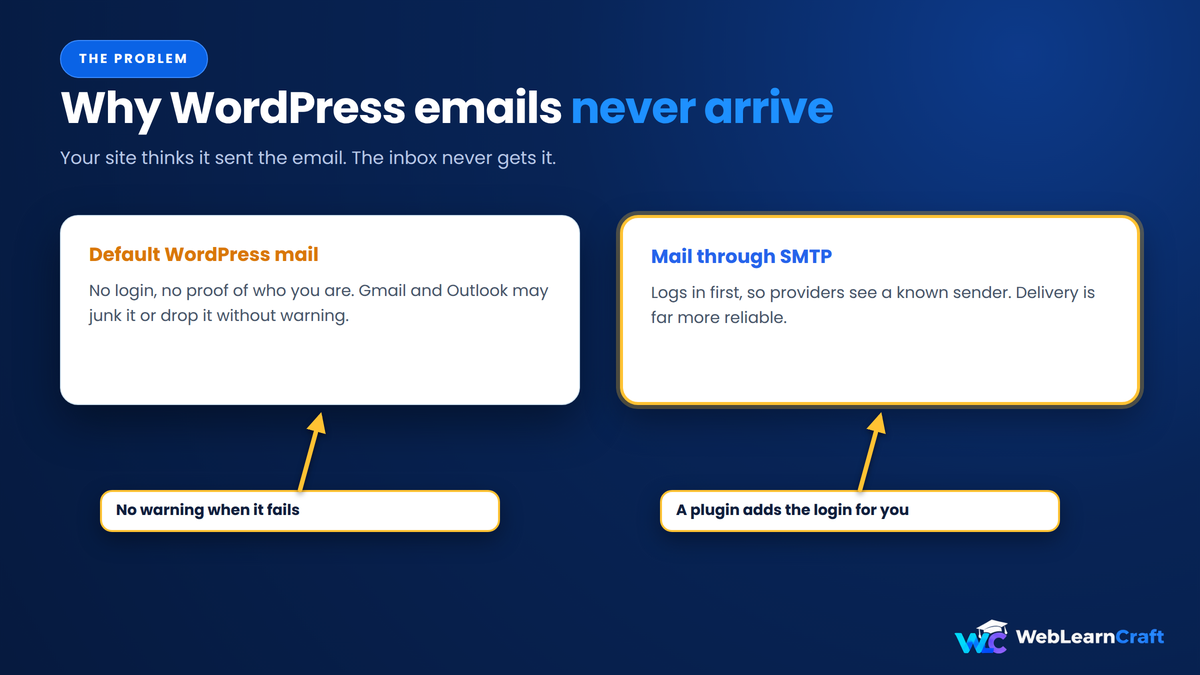
Out of the box, WordPress sends mail using a basic function on your hosting server. No login, no proof of who you are. It just shouts the email into the void and hopes for the best.
Here’s the problem. Gmail, Outlook and Yahoo have gotten very picky. An email coming from a random server with no authentication looks a lot like spam, so it gets junked or dropped without any warning. Many hosts also limit or block that basic mail function to stop abuse.
So your site thinks it sent the email. The inbox never gets it. And nobody tells you anything went wrong. That’s what makes this so annoying. Many site owners only find out weeks later, when a customer asks where their order email went.
First, Confirm the Problem
Before installing anything, make sure the problem is real. Try a password reset on your own site using an email address you can check. Wait five minutes. Check spam too.
Or submit your contact form and watch your inbox. If nothing shows up, in either inbox or spam, move on. If it lands in spam, you’ve still got the same underlying problem. Spam placement is just a softer version of it.
What SMTP Actually Is
SMTP is just the standard way email gets sent between servers. The difference is that SMTP logs in first. It says “here’s my username and password, I’m allowed to send from this address.”
That login is what email providers want to see. Route your WordPress emails through a proper SMTP service and they arrive far more reliably. You’re no longer a stranger knocking at the door. You’re a known sender.
You don’t have to understand it deeper than that. A plugin handles the technical part.
What You Need
Two free things. A plugin that connects WordPress to an email service, and the email service itself.
For the plugin, I’d pick FluentSMTP. It’s free, it’s open source, and it works with lots of providers, including Brevo and Gmail. WP Mail SMTP is another popular choice, though some features sit behind a paid plan. FluentSMTP keeps everything free, which suits a small site.
For the email service, I’d go with Brevo, formerly called Sendinblue. It has a free plan that, at the time of writing, allows roughly 300 emails a day. Limits can change, so check their pricing page before you rely on it. For a small blog that sends a handful of contact form and password reset emails a day, that limit is usually more than enough.

Set aside about ten minutes. Let’s go.
Step 1: Make a Free Brevo Account
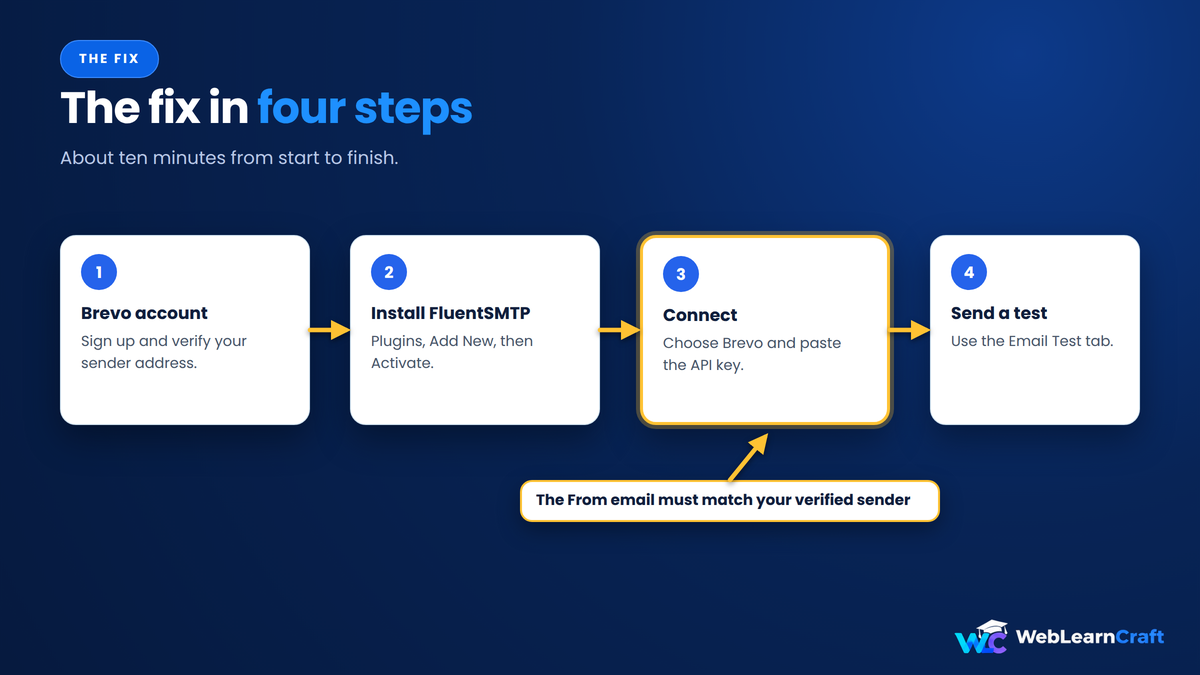
Go to Brevo’s website and sign up. You’ll need to confirm your email and fill in a few details about your business. Don’t overthink that part.
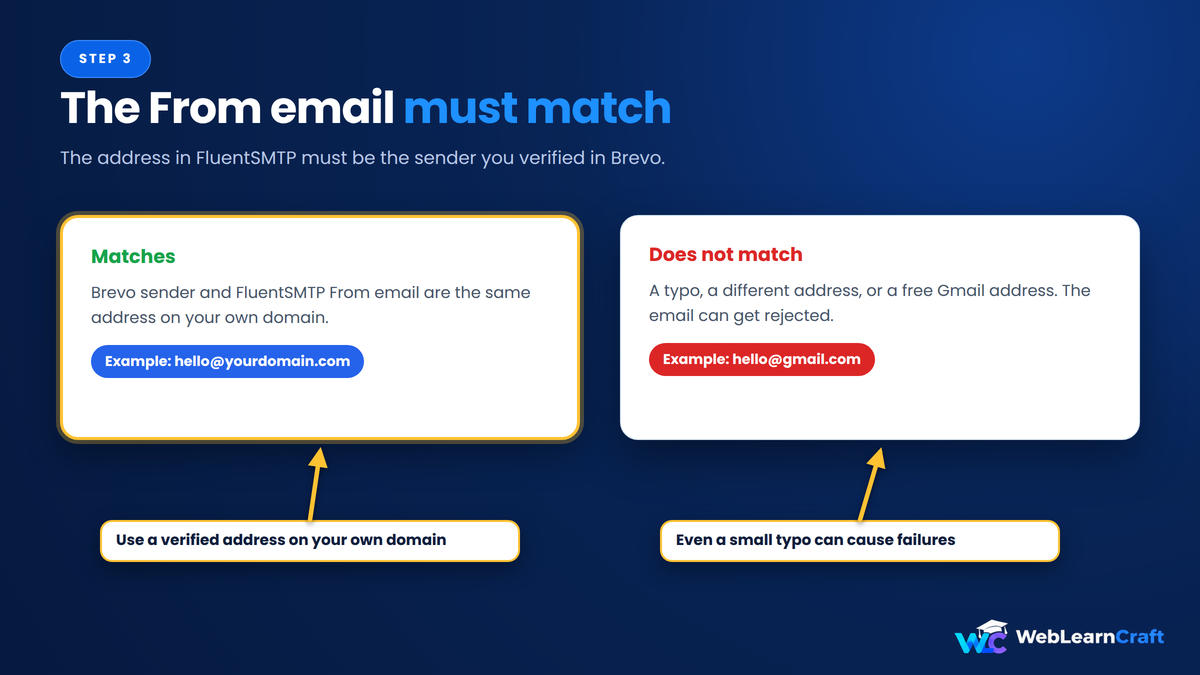
Next, you need to set up a sender. That’s the address your emails will come from. Use an address on your own domain, something like hello@yourdomain.com, rather than a free Gmail address. This matters more than people think. Sending “from Gmail” through a different service often fails, because Gmail’s own rules don’t allow it.
Brevo will ask you to verify that sender, usually with a code sent to that inbox. If you don’t have a mailbox on your domain yet, create one in your hosting panel first.
Then open your Brevo account settings and find the SMTP & API section. You’ll create an API key or SMTP key there. Copy it somewhere safe. Treat it like a password, because that’s exactly what it is.
Step 2: Install FluentSMTP
Back in WordPress, go to Plugins, then Add New, search for “FluentSMTP”, then install and activate it.
After activating, you’ll find it under Settings in your dashboard, usually listed as FluentSMTP. Menu names shift a little between versions, so don’t panic if yours looks slightly different.
That’s it for the install. Nothing else happens until you connect a service.
Step 3: Connect the Two
Open FluentSMTP and add a new connection. You’ll see a list of providers. Choose Brevo.

Now fill in the fields. First, the From email. Use the exact sender you verified in Brevo. If these don’t match, emails get rejected, and this one detail causes more failures than anything else.
Next, the From name. Your site or business name works well.
Then paste the API key you copied earlier. Save the connection.
FluentSMTP can also connect through standard SMTP settings instead of the API. The API route usually means fewer ports to worry about. For most beginners, the API method is the better starting point. Use standard SMTP only if you have a specific reason to.
Finally, look for any option about forcing the From email. Turning it on helps make sure every email, including those from contact form and shop plugins, uses your verified address.
Step 4: Send a Test
Don’t skip this. FluentSMTP has an Email Test tab. Type in an address you can check, and hit send.
If everything’s right, you’ll see a success message and the email shows up within a minute. Look at the inbox, and the spam folder too. If it lands in spam the first time, mark it “not spam.” That small action helps.
Then test the real thing. Do a password reset, submit your contact form, or place a test order. A test email working doesn’t guarantee your plugins use the same route, so check the actual emails you care about.
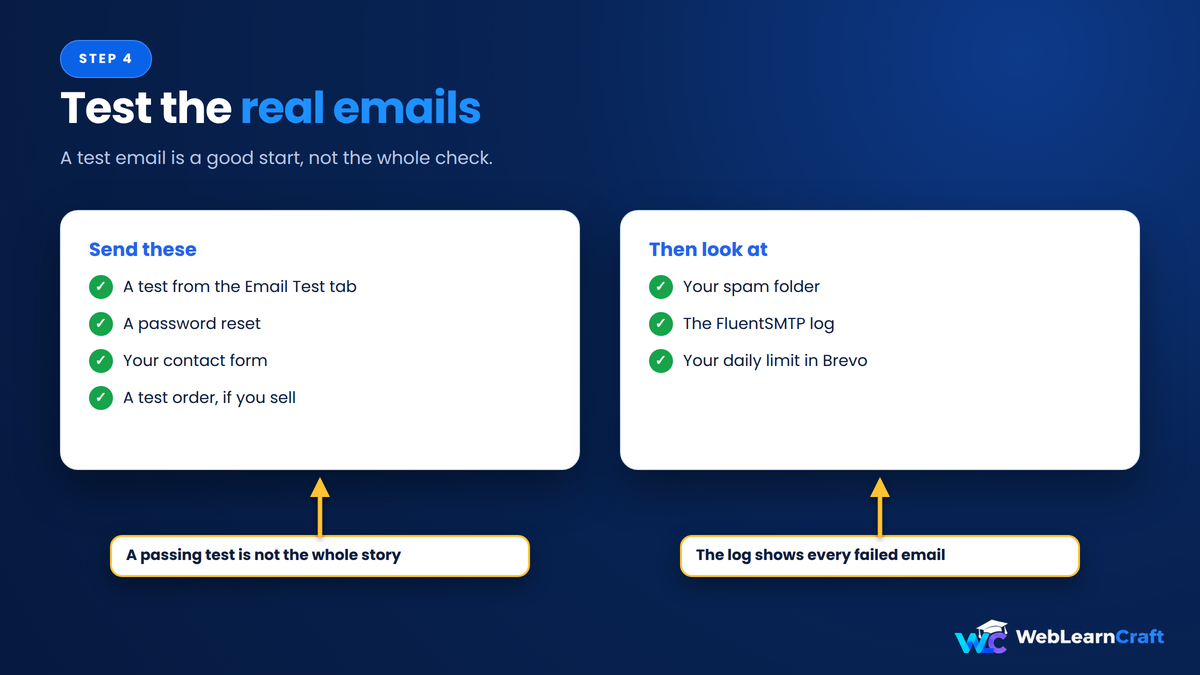
FluentSMTP also keeps a log, so you can see every email your site sent and whether it failed. That log is the first place to look when something odd happens.
Just moved a site from your computer to a live server? Email is one of the steps people forget, and we cover it in our guide on how to move WordPress from localhost to a live server.
Still Not Working?
Don’t worry, this happens. Here’s the order I’d check things in.
The From address doesn’t match. Make sure the address in FluentSMTP is exactly the verified sender in Brevo. Even a small typo causes failures.
Your plugin uses its own From address. Some contact form and shop plugins set their own sender. Open the form or email settings and change it to your verified address.
Wrong or expired key. Regenerate the key in Brevo, paste it in again, and save.
Blocked port. If you’re using SMTP instead of the API, some hosts block certain ports. Switching to the API method usually solves it. Your host’s support can confirm what’s open.
Emails land in spam. Check that your domain has SPF and DKIM records set up. Brevo walks you through adding them in your DNS settings. It takes a few minutes, and it’s the biggest thing you can do for deliverability.
Hitting the daily limit. On a free plan, a sudden burst of emails can run into the cap. Check your Brevo dashboard.
A common example: a contact form plugin sets its own From address, so every message fails until you change it to your verified sender.

Mistakes to Skip
- Using a free Gmail address as your From email. It often fails when sent through another service.
- Skipping the test. A setup that looks correct can still be quietly broken.
- Installing two SMTP plugins at once. They fight each other, and you won’t know which one is in charge.
- Pasting your key in public places, like screenshots or support forums. Anyone who sees it can send mail as you.
- Ignoring spam. Your emails may be “sent” but never actually seen. Look at where they really land.
Frequently Asked Questions
Why is WordPress not sending emails?
Usually because it relies on a basic server mail function with no authentication. Many email providers reject or junk those messages, and some hosts block the function entirely. Routing mail through SMTP with a proper login fixes most cases.
Is there a free way to fix it?
Yes. A free plugin like FluentSMTP plus a free email service like Brevo does the job for most small sites. Check the provider’s current free limits before you rely on them.
Do I need a paid SMTP plugin?
Not for a small site. Paid plans mostly add extras, such as longer logs and support, which a small blog rarely needs.
Can I use Gmail instead of Brevo?
Yes, but it needs more setup, either an app password with two-step verification or an OAuth connection. Brevo is usually simpler for beginners.
Why do my emails go to spam?
Often because SPF and DKIM aren’t set up, or the From address doesn’t match your domain. Fix both and spam placement usually improves.
Will this fix WooCommerce emails too?
Yes, as long as WooCommerce sends through WordPress’s mail system, which it does by default. Place a test order to be sure, and check that your shop plugin isn’t using its own From address.
How many emails can I send for free?
It depends on the provider. Brevo’s free plan has allowed about 300 a day, but limits can change, so check their current pricing page.
Final Thoughts
When WordPress isn’t sending emails, it usually isn’t a bug. It’s a missing login. Give your site a proper SMTP connection, and the problem mostly disappears.
Make a free Brevo account, install FluentSMTP, connect them with a verified sender, and send a test. Ten minutes, maybe fifteen if DNS records slow you down. Then check your logs now and then, so you never lose a customer email without knowing. Once it’s set up, a quick test email and a look at the log will tell you right away whether everything works.
For more beginner guides, browse the WebLearnCraft blog. Need help with your site? Contact us and we’ll point you the right way.
2 Responses