
WordPress Stuck in Maintenance Mode? 2-Minute Fix
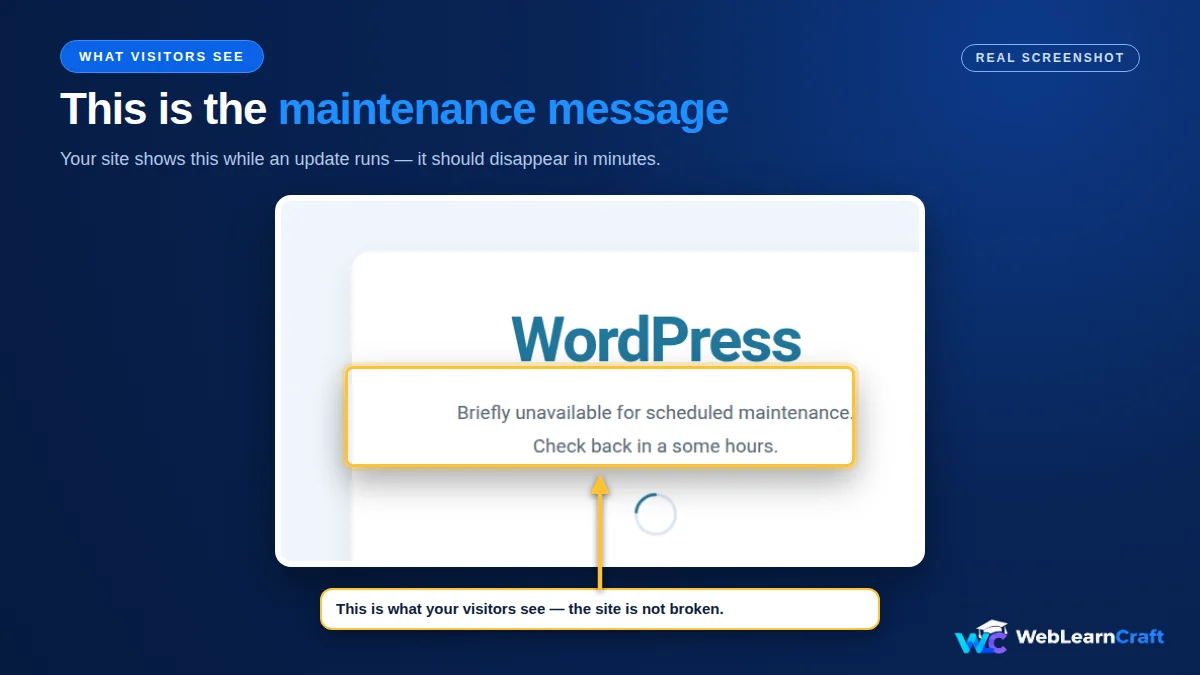
Quick scene. You hit Update on a plugin, refresh the page, and instead of your site you see one line: “Briefly unavailable for scheduled maintenance. Check back in a minute.” Ten minutes later, it is still there. WordPress stuck in maintenance mode is usually a quick fix. That is the moment this guide saves you.
Your content is not deleted. In most cases, one small hidden file is left behind after an interrupted update. Below is how to fix WordPress stuck in maintenance mode in 2 minutes, what to check if the message comes back, and how to stop it happening again.
Table of Contents
What Is Maintenance Mode, Anyway?
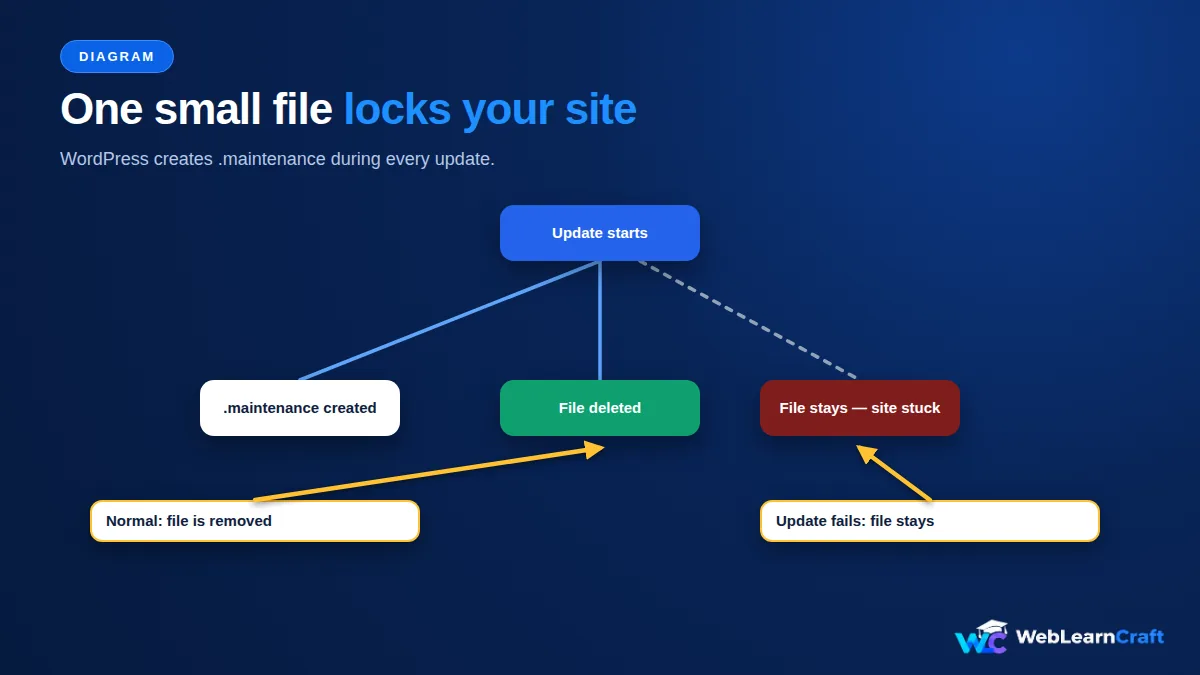
When WordPress runs an update, it creates a tiny hidden file called .maintenance in your site’s root folder, the same folder that holds wp-config.php. While that file is active, visitors see the maintenance message instead of your site. When the update finishes, WordPress deletes the file automatically and your site comes back in seconds. If the update is interrupted, a timeout, low PHP memory, a closed browser tab, or a bulk update that fails halfway, the file stays behind and the site looks stuck.
Sometimes, when a WordPress update doesn’t go as planned, it leaves a .maintenance file behind. That leftover file is what keeps WordPress stuck in maintenance mode, which can be confusing. Don’t worry, though! Deleting this file is completely safe and won’t erase any of your content. It’s just a leftover from the update process, and removing it will get your site back up and running smoothly.
WordPress stuck in maintenance mode means the .maintenance file was never deleted. WordPress serves this message with HTTP status 503 (Service Unavailable) and a Retry-After: 600 header. That is actually good news for SEO: a 503 tells Google the outage is temporary, so Google should come back later instead of dropping your pages. A 503 that lasts for days is different, so fix it the same day.
Fix 1: Wait 10 Minutes and Hard Refresh
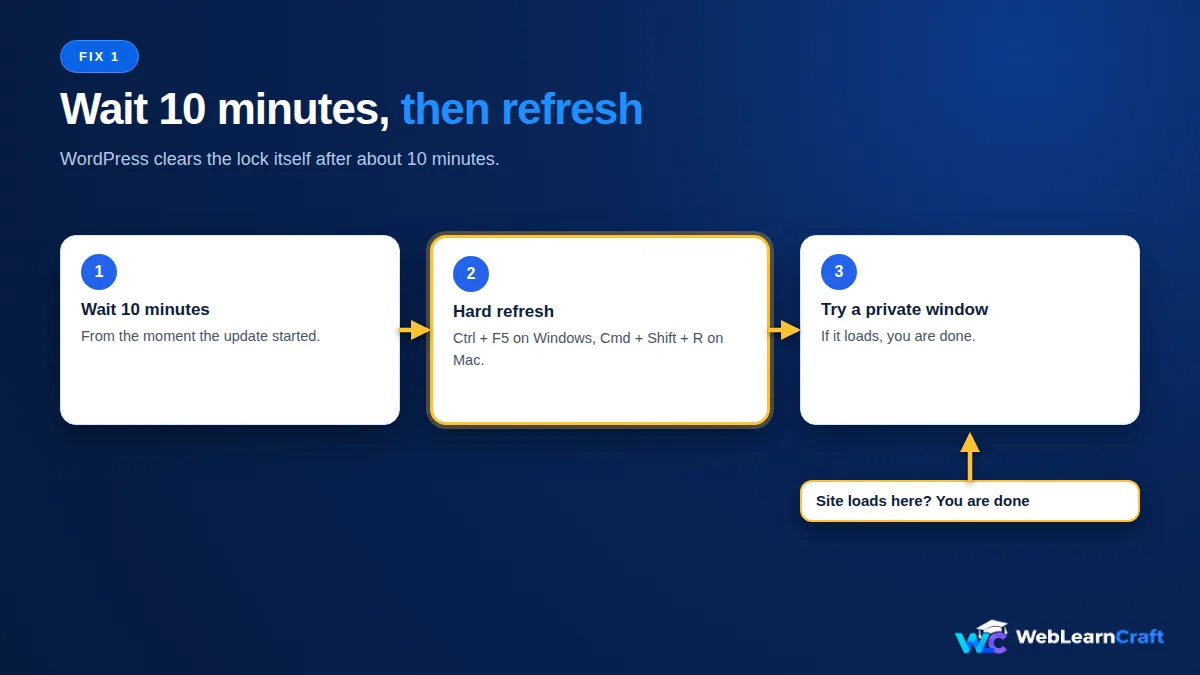
Before you touch any files, wait. WordPress ignores a .maintenance file once its timestamp is more than about 10 minutes old, so the message may clear on its own. Wait 10 minutes from the moment the update started. Then hard refresh the page: Ctrl + F5 on Windows, Cmd + Shift + R on Mac. Open the site in a private or incognito window too. If the site loads, you are done.
WordPress cleared the lock itself. If it is still stuck after 10 minutes, go to Fix 2, deleting the file is still the right first step, but also check the cache and the failed update below, something else is keeping the message alive. If WordPress stuck in maintenance mode is still showing after this wait, Fix 2 is the next step.
Fix 2: Delete the .maintenance File
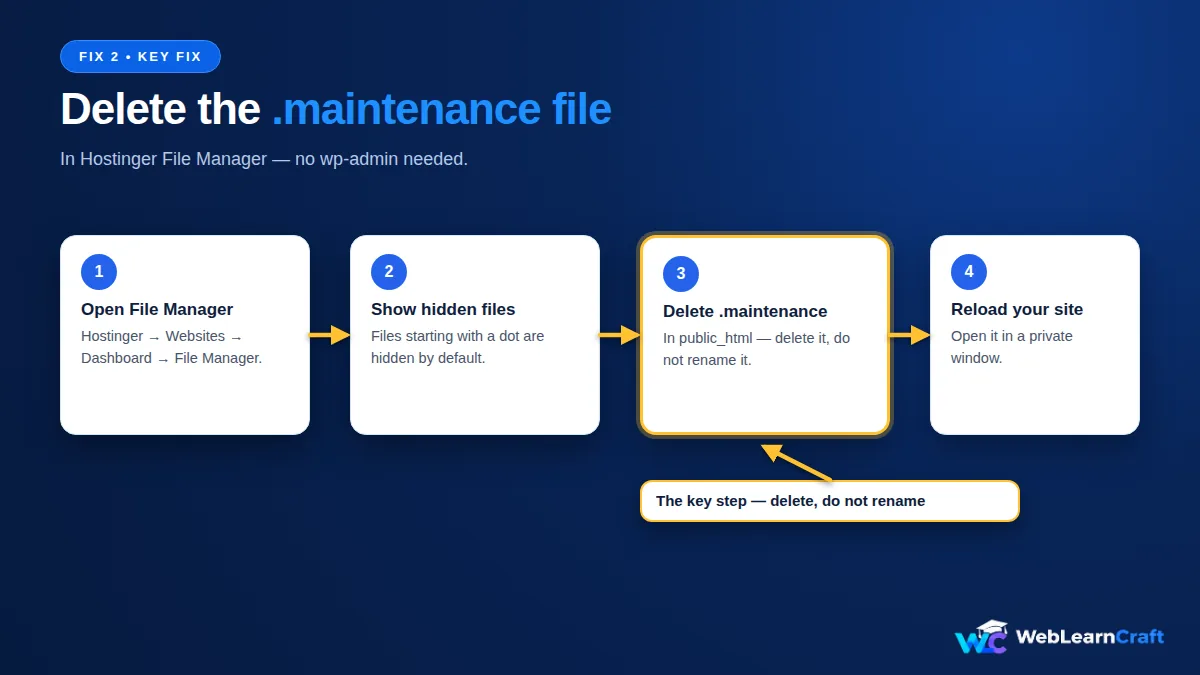
This fixes almost every stuck site. You do not need wp-admin for this, you use your hosting account. First, take a backup if you do not have a recent one. If you need help, read our guide on how to set up your first WordPress backup, and compare the free options in our free WordPress backup plugins compared for 2026 guide.
Then log in to Hostinger > Websites > Dashboard > File Manager, not WordPress admin. Open the WordPress root folder, usually public_html. It should contain wp-config.php, wp-admin, and wp-content. Turn on Show Hidden Files. Files that start with a dot are hidden by default, so .maintenance will not appear until you do this. In Hostinger File Manager, use Settings or the gear icon. Find the file named .maintenance, right-click it, and choose Delete. Do not rename it, delete it completely.
Reload your site in a new private or incognito tab. If the site loads normally, maintenance mode is over. If WordPress stuck in maintenance mode is still showing after this, clear the cache next, as in Fix 3.
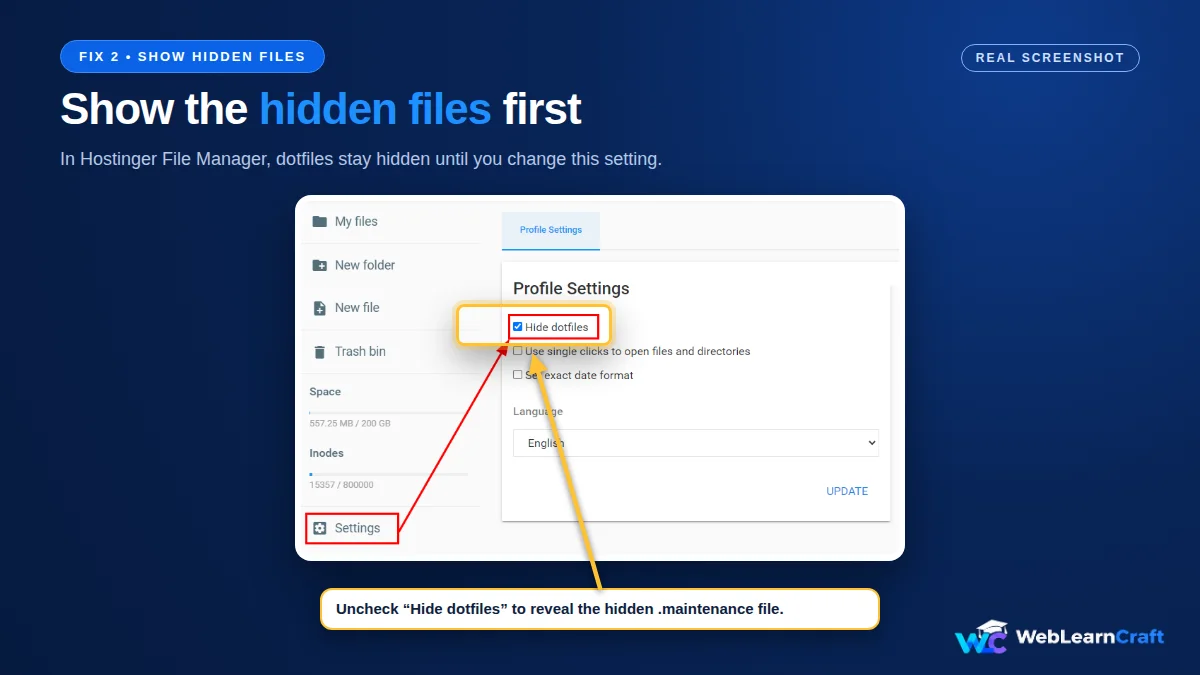
FTP alternative: Connect with FileZilla, go to Server, force showing hidden files, open public_html, delete .maintenance, and reload.
WP-CLI alternative (if your host gives SSH access): run wp maintenance-mode deactivate. WordPress should reply: “Success: Deactivated Maintenance mode.”
Fix 3: Clear the Cache, Especially LiteSpeed Cache
If you deleted the file and the message is still showing, a cache may be serving the old maintenance page. Clear your browser cache, or test in a private window. In WordPress, once you can log in, clear LiteSpeed Cache > Purge All. If you use a CDN, purge the CDN cache too. Then reload the site again. If WordPress stuck in maintenance mode is still showing after that, move on to Fix 4.
Fix 4: Finish the Update That Failed
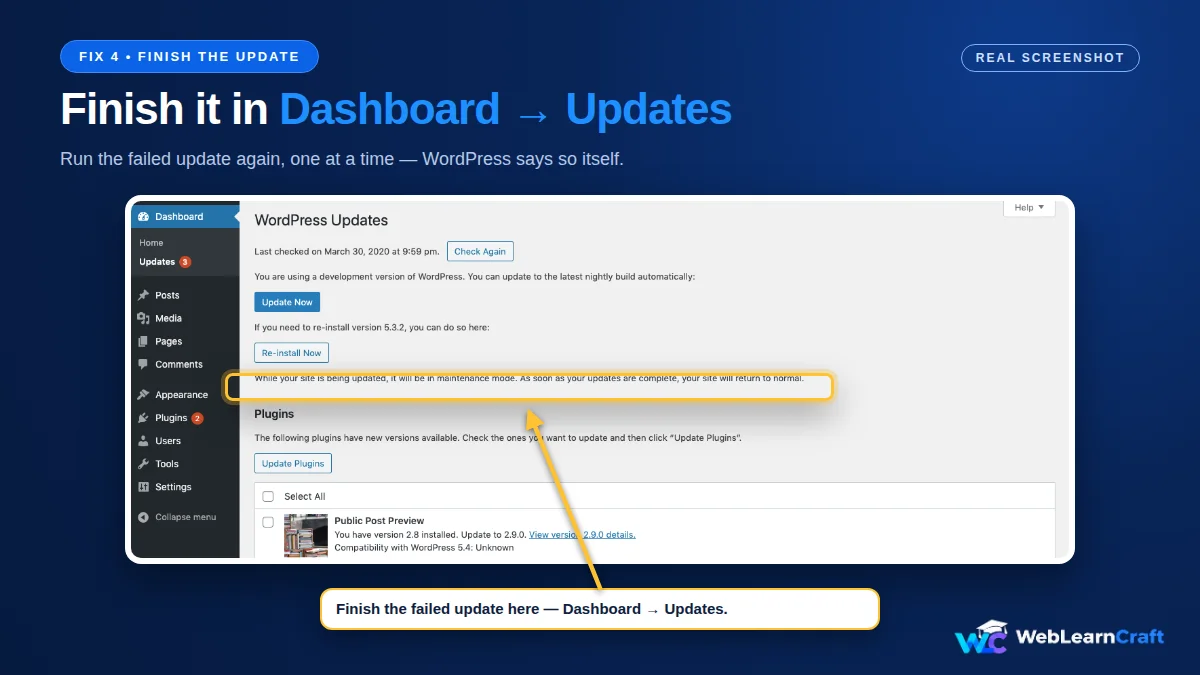
Deleting the file restores access. It does not mean the update that triggered maintenance mode actually completed. Go to Dashboard > Updates in WordPress. Run any update that did not complete, one at a time, not all at once. Check Plugins and Themes for anything marked as needing an update or showing an erro
r. If a plugin looks half-installed or broken after the update, deactivate it, delete it, and reinstall a fresh copy from WordPress.org or the plugin seller. If the site goes white or shows “There has been a critical error on this website” after you delete the file, the interrupted update left a plugin half-installed. Deactivate plugins one by one, or rename the wp-content/plugins folder via File Manager to deactivate them all at once, to find the broken one. If WordPress stuck in maintenance mode comes back after this, a broken plugin is the most likely cause.
Fix 5: If There Is No .maintenance File
You checked the root folder, the file is not there, and visitors still see the maintenance page. Check these, in order. First, the cache, see Fix 3 above. This is the most common cause. WordPress stuck in maintenance mode does not always mean the file is still there.
Second, a maintenance or coming-soon plugin switched on, a plugin such as LightStart, SeedProd, or Maintenance can show a similar page. Deactivate it from the dashboard if you can reach it, or rename its folder in wp-content/plugins via File Manager.
Third, a custom maintenance page, check if wp-content/maintenance.php exists. WordPress shows that file instead of its own message while .maintenance is active. Fourth, the update keeps re-running and failing, check Dashboard, Updates, update in smaller batches, and check your PHP memory limit in Site Health. A large plugin update on a low memory limit is a common trigger. That is another way WordPress stuck in maintenance mode can start after a big update.
How to Avoid Getting Stuck Again
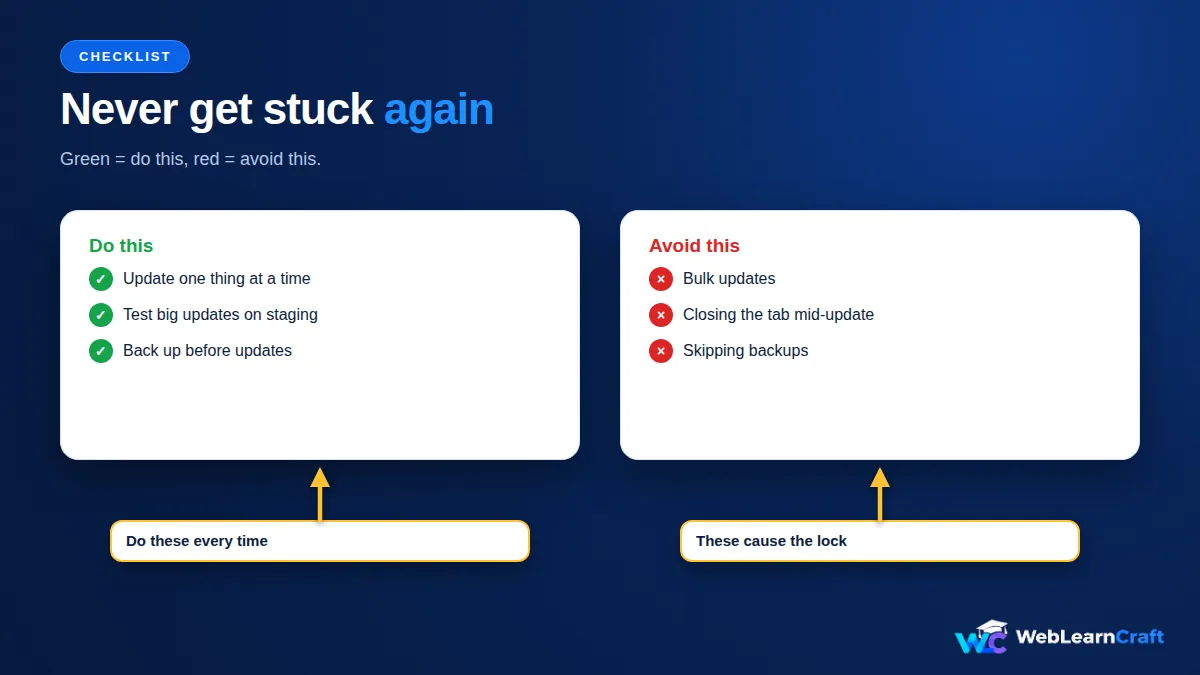
Update one thing at a time, especially big plugins. Bulk updates are the most common trigger. Do not close the tab while an update is running.
Test big updates on staging first, our guide on how to create a free WordPress staging site shows how. Keep a backup before updates, and keep WordPress, your theme, and plugins reasonably up to date, old versions fail more often. Check Site Health (Tools, Site Health) for low PHP memory or outdated PHP, and ask Hostinger support if you are unsure what to raise. That is the simplest way to keep WordPress stuck in maintenance mode from happening again.
Frequently Asked Questions
Is it safe to delete the .maintenance file?
How long does WordPress maintenance mode normally last?
Will maintenance mode hurt my Google ranking?
I deleted .maintenance but the site still shows the message. What now?
Can I turn on maintenance mode on purpose?
wp-content/maintenance.php for a custom page. For routine updates, you do not need to, WordPress handles it automatically for a few seconds.What if I cannot log in to wp-admin at all?
Wrapping Up
A site stuck in maintenance mode is almost always one leftover .maintenance file, not a broken site. Wait 10 minutes, delete that file from Hostinger File Manager, clear the cache, and finish the failed update. WordPress stuck in maintenance mode is usually fixed by those two steps alone.
Then update one plugin at a time next time, and test big changes on staging first. Do that, and the dreaded maintenance message stays a two-minute fix. WebLearnCraft publishes clear, beginner-friendly guides on WordPress, SEO and blogging. Browse the latest guides, or contact us if you need help with your site. WordPress stuck in maintenance mode is usually a two-minute fix, not a rebuild.