
WordPress White Screen of Death? 7 Fixes That Work (2026)
You click Update, refresh your site, and… nothing. Just a blank white page where your site used to be. No error message, no menu, no clue what broke.
That is the WordPress white screen of death — and it feels worse than a normal error, because WordPress gives you nothing to work with. The good news is that the cause is usually simple. Work through the seven fixes below in order, from the quickest check to the deeper repairs, and you can get your site back without guessing.
Table of Contents
- What Is the WordPress White Screen of Death?
- Before You Start: Take a Backup
- Fix 1: Check If It Is Only Your Browser or Cache
- Fix 2: Disable All Plugins
- Fix 3: Switch to a Default Theme
- Fix 4: Increase the PHP Memory Limit
- Fix 5: Turn On Debug Mode to See the Real Error
- Fix 6: Replace Corrupt Core Files
- Fix 7: Ask Your Hosting Support
- How to Avoid the White Screen Again
- Frequently Asked Questions
- Wrapping Up
What Is the WordPress White Screen of Death?
The WordPress white screen of death is a blank white page that appears when WordPress cannot finish loading a page. Behind that blank page is usually a PHP fatal error, a PHP memory problem, or a bad plugin or theme. WordPress stops before it can print anything, so you see nothing at all.
The pattern tells you where to look:
- Whole site white, admin also white: usually a plugin, theme, or memory problem.
- Only admin white, site front works: usually a dashboard plugin or theme problem.
- Only one page white: usually that page’s content, a shortcode, or a plugin used only on that page.
- White screen right after an update: usually the update that just ran — a plugin, theme, or WordPress core update.
If you see an error message instead of a blank page, it is a different problem. For example, see our guide to fixing the error establishing a database connection in WordPress.
Before You Start: Take a Backup
Do not edit files without a backup. If you already have a recent backup, skip this step. If you do not, make one now — a backup lets you undo any change in this guide in minutes.
Follow our guide to set up your first WordPress backup — and compare the free options in Free WordPress Backup Plugins Compared for 2026. If you cannot reach wp-admin at all, use Hostinger File Manager to download a copy of wp-config.php and the wp-content folder before you change anything.
Fix 1: Check If It Is Only Your Browser or Cache
This takes 30 seconds and rules out the simplest cause.
- Hard refresh the page: Ctrl + F5 on Windows, Cmd + Shift + R on Mac.
- Open the site in a private/incognito window.
- Try a different browser, and try opening
/wp-admin/directly.
If the site loads in a private window, clear your browser cache and purge LiteSpeed Cache. If it is still white everywhere, move on to Fix 2 — the problem is on the server, not in your browser.
Fix 2: Disable All Plugins
A faulty plugin is the most common cause of a white screen, especially after an update.
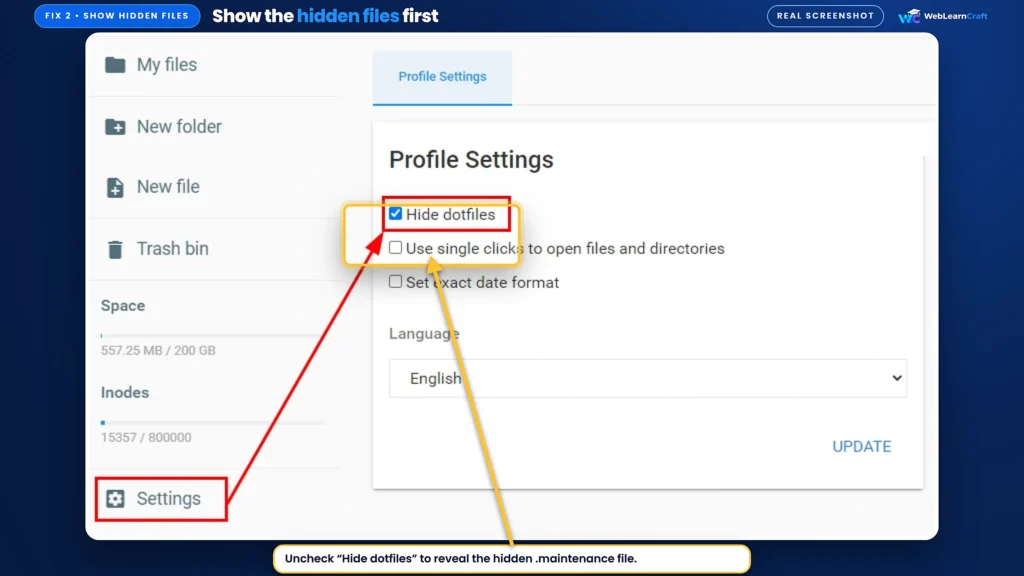
- Log in to Hostinger > Websites > Dashboard > File Manager.
- Open
public_html, thenwp-content. - Find the folder named
pluginsand rename it toplugins-old. This deactivates every plugin at once — you do not needwp-adminaccess to do it. - Reload your site.
If the site loads, a plugin was the cause. Now find which one:
- Rename
plugins-oldback toplugins. - Open the
pluginsfolder and rename plugin folders one by one (add-oldto the name), reloading the site after each rename. - When the site loads again, the last plugin you renamed is the faulty one. Leave it deactivated, then update it, replace it with an alternative, or delete it.
Fix 3: Switch to a Default Theme
If disabling plugins did not help, the theme may be broken — often after a theme update.
- In Hostinger File Manager, open
wp-content/themes. - Rename your active theme’s folder (add
-oldto the name). WordPress will fall back to a default theme such as Twenty Twenty-Four or Twenty Twenty-Five. - Reload your site.
If the site loads with the default theme, your theme is the problem. Update the theme to the latest version, or switch to a different theme. Do not edit the theme files to fix this unless you know exactly which line is broken.
Fix 4: Increase the PHP Memory Limit
A white screen often means WordPress ran out of PHP memory, especially on sites with many plugins or a heavy theme.
- In Hostinger File Manager, open
public_htmland findwp-config.php. - Right-click it, choose Edit, and add this line just before the line that says
/* That’s all, stop editing! Happy publishing. */:
define( 'WP_MEMORY_LIMIT', '256M' );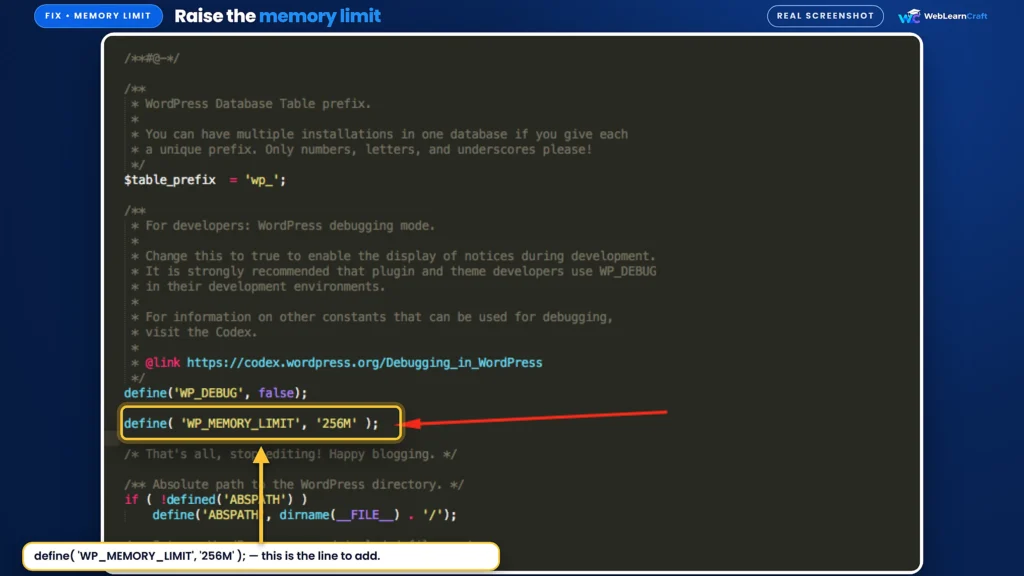
- Save the file and reload your site.
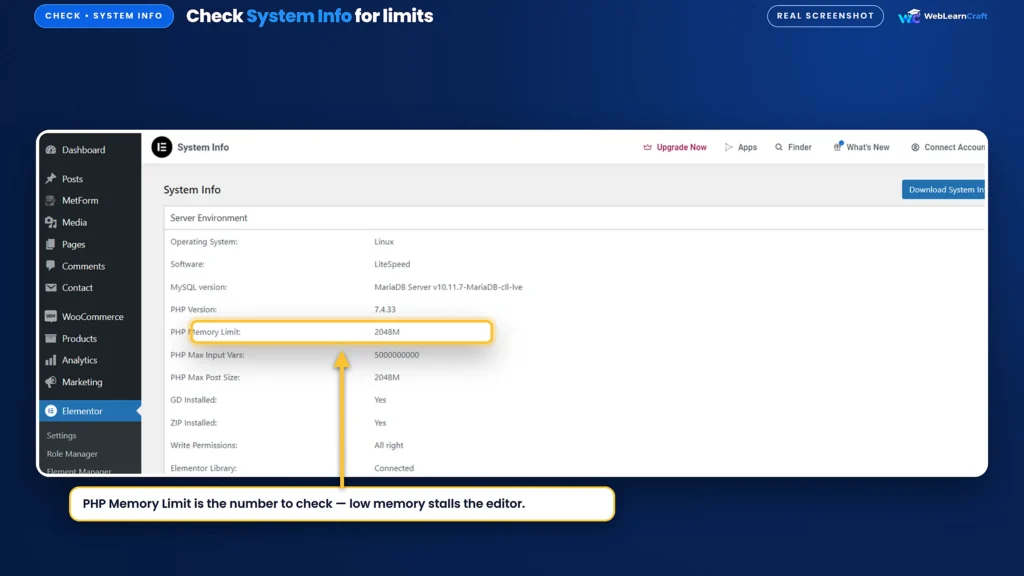
If 256M does not help, try 512M. If your hosting plan caps memory below that, the setting will not take effect — ask your host what the real limit is. See the official WordPress documentation on editing wp-config.php for more on this file.
Fix 5: Turn On Debug Mode to See the Real Error
Fixes 2–4 solve most white screens. If none of them worked, you need to see the actual error instead of guessing.
- In Hostinger File Manager, edit
wp-config.phpagain. - Find the line
define( 'WP_DEBUG', false );and change it to:
define( 'WP_DEBUG', true );
define( 'WP_DEBUG_LOG', true );
define( 'WP_DEBUG_DISPLAY', false );- Save the file and reload the white page once.
- In File Manager, open
wp-content/debug.log. The last lines show the real error — usually a file path and a plugin or theme name. That file is your next clue: fix, update, or remove whatever it names.
When the site works again, turn debug mode off by changing WP_DEBUG back to false — never leave debug mode on a live site. See the official WordPress documentation on debugging in WordPress.
Fix 6: Replace Corrupt Core Files
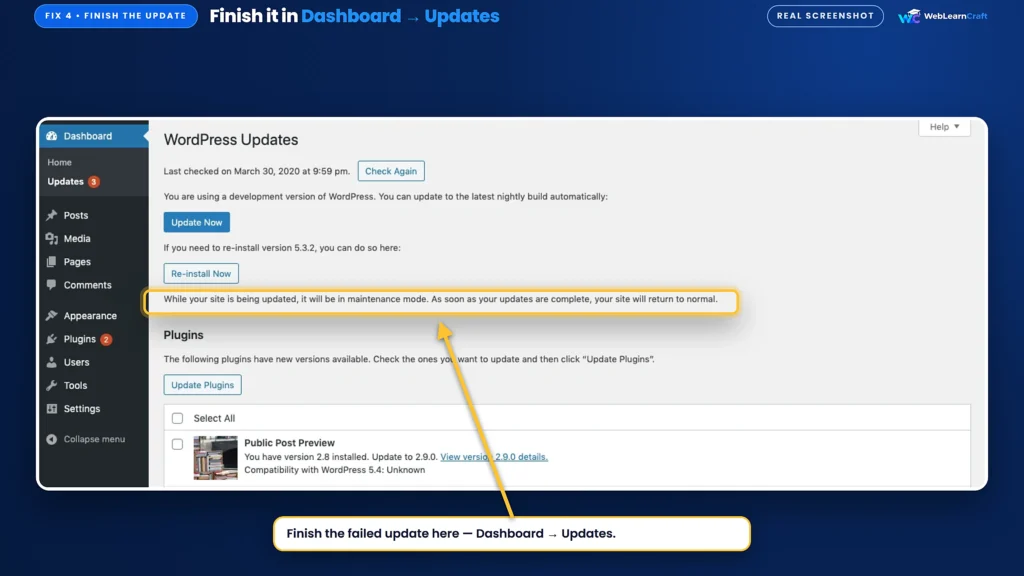
If the error log points to a WordPress core file, or the white screen started after a failed core update, a core file may be corrupt or incomplete.
- Download a fresh copy of WordPress from wordpress.org.
- In File Manager, replace only the
wp-adminandwp-includesfolders with the fresh copies. - Replace the loose files in
public_html(such aswp-login.php) — do not replacewp-config.phpand do not touch thewp-contentfolder.
Reload the site. Your posts, pages, plugins, themes, and settings are stored in the database and in wp-content, so they are not touched by replacing core files.
Fix 7: Ask Your Hosting Support
If all six fixes failed, the problem may be server-side: a PHP version mismatch, a server error, or a hosting limit you cannot change from File Manager. At this point, contact your hosting support and tell them:
- when the white screen started, and what changed just before it (an update, a new plugin, a new theme);
- whether the front of the site,
wp-admin, or both are white; - what you have already tried (Fixes 1–6); and
- the last lines of
wp-content/debug.log, if you turned on debug mode in Fix 5.
That list saves a round of back-and-forth, because support can check the server error log and the PHP version straight away.
How to Avoid the White Screen Again
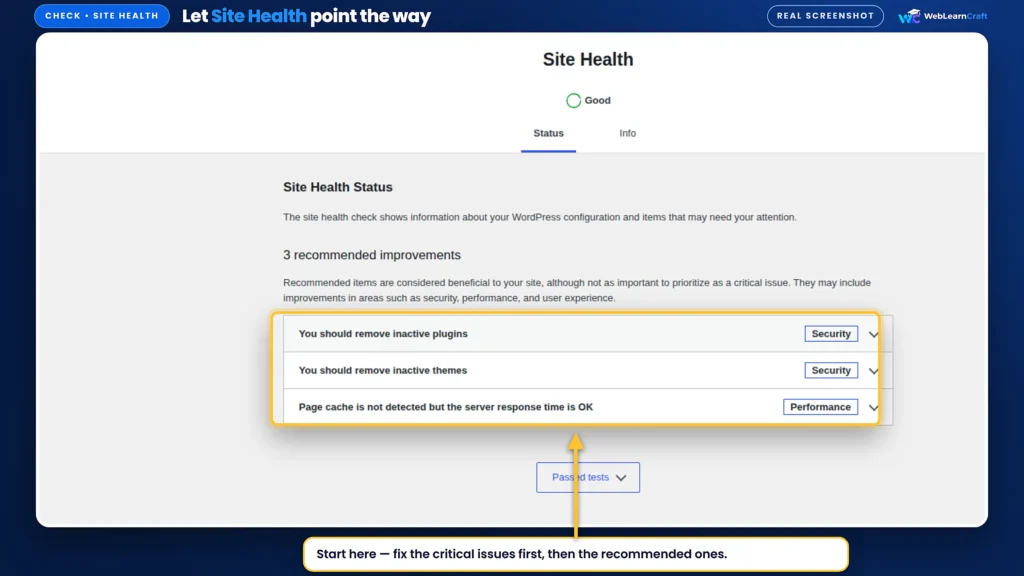
Update one thing at a time, and test big updates on staging first: create a free WordPress staging site. Keep a backup before updates, and keep WordPress, your theme, and plugins reasonably up to date — a white screen is usually caused by one outdated or broken piece, not by WordPress itself. Do not install two plugins that do the same job, and remove plugins you no longer use. Check Site Health (Tools > Site Health) for low PHP memory or an outdated PHP version.
Frequently Asked Questions
Is my content lost when I see a white screen?
Almost always no. The white screen means WordPress cannot display the page, not that your posts are gone. Your content is stored in the database, so once you fix the plugin, theme, or memory problem that is blocking the page, your posts and pages should come back. Take a backup before fixing, and do not delete the wp-content folder or the database.
What causes the WordPress white screen of death?
The most common causes are a faulty plugin, a broken theme, a PHP memory limit that is too low, or a corrupt core file. A recent update is the usual trigger: it can introduce a plugin or theme that no longer works with your WordPress or PHP version. Turning on debug mode shows the exact cause in wp-content/debug.log.
Why is only my admin dashboard white?
That usually points to a plugin or theme file that loads only in the dashboard. Rename the plugins folder as in Fix 2 — if wp-admin loads, reactivate plugins one by one until the dashboard goes white again. If that does not help, switch the theme as in Fix 3.
The white screen appeared right after an update. What do I do first?
Disable all plugins by renaming the plugins folder, as in Fix 2. If that does not work, switch the theme as in Fix 3, then check the memory limit in Fix 4. The update that just ran is the most likely trigger.
Should I leave WP_DEBUG on?
No. Turn it off as soon as the site works again. A live debug log can expose file paths and other details that should not be public.
Wrapping Up
A WordPress white screen is almost always a plugin, a theme, or a memory limit — not a lost site. Disable plugins first, then check the theme, then raise the memory limit, and use debug mode if you still cannot find the cause. Fix it in that order, and test big updates on staging next time so a white screen never surprises your visitors again.
Want more WordPress help? Browse the WebLearnCraft blog, start from the WebLearnCraft home page, or contact us if you are stuck.