
Error Establishing a Database Connection in WordPress? 5 Quick Fixes That Work
You open your site in the morning, expecting your homepage, and instead you get one plain sentence on a white screen: “Error establishing a database connection.” No menu, no posts, no login page — just that one line. Your stomach drops, because it feels like everything is gone. Take a breath. In most cases your content is still there, and this is one of the most common WordPress errors there is.
In this guide I will explain what the error establishing a database connection means, in plain words, and then show you five fixes in the order I would try them — starting with the simplest. You do not need to be a developer for any of them, and the first fix works more often than people expect.
Table of Contents
What Is This Error?
Think of WordPress as two parts working together. Your files — the theme, the plugins, the images — live in one place, and all your words live somewhere else: a database. Every post, every page, every comment and every setting you have saved sits in that database, and WordPress asks the database for that content every time someone visits your site.
The error establishing a database connection simply means WordPress tried to reach the database and could not. It is like calling a friend and the call not going through — the friend is probably fine, but the connection is not working. That is good news, because it usually means your content is still safe inside the database.
The usual causes are small ones: a wrong database password after a password change, a database user that lost its permissions after a move to a new host, a damaged table, or a database server that is down for a while. Rarely is anything actually deleted. Work through the fixes below one by one, and check your site after each one.
Before You Touch Anything
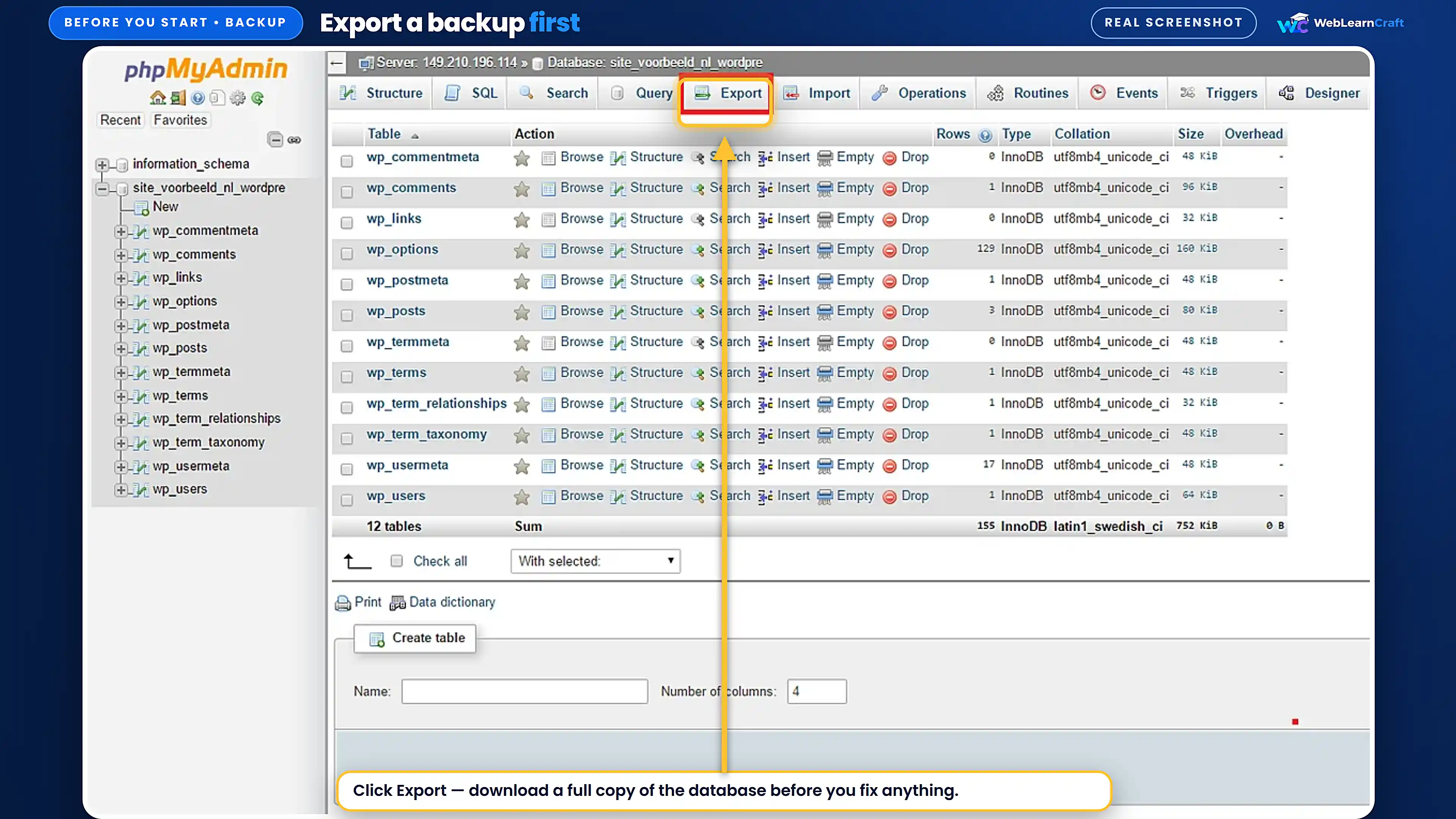
Before you change a single setting, make a backup if you can. If some pages still load, or if your hosting panel still opens, grab a copy of your database first — before you start fixing the error establishing a database connection. A backup means that even if something goes wrong while you are fixing things, you can always go back. If you have never set up backups before, start with my guide on how to set up your first WordPress backup — it takes a few minutes and it is the single most useful habit in WordPress.
If your site is completely down and you cannot reach the dashboard, do not panic. Your host usually keeps its own backups, and you can ask support about them. Just do not start editing files or deleting anything until you have at least tried to get a backup. If you have a staging copy, test the fixes there first — here is how to create a free WordPress staging site if you need one.
Fix 1: Check the Database Details in wp-config.php
This is the fix that works most often, and it takes about two minutes. WordPress keeps four database details in a file called wp-config.php, which sits in the main folder of your site: the database name, the database username, the password, and the host — in code, DB_NAME, DB_USER, DB_PASSWORD and DB_HOST. WordPress uses them every time it connects to the database, and if even one character is wrong, the connection fails and you see the error establishing a database connection.
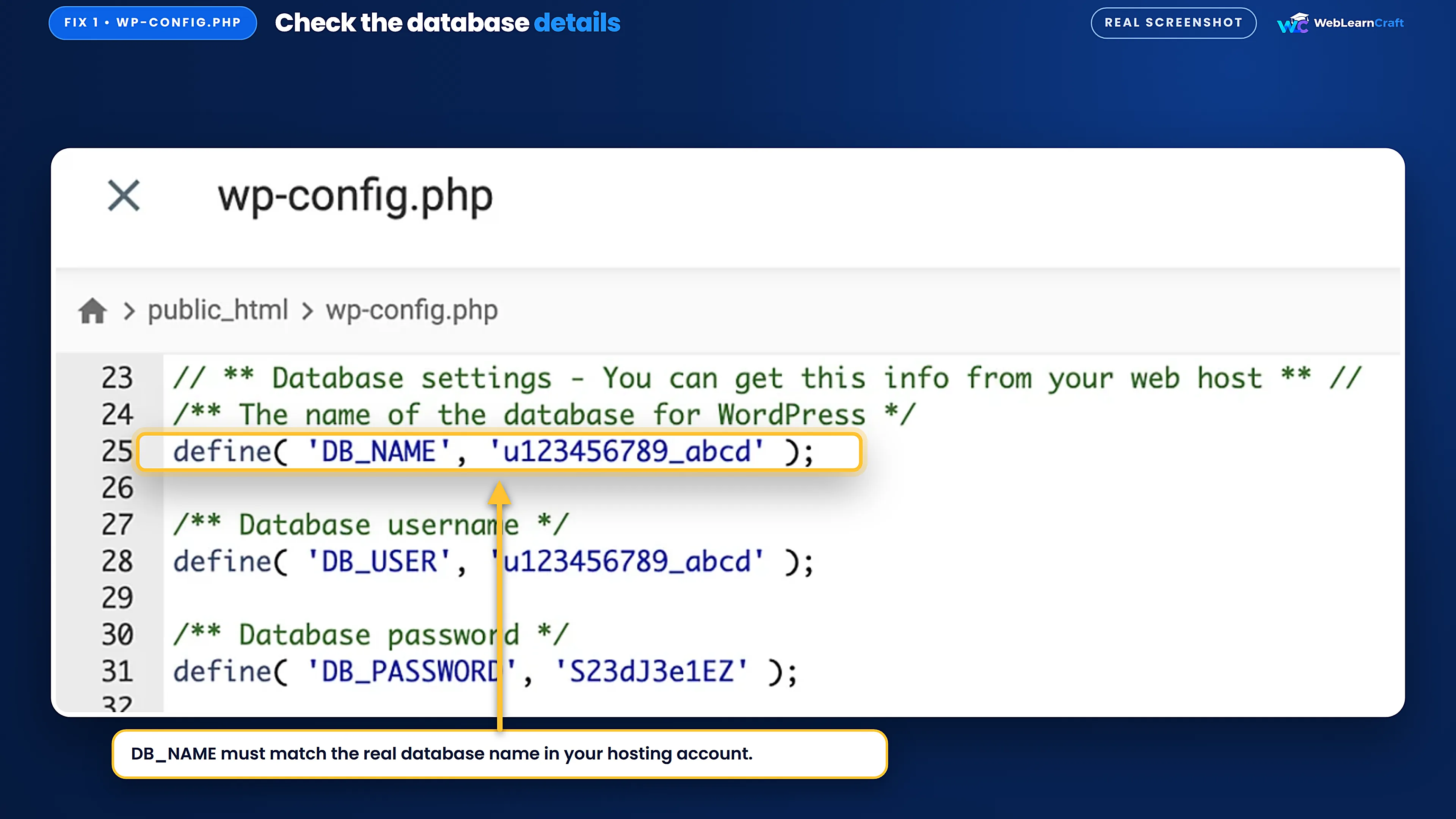
Open your hosting panel and find the database section. Write down the exact database name, username and host — for most hosts the host is simply localhost, but some use a different address, so copy exactly what your panel shows. Then open wp-config.php in your host’s file manager and compare the four lines. A missing letter, an extra space, or a password changed and never updated in the file is all it takes.
If the password looks wrong, or you are not sure about it, create a fresh database password in your hosting panel and paste that same password into wp-config.php. Change it in both places, save the file, and refresh your site — in most cases the error establishing a database connection disappears right away. The official WordPress documentation on editing wp-config.php explains what each of these settings does, if you want to check your work.
Fix 2: Check the Database User Permissions
If the four details are correct and the error is still there, check permissions next. A database username on its own is not enough — that user has to be assigned to your database, with permission to read and write it. People miss this step most often after moving a site to a new host: the database and the user both arrive safely, but nobody tells the database that this user is allowed to use it.
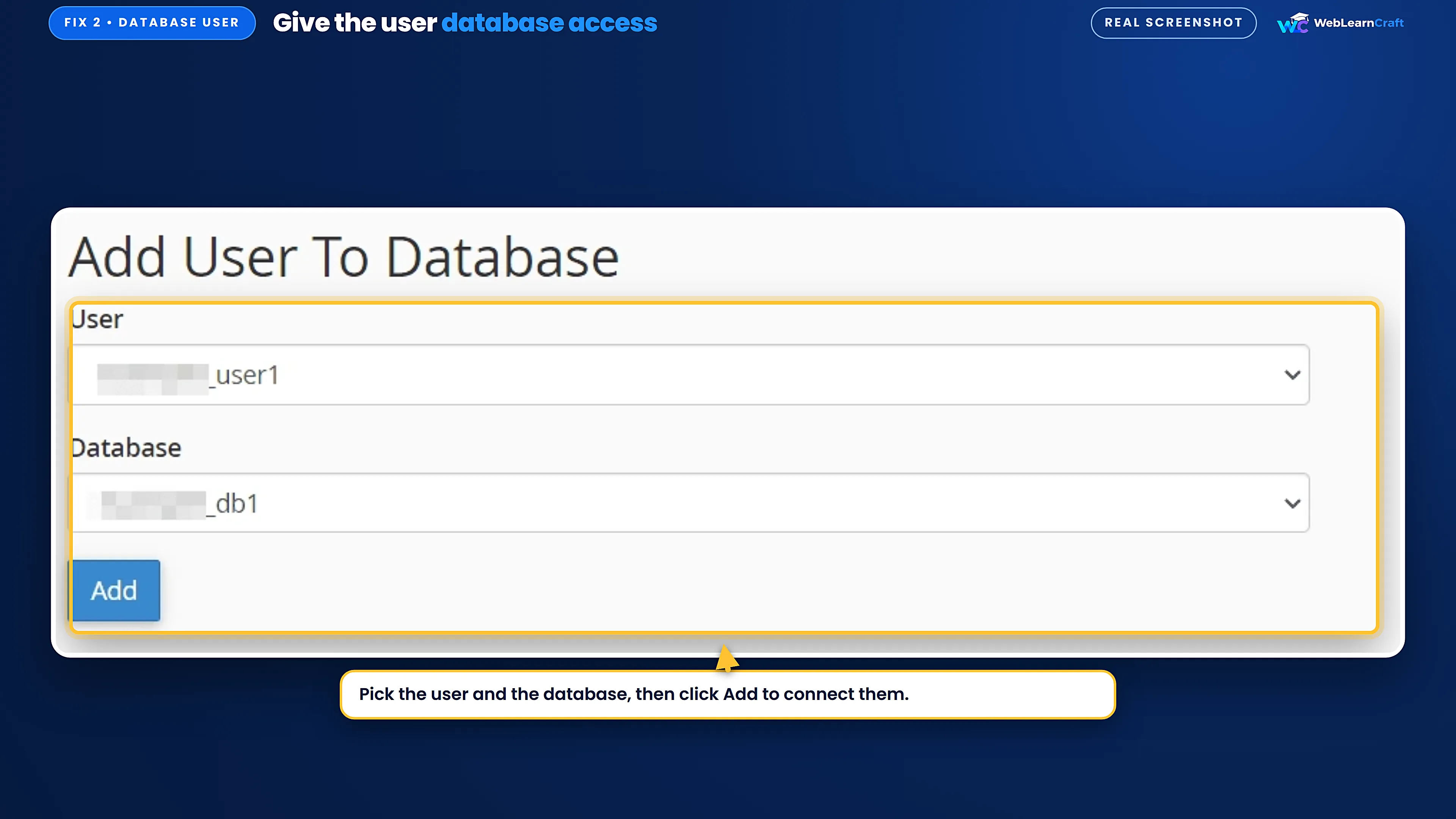
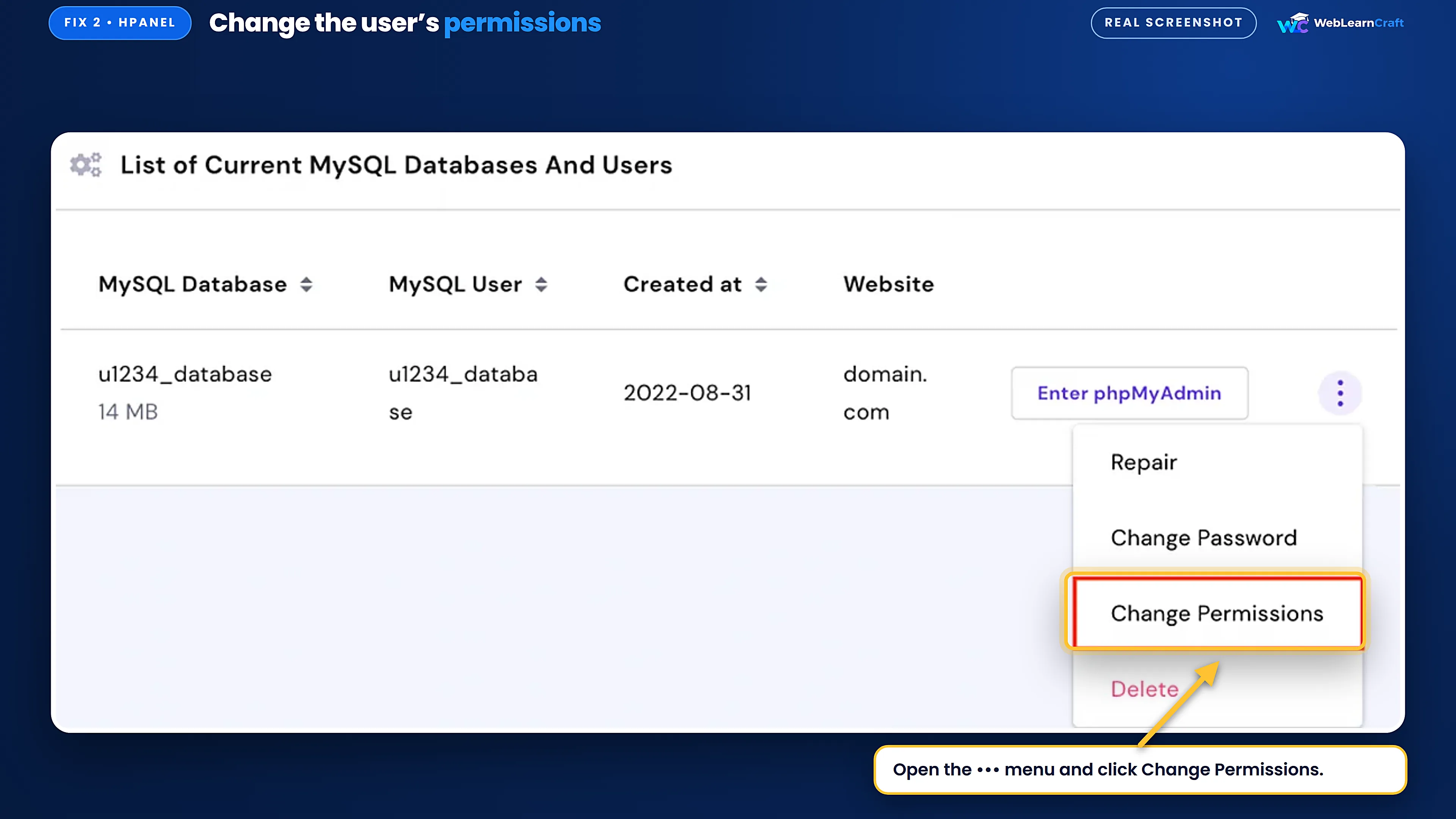
In cPanel, open MySQL Databases, scroll to “Add User To Database”, pick your user and your database, and give it all privileges. In Hostinger’s hPanel, open Databases, find your database in the list, and check the user next to it has full permissions. The screens look different on every host, but the idea is the same everywhere. Save the change, refresh your site, and see if the error establishing a database connection is gone.
Fix 3: Repair the Database
If the login details and the permissions are both fine, the database itself may have a damaged table. This can happen if a server restarts in the middle of a save, or if a database runs out of space. WordPress has a small built-in repair tool for exactly this, and you can turn it on with one line. Open wp-config.php again and add this line just above the line that says “That’s all, stop editing!”:
define( 'WP_ALLOW_REPAIR', true );
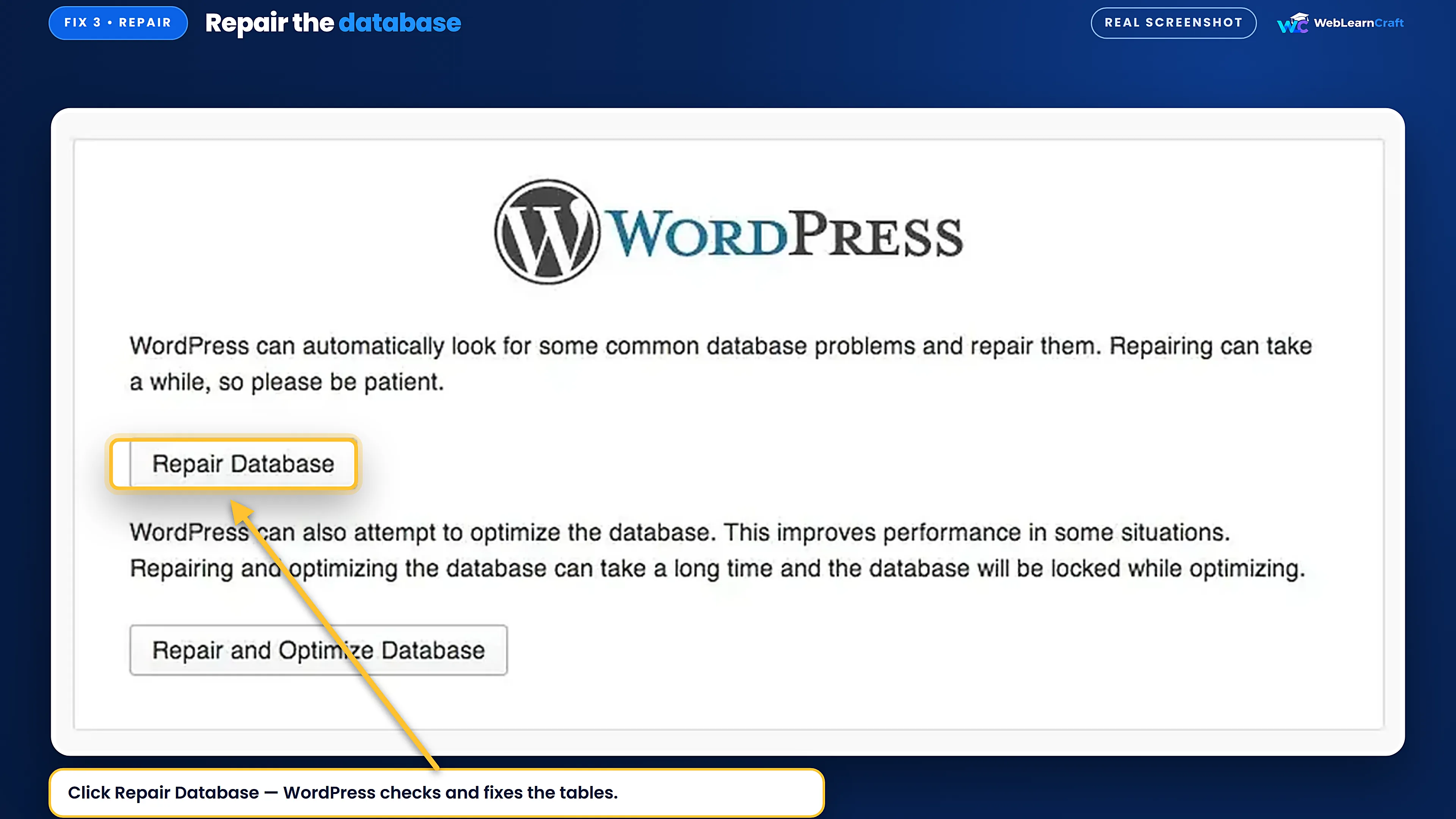
Save the file, then visit your-site.com/wp-admin/maint/repair.php in your browser. You will see two buttons: “Repair Database” and “Repair and Optimize Database”. Click “Repair Database” first and let it finish. When it is done, open wp-config.php one more time and delete the line you added — this matters, because while that line is there, anyone who knows the address can open the repair page without logging in. The official WordPress documentation on editing wp-config.php describes this repair setting and the same warning.
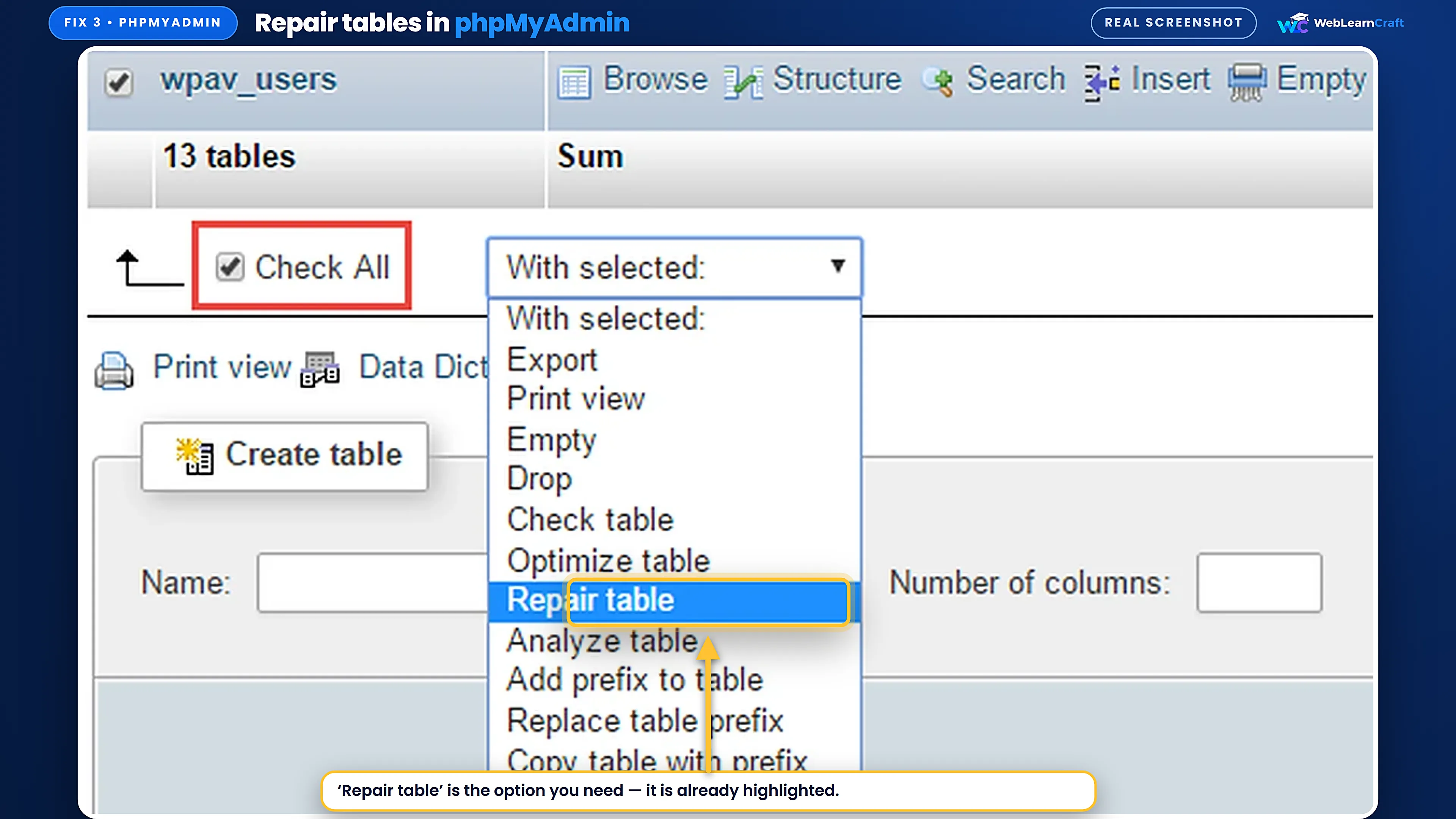
Prefer doing it inside the database tool instead? Open phpMyAdmin from your hosting panel, select your database, tick all the tables, and choose “Repair table” from the menu at the bottom. It does the same job as the repair page, and you can see each table’s result as it goes. Check your site afterwards — if it loads, the error establishing a database connection is fixed.
Fix 4: Check If the Database Server Is Down
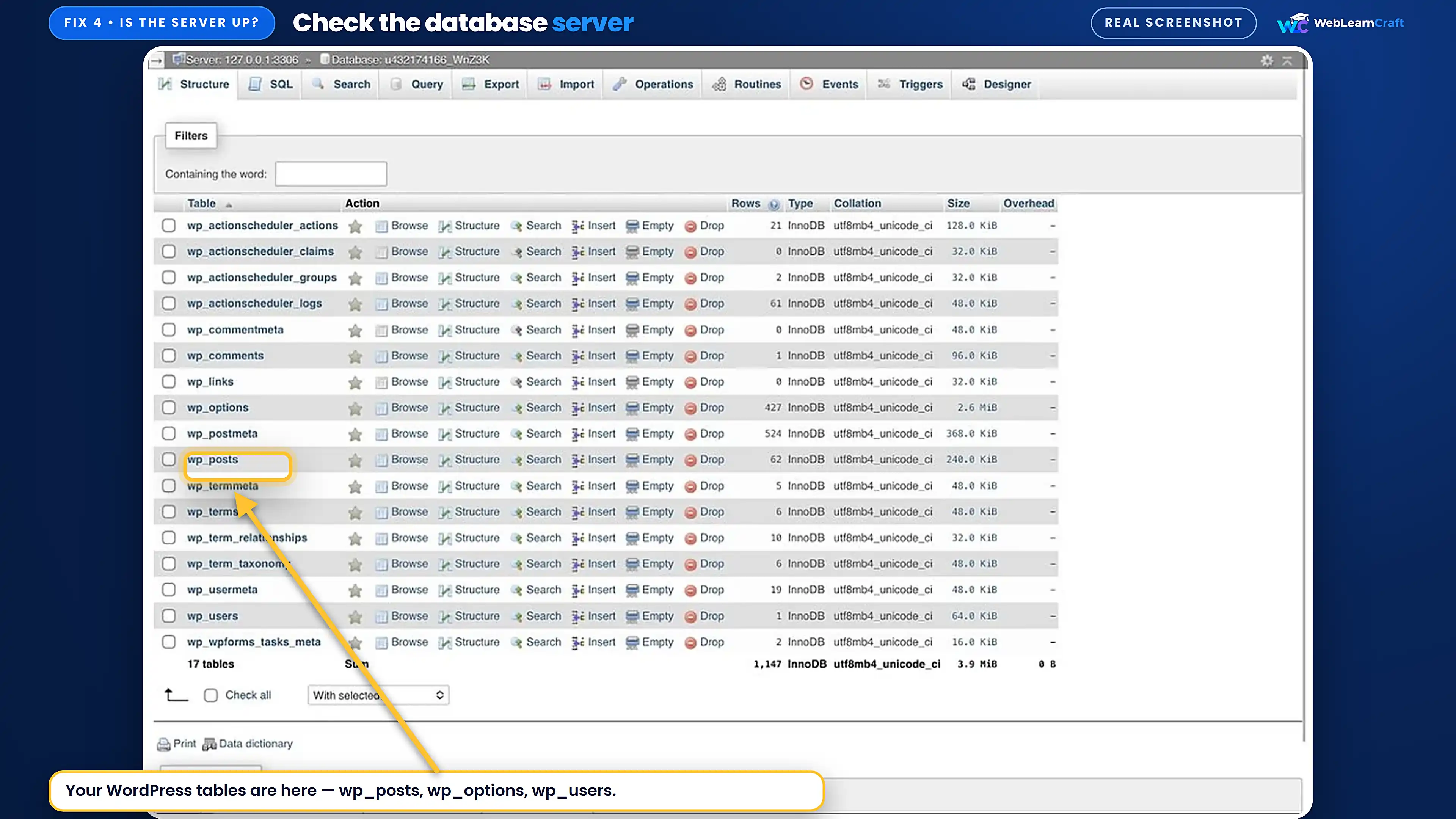
Sometimes the problem is not your site at all — the database server itself is down. Every host has the occasional bad hour, and when the database server stops, every site on it shows the error establishing a database connection at the same time. There is a quick way to tell: try opening phpMyAdmin from your hosting panel. phpMyAdmin talks to the database server directly, so if it opens and shows your tables, the server is up and the problem is in your site’s settings. Go back to Fix 1 and Fix 2 and look again.
But if phpMyAdmin itself fails to open, or shows a connection error of its own, the server is down and there is nothing you can fix from your side. Check your host’s status page first — most hosts post outages there — and then contact support. Tell them the exact error message and the time it started, so support can check their logs for that exact minute.
Fix 5: Restore From a Backup
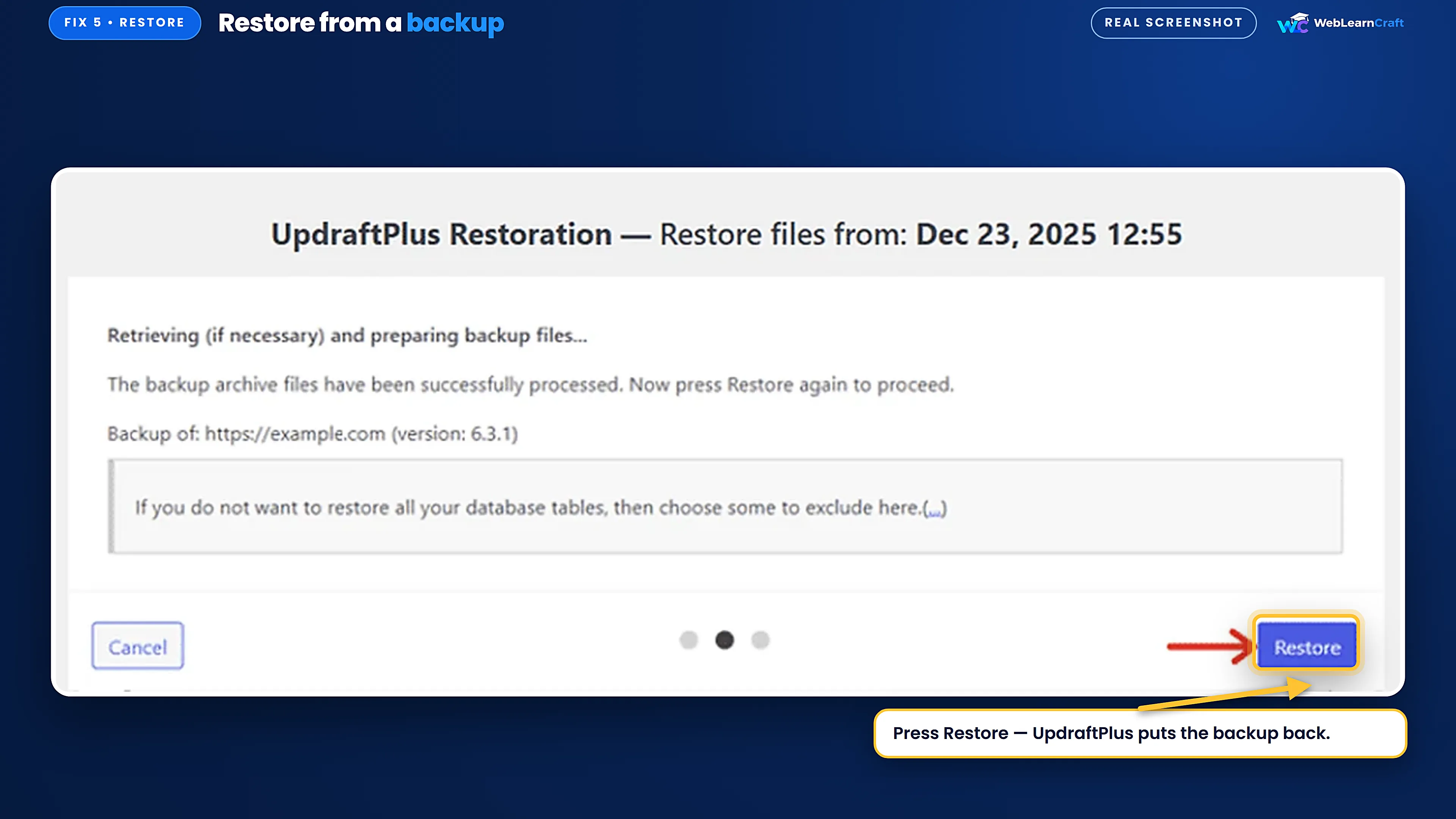
If none of the four fixes above worked and the error establishing a database connection is still on your screen, it is time to restore from a backup. This is the last resort, but it is a good one — it is exactly what backups are for. Restore the database from your most recent backup, the one from before the error first appeared. If you use a backup plugin, its restore screen usually asks what to restore — choose the database. If your host keeps backups, ask support to restore it for you; most hosts do this for free.
One note on choosing a backup: pick the newest backup from before the trouble started, not the newest one overall — a backup made after the error appeared may carry the same problem. If you do not have a backup of your own, compare the free WordPress backup plugins compared for 2026 before you pick one, so this never catches you without a safety net again. Once your site is back, set up regular automatic backups before you do anything else.
Frequently Asked Questions
What causes the WordPress error establishing a database connection?
Will I lose my posts and pages?
Is this the same as the WordPress white screen of death?
Can a plugin cause this error?
How long does a database repair take?
What should I do if nothing works?
Wrapping Up
Most of the time, the error establishing a database connection comes down to one of five things: wrong details in wp-config.php, a database user without permissions, a damaged table, a database server that is down, or a database that needs restoring from a backup. Work through them in order, check your site after each step, and keep a backup before you change anything. If the WordPress error establishing a database connection ever comes back, you will know exactly where to look first.
For more step-by-step WordPress guides, visit WebLearnCraft, browse the latest guides, or contact us if you get stuck.
2 Responses