
How to Create a WordPress Child Theme: A Beginner’s Walkthrough
You change a few lines in your theme, get the page looking right, then an update puts everything back. The changes weren’t saved somewhere else. They were sitting in files the update replaced.
That’s the problem a child theme deals with. It gives your edits their own folder, away from the parent’s files. Updating the parent won’t overwrite that folder. You’ll still need to check your site afterward; keeping a file isn’t the same as keeping it compatible.
I’ll use Hello Elementor below so the filenames and PHP belong to the same example. For another theme, check its stylesheet setup before copying the code.
Table of Contents
- What a WordPress Child Theme Does
- Do You Actually Need One?
- Before You Start
- Step 1: Find the Parent Folder Name
- Step 2: Make a Folder for the Child
- Step 3: Create the style.css File
- Step 4: Add functions.php
- Step 5: Upload and Activate
- Step 6: Check Your Site
- Where to Put Your CSS and PHP
- Editing a Parent Template in the Child
- When Something Breaks
- Mistakes to Avoid
- FAQ’s
- Final Thoughts
What a WordPress Child Theme Does
You don’t copy the whole theme. The parent stays installed in its own folder. In the child, you add the CSS or PHP you’re writing, along with any supported template you want to change.
The parent still supplies the theme’s foundation. Watch out for functions.php, though: adding one to the child doesn’t replace the parent’s file. WordPress loads both.
If you’re unsure which files a child can replace, check the inheritance section in the WordPress child-theme handbook.

Do You Actually Need One?
If all you do is build pages in Elementor, you probably don’t need one. Elementor’s design settings normally live in the database. Site Editor changes and most Customizer options do too.
Additional CSS survives parent updates too, although it can be tied to the active theme. Check it when switching.
About to edit a parent file? Use a child instead, where that change is supported. Only changing settings? You can usually leave the theme files alone.
Before You Start
Back up both the files and database before starting. If your hosting account includes a staging site, do the setup there first. Download the current working files too, so you have a local copy to put back if needed.
Open File Manager or connect through FTP now, not after something breaks. A PHP error can lock you out of the dashboard, and you’ll need another way to restore the file.
Working locally is another option. Our guide to moving WordPress from localhost to a live server covers the later move.
Keep the parent installed. If you already use a child theme, work with that child rather than trying to create a grandchild. WordPress doesn’t support that extra level.
Note your menu locations and take a screenshot of the theme settings before switching. A setting that needs reapplying is easier to deal with when you know its previous value.
Step 1: Find the Parent Folder Name
In File Manager or FTP, open:
wp-content/themes/Find your parent theme’s folder. For Hello Elementor, look for hello-elementor. The corresponding folders for Astra and Twenty Twenty-Four are astra and twentytwentyfour.
Don’t copy the nice display name from the dashboard. Write down the folder name from File Manager, including its hyphens.
Step 2: Make a Folder for the Child
Create another folder beside the parent:
hello-elementor-childThe -child ending makes it recognisable.
For this example, put two files inside it:
hello-elementor-child/
├── style.css
└── functions.php
Don’t put the child folder inside hello-elementor. Both folders belong directly under themes.

Step 3: Create the style.css File
In a plain-text editor, save a new file as style.css. Start it with this comment:
/*
Theme Name: Hello Elementor Child
Description: Child theme for Hello Elementor
Author: Your Name
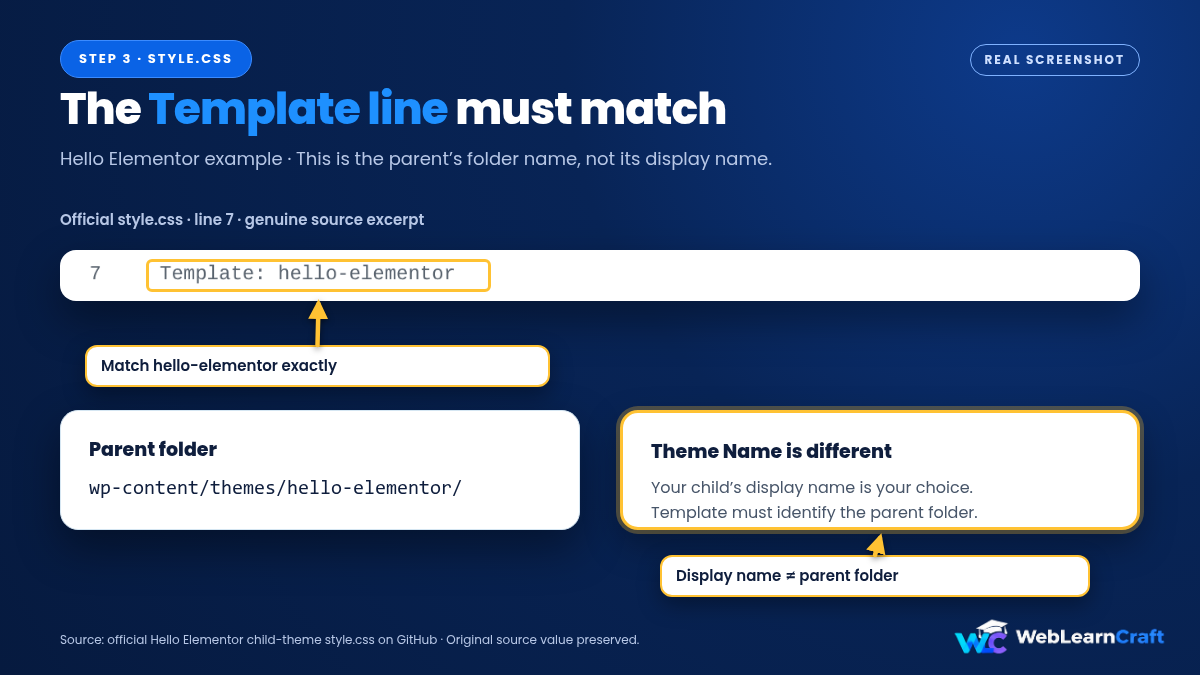
Template: hello-elementor
Version: 1.0.0
*/
You’ll see the Theme Name value under Appearance → Themes. You can choose a different name for your child here. Change the author too.
Template is the line to get right. For this example, leave it as hello-elementor. Not Hello Elementor, and not hello-elementor-child. It must point to the parent’s folder.
Check that your editor hasn’t saved style.css.txt. Turn on filename extensions if necessary, then check the full name rather than just the file’s icon.
Your own CSS goes below the comment. There’s no need to add an @import statement; we’ll load the stylesheet through WordPress instead.
Step 4: Add functions.php
There’s no need to enqueue Hello’s parent stylesheet a second time; the parent handles that already. We only need to load the child’s CSS, with Hello’s theme style listed as its dependency.
Create functions.php and paste:
<?php
if ( ! defined( 'ABSPATH' ) ) {
    exit;
}

function wlc_child_enqueue_styles() {
    wp_enqueue_style(
        'wlc-hello-child-style',
        get_stylesheet_uri(),
        array( 'hello-elementor-theme-style' ),
        wp_get_theme()->get( 'Version' )
    );
}

add_action( 'wp_enqueue_scripts', 'wlc_child_enqueue_styles', 20 );
The file should begin with <?php—no text or blank space before it. You don’t need a closing ?> at the end of this PHP-only file.
The dependency name, hello-elementor-theme-style, is also used in Elementor’s official Hello child-theme code. If styles don’t load with your installed version, compare its loading code with that example.
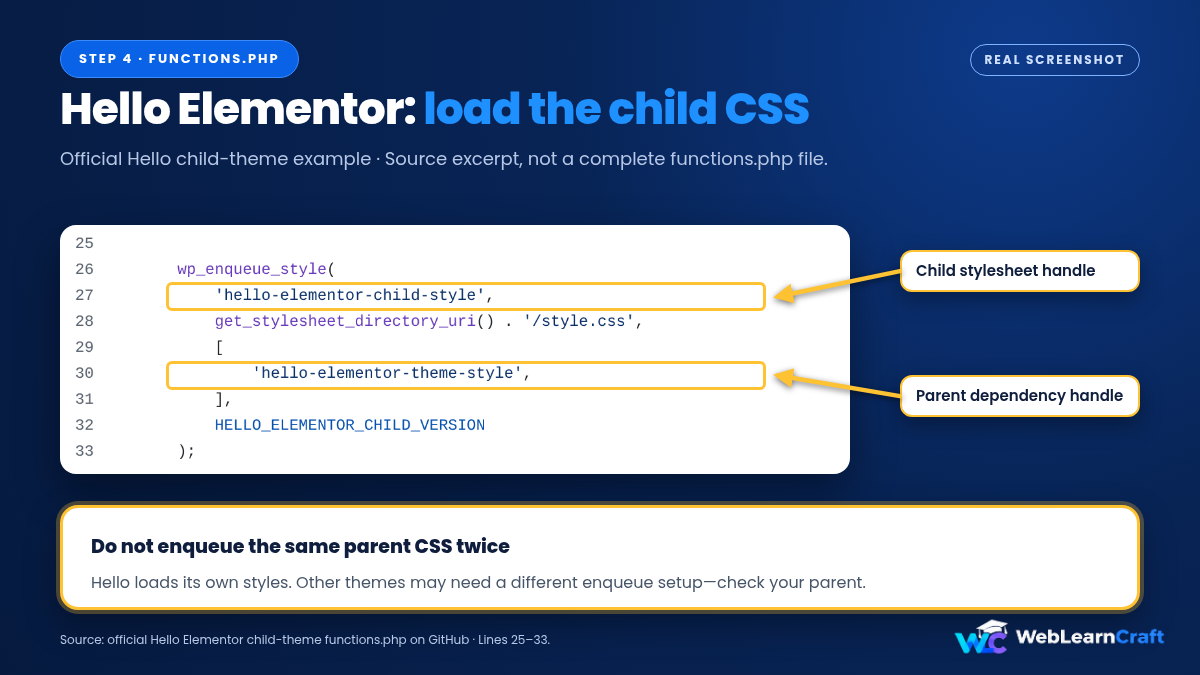
Here, get_stylesheet_uri() gives WordPress the child’s style.css URL. The last argument reads Version from the child theme header. After editing your CSS, you can change 1.0.0 to 1.0.1 to give the stylesheet a different version in its URL.
Using Another Theme?
Using Astra or something else? Stop before copying the Hello dependency handle. Check the theme’s documentation or use its official child starter. Its loading code may be different.
Block themes also vary. A child needs its identifying style.css header, while theme.json is optional. You may not need functions.php at all, but CSS added to style.css still needs a loading mechanism. Don’t assume it happens automatically.
Step 5: Upload and Activate
Your files should be here:
wp-content/themes/hello-elementor-child/style.css
wp-content/themes/hello-elementor-child/functions.php
If you made the folder locally, compress hello-elementor-child into a ZIP. In WordPress, go to Appearance → Themes → Add New Theme → Upload Theme and select it. Opening the ZIP should show the child folder with its files inside—not an extra outer folder.
FTP works too: upload the whole child folder into themes.
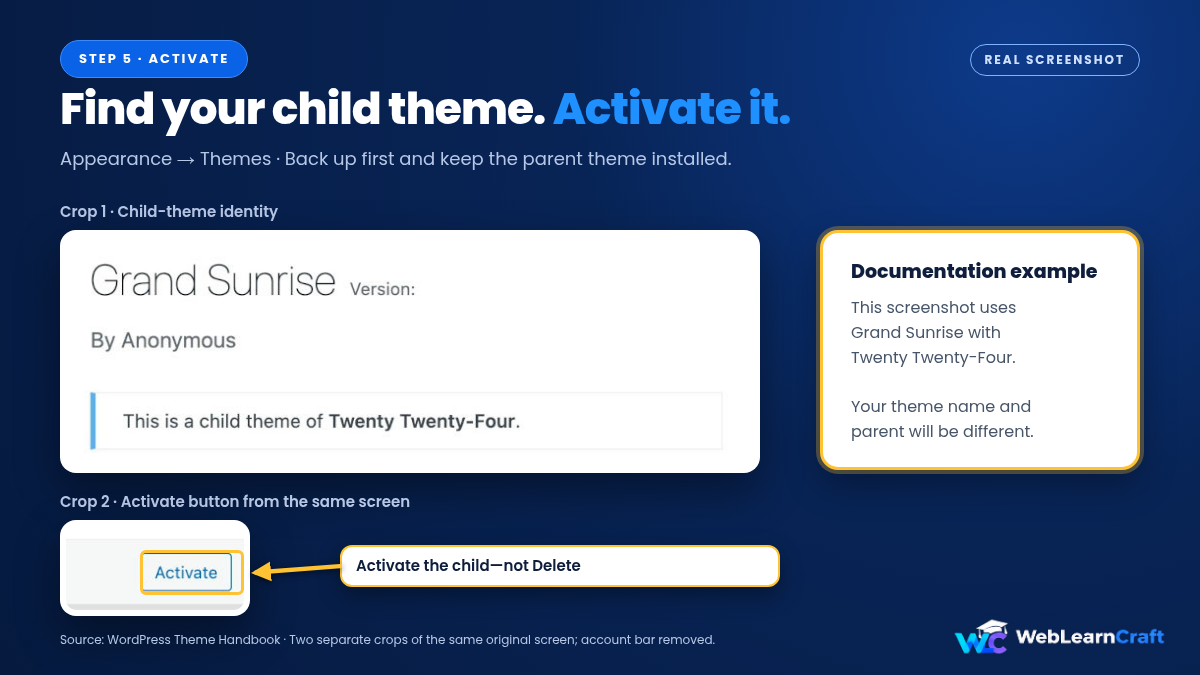
Open Appearance → Themes and check the child’s details. If WordPress recognises its parent, activate it. Don’t worry about a blank thumbnail; the screenshot image is optional.
Step 6: Check Your Site
Visit the homepage, a post, and a couple of other pages. Try the mobile view too.
Check whether your menus are still in the right locations and whether the widgets, logo, header, and footer look as they did before. A child can have its own theme settings, so an option may need selecting again. If you had rules in Additional CSS, check those as well.

You can reactivate the parent if the child’s layout needs more work. This won’t delete the child folder. Its CSS, functions, and template overrides simply won’t be used while the parent is active.
Where to Put Your CSS and PHP
Add CSS underneath the comment in style.css. In this setup it loads after the parent dependency, but that doesn’t mean every rule wins. A more specific selector or an !important declaration can still take precedence.
Put new PHP functions after the stylesheet-loading code in functions.php. This example outputs a short note through the footer hook:
add_action( 'wp_footer', 'wlc_footer_note' );

function wlc_footer_note() {
    echo '<p>Built with care.</p>';
}
Since functions.php already starts with <?php, paste this example without adding another opening tag. Where the note appears on the page will depend on the theme’s footer hook, surrounding HTML, and CSS.
Only add your own functions. Don’t bring across the parent’s entire functions.php: WordPress loads that file too, and declaring the same function twice can cause a fatal error.
Check the site after each addition, before pasting in anything else. If you also need scripts, see our guide to adding JavaScript to WordPress without a plugin for the child-theme method.
Editing a Parent Template in the Child
For a classic PHP theme, you can edit a child copy of a template that supports overrides. A copied header.php, for instance, would go here:
hello-elementor-child/header.phpUse the same filename as the parent. If the template lives in a subfolder, recreate that path inside the child. The child copy is used only when the theme’s loading code supports looking there first; copying an arbitrary PHP file won’t necessarily override it.
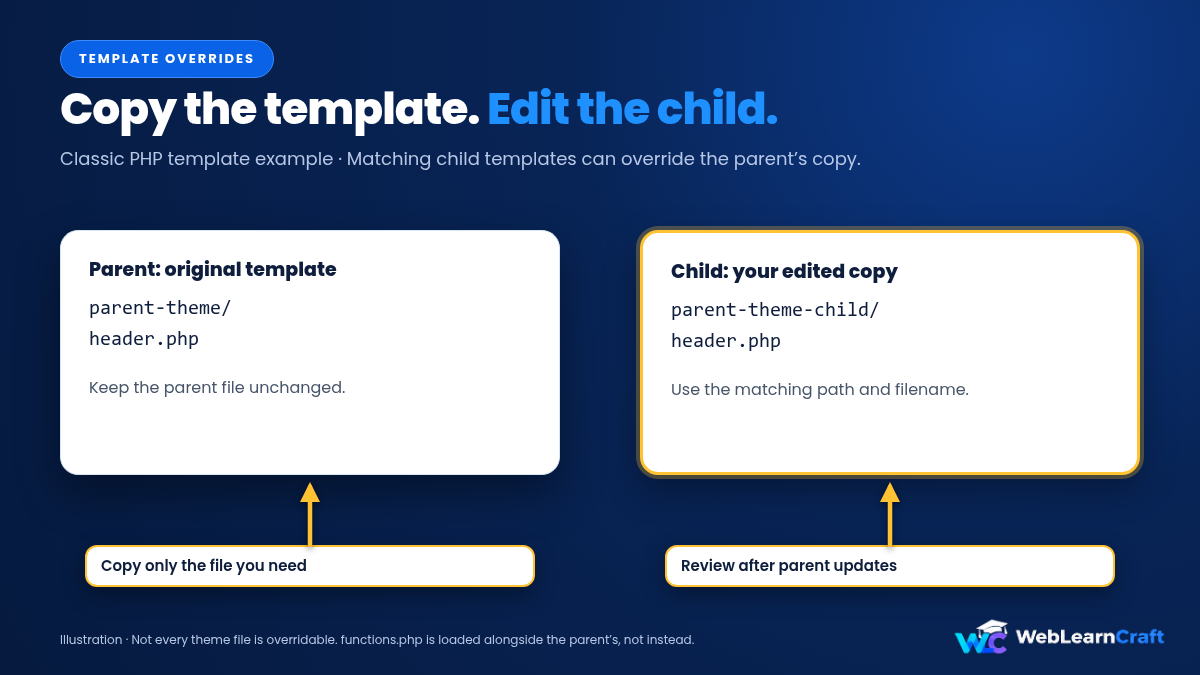
Copy the file you need, not every template in the parent.
There’s a catch: your copy stays unchanged when the parent gets a fix. After a major parent update, check the original against your edited copy. Any fixes made to the parent template won’t appear in the child unless you bring them across.
Block themes use HTML templates and parts instead. Site Editor changes stored in the database can take priority over theme files.
If fonts are your next change, see our guide to adding custom fonts to Elementor.
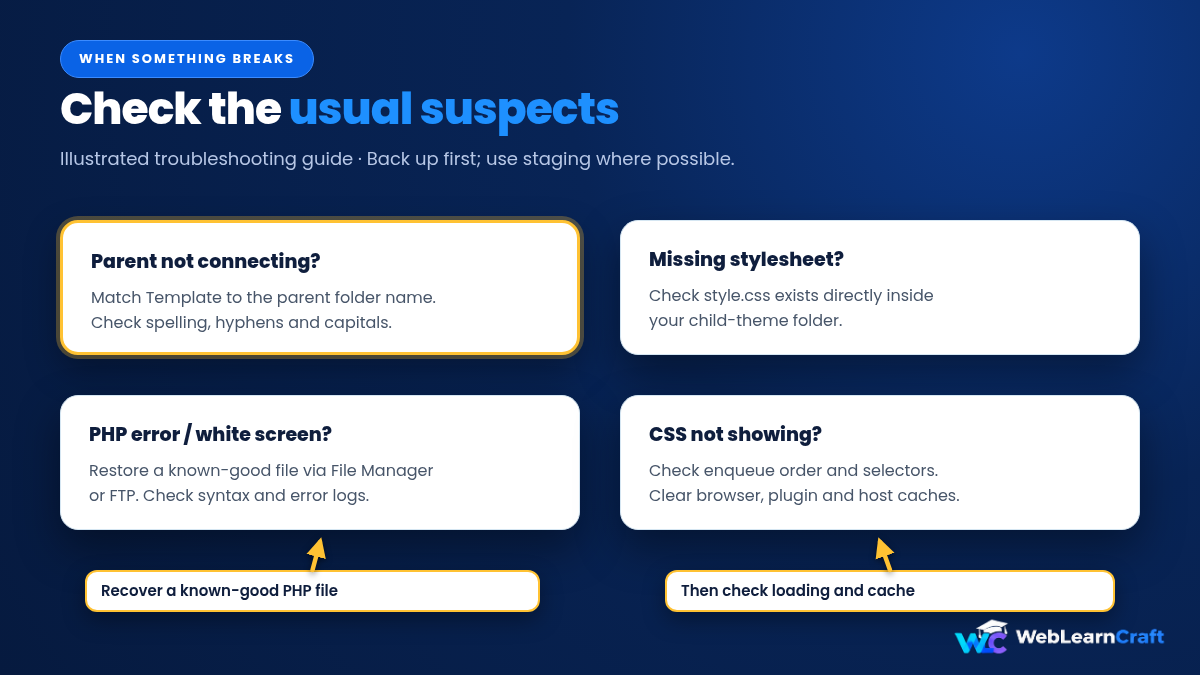
When Something Breaks
Missing Stylesheet
Check the filename, header, and folder level. style.css belongs directly inside the child, not inside another nested folder.
Parent Not Found
Compare Template with the parent’s folder name. Check spelling and hyphens, and confirm the parent is installed.
PHP Error
Still able to open the dashboard? Reactivate the parent. If not, use File Manager or FTP to put back the last working child functions.php. Check the host’s error log for the failing line.
Don’t rely on renaming the child folder to recover automatically.
CSS Not Working
First check whether the child stylesheet is loading at all. Then check the dependency, clear the browser and site caches, and inspect the rule. It may be getting overridden rather than ignored.
Settings Changed
Reapply the missing theme settings, or use a migration option if your theme provides one. Switching themes doesn’t guarantee every setting transfers.
Mistakes to Avoid
- Deleting the parent theme.
- Misspelling the Template value.
- Using Hello-specific code with another parent.
- Loading the parent stylesheet twice.
- Copying the whole parent
functions.php. - Editing without a backup and recovery access.
FAQ’s
Is a child theme necessary when I use Elementor?
Not for ordinary Elementor design settings. It’s useful for theme-specific PHP and supported file overrides.
Are two files always required?
No. style.css identifies the child. Add functions.php when you need PHP or asset loading. Block themes may also use theme.json.
Can I remove the parent afterward?
No. The child still depends on it. Keep the parent installed and maintained.
Will updates erase my changes?
Parent updates won’t overwrite child files. Compatibility issues are still possible, particularly with copied templates.
Final Thoughts
The important parts are the parent folder name, the Template line, and the right stylesheet setup. Get those sorted before adding custom code.
Once the child is active and checked, put future file changes there instead of in the parent. Keep backups, and remember to review copied templates after updates.
Need a hand with your WordPress site? Contact us and tell us what you’re working on.