
How to Add Anchor Links in Elementor for One-Page Navigation
Long pages are tiring. You land on one, you know the pricing is somewhere down there, and you start scrolling with your thumb. Past the hero, past the testimonials, past a gallery that goes on a bit too long. Some people stick it out. Plenty don’t.
An anchor link is the fix. Click a menu item and the page slides to the right section. Elementor lets you add anchor links for free, in two different ways, and neither needs a plugin. I’ll go through both, then the smooth scrolling trick, the annoying sticky header problem, and the usual reasons a link goes quiet.
Table of Contents
- What’s an anchor link, really?
- Pick your target: the Menu Anchor widget
- Or skip the widget and use a CSS ID
- Now the links themselves
- Make it glide
- Why your heading hides under the header
- What about other pages?
- Small things that make one-page sites nicer
- When a link just won’t work
- Mistakes people make
- FAQs
- Wrapping up
What’s an Anchor Link, Really?
It’s a link that scrolls to a spot on the same page rather than opening a new one. Tables of contents use them. So do “back to top” buttons, and pretty much every menu on a one-page site.
There are always two pieces. The first is the place you want people to land, which I’ll call the target. The second is whatever sends them there, a button, a menu item, a line of text. The target has a name, called an ID, something short like pricing. The link points at #pricing. That hash sign tells the browser to hunt for an ID with that name.
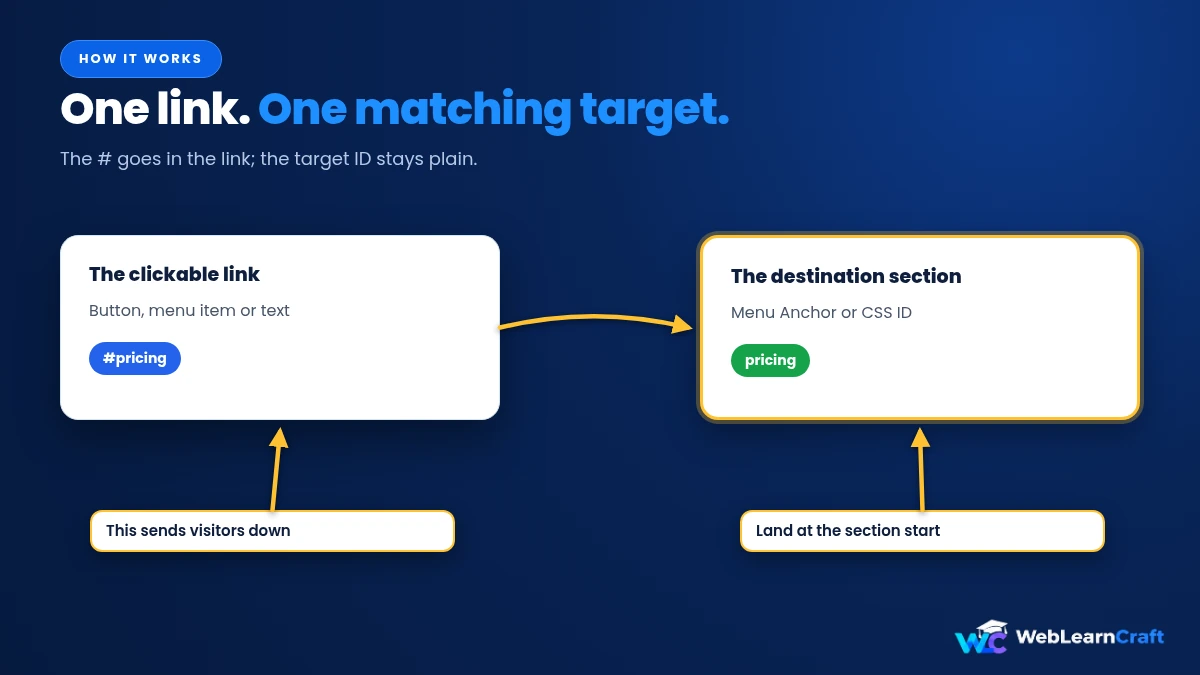
So you need a target first. Elementor offers two ways to make one.
Pick Your Target: The Menu Anchor Widget
This is the easier of the two, and it comes with free Elementor. It’s an invisible widget that takes up no room at all. Think of it as sticking a flag into the page.
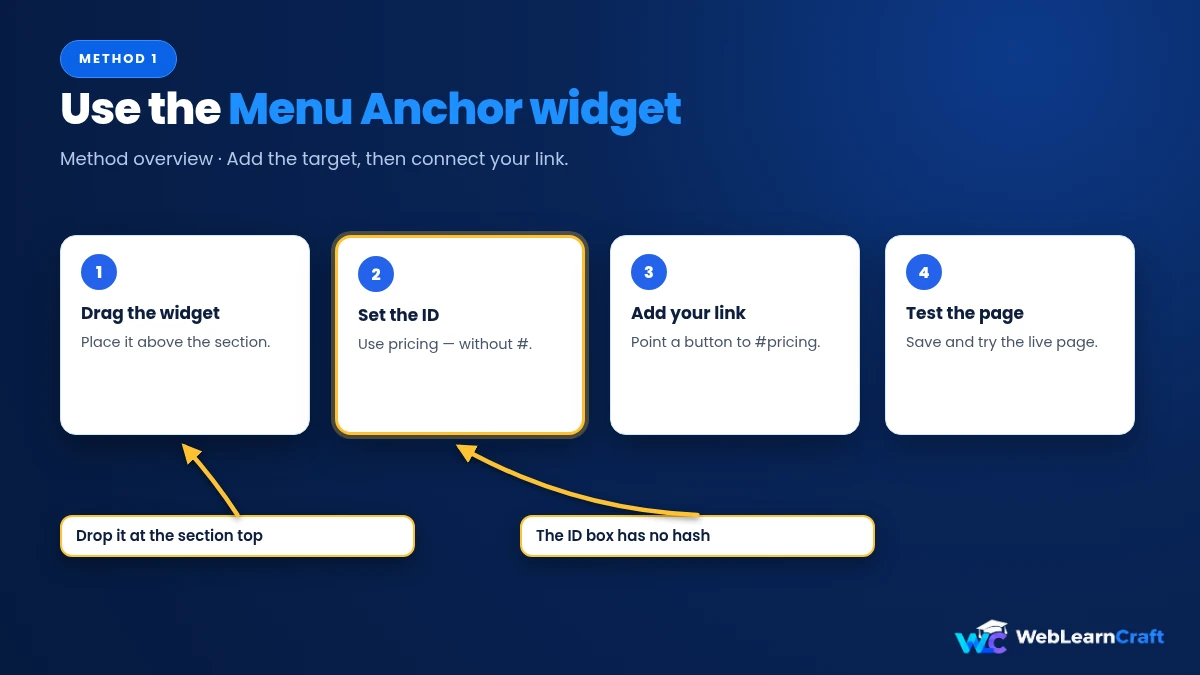
Open your page, find the section you want people to reach, and drag the Menu Anchor widget to the very top of it. There’s only one setting, the ID. Type something short, like pricing.
Now, some rules, because this is where most people trip. Letters, numbers, hyphens and underscores are fine. Spaces and symbols aren’t. Don’t type the hash in this box, since the hash belongs in the link. I’d keep everything lowercase too, because IDs care about capital letters, and every ID on the page has to be different. Elementor’s own help page on the Menu Anchor widget lists exactly which characters work.
Then link to it. Pick a button, and in its Link box write #pricing. Save, open the live page, click. If the page slides down, you’re done.
One small thing: put the widget right above what you want visible. Drop it halfway down a section, and that’s where people land, halfway down.
Or Skip the Widget and Use a CSS ID
You don’t actually need the widget. Almost anything in Elementor can be a target if it has a CSS ID.
Click a container, say, since a container wraps the whole section. Open the Advanced tab. Near the top there’s a CSS ID box. Type services, again without the hash or any spaces, and link to #services like before.

Which is better? Depends who you ask. The widget is easier to see while editing, because there it is, sitting in your layout. The CSS ID is neater, because there’s nothing extra on the page and the ID lives on the section itself. On a page with a dozen sections, I’d lean towards CSS IDs, just to keep the editor clean.
Pick one and use it everywhere. Otherwise you’ll forget where half your IDs are.
Now the Links Themselves
With targets in place, you can link from nearly anywhere.
For a button or a line of text, just type the hash and the ID into the Link box. #contact. You don’t need the full web address, because it’s all on the same page.
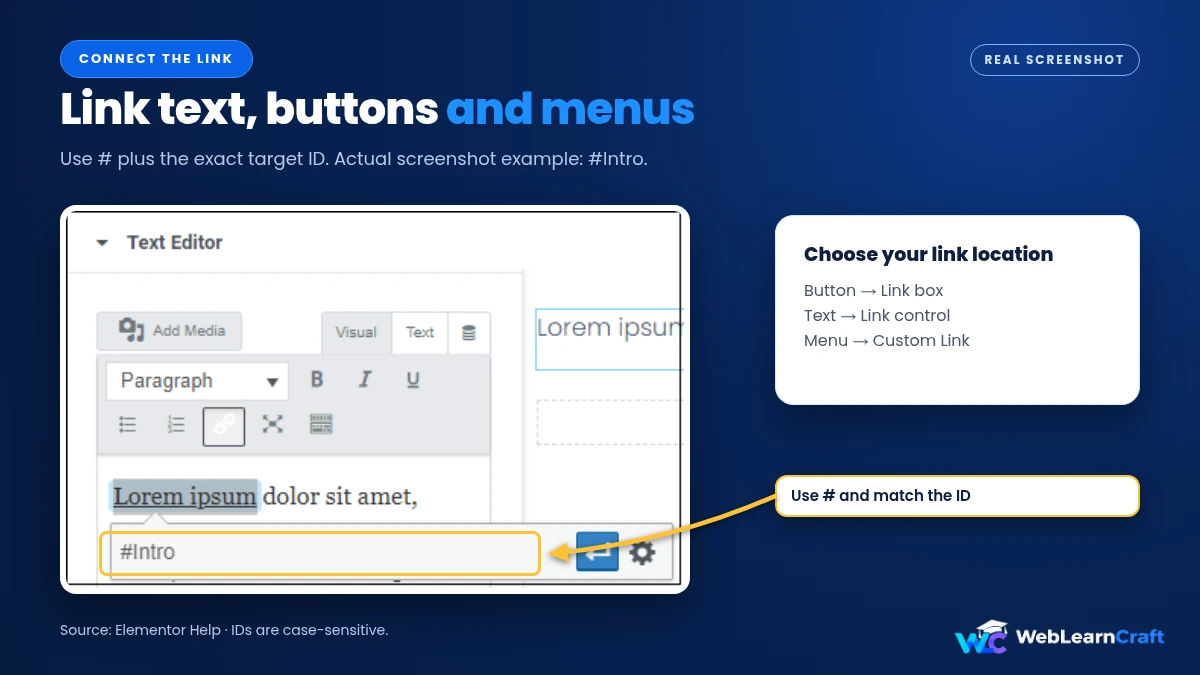
For your site menu, head to Appearance, then Menus. Add a Custom Link, set the URL to #contact, and give it a label. Save the menu and that item now scrolls to the section. If you want the header to look as good as it works, our walkthrough on how to build a mega menu in Elementor covers the design side.
Elementor Pro’s Nav Menu widget simply shows the menu you made in WordPress, so the anchor items turn up in your header without extra work.
Want a “back to top” button? Give the header, or the top container, an ID like top, and point a footer button at #top.
And here’s a bonus. You can share a link that lands on a specific section. Add the hash and ID to the end of the page address, like yourpage/#pricing, and whoever opens it arrives at that part of the page.
Make It Glide
Out of the box, anchor links jump. Bang, you’re there. It works, but it feels a bit harsh, like the page flinched.
A single line of CSS smooths it out. Go to Appearance, then Customize, then Additional CSS, and paste this in:
html {
  scroll-behavior: smooth;
}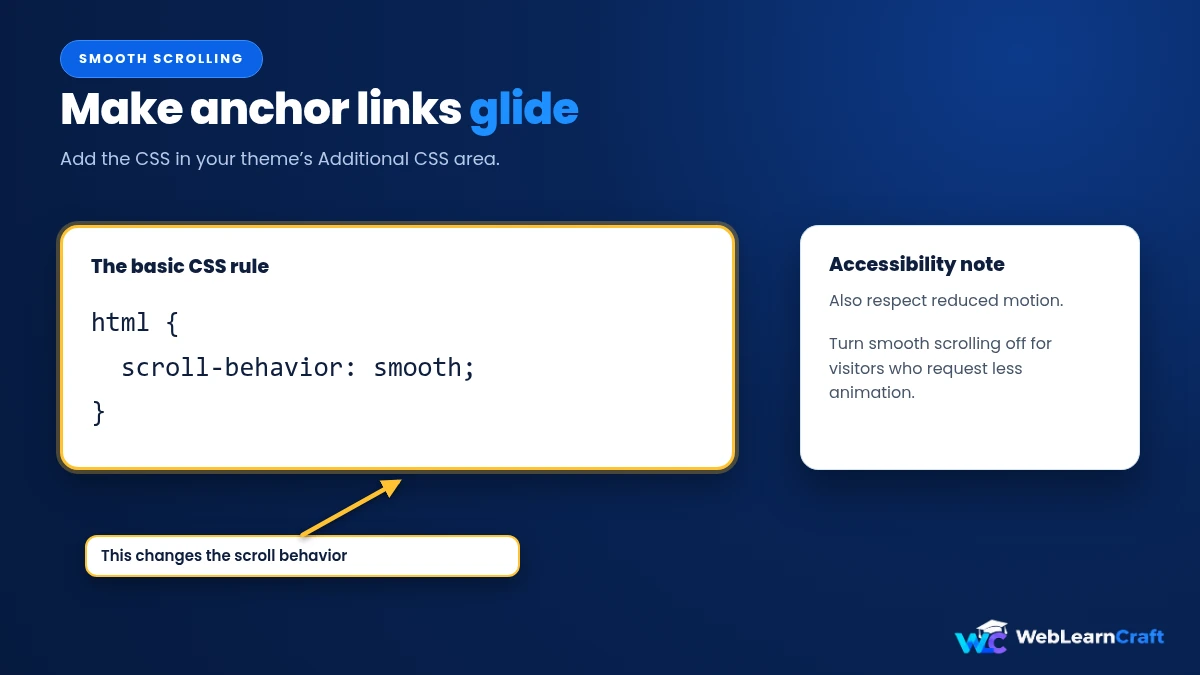
That’s all. Every anchor link on the site now glides. Some add-on plugins offer finer control over speed, sure, but this one line is enough for most sites and doesn’t add anything to your plugin pile.
People who’ve set their device to reduce motion still get the instant jump, by the way. Browsers honour that setting, which is how it should be.
Why Your Heading Hides Under the Header
This one catches almost everybody. You click a link, the page scrolls, and the section title is nowhere to be seen. It’s tucked behind your sticky header. The link works fine. You just can’t see where it took you.
The page scrolls so the target sits at the very top of the screen, and your header is sitting on that exact spot. So tell the browser to stop a little early. In Additional CSS:
.elementor-menu-anchor,
[id] {
  scroll-margin-top: 100px;
}
Swap 100px for about the height of your header, plus a bit of breathing room. The first line takes care of Menu Anchor widgets, and the second handles anything with a CSS ID, so both methods are covered.
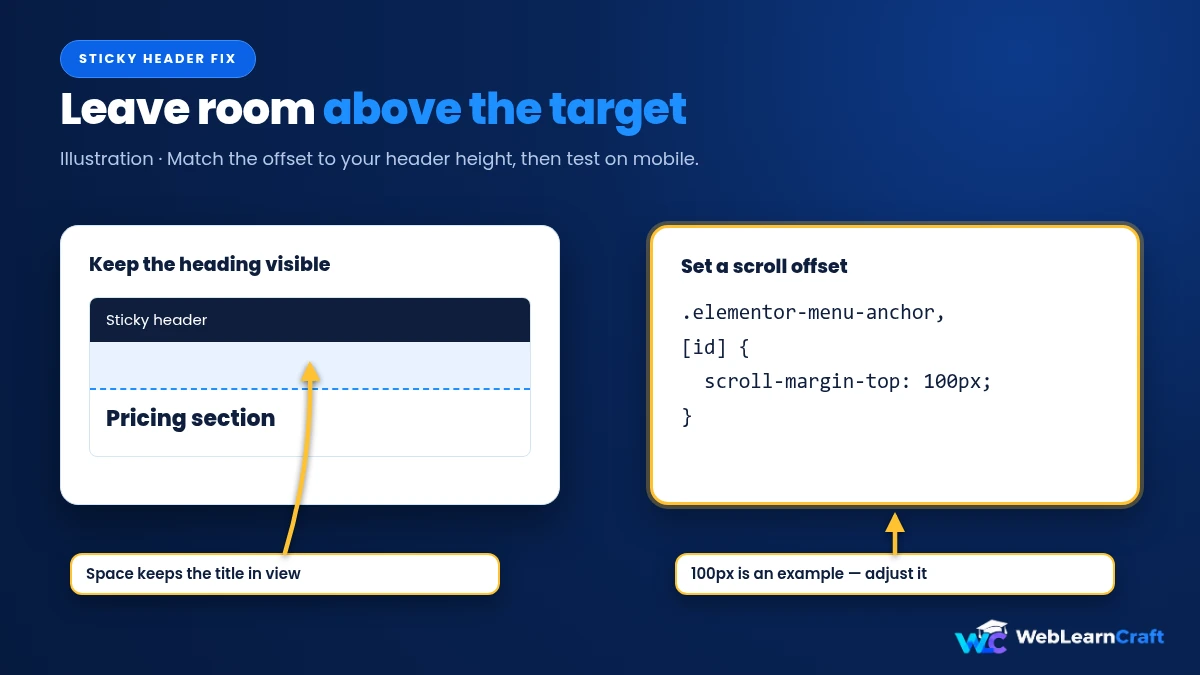
Check it on your phone as well, because the header is often shorter there. If you need a different number for small screens, add a second rule inside a media query. Prefer scripts? You can also add JavaScript to WordPress without a plugin and set the offset that way, though CSS usually does the job.
What About Other Pages?
Say you want a link on your blog to jump to the pricing section of your homepage. Reasonable thing to want.
Here’s the catch. Elementor’s own documentation says Menu Anchors are supported on the same page, and that anchors on other pages may not work properly. You’ll see people say that a full address plus the ID, like https://yoursite.com/#pricing, works perfectly well for them. It might for you too. But it isn’t officially supported, so test it, on a phone as well, before you build anything important on it.
If it behaves badly, the safe route is to link to the other page and let its own menu lead people down to the section.
Small Things That Make One-Page Sites Nicer
None of this is complicated, but it adds up.
Keep the order sensible. Menu items should follow the order of the sections on the page, so the third item leads to the third section. People expect that without thinking about it.
Short IDs win. contact beats section-3-final in every way, and it looks better in a shared link too.
Add a back-to-top link if the page is long. Your visitors’ thumbs will thank you.
Test on a real phone, not just the preview. Menus collapse on mobile, and that’s where odd bugs hide.
Stick to one H1 per page, and use H2s for the sections underneath. If an SEO audit moans about extra headings, here’s how to fix duplicate H1 tags in Elementor.
And remember that an anchor link is just a kind of internal link. The same common sense applies as anywhere else on your site, which our guide on internal links for a new blog explains well.
When a Link Just Won’t Work
It’s rarely anything exotic. Look here first.
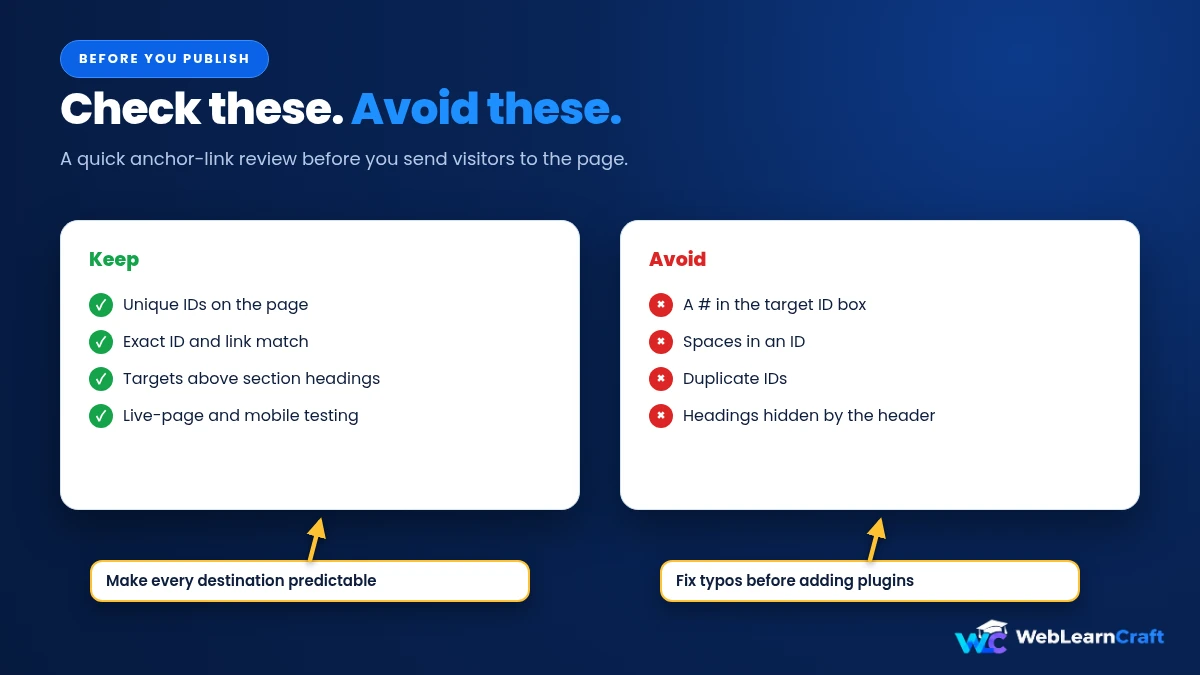
The ID and the link don’t match. #pricing needs an ID of pricing, exactly. Capital letters count, so Pricing is something else entirely.
There’s a space or a symbol in the ID. Stick to letters, numbers, hyphens and underscores.
The hash ended up in the ID box. It belongs in the link only.
Two things share one ID. Each ID has to be unique on the page, so search for repeats.
The page scrolls but the title’s gone. That’s the sticky header again, so use the offset above.
It works in the editor but not on the live site. Clear your caching plugin, your host’s cache and your browser, then try a private window.
The link points to a different page. Read the section above and test carefully.
Mistakes People Make
The big one is using the same ID twice. The browser picks one of them and you spend an hour wondering why.
Next is putting a space in the ID, which simply won’t work. Then there’s skipping the phone test, planting the Menu Anchor in the middle of a section instead of the top, and trusting cross-page anchors without checking them. Oh, and forgetting the cache. Clear it after every change, every time.
Frequently Asked Questions
How do I add anchor links in Elementor?
Put a Menu Anchor widget, or a CSS ID, on the section you want to reach. Then link a button, some text or a menu item to # plus that ID.
Is the Menu Anchor widget free?
Yes, it’s in the free version. The Nav Menu widget needs Elementor Pro, though.
What can I use in an anchor ID?
Letters, numbers, hyphens and underscores. No spaces, no symbols.
How do I get smooth scrolling?
Add html { scroll-behavior: smooth; } to Additional CSS in the Customizer.
Why is my section hidden behind the sticky header?
The page scrolls to the very top of the target, right where the header sits. Add a scroll-margin-top value close to your header’s height.
Can I link to an anchor on a different page?
Elementor says Menu Anchors are for the same page, so cross-page links may be unreliable. If you try it, test it properly.
Do anchor links help SEO?
They’re internal links that make long pages easier to use. Not a ranking trick, just a better experience for visitors.
Wrapping Up
Anchor links are free, simple, and they make a long page feel a lot shorter. Give each section an ID using a Menu Anchor widget or a CSS ID, link to it with a hash, then add a line of CSS for smooth scrolling and another for the sticky header offset.
Keep IDs short and unique, test on a phone, and clear the cache when something looks off. Nine times out of ten it’s a typo in an ID, so check that before you check anything else.
2 Responses