
How to Fix Duplicate H1 Tags in Elementor (Step by Step)
Duplicate H1 tags Elementor reports usually show up like this: your SEO audit says “Multiple H1 tags found.” You open the page in Elementor and count one title. Just one. So where’s the other?
That moment of confusion is common. These duplicate H1 tags Elementor flags are easy to create and annoying to spot, because the extra heading often isn’t on the page you’re editing. It’s in your theme, your header, or a template. Let’s track down every H1, work out why it’s there, and fix it without wrecking your design.
Table of Contents
- Do Duplicate H1 Tags Elementor Warnings Really Hurt SEO?
- How Many H1 Tags Does Your Page Have?
- Why Elementor Sites End Up With Two
- Fix 1: Change the Heading Tag
- Fix 2: Deal With the Theme’s Page Title
- Fix 3: Check Your Header
- Fix 4: Theme Builder Templates
- Fix 5: Sliders, Loops and Widgets
- Where Your One H1 Should Go
- Mistakes to Skip
- Frequently Asked Questions
- Final Thoughts
Do Duplicate H1 Tags Elementor Warnings Really Hurt SEO?
Quick reality check first, because plenty of articles love to scare you.
The H1 is a page’s main heading. The tidy approach is one H1 per page, saying what the page is about. Duplicate H1 tags Elementor audits report are a flag, not a penalty. A second one won’t automatically sink your rankings. Google has said it can cope with multiple H1s, and lots of sites rank fine with them.
So why fix it? A few reasons. SEO tools flag it, and clients tend to notice flags. Screen reader users rely on a clear heading structure, and one H1 makes a page easier to follow. And a clean outline tells both people and search engines what matters most. Call it good housekeeping, not an emergency.
How Many H1 Tags Does Your Page Have?
Don’t guess. Count. To find duplicate H1 tags Elementor pages carry, you simply count them first.
Easiest way: open your live page, right-click, choose View Page Source, and press Ctrl+F. Search for <h1 and count the hits.
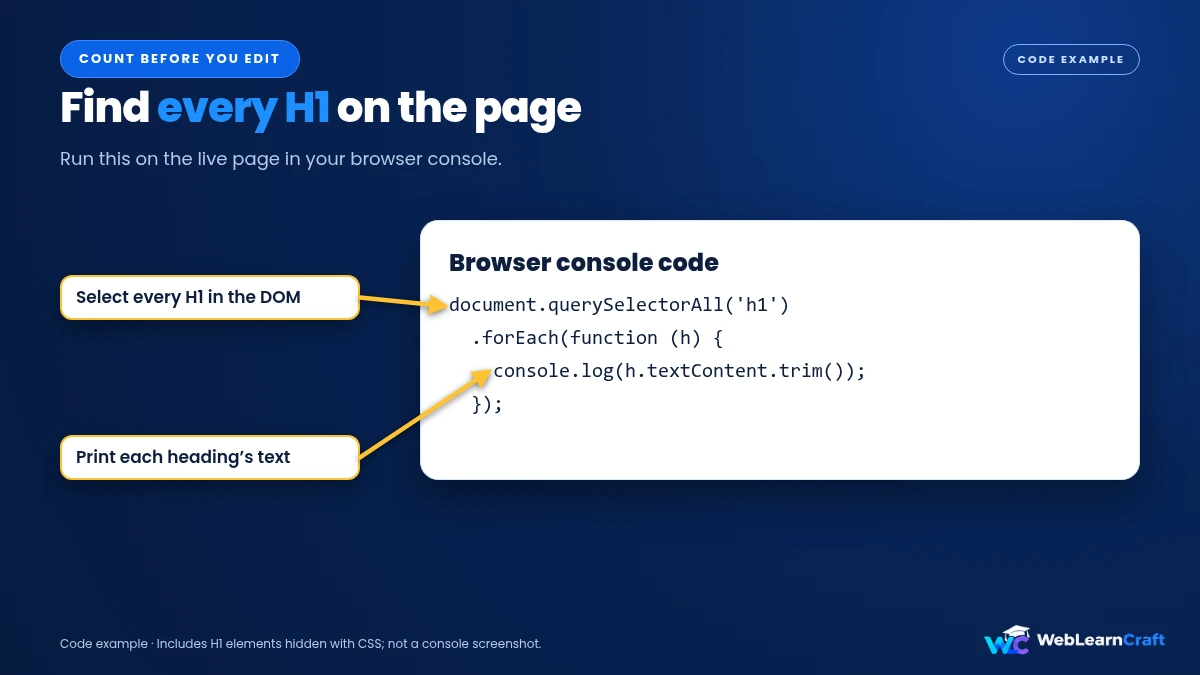
Prefer the console? Press F12, click Console, and paste this:
document.querySelectorAll('h1').forEach(function (h) {
  console.log(h.textContent.trim());
});
It prints the text of every H1 on the page, so you can see which headings are involved. It also shows hidden ones, which matters later.
Want the full outline? Free browser extensions like HeadingsMap list your headings in order. And crawlers like Screaming Frog can check a whole site at once, which saves time if you have hundreds of pages.
Jot down where each H1 lives: header, content, sidebar, footer. That tells you which fix below to reach for.
Why Elementor Sites End Up With Two
Here’s where the extras usually come from.
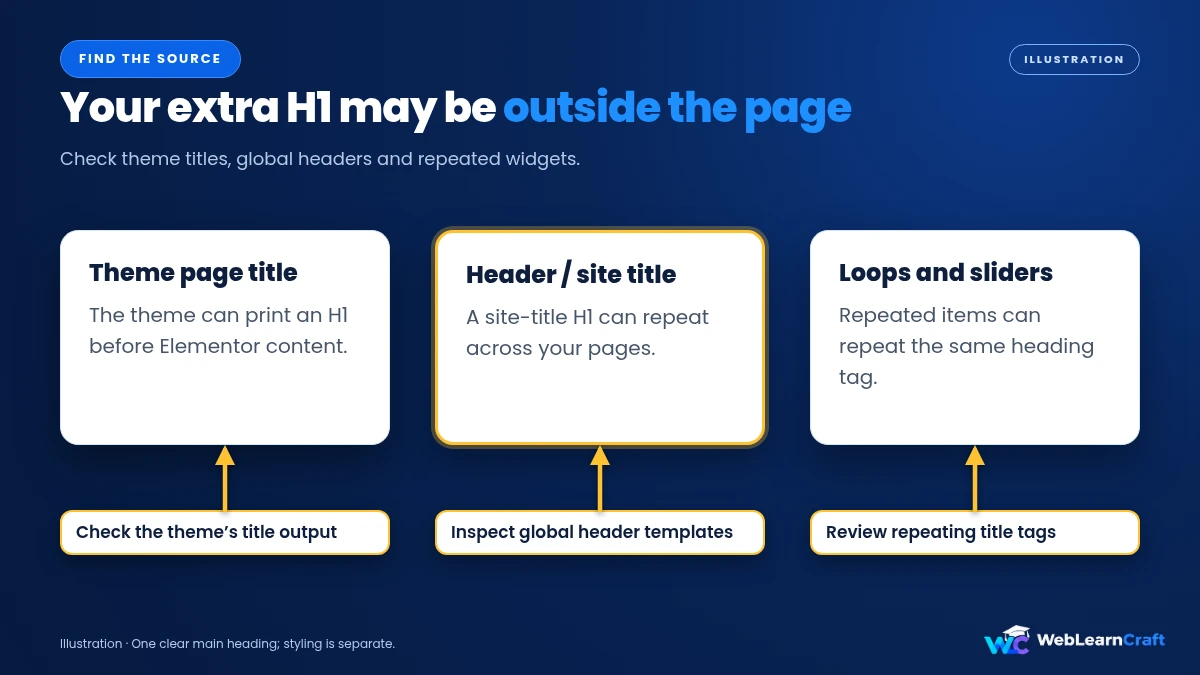
Start with the theme. Many themes print the page title as an H1 at the top. Then you add your own Heading widget in Elementor and set it to H1 as well. Two H1s, one page, and nobody did anything wrong.
Next, the header. Some themes, and some headers built in Theme Builder, print the site name as an H1 on every page. That’s an H1 before your content even begins.
Then there are the title widgets. In Elementor Pro, Page Title and Post Title widgets can output an H1. Perfect once. Not so perfect if the theme prints a title too.
And let’s be honest, we’ve all done this: you want big text, so you pick H1 for the hero, then for a banner, then for a section title. Each one becomes another H1.
Sliders, carousels and loops are sneaky. A widget that repeats items can give every item the same heading level. Five slides, five H1s. On archive and shop pages, you might get the archive title as H1 and your own heading above the products as H1 too.
Most sites have a mix of these. Each one has a simple fix.
Fix 1: Change the Heading Tag
This fixes most cases, and it takes seconds.
Open the page in Elementor and click a Heading widget. In the Content tab, find HTML Tag. Elementor lets you pick H1 to H6, and also div, span or p.
Keep one H1 for the real page title. Switch the rest to H2 or lower. Main section headings become H2, the points under them become H3, and so on.
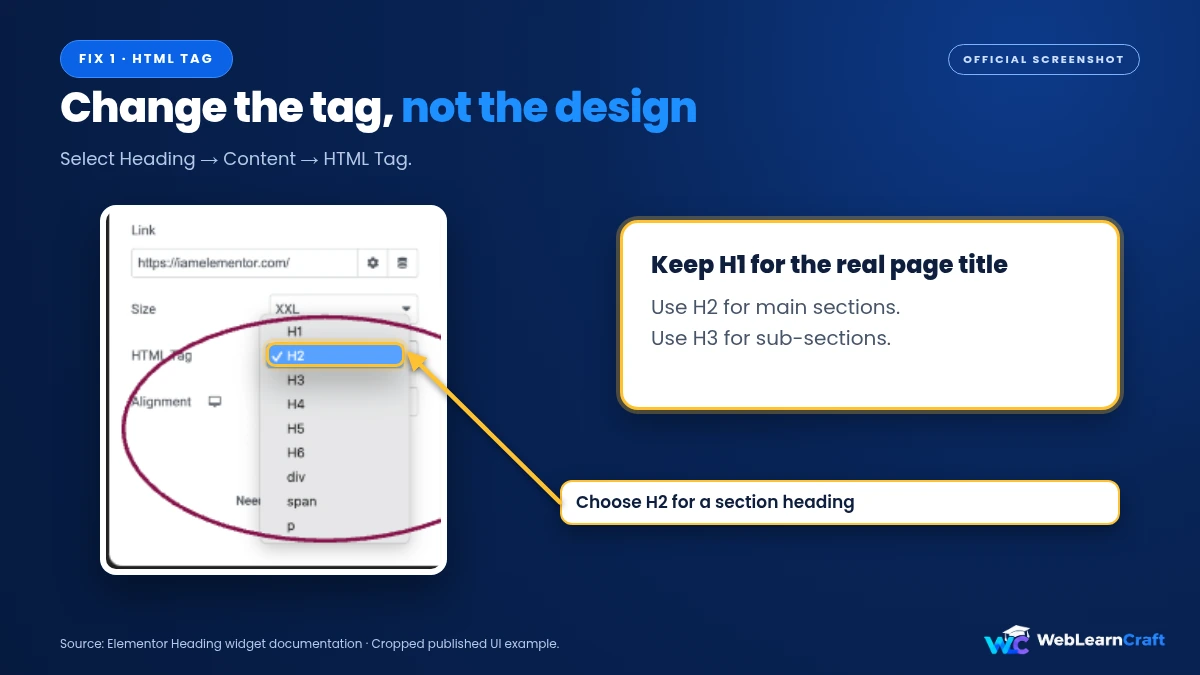
If a heading only needs to look big, not act like a heading, set the tag to div or p and use the Style tab for size. Size and heading level are separate things. Don’t pick H1 just because you want large text.
Fix 2: Deal With the Theme’s Page Title
This is the classic cause of duplicate H1 tags Elementor users run into. The theme prints the title, and you’ve built a custom title in Elementor.
Open the page in the editor and click the Page Settings icon (the gear at the bottom of the panel). Switch Hide Title to Yes. The theme’s title vanishes.
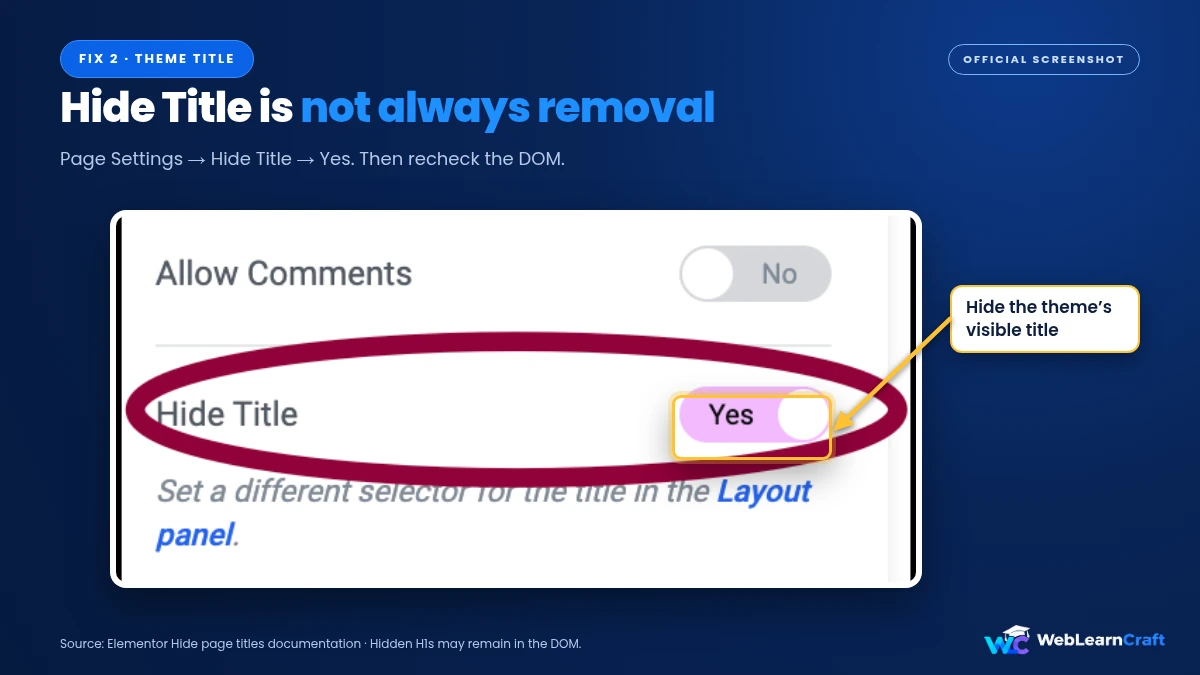
Nothing happens? Elementor’s own help page has the answer. Your theme probably uses a different class for its title, so the toggle can’t find it. Open Site Settings and look for the Page Title Selector field. Enter your theme’s selector, such as h1.entry-title. To find it, right-click the title on your live page, choose Inspect, and read the class on the H1.
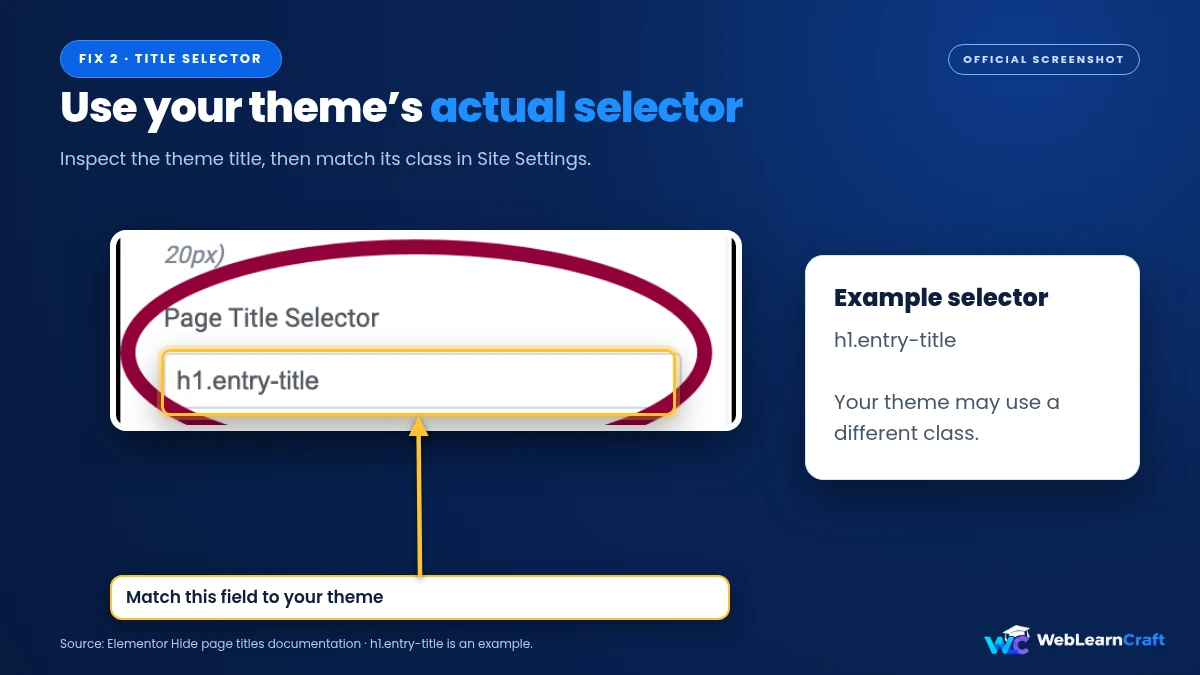
A couple of notes. The Hello theme hides page titles by default, so check Hello’s settings if you want them showing. And in Elementor’s Canvas layout, the theme’s title never appears at all.
Here’s the part many people miss. Hide Title usually hides the heading, but it may not remove it from the page source. A hidden H1 is still an H1 in the code. Run the console snippet again to check. If a hidden one is still there and you want it gone for good, use your theme’s own option to switch off the title, like a “disable title” setting for that page. Most popular themes have one.
Fix 3: Check Your Header
Look at the code of your homepage. Is there an H1 in the header, ahead of your content? It’s often the site title, and a common source of duplicate H1 tags Elementor sites carry.
If your header is built in Theme Builder, edit it and look for a Site Title widget. If it has an HTML Tag option, change it from H1 to div or p. Your site name doesn’t need to be the main heading on every page.
A logo image on its own usually doesn’t create an H1. But some themes wrap the logo in an H1 on the homepage, and you’d change that in the theme’s header settings. Others have a site title switch under Appearance, then Customize, then Site Identity.
After the change, test more than the homepage. Check a post and a page too. Some themes behave differently on each.
Fix 4: Theme Builder Templates
Using Elementor Pro Theme Builder? Then your titles may be coming from templates.
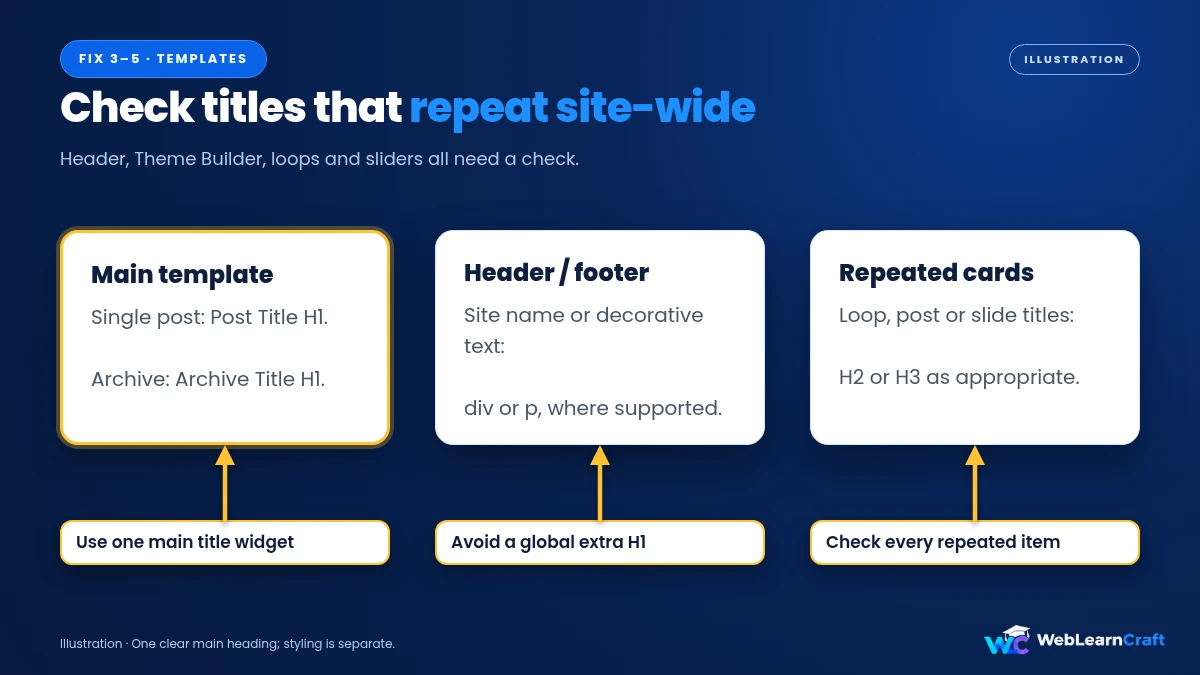
On a single post template, use the Post Title widget once, and leave it as H1. That’s its job. Then make sure your theme isn’t printing a title as well. The Hide Title trick from Fix 2 helps, or build the template on a layout that doesn’t output one.
On an archive template, the Archive Title widget can be your H1. Just don’t put a second H1 above the grid of posts or products.
Page templates with a Page Title widget follow the same rule: one H1 only. And don’t forget your header and footer templates. They load on every page, so a stray H1 in either one shows up site-wide.
Fix 5: Sliders, Loops and Widgets
Anything that repeats can multiply headings, which makes sliders and loops a quiet source of duplicate H1 tags Elementor builders miss.
In a Loop Grid or Posts widget, look for the heading tag option and switch it to H2 or H3. Cards on an archive page shouldn’t each be H1s.
In a Slides or carousel widget, find the title HTML tag setting. If a widget forces H1, change the tag, or use a different widget.
Testimonials, price tables and call-to-action boxes can have the same setting. Click each one and look. It takes a minute, and you only do it once.
Where Your One H1 Should Go
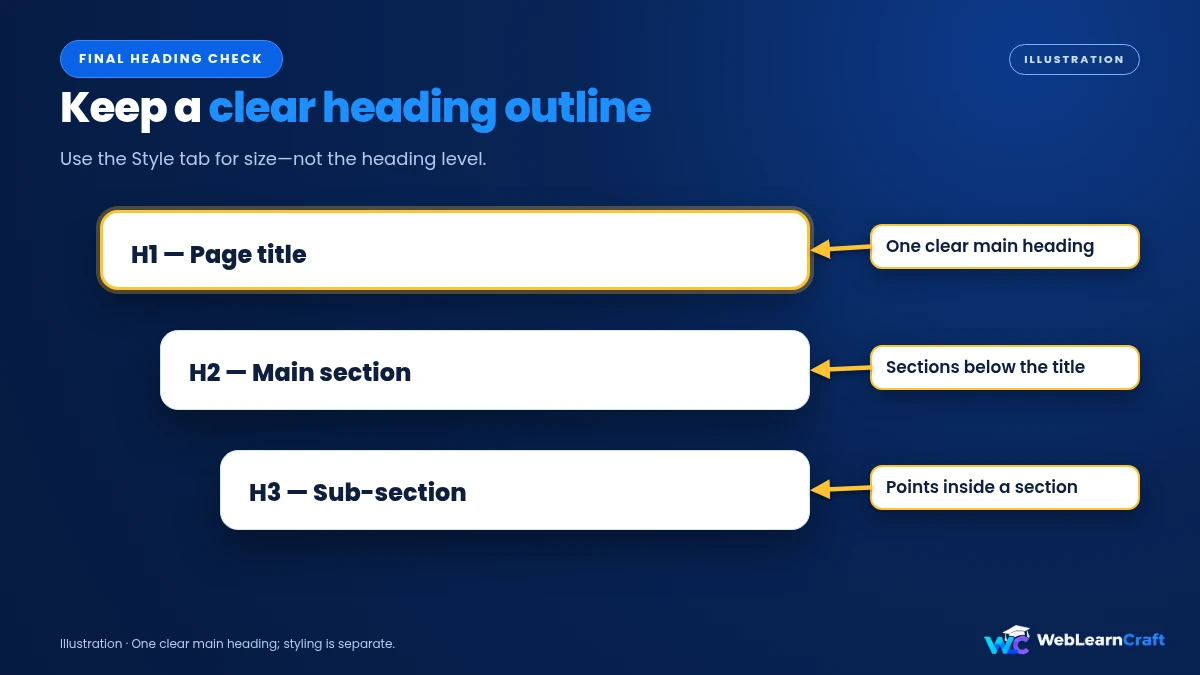
Keep it simple. One H1 per page, describing what the page is about, much like the page’s title. Put it at the top of the main content. That one habit prevents most duplicate H1 tags Elementor templates create.
Below it, use H2 for main sections and H3 for sub-sections. Don’t skip levels just for looks. Think of a book: the H1 is the title, H2s are chapters, H3s are sections inside a chapter.
Rank Math and Yoast can help here, since they look at your content when scoring a page. But they can’t see headings printed by your theme or header, so don’t skip the console check.
Mistakes to Skip
Hiding headings with CSS and calling it done. display: none leaves the tag in the code. If you want a clean structure, remove it or change its tag.
Picking H1 for size. Use the Style tab for that. Heading level is about meaning.
Forgetting header and footer templates. They load on every page, so one stray H1 there repeats across the whole site.
Checking only the homepage. Test a post, a page, an archive and a product.
Editing without a backup. Template changes affect many pages, so back up before touching Theme Builder.
Frequently Asked Questions
How do I find duplicate H1 tags in Elementor?
To find duplicate H1 tags Elementor pages contain, view the page source and search for <h1, or use the console snippet above. A browser extension like HeadingsMap shows the whole outline.
Do multiple H1 tags hurt SEO?
Not directly. Google can handle them, so duplicate H1 tags Elementor flags aren’t a penalty. Still, one clear H1 is cleaner for accessibility and SEO tools, and it’s the safer habit.
How do I change the heading tag in Elementor?
Select the Heading widget, open the Content tab, and pick a tag under HTML Tag. Use H1 once, and H2 or lower for the rest.
Why is my page title still showing after I hide it?
Your theme may use a different selector. Add it in Site Settings, under Page Title Selector, for example h1.entry-title.
Does Hide Title remove the H1 from the code?
Usually it hides it instead of removing it. Check the page source, and use your theme’s own “disable title” option if you want it gone completely.
Can my site title be an H1 on every page?
It can, but then every page has an H1 before its real title. It’s neater to make the site title a div or p, and keep H1 for the page itself.
Can a theme cause duplicate H1 tags?
Yes, quite often. Themes print the page title, and sometimes the site name, as H1. Look for settings that turn them off.
Final Thoughts
Duplicate H1 tags Elementor warnings look worse on an audit report than they are, and the fix is usually small. Find every H1 with the source or console check. Change the extras to H2 or lower. Hide or disable the theme’s title. Check your header and your templates. Keep one clear H1 that says what the page is about.
Go through your page types one at a time, and recheck after each change. It’s quick, and your pages end up easier to read for people, screen readers and search engines.
For more beginner guides, browse the WebLearnCraft blog. Need help with your site? Contact us and we’ll point you the right way.
3 Responses