
Elementor Editor Not Loading? 6 Fixes That Work
You click Edit with Elementor, the grey loading screen appears, and the little logo spins. And spins. Five minutes later, nothing has changed. Your page looks fine on the front end, but you cannot get inside to edit it.
This is the Elementor editor not loading problem, and it is more common than you think. Below are the six fixes that solve it most often, in the order I would try them: Safe Mode, your theme, your plugins, your memory limit, your CSS settings, and the cache.
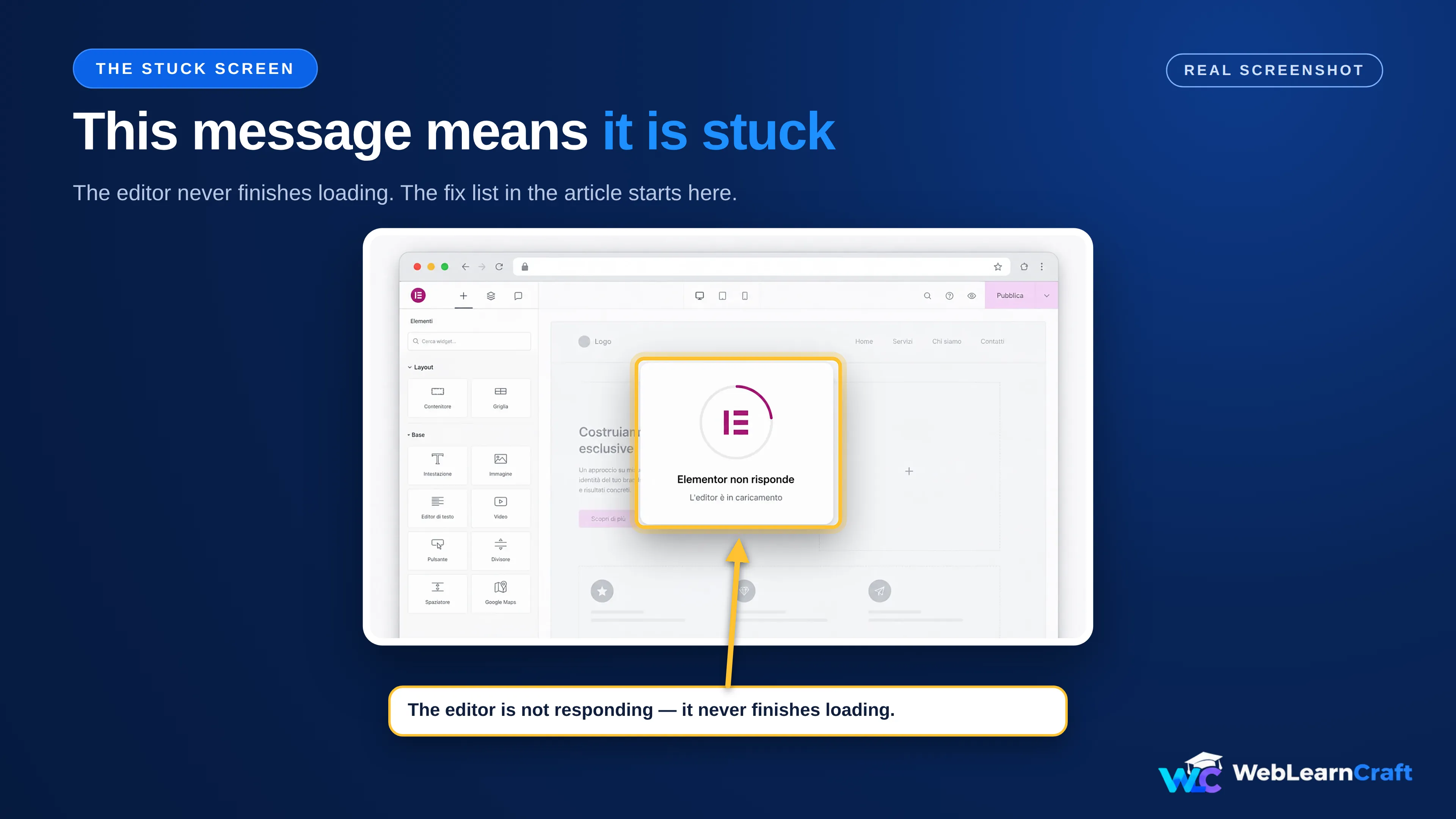
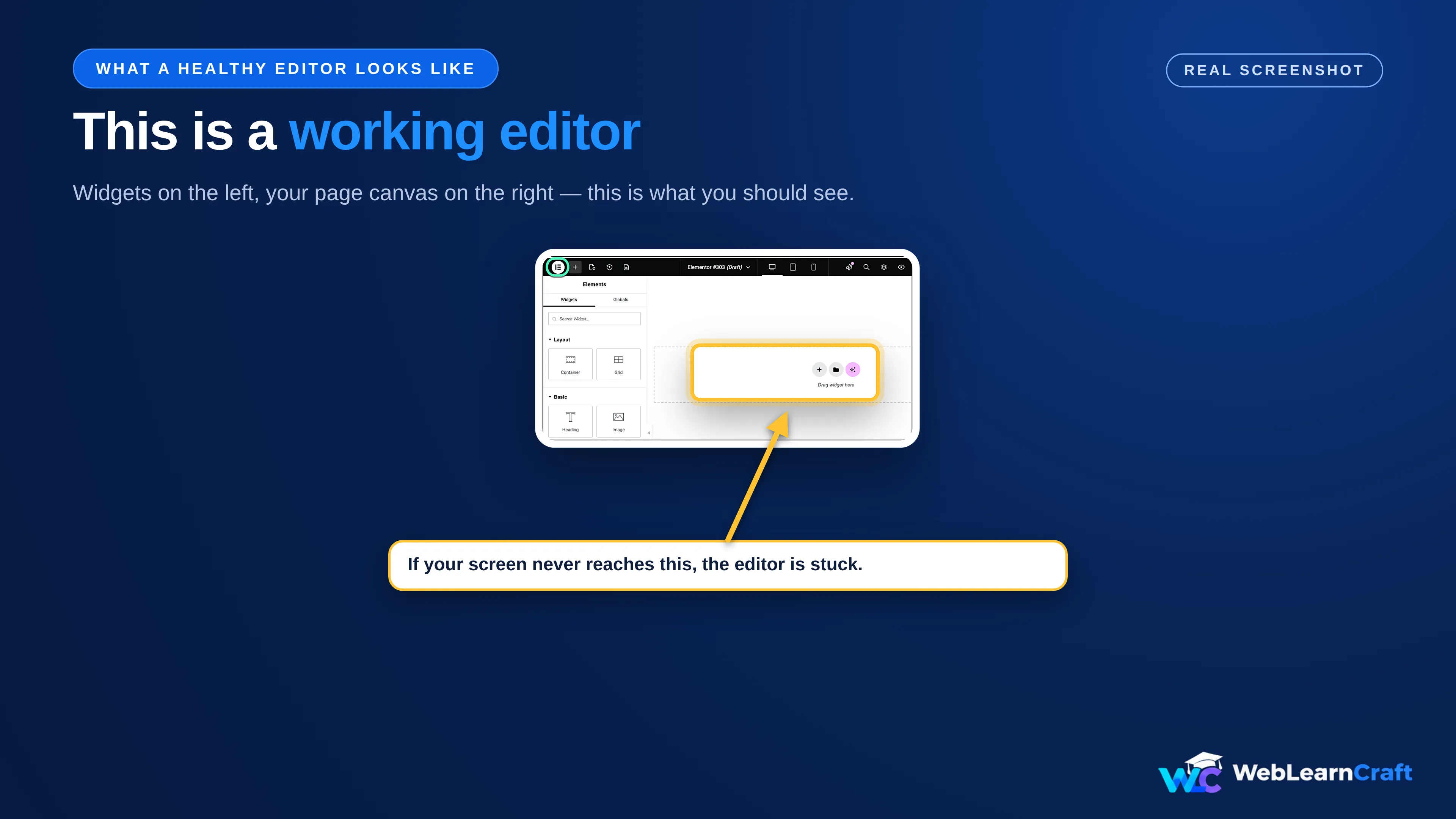
Table of Contents
What Causes Elementor Editor Not Loading?
In most Elementor editor not loading cases, the cause is one of five things: a plugin fighting with Elementor, a theme loading clashing scripts, a PHP memory limit that is too low, a caching layer serving a stale copy, or an update that went wrong. The editor is heavy JavaScript, so it breaks first.
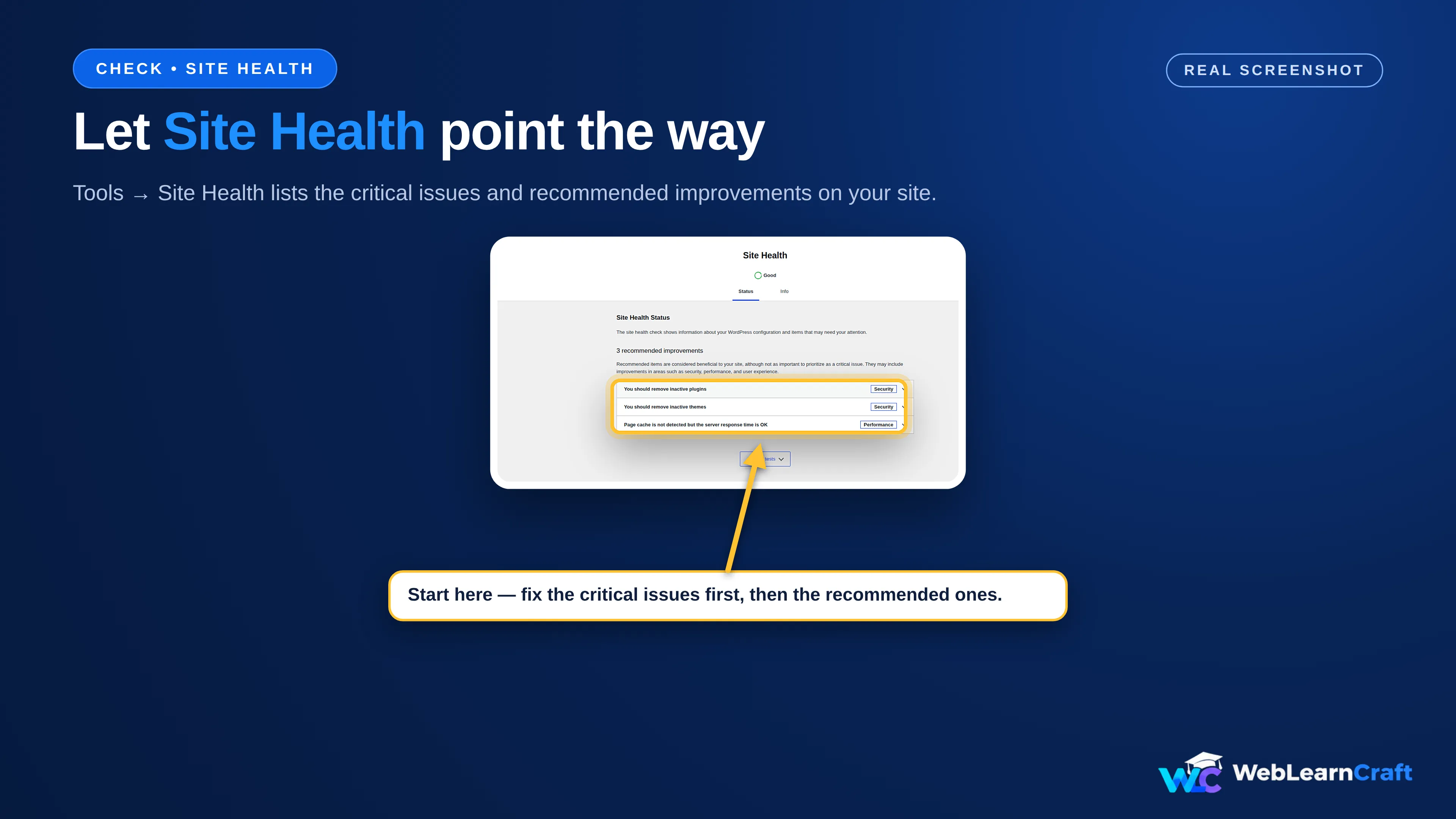
Before you change anything, check Tools > Site Health in your dashboard — the Status tab flags low memory, outdated PHP, and failed checks in plain language. WordPress explains the screen in its official Site Health documentation.
Two other things can slow the editor down: long one-page designs with dozens of sections and anchor links, and heavy custom fonts loaded by your theme or Elementor. If the problem started right after an update, check Elementor’s developer site, where notes about each new version are published.
Do not worry about finding the exact cause first.
Fix 1: Enable Safe Mode
Safe Mode is Elementor’s own diagnostic tool, and the best place to start. When Elementor editor not loading is your problem, Safe Mode is the fastest test. It loads the editor without your theme code, third-party plugins, or experimental features. It only affects your own editing session as a logged-in administrator — visitors keep seeing the normal live site.
To turn it on, go to Elementor > Tools in your dashboard, set Safe Mode to Enable, and click Save Changes. In newer versions, the Tools page sits under Elementor > Editor > Tools. Then open any page with Elementor. You can also switch it on from the error screen itself.
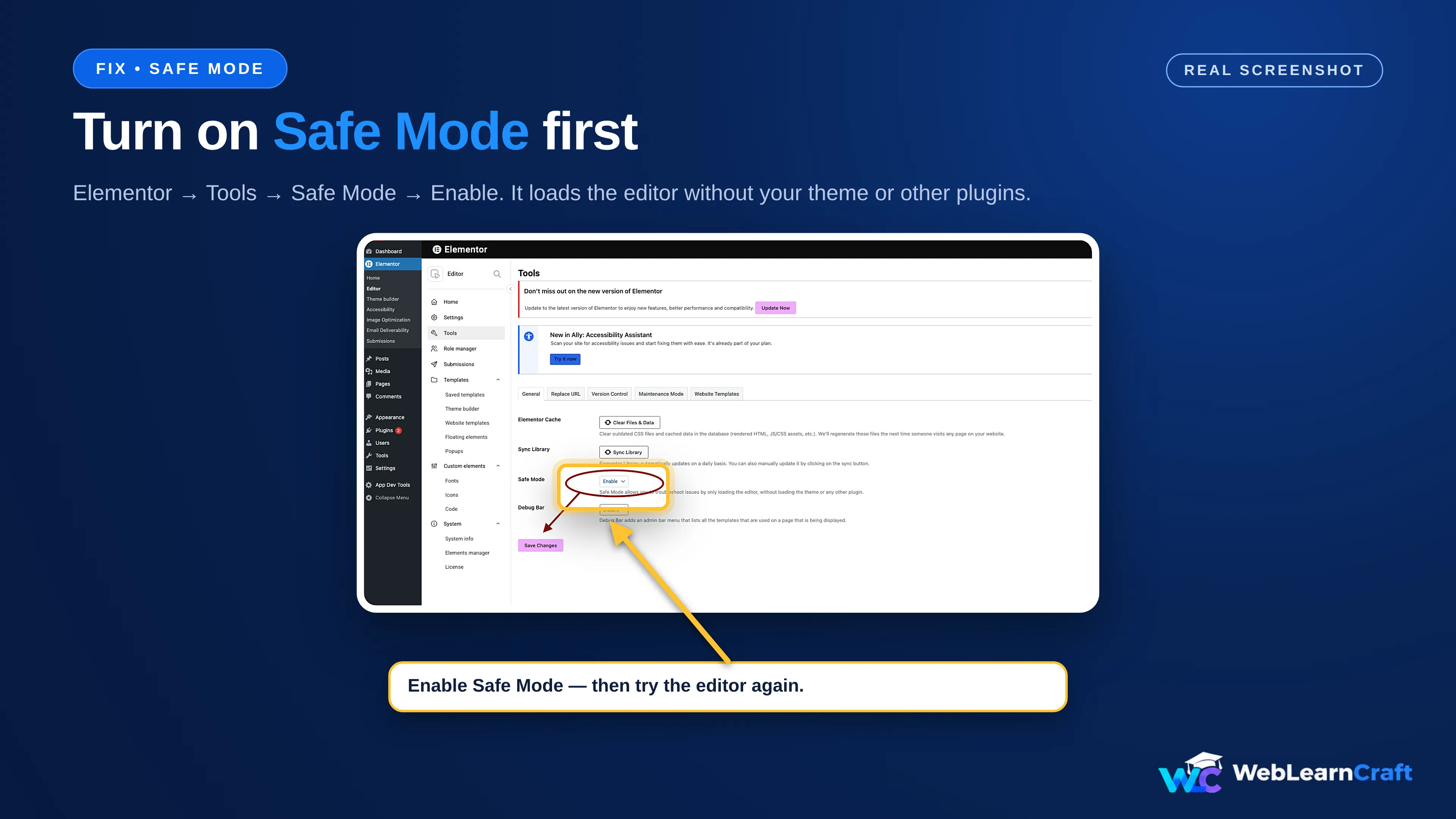
The result tells you where the problem lives. If the editor loads in Safe Mode, a plugin or your theme is the cause, and Fixes 2 and 3 will find it. If the Elementor editor not loading screen appears even in Safe Mode, the cause is deeper — usually your server setup or memory limit — so jump to Fix 4. Turn Safe Mode back off when you finish testing, because it also switches off your Elementor experiments. Elementor explains the same test in its common troubleshooting steps guide.
Fix 2: Switch to a Default Theme
If Safe Mode pointed at a conflict, your theme is the next suspect. Themes load their own scripts and styles into the editor, and a theme that has not been updated for the latest Elementor version can stop it from opening at all.
Switch to a default theme for a quick test: go to Appearance > Themes, activate Twenty Twenty-Five, and try opening a page in Elementor. If Elementor editor not loading stops after the switch, your theme was the problem. Check for a theme update first, then contact the theme developer and tell them the editor loads fine on a default theme.
Switching themes does not delete your content, but menus and widget areas may look different while the default theme is active, so switch back right after the test. If your headings look doubled after switching, read our guide on how to fix duplicate H1 tags in Elementor — themes often add their own heading on top of Elementor’s.
Fix 3: Deactivate Plugins One by One
Plugins are the most common cause of an Elementor editor not loading, and this fix finds the guilty one — the same method Elementor’s own support team uses.
Go to Plugins > Installed Plugins and deactivate every plugin except Elementor (and Elementor Pro, if you use it). Then try opening a page in Elementor. If it loads, you have confirmed a plugin conflict. Now reactivate them one at a time, testing the editor after each one. The moment it stops loading again, the plugin you just switched on is the culprit.
When you find it, check for an update first — the conflict may already be fixed in a newer version. If it is up to date, keep it deactivated, replace it, or contact its developer and describe the conflict. Test menu plugins early, because they load scripts on every page — or build your mega menu in Elementor without a plugin instead.
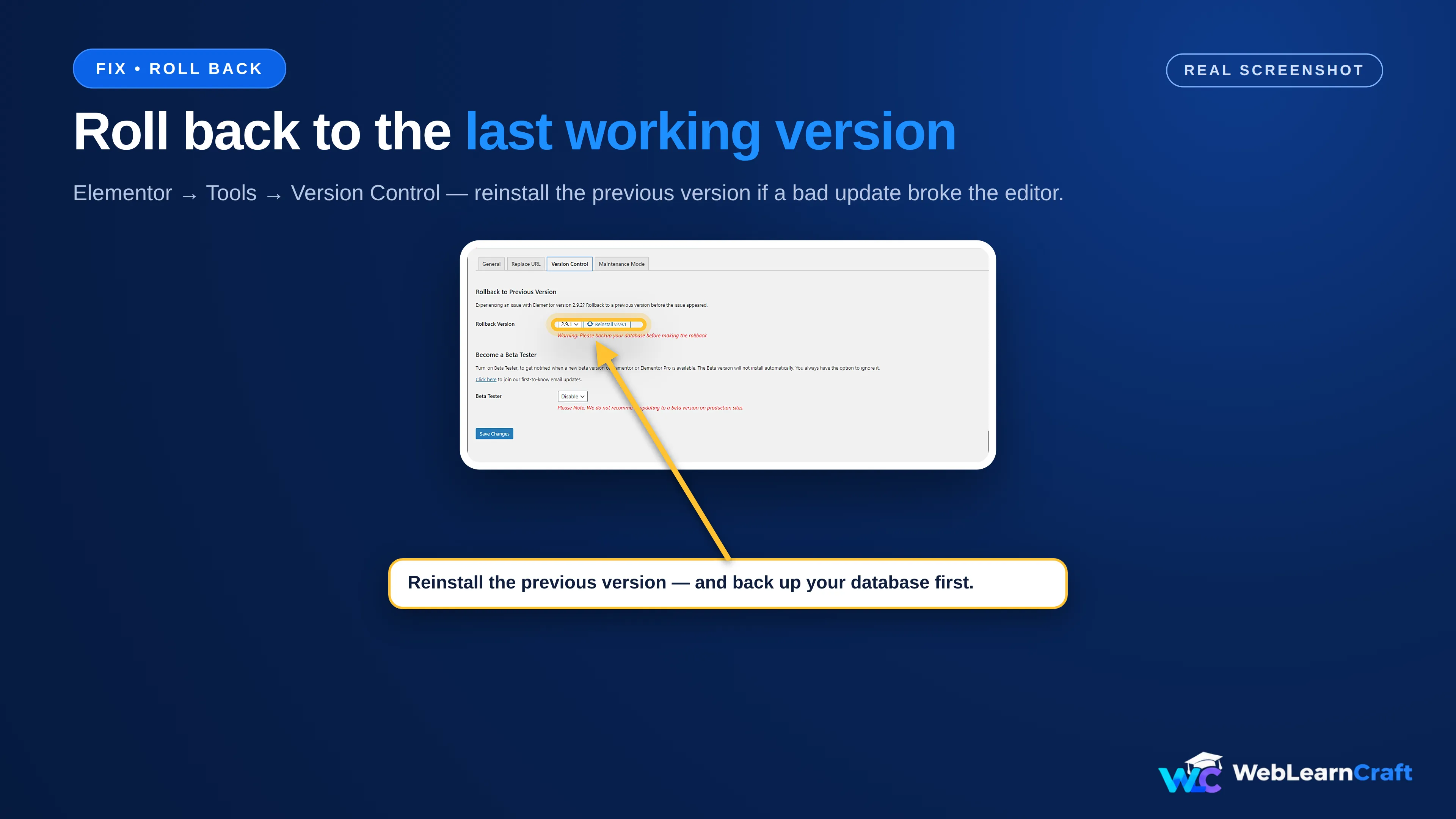
If Elementor editor not loading began right after an Elementor update, try a rollback first. Go to Elementor > Tools > Version Control and choose the previous version. This is a temporary fix: back up your site first, and update Elementor again once a newer release is out.
Fix 4: Increase the Memory Limit
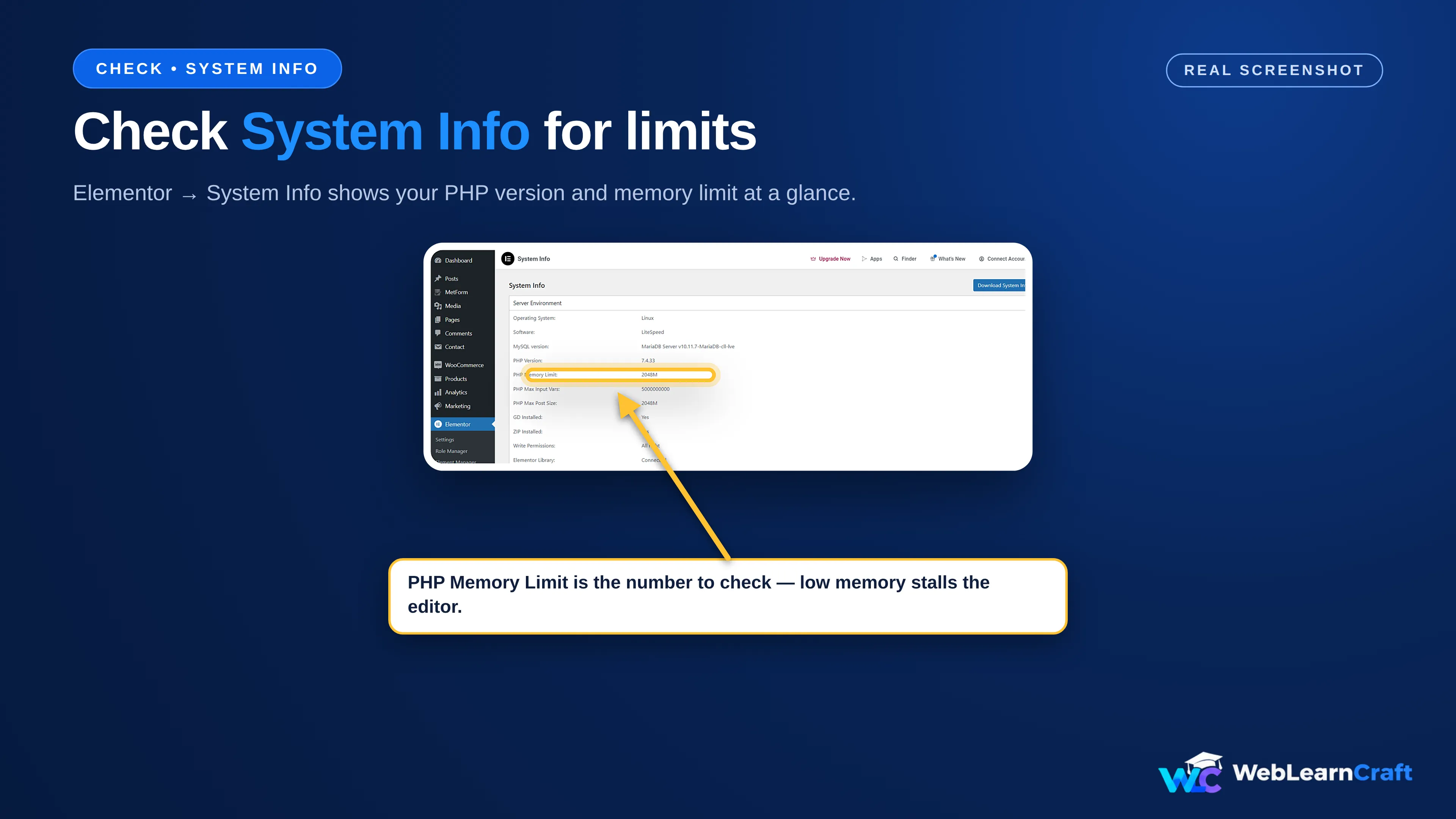
Elementor needs memory to build its editor, and a low PHP memory limit can stop it from loading at all. A low limit is a quiet cause of Elementor editor not loading: many shared hosting plans set it to 128M or lower, and a page with lots of widgets can run out of room before the editor opens.
Check your current limit first: go to Elementor > System Info and look at the Server Environment section. You can also find it under Tools > Site Health > Info > Server.
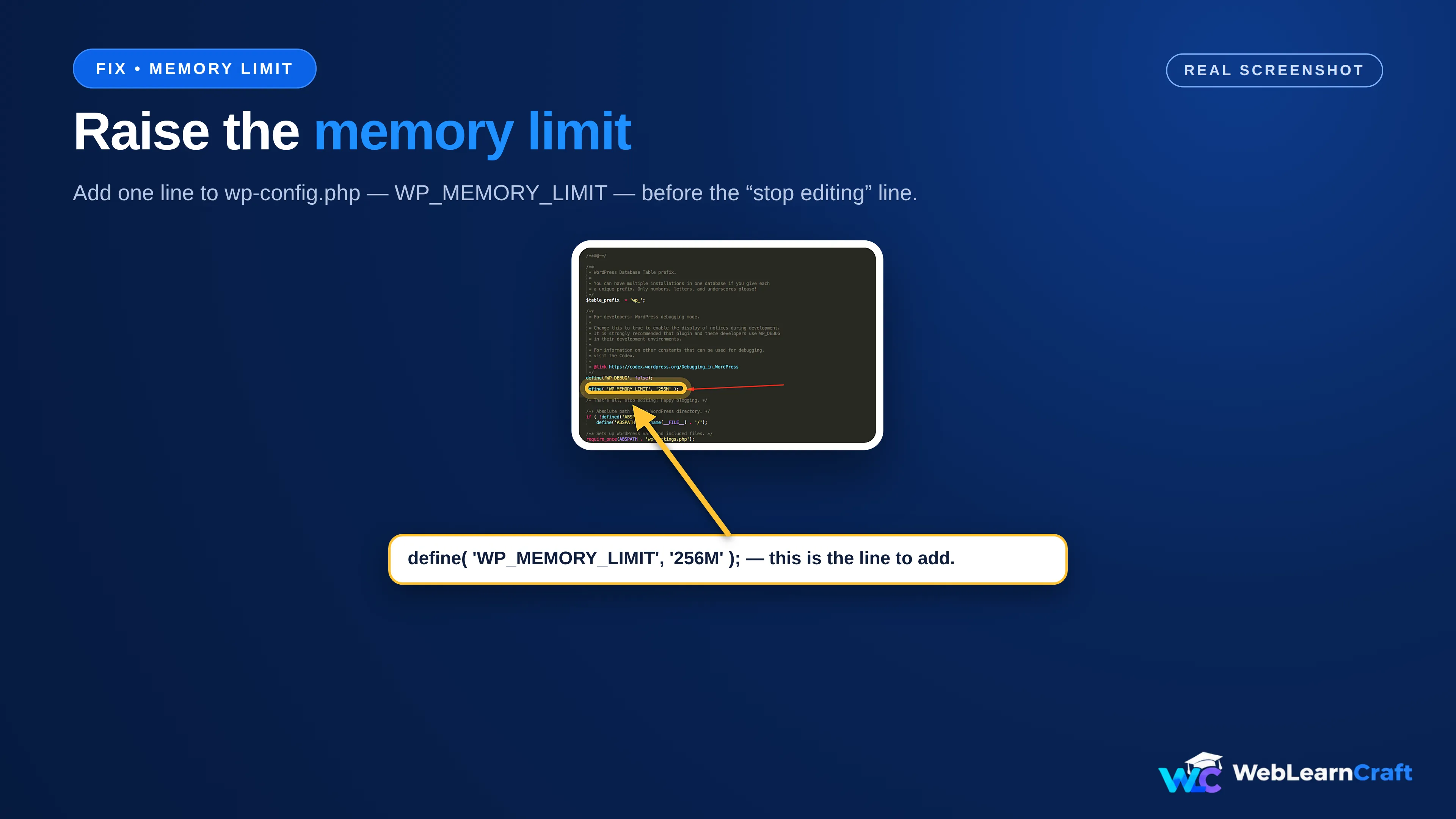
If the number is below 256M, add one line to your wp-config.php file, just above the line that says “That’s all, stop editing!”:
define( 'WP_MEMORY_LIMIT', '256M' );
Back up wp-config.php before you edit it — a typo in this file can take your whole site down. If you cannot reach your site’s files, or your host overrides the setting, ask hosting support to raise the PHP memory limit to 256M. For larger sites, Elementor’s own help suggests 512M.
Fix 5: Change the CSS Print Method and Regenerate CSS
Elementor builds a CSS file for every page you design. If that file is corrupted or out of date, the editor can hang while it waits for styles that never arrive.
Go to Elementor > Settings > Advanced, find CSS Print Method, and change it from External File to Internal Embedding. Then go to Elementor > Tools and click Regenerate CSS & Data. This rebuilds the CSS files for all your pages.
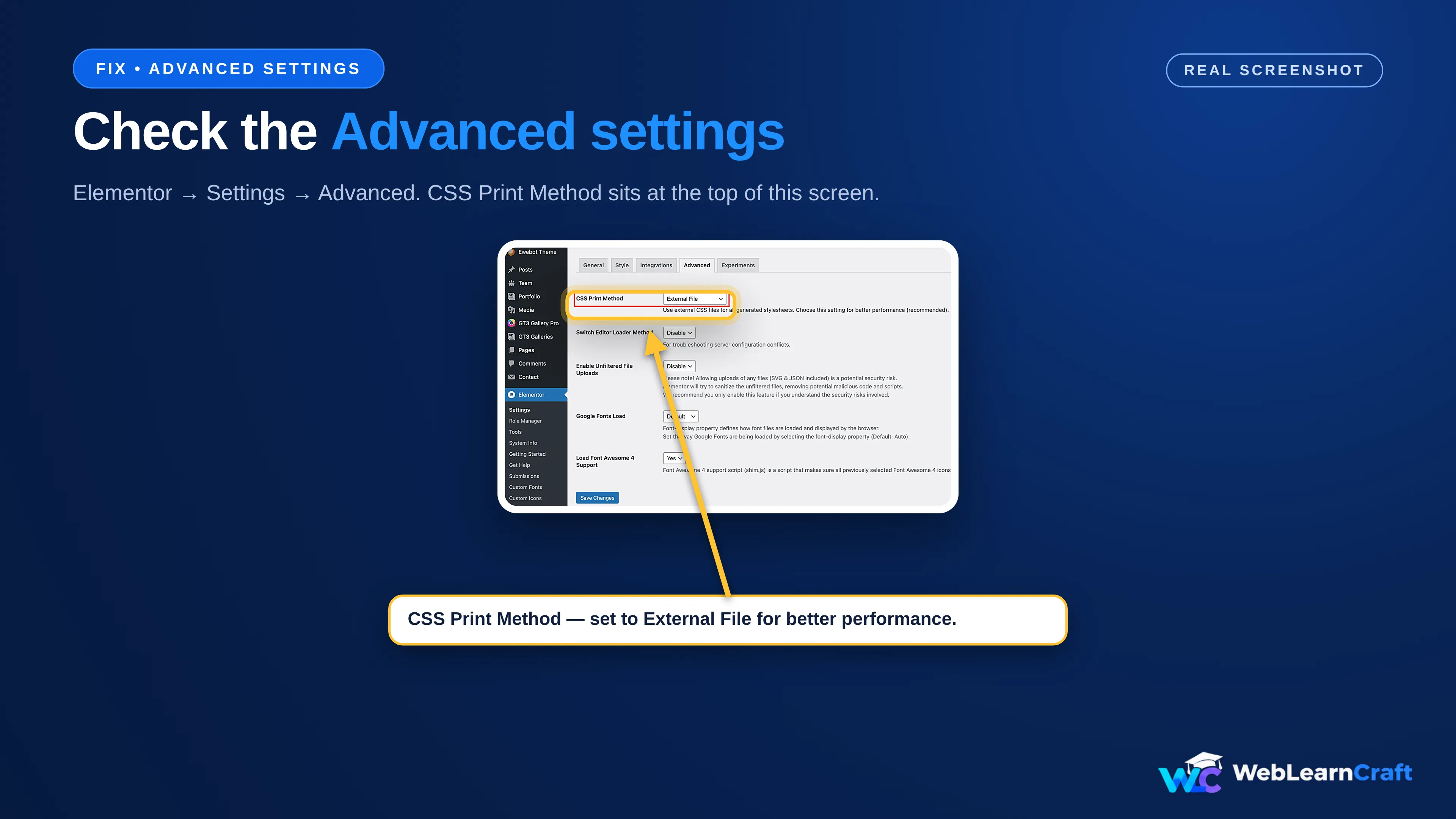
Now try the editor again. This only affects how Elementor delivers your styles, not how your pages look. If Elementor editor not loading is fixed, you can switch the CSS Print Method back to External File and regenerate the CSS once more.
Fix 6: Clear the Cache
Sometimes the editor itself is fine, and a cache is showing you an old, broken copy of it. This is the easiest fix of all.
Start with your browser: hard refresh with Ctrl + F5 on Windows or Cmd + Shift + R on Mac, then open the editor in a private or incognito window. If it loads there, your browser cache was the problem. Next, clear your WordPress caching plugin — in LiteSpeed Cache, that is LiteSpeed Cache > Purge All. If you use a CDN such as Cloudflare, purge the CDN cache too, and check that Rocket Loader is not interfering with the editor.
If the Elementor editor not loading problem disappears after clearing the cache, you are done. If it comes back, your cache settings need a second look.
Frequently Asked Questions
Why is my Elementor editor stuck on the loading screen?
In most Elementor editor not loading cases, the cause is a plugin or theme conflict, or a PHP memory limit that is too low. Start with Safe Mode (Fix 1) to find out which.
Will Safe Mode change anything on my live site?
No. Safe Mode only affects your own editing session as a logged-in administrator. Your visitors keep seeing the normal live site.
How much PHP memory does Elementor need?
256M is a good starting point, and Elementor’s own help suggests 512M for larger sites. Check your current limit in Elementor, System Info.
Can a caching plugin stop the editor from loading?
Yes. A stale cached copy can show a broken editor even when everything else is fine. Purge all caches, including your CDN, and test in a private window.
The editor loads in Safe Mode but not normally. What does that mean?
A plugin or your theme is causing the conflict. Deactivate your plugins one by one (Fix 3), then update the culprit, replace it, or contact its developer.
Should I reinstall Elementor to fix this?
Only as a last step. Reinstalling rarely fixes an Elementor editor not loading problem — the cause is usually a conflict or low memory, not a broken install. Try the six fixes first, and back up before reinstalling anything.
Wrapping Up
An Elementor editor not loading problem is almost always a conflict, low memory, stale CSS, or a cache showing you an old copy. Start with Safe Mode, then work through the theme, the plugins, the memory limit, the CSS settings, and the cache. One of these six fixes solves it for most sites.
If the editor still will not load after all six, share what you tried with your hosting support or Elementor support. WebLearnCraft publishes clear, beginner-friendly guides on WordPress, SEO and blogging. Browse the latest guides, or contact us if you need help with your site.