
WooCommerce Checkout Not Working? 7 Simple Fixes That Work
A customer adds a product to the cart, clicks Proceed to checkout, and then… nothing. Or the checkout page loads, but instead of payment options it says: “There are no payment methods available.” Nobody can pay you, and every hour it stays broken is an order lost.
WooCommerce checkout not working is a stressful problem, so let me walk you through it step by step. Below are 7 fixes, in the order I would try them — no coding needed.
Table of Contents
- Why Is WooCommerce Checkout Not Working?
- Fix 1: Test With a Default Theme
- Fix 2: Find the Conflicting Plugin
- Fix 3: Check Payment Gateway Settings
- Fix 4: Fix the Checkout Page Shortcode or Block
- Fix 5: Clear the Cache
- Fix 6: Check WooCommerce Status and Logs
- Fix 7: Update WooCommerce
- Frequently Asked Questions
- Wrapping Up
Why Is WooCommerce Checkout Not Working?
A WooCommerce checkout is not one page. It is your theme, WooCommerce itself, your payment gateway, and your cache all working together. If any one of them breaks, the checkout breaks — and the error message rarely tells you which one.
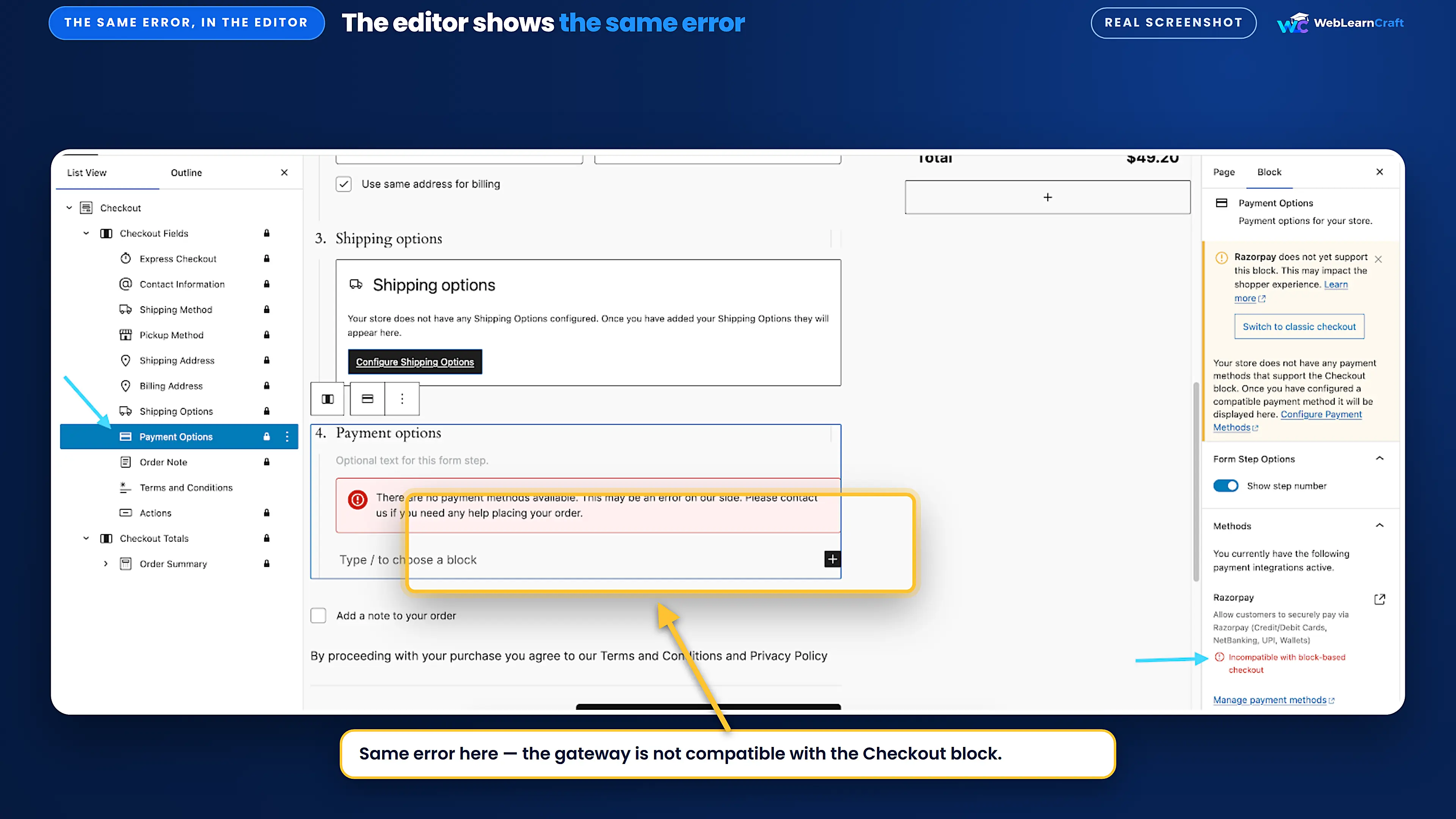
WooCommerce checkout not working looks different on every store. Sometimes the page is blank, sometimes the Place Order button does nothing, and the most common message customers see is this one:
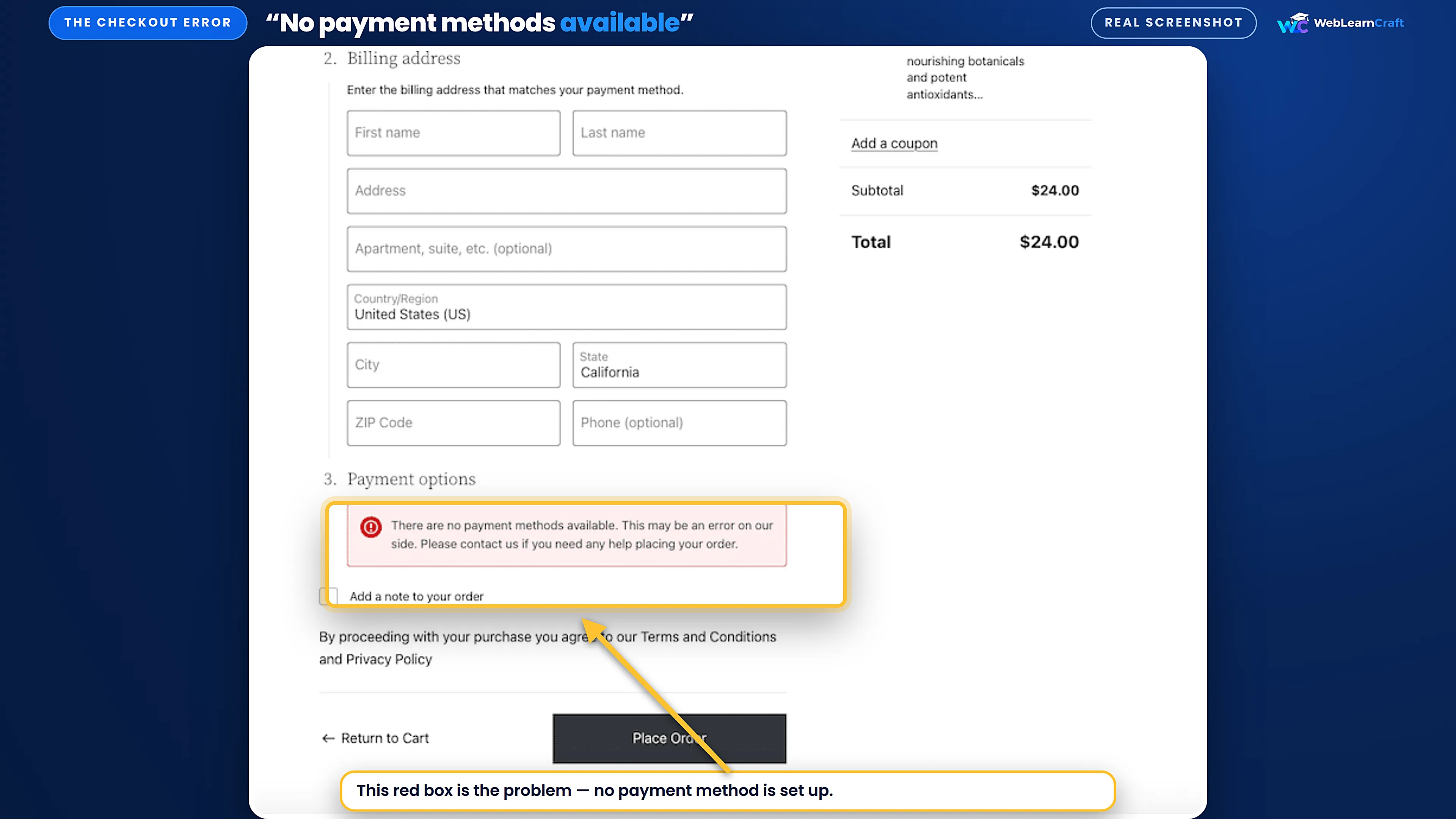
Here are the most common causes of WooCommerce checkout not working:
- A theme update that broke the checkout template.
- A plugin conflict, often a field editor or caching plugin.
- A gateway that is switched off, half set up, or not block-compatible.
- A checkout page that lost its shortcode or was never assigned.
- A cached checkout page serving old, broken content.
- An outdated WooCommerce, theme, or plugin version.
Work through the fixes below in order, testing after each one.
Fix 1: Test With a Default Theme
Before you change anything, take a backup — if something goes wrong, it lets you undo it in minutes. If you have never set one up, read our guide on how to set up your first WordPress backup, and compare the free options in our free WordPress backup plugins compared for 2026 guide.
Now switch your theme: go to Appearance > Themes and activate Storefront, the free official WooCommerce theme, or a default theme such as Twenty Twenty-Five. Then test the full flow — add a product to the cart, open the cart, and click Proceed to checkout.
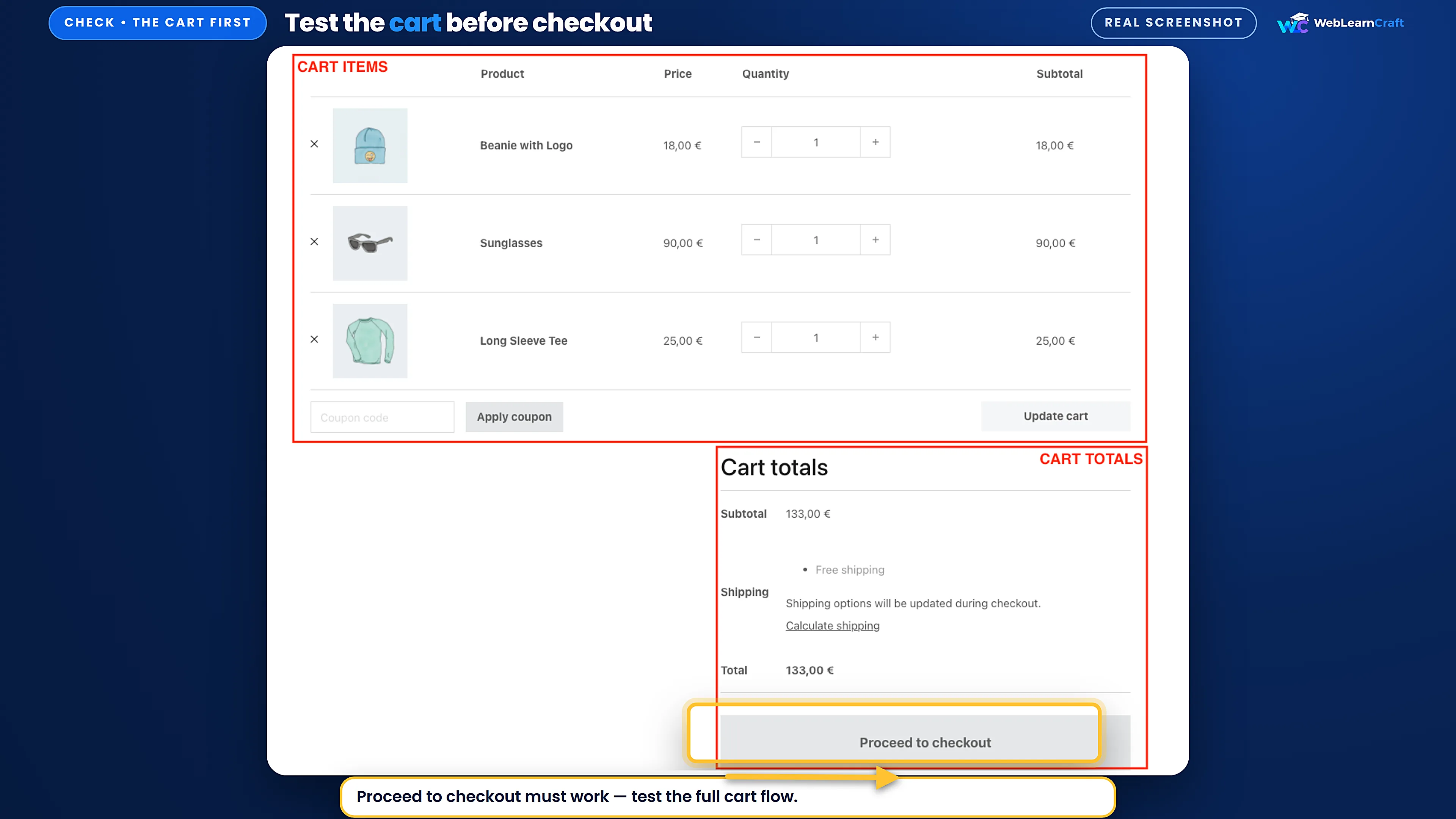
If the checkout works with the default theme, your theme is the problem — it may be overriding a WooCommerce template that is now outdated. Check for a theme update first; if there is none, tell the theme developer the checkout works with Storefront but not with their theme.
If you still see WooCommerce checkout not working with the default theme on, switch your own theme back on and move to Fix 2.
Fix 2: Find the Conflicting Plugin
A plugin is the next suspect when WooCommerce checkout is not working and the theme is fine — field editors, shipping plugins, currency switchers, and extra add-ons all touch the checkout page.
Test on a staging copy if you have one. Without staging, use the free Health Check & Troubleshooting plugin — its troubleshooting mode switches plugins off only for you, while visitors keep seeing the normal site.
Then run the conflict test: deactivate every plugin except WooCommerce and your payment gateway plugin, and test the checkout. If it works, reactivate your plugins one by one, testing after each one. When the checkout breaks again, the last plugin you switched on is the problem — check for an update, contact the developer, or leave it switched off if it is not essential.
Even small add-ons can clash. A free wishlist plugin adds buttons and scripts to product and cart pages, so test with it switched off too — our guide shows how to add a wishlist to WooCommerce for free.
Fix 3: Check Payment Gateway Settings
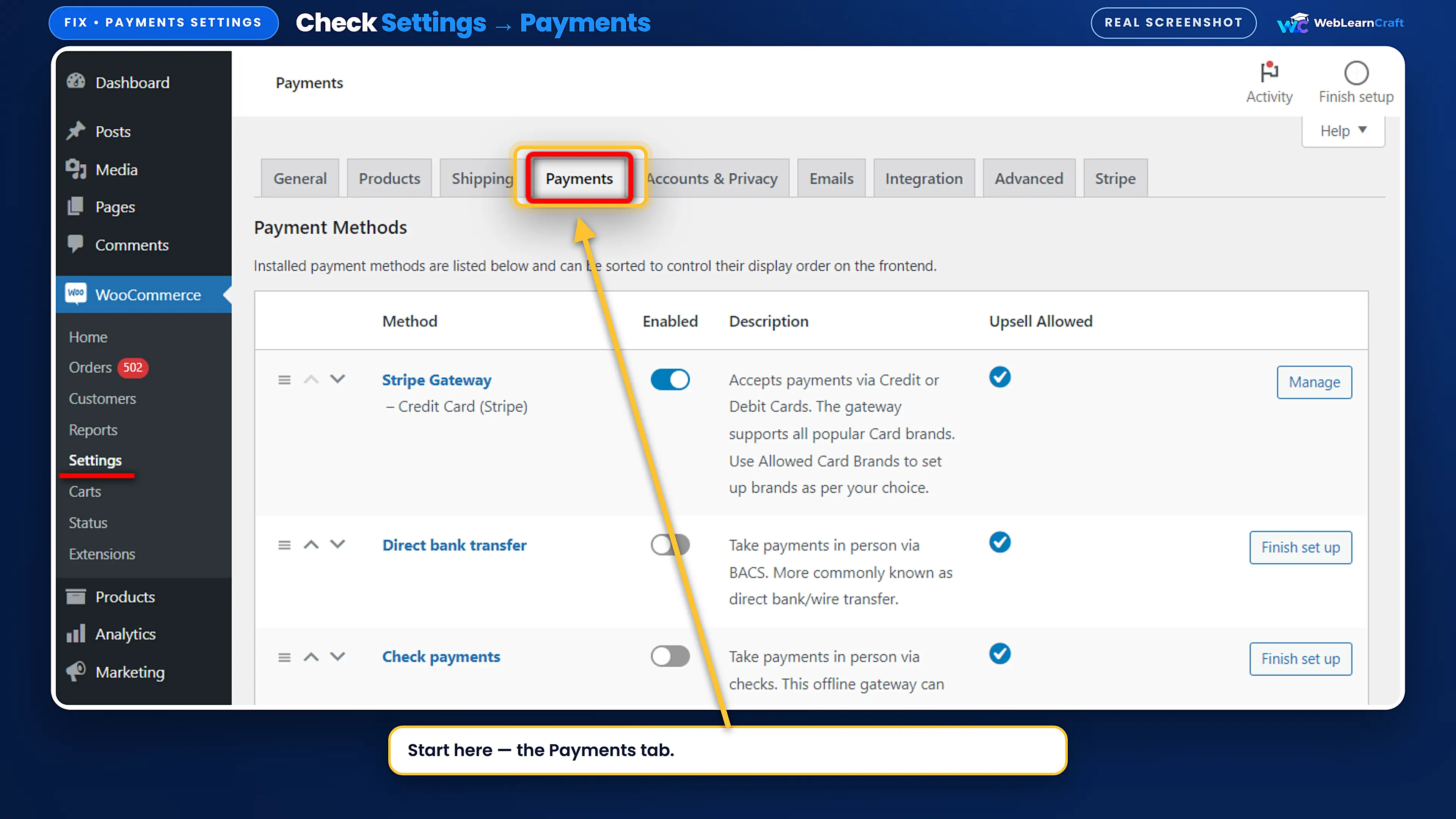
The most common reason for WooCommerce checkout not working at the payment step is a gateway that is switched off or never finished being set up. Go to WooCommerce > Settings > Payments and switch on every gateway you want customers to use.
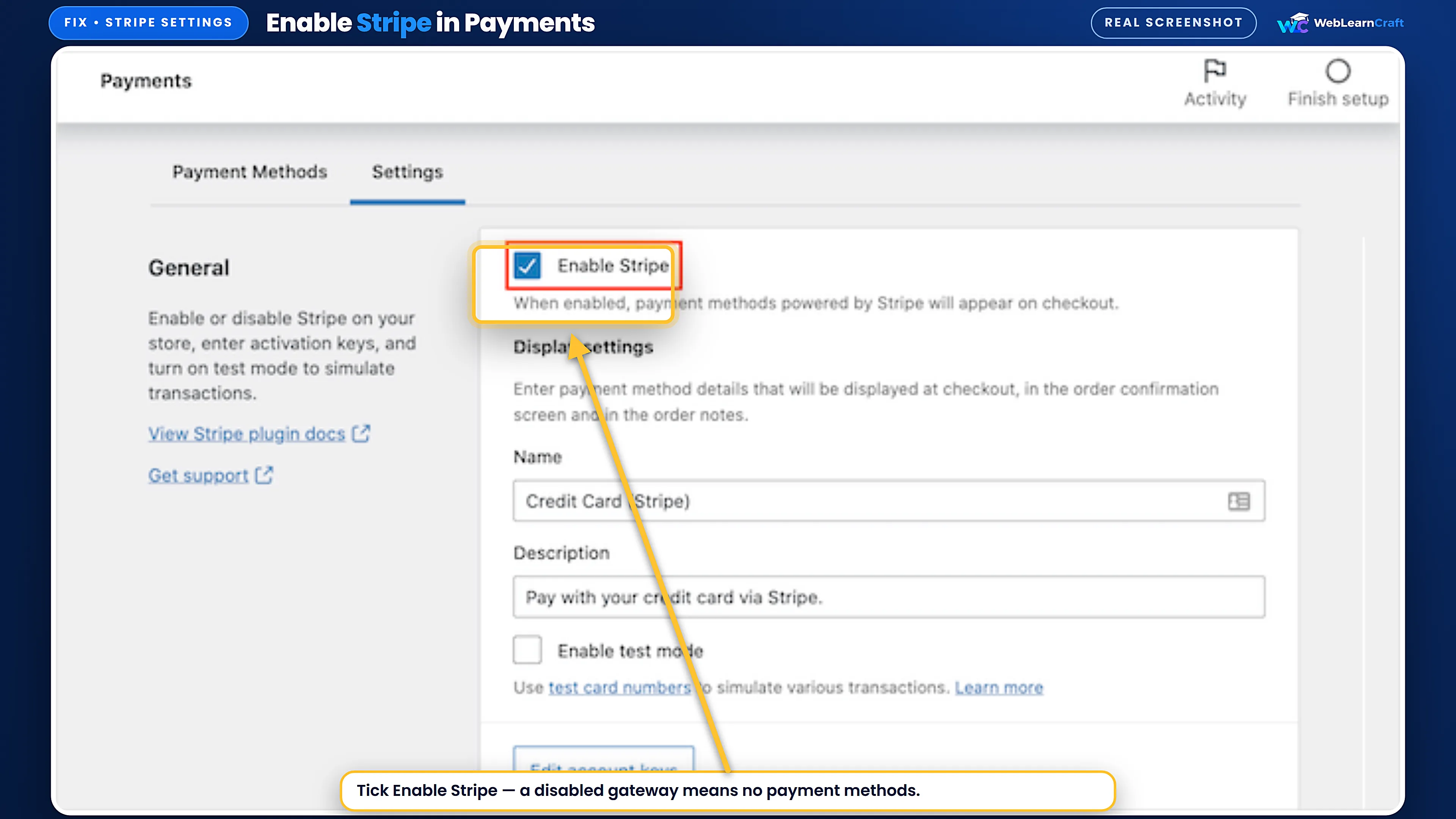
Click Manage next to your gateway and check the details: API keys, the right test or live mode, and the gateway enabled. A gateway in test mode will not take real payments.
If you offer cash on delivery, check that too — our guide explains how to set up cash on delivery in WooCommerce.
One more check: the Checkout block. Since WooCommerce 8.3, new stores use the Checkout block, and a gateway only appears there if it supports the block. If yours has not added block support, switch to the classic shortcode checkout in Fix 4.
Honest limit: if your settings look right and payments still fail, the problem may be on your payment provider’s side. Contact their support; you cannot fix that from WordPress.
Fix 4: Fix the Checkout Page Shortcode or Block
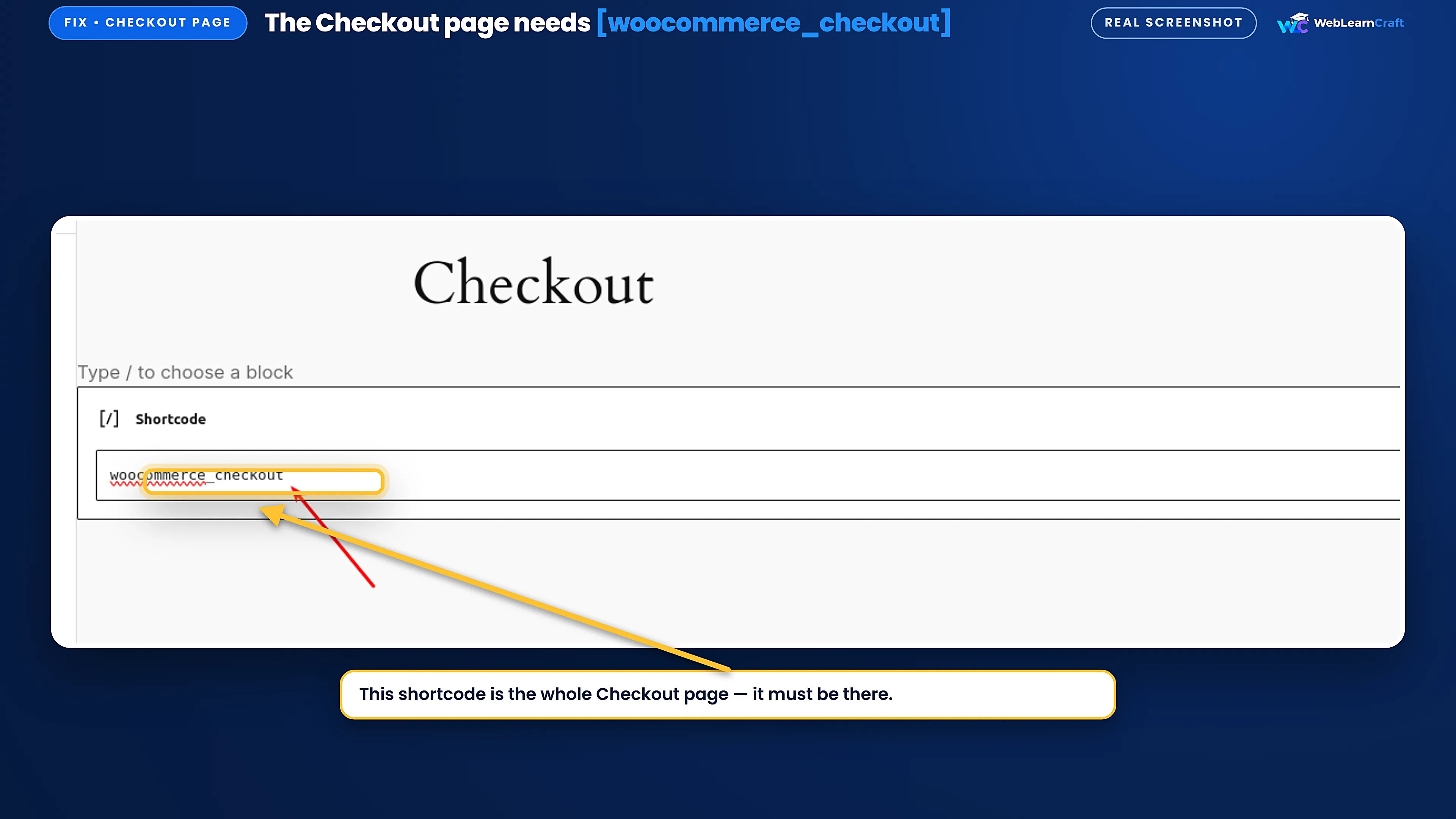
WooCommerce has two checkouts. New stores use the Checkout block; older stores often use the classic checkout, a page holding the [woocommerce_checkout] shortcode. Check which one you have by opening your Checkout page under Pages.
WooCommerce checkout not working with the Checkout block usually comes with a warning in the editor: WooCommerce warns you when a gateway or extension does not support the block. If you see it, switch back to the classic checkout — select the block, use Transform in the block toolbar, and choose the classic checkout.
If your page uses the shortcode, make sure it actually contains [woocommerce_checkout]. If the page was deleted or the shortcode removed, create a new page, add a Shortcode block with [woocommerce_checkout], and publish it.
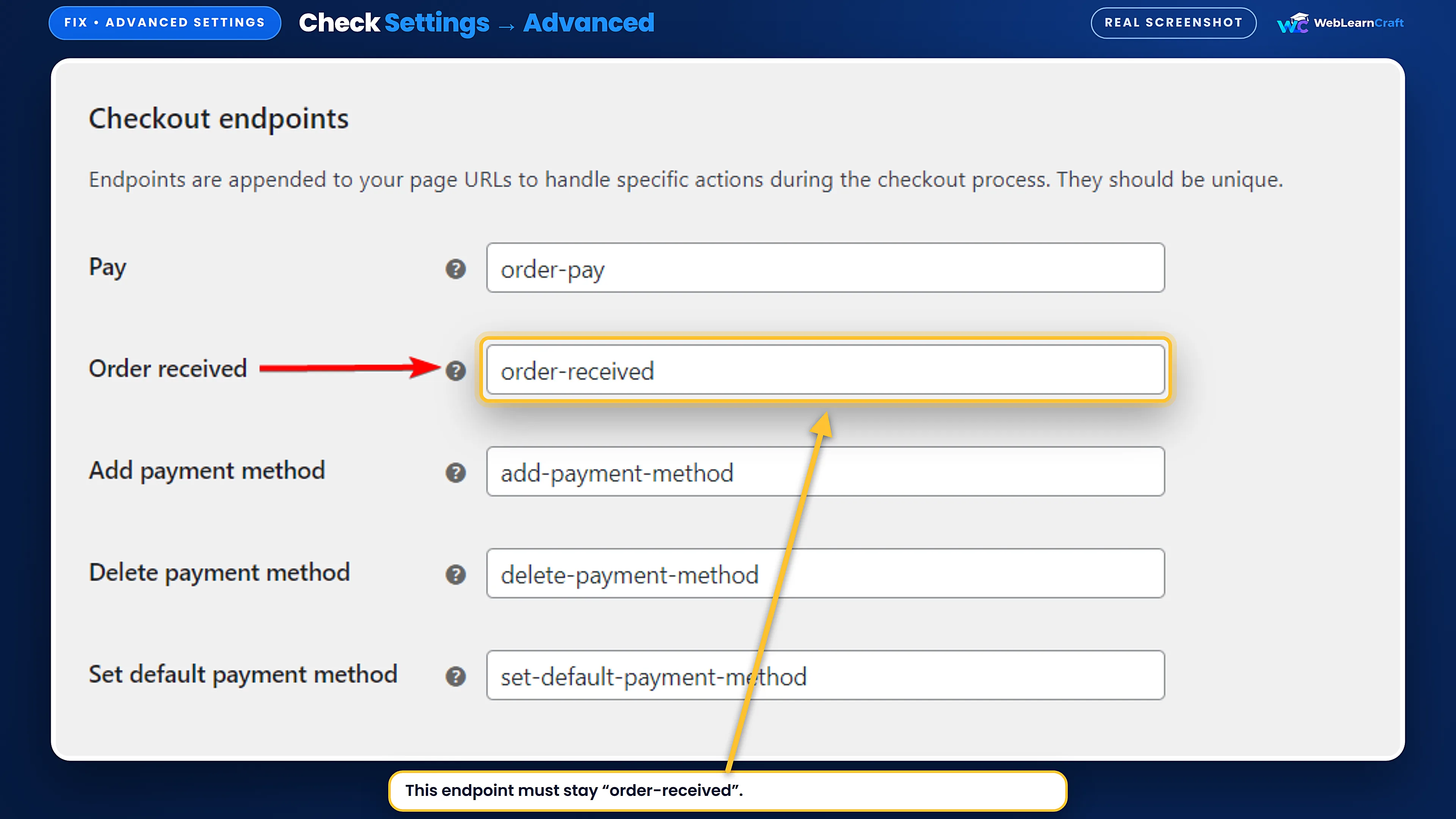
Then assign the page: go to WooCommerce > Settings > Advanced, and under Page setup choose your Checkout page. Without this, WooCommerce does not know which page is the checkout, and orders and emails will not work properly.
Fix 5: Clear the Cache
Your Cart, Checkout, and My Account pages must never be cached — they show one customer’s cart, address, and order. A cached checkout page is a common reason for WooCommerce checkout not working for customers while it looks fine to you.
Clear everything: your browser cache (or test in a private window), your caching plugin — in LiteSpeed Cache, use Purge All — and your CDN cache if you use one. Then test again in a private window.
Then stop it coming back: in your caching plugin or CDN settings, exclude the Cart, Checkout, and My Account pages, and exclude WooCommerce cookies such as woocommerce_cart_hash.
Fix 6: Check WooCommerce Status and Logs
If the fixes above did not help, stop guessing and read the logs. WooCommerce records what went wrong, and the log usually names the plugin or the error — often the answer when WooCommerce checkout is not working for no clear reason.
Go to WooCommerce > Status. The System Status tab shows your versions and any templates your theme has overridden that are now outdated — a classic cause of a broken checkout after an update.
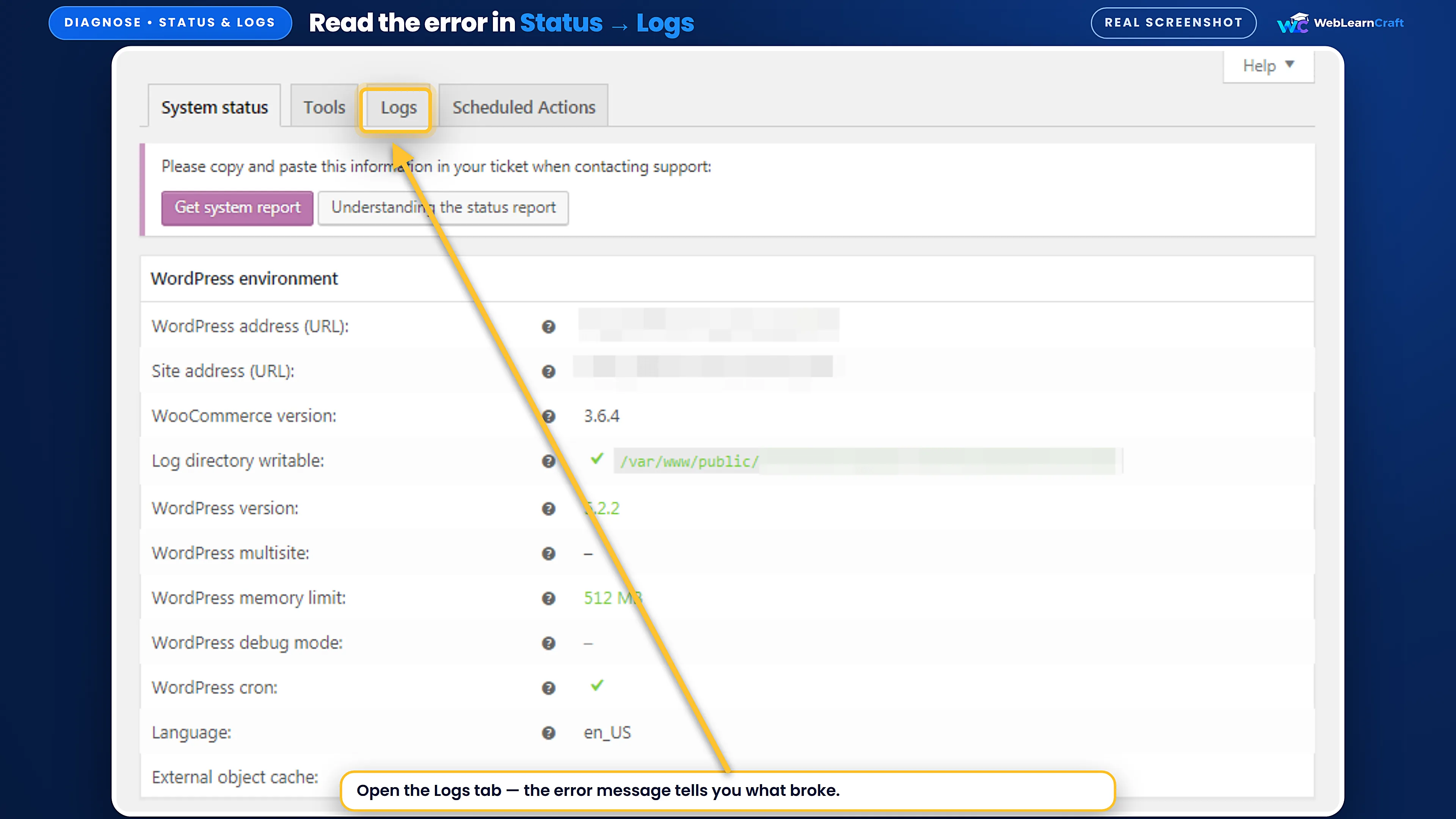
Then open the Logs tab and look for the fatal-errors log and any log named after your payment gateway. A fatal error usually names the file, and the file path names the plugin or theme responsible.
If the log points to a plugin, update it or switch it off. If it points to your theme’s outdated template, the theme needs an update. If the log is empty, go back to the conflict test in Fix 2.
Fix 7: Update WooCommerce
Outdated software is a quiet cause of WooCommerce checkout not working. A WooCommerce update can change how the checkout works, and an old gateway or theme written for the older version can stop working with it.
Back up first, always, before an update. Then update in this order — WooCommerce, your payment gateway plugin, your theme, then your other plugins — one at a time, testing the checkout after each update.
After updating, check WooCommerce > Status again for outdated templates. If your theme overrides a checkout template, the theme developer needs to update it for the new WooCommerce version. If an update breaks the checkout, restore the backup.
Frequently Asked Questions
Why does WooCommerce say “There are no payment methods available”?
No payment gateway is enabled, or the enabled gateway does not support the Checkout block — the most common cause of WooCommerce checkout not working at the payment step. Check WooCommerce → Settings → Payments, enable a gateway and finish its setup.
Can my theme break WooCommerce checkout?
Yes — a theme is a common cause of WooCommerce checkout not working. It can override a checkout template that is now outdated. Switch to Storefront and test, as shown in Fix 1.
Why does the Place Order button do nothing when I click it?
Usually a JavaScript error, a cached checkout page, or a gateway problem causes WooCommerce checkout not working at the Place Order step. Clear the cache and test in a private window, then run the conflict test in Fix 2.
Do I need SSL for WooCommerce checkout to work?
Yes, in practice. Most payment gateways need HTTPS, and browsers warn customers on a checkout page that is not secure. Check your site loads with https://.
Should I use the Checkout block or the classic shortcode checkout?
The Checkout block is the default for new stores. Use the classic shortcode if a gateway you need does not support the block yet.
Will clearing the cache delete my orders or customers?
No. It only removes stored copies of pages. Orders, customers, and products live in the database and are not touched.
Wrapping Up
WooCommerce checkout not working is usually one of seven things: the theme, a plugin, the payment gateway, the checkout page, the cache, an error hiding in the logs, or outdated software. Work through the fixes in order and test after each one, backing up before you change anything.
Do that, and your customers can pay again. WebLearnCraft publishes clear, beginner-friendly guides on WordPress, SEO and blogging. Browse the latest guides, or contact us if you need help with your site.