
How to Add a Wishlist to WooCommerce for Free
Picture a shopper on your store. They find something they like, but they’re not ready to pay. Payday’s next week, or they want a second opinion, or they’re just browsing on their lunch break. Then the tab closes, and that product is gone for good.
A wishlist fixes that. One click, and the item is saved. And it gives people a reason to come back. Good news: you can add a wishlist to WooCommerce for free, and you’ve got more choices than you’d think. One of them is brand new. Let’s look.
Does WooCommerce Have a Wishlist?
For ages, the answer was no. Plenty of articles still say so. They’re out of date.
WooCommerce has started testing built-in Shopper Lists. Its developers describe two experimental features for logged-in shoppers: Save for Later in the cart, and Wishlists. Saved products appear in My Account, under a Wishlist tab.
Look at those two words again, though: experimental, and logged-in. It’s not a finished wishlist yet. Guests can’t use it, and things may change. For some stores that’s fine. For others, a free plugin is the safer pick.
Which Route Should You Take?
Here’s how I’d decide.
Most of your customers have accounts, and you want zero extra plugins? Try the built-in wishlist. Need guests to save things without signing up? Want shareable lists, or more say over where buttons and pages go? Then grab a free plugin. YITH and TI WooCommerce Wishlist are the two big names, and both have free versions.
Can’t decide? Test the built-in option on a staging site. If it falls short, switch to a plugin. You lose nothing.
Method 1: The Built-In Wishlist
Check your WooCommerce version first. This arrived in 10.9, so update if you’re behind. Use a staging copy while you’re at it, since the feature is experimental.
Then go to WooCommerce, then Settings, then Advanced, then Features. Find the experimental options and turn on Wishlists. Want a “save for later” option in the cart as well? Switch on Save for Later in Cart too. Save.
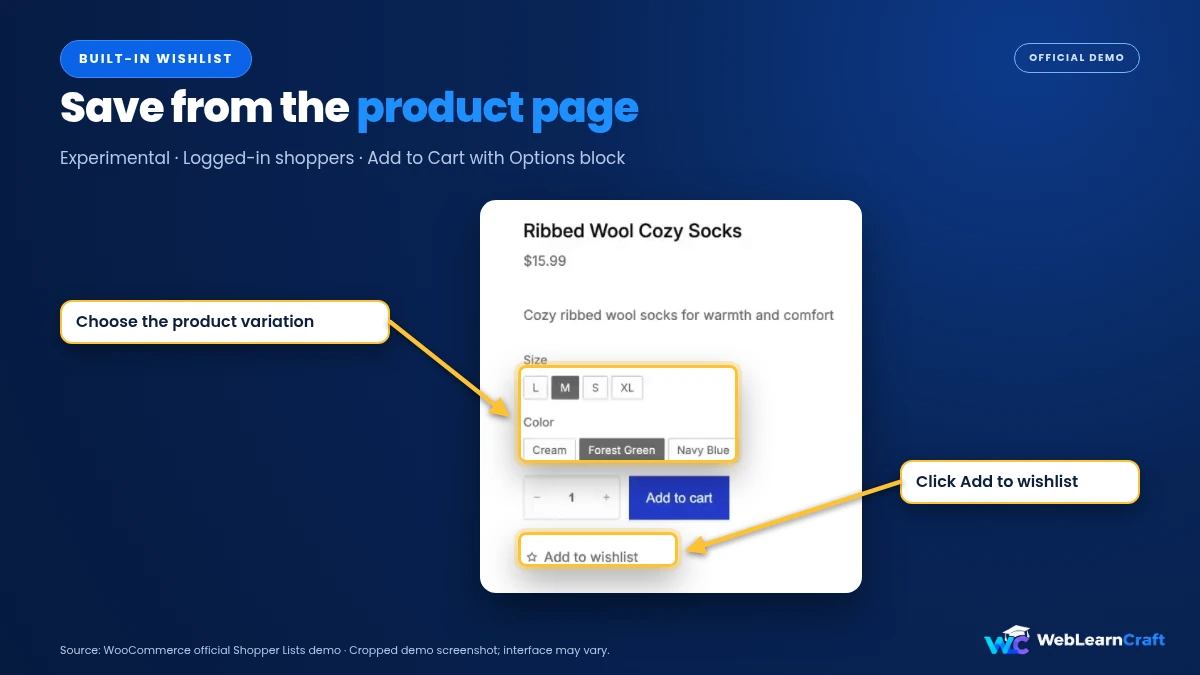
Time to test. Log in as a customer and open a product. A wishlist button should be there. Save something, then head to My Account, then Wishlist and see if it shows up.
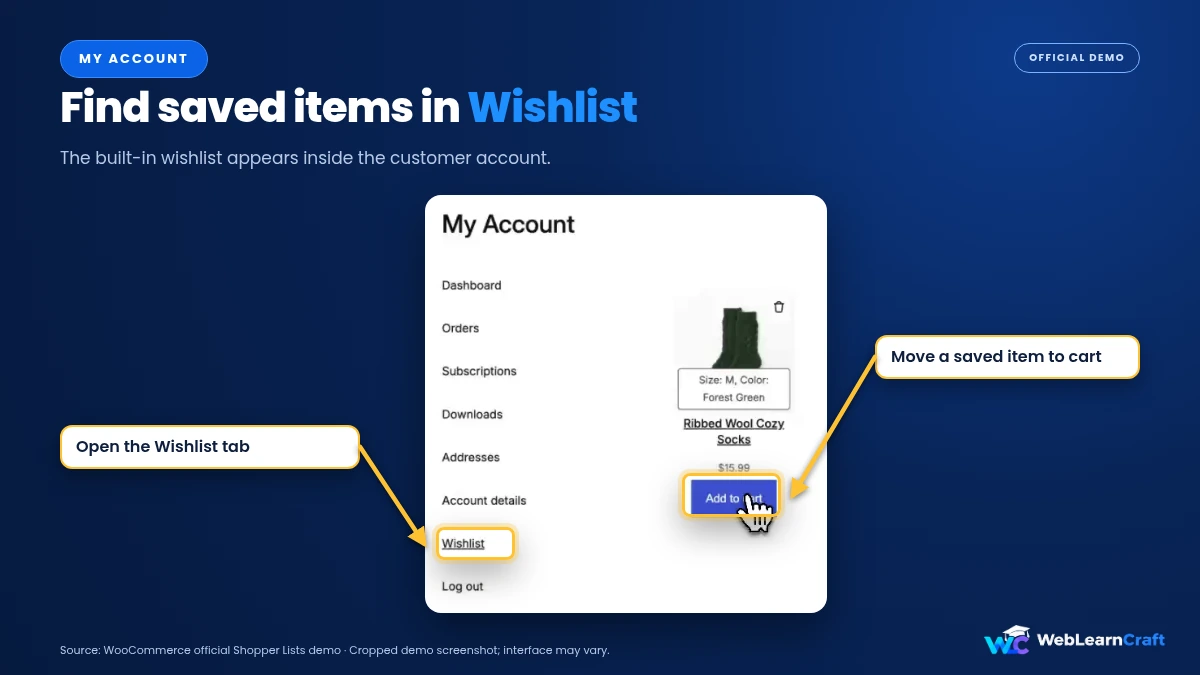
A few things to keep in mind. It’s built for logged-in shoppers, so anyone not signed in is out of luck. It works best with block-based templates, like the Cart block and newer product templates. And since it’s experimental, settings may shift in future updates. If your store leans on wishlists, read the release notes before you update.
Method 2: YITH WooCommerce Wishlist
YITH is the most popular wishlist plugin around, and the free version covers the basics well. A safe place to start.
Go to Plugins, then Add New, search “YITH WooCommerce Wishlist,” then install and activate. WooCommerce needs to be active already.
You’ll see a YITH menu in your dashboard afterwards. Open YITH, then Wishlist. A few settings matter more than the rest.
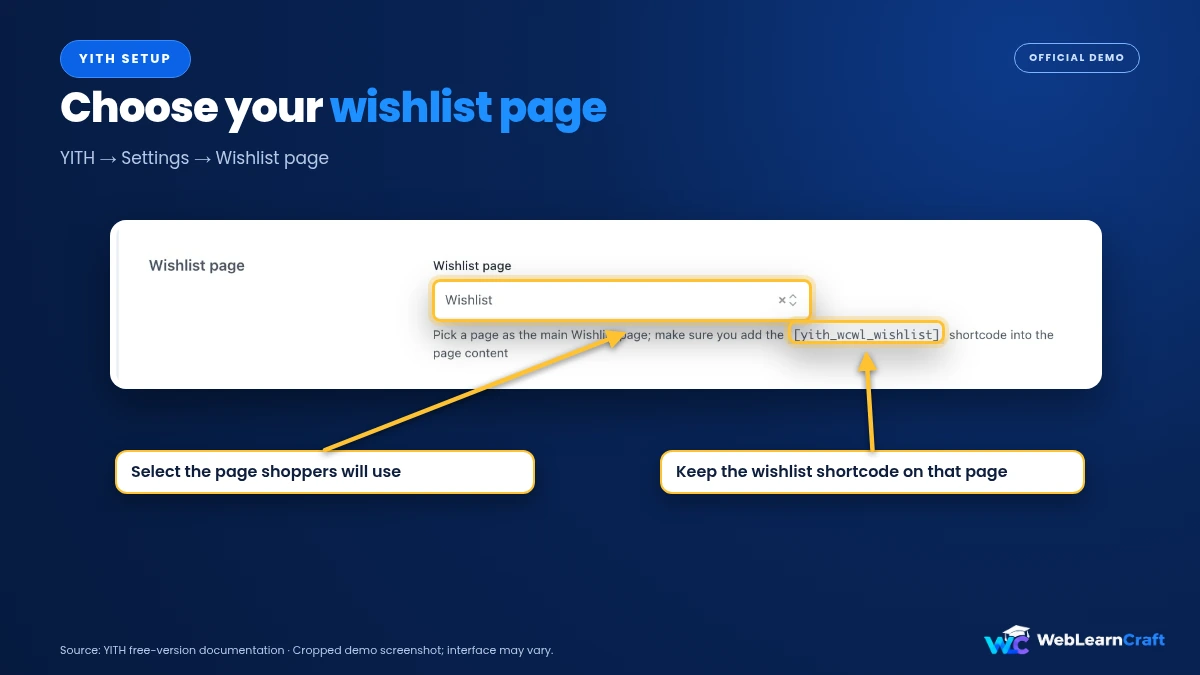
The wishlist page comes first. The plugin can make one for you, or you can pick your own. That’s where customers view saved items.
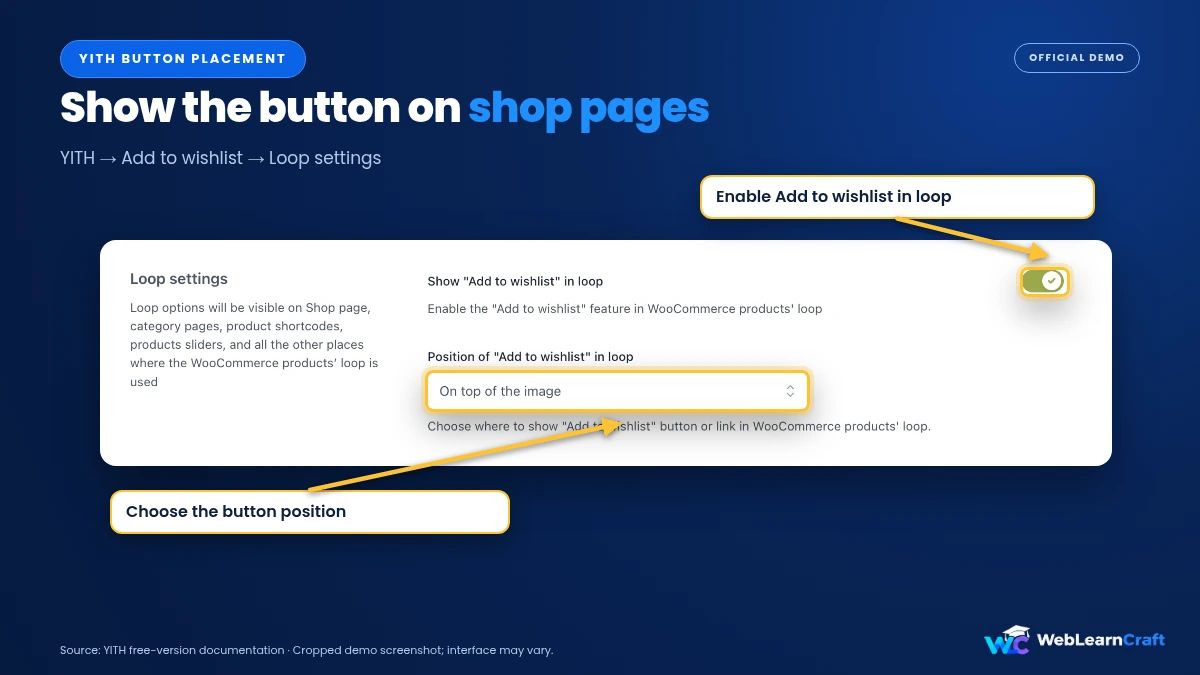
Then button placement. You can show the Add to wishlist button on product pages, and on shop and archive pages too. The shop page option is useful, because people can save things without opening each product.
After that, look at behavior. Some options decide whether an item leaves the wishlist once it’s in the cart, and others change the button text. Skim through them. The defaults are usually fine.
Save, open your shop in a private window, and click the button. Visit the wishlist page. Does it look right? Good.
One thing to remember: free and premium aren’t the same. Extra layouts and some advanced options sit behind the paid plan. Check the current feature list before you count on something.
Method 3: TI WooCommerce Wishlist
TI WooCommerce Wishlist is another popular free choice, and people like how flexible it is.
Install and activate it through Plugins, then Add New. Then open its settings from your dashboard menu. The menu name changes a little between versions, so look for a Wishlist entry.
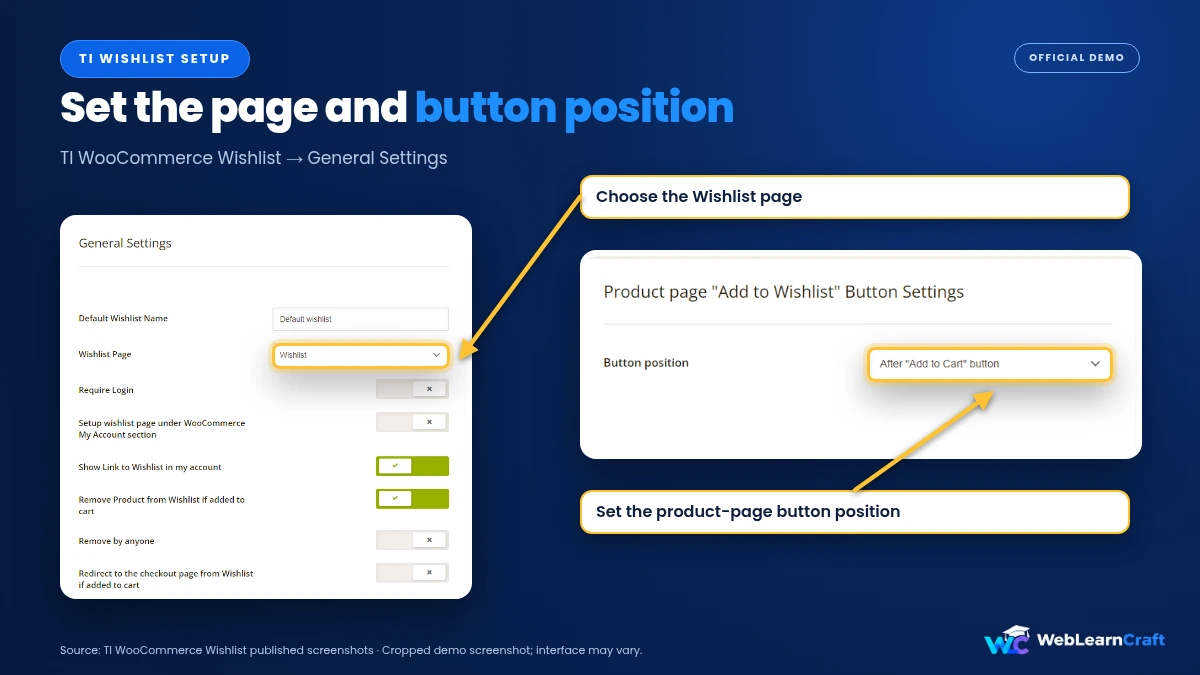
You can pick the wishlist page, rename it, and choose where the button goes. It also gives you a shortcode for the button, which is lovely if you use a page builder and want it in one exact spot.
Set the page, place the button, save. Then test twice: once as a visitor, once as a logged-in customer. They can behave differently.
Other Free Options
Those two aren’t your only choices.
WPC Smart Wishlist is free for the basics and adds touches like a popup view. WCBoost Wishlist is free too, with button and page customization. WebToffee’s Wishlist for WooCommerce offers options like limiting the wishlist to logged-in users and an “Add all to cart” button.
There’s also a newer free plugin called Wishmio, which can import from YITH, TI Wishlist and WooCommerce’s own shopper lists. That’s handy if you ever want to switch.
Features change, so read each plugin’s description before installing, and try it on staging first.
Get the Basics Right
A few small things separate a wishlist people use from one that just sits there.
Make the page easy to find. Add it to your menu, your header, or the My Account area. If nobody can find it, it might as well not exist.
Put the button where eyes already go. Product pages first, shop and category pages second.
Decide about guests. Want visitors to save items without an account? Choose a plugin that supports guest wishlists, and test it. Logged-in only? Say so on the button.
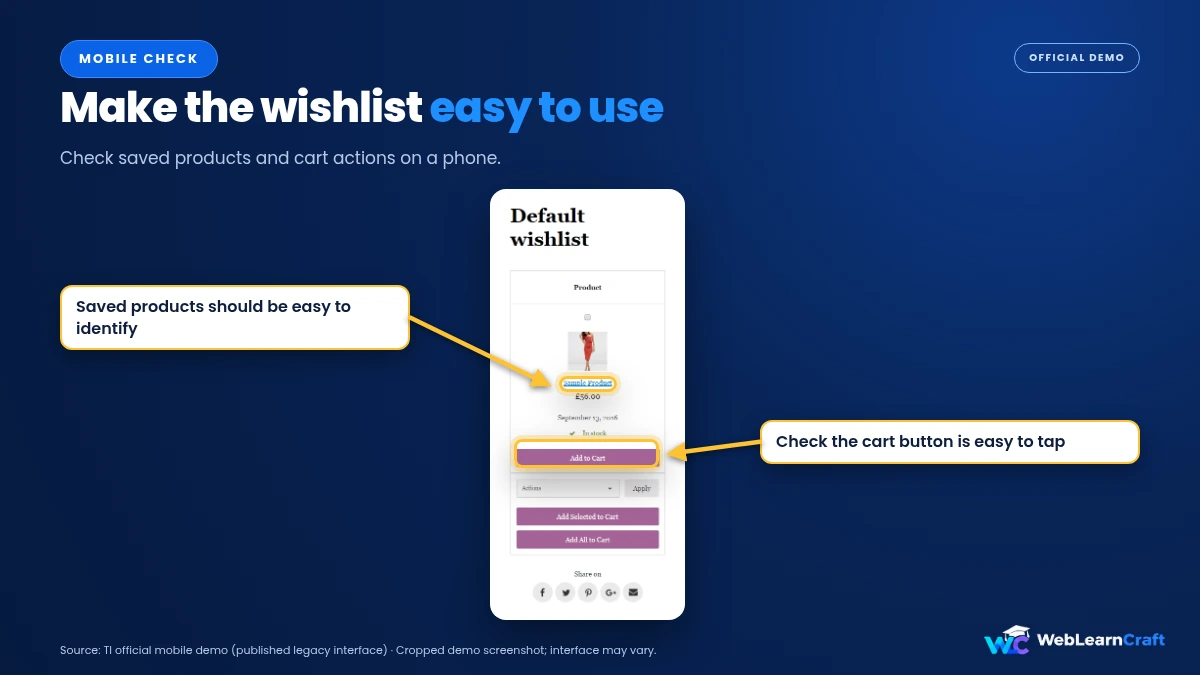
Check it on a phone. The button should be easy to tap and shouldn’t sit on top of the product photo.
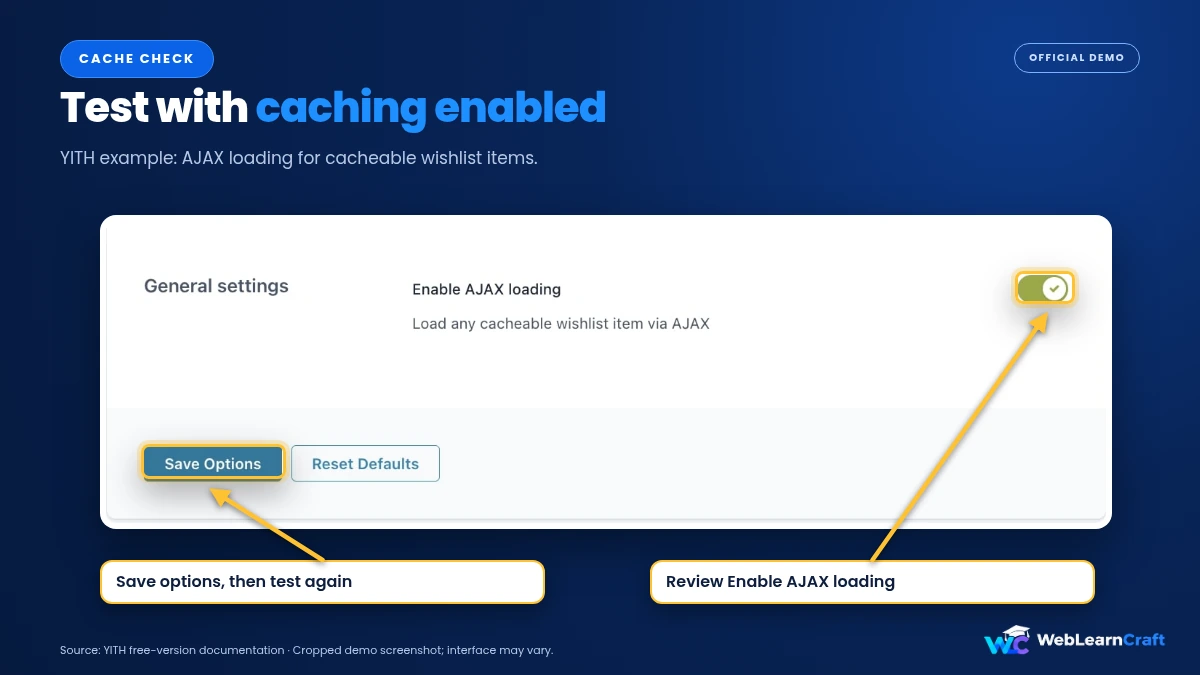
And test with your cache turned on. Caching can sometimes mess with buttons and counters.
When the Button Doesn’t Show Up
Annoying, but fixable. Go through these in order.
Is the wishlist switched on, and did you save? Sounds silly. It’s the top cause.
Is the button set to appear where you’re looking? It may be enabled on product pages but not the shop page, or the other way round.
Cache next. Clear your caching plugin, your host cache and your browser.
Using a custom product template from your theme or a page builder? The button may not appear by itself. Look for a shortcode or block in the plugin and place it by hand.
Wishlist page showing a 404? Go to Settings, then Permalinks and click Save Changes. That refreshes your links, and it often fixes the problem.
Still stuck? Look for a conflict. On a staging site, switch to a default theme or disable other plugins one at a time.
Mistakes to Skip
Installing two wishlist plugins at once. They fight, and you won’t know which one wins.
Testing only as an admin. Check as a guest and as a normal customer too.
Forgetting to link to the wishlist page. People can’t use what they can’t see.
Trusting experimental features blindly. Using the built-in option? Test updates on staging first.
Ignoring privacy. If you store customer data, your privacy policy should say so. For customers in regions with strict rules, choose a plugin that supports data export and erase.
Frequently Asked Questions
Does WooCommerce have a built-in wishlist?
Recent versions include experimental Shopper Lists, with Wishlists for logged-in customers. Switch it on under WooCommerce, Settings, Advanced, Features. It’s still experimental.
What’s the best free wishlist plugin for WooCommerce?
YITH WooCommerce Wishlist and TI WooCommerce Wishlist are the most popular, and both have free versions. WPC Smart Wishlist, WCBoost and WebToffee are other free picks.
Can guests use a wishlist?
Not with the built-in feature, which is for logged-in shoppers. Many plugins support guest wishlists, but check each one’s feature list.
Where do customers see their wishlist?
On the wishlist page you set up, or under My Account, then Wishlist if you use the built-in option.
Will a wishlist slow my store down?
A light plugin shouldn’t make a noticeable difference. Test your speed before and after, and skip extra plugins you don’t need.
Can I show the button on the shop page?
Yes. Most plugins, including YITH, let you add it to shop and archive pages as well as product pages.
Can I switch wishlist plugins later?
You can, but saved wishlists may not move over on their own. Some plugins have import tools, so check first.
Final Thoughts
A wishlist is a small feature with a clear point: shoppers save what they like, and come back later. You can add a wishlist to WooCommerce for free in a few ways now. The built-in option is worth trying if your customers usually log in. A free plugin like YITH or TI WooCommerce Wishlist suits you better if you want guests, more control and more places for the button.
Pick one, try it on staging, and test as a guest and as a customer. Make sure people can find their list. Then leave it alone for a few weeks and see how it gets used.
For more beginner guides, browse the WebLearnCraft blog. Need help with your site? Contact us and we’ll point you the right way.
One Response