
Elementor Header Not Showing? 8 Fixes for WordPress
You designed your header in Elementor, published it and checked the preview. Everything looked fine. Then you opened your actual website, and the header was nowhere to be seen. Perhaps the old theme header is still appearing, or the navigation disappears when you switch to mobile.
Before rebuilding the header, find out what is actually happening. A template that never reaches the live page needs a different fix from one that is hidden behind another section or served from an old cache.
This guide covers eight practical checks for an Elementor header not showing, including missing templates, mobile visibility, duplicate headers and theme conflicts.
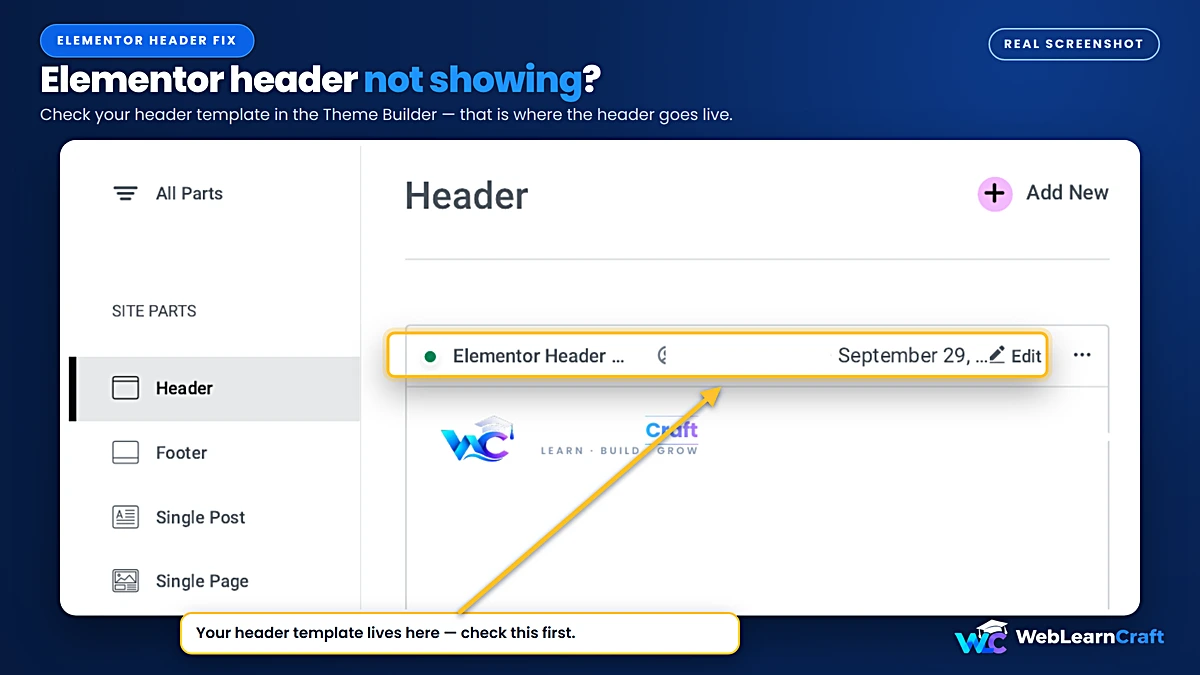
Why Is Your Elementor Header Not Showing?
Start by matching what you see on your website with the likely cause.
| Problem | What to check |
|---|---|
| Header missing everywhere | Template publishing and display conditions |
| Missing on one page | Page layout and template exclusions |
| Missing on mobile | Responsive visibility and custom CSS |
| Two headers appear | Theme header and Elementor template |
| Changes visible only when logged in | Page, browser or server cache |
| Header appears behind content | Z-index and stacking order |
One important distinction: Elementor’s built-in Theme Builder for global custom headers and footers is a Pro feature. If you use Elementor Free, your header may instead be controlled by your WordPress theme or a compatible third-party header builder.
8 Ways to Fix Elementor Header Not Showing
1. Check Whether Your Header Template Is Published
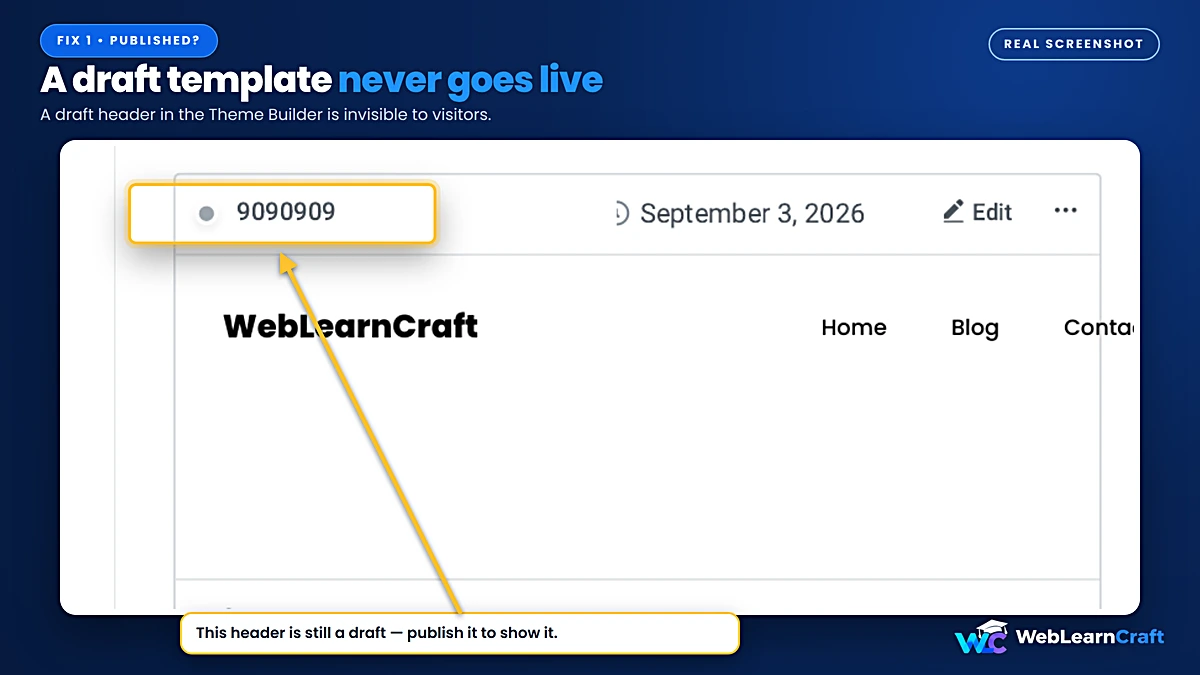
A header saved as a draft or private template will not appear to ordinary website visitors.
- Open your WordPress dashboard.
- Go to Elementor → Theme Builder.
- Find your Header template.
- Open it in the Elementor editor.
- Check whether the template is published or still a draft.
- Publish it if necessary, then update your changes.
Depending on your Elementor version, Theme Builder may also be accessible through the Editor and Templates area. If you are using Elementor Free, check the theme or third-party header builder that actually manages your header.
If the editor itself refuses to open, our Elementor Editor Not Loading troubleshooting guide covers that separate issue.
2. Correct the Header Display Conditions
A published template still needs instructions telling Elementor where it should appear. These instructions are called Display Conditions.
- Open Elementor → Theme Builder.
- Locate your Header template.
- Choose Edit Conditions.
- Review the existing include and exclude rules.
- For a site-wide header, select Include → Entire Site.
- Save the conditions.
If your website uses different headers for different sections, review all the templates. An older template with a more specific condition may be the one Elementor displays instead of the header you recently edited.
Do not delete an existing template immediately. First identify which pages it controls and export or back it up if you may need it later.
See Elementor’s official Display Conditions guide.
3. Check the Affected Page’s Layout
If your header appears everywhere except one page, check that page’s layout before changing the global template.
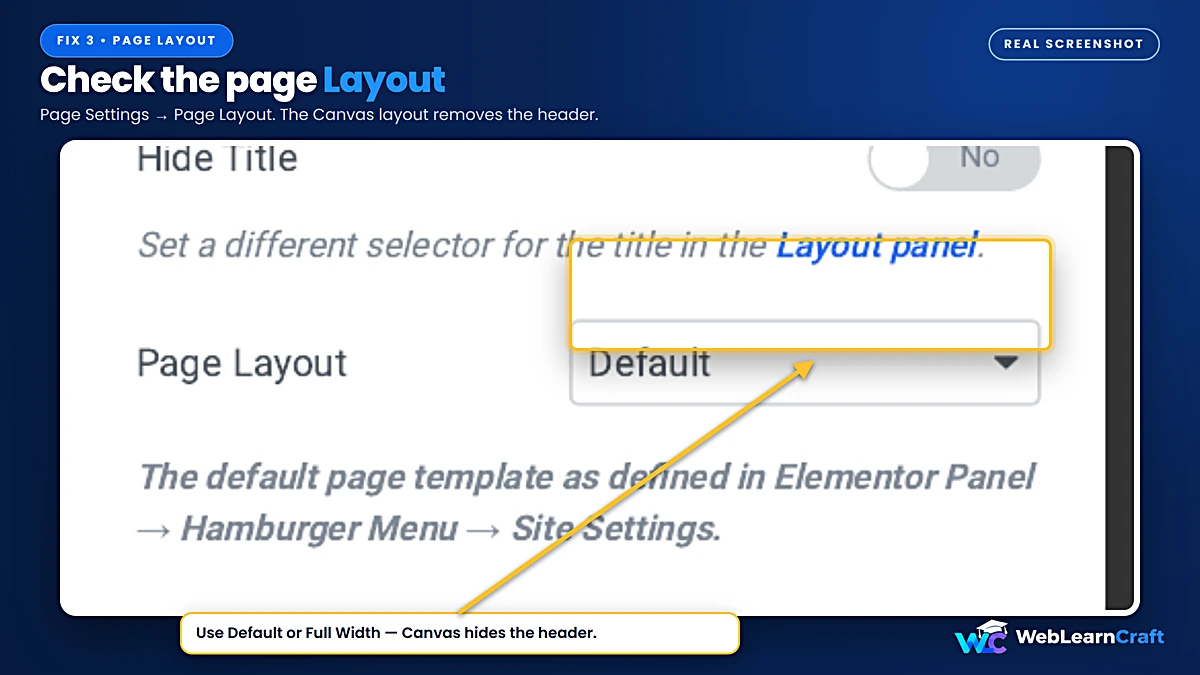
Elementor offers several layout choices:
- Default: Uses the active theme’s normal page layout.
- Elementor Full Width: Uses a full-width content layout while retaining the header and footer.
- Elementor Canvas: Removes the normal header, footer and sidebar.
To check the setting:
- Open the affected page with Elementor.
- Click the Page Settings icon.
- Find Page Layout.
- If Elementor Canvas is selected, change it to Default or Elementor Full Width when you want the normal header.
- Update the page and check the live version.
Canvas is useful for a landing page that intentionally has no navigation. It is not the right layout when you expect your regular website header to appear.
Read Elementor’s Canvas versus Full Width guide.
4. Check Header Visibility on Mobile
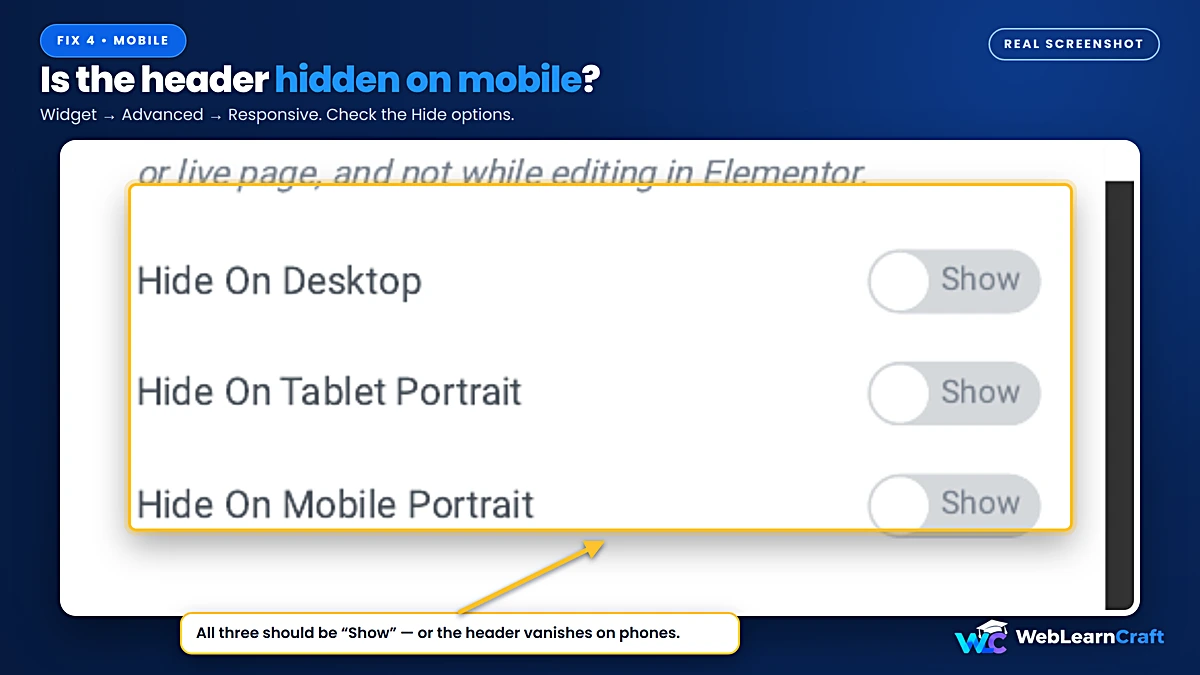
An Elementor header can appear on desktop but disappear on a phone because of responsive visibility settings or custom CSS.
- Open the header template in Elementor.
- Select its main container or section.
- Open Advanced → Responsive.
- Check the Hide on Desktop, Hide on Tablet and Hide on Mobile options.
- Turn off any option that should not be enabled.
- Update the template and inspect each device preview.
If the controls look correct but the header is still missing, inspect the custom CSS attached to the container and any global CSS that targets mobile breakpoints.
There is another distinction worth checking: a header may be visible while its hamburger menu or dropdown is not working. Check the menu widget’s selected WordPress menu and breakpoint settings. Our guide to creating a Mega Menu in Elementor without a plugin can help with navigation layout problems.
See Elementor’s mobile and tablet troubleshooting guide.
5. Clear Elementor Files and Website Cache
If your changes appear in the Elementor editor but the live website still shows the old header, caching may be responsible.
A useful check is to open the page in a private browser window while logged out. If your changes are visible when logged in but not to ordinary visitors, cached content is a strong possibility.
Before changing files or settings, prepare a backup. Our guide explains how to set up your first WordPress backup.
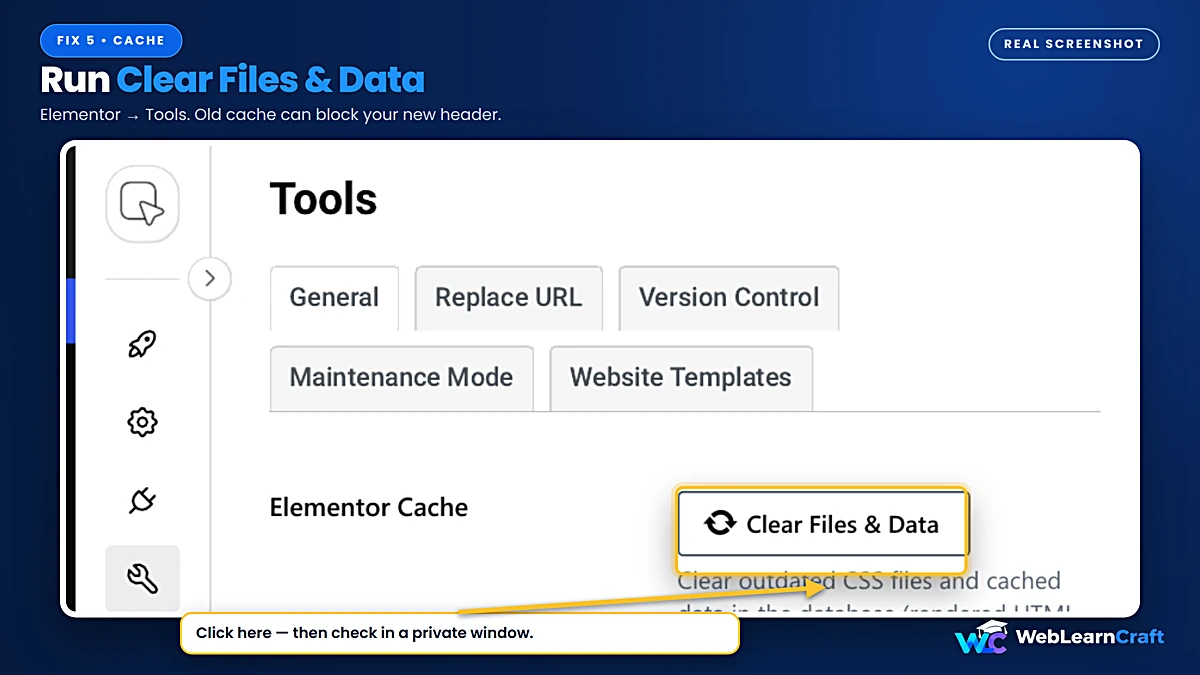
Then follow Elementor’s current clearing process:
- Open WordPress Admin.
- Navigate to Elementor → Tools.
- Find Clear Files & Data.
- Run the clearing process.
- Purge your WordPress caching plugin and hosting cache.
- Clear your CDN cache if you use one.
Finally, test the website again in a private browser window. Clearing only your browser cache may not be enough if the server or CDN is still serving an older page.
Follow Elementor’s Clear Files & Data instructions.
6. Check Whether Your Theme Is Conflicting With Elementor
Some themes have their own header and footer systems. If your Elementor template and the theme both try to control the same area, the result may be a missing header, an old header or even broken page structure.
Elementor recommends considering the theme’s support for its Theme Builder locations. In some themes, replacing both the header and footer is safer than replacing just one. If you want to keep part of the theme’s original layout, ask the theme developer about compatibility.
Read Elementor’s Theme Builder compatibility guide.
Do not start editing header.php or footer.php just to make the Elementor template appear. First confirm that the problem is actually caused by the theme.
7. Find Out Why Two Headers Are Appearing
If you can see two headers, the Elementor template may not be replacing the theme’s original header. Both systems could be displaying their own version.
Check the following:
- Review your Elementor Header templates and their display conditions.
- Check whether another header-builder plugin is active.
- Look in your theme settings for an option to disable its original header.
- Check whether a second header was manually added inside the page itself.
- Test the result on a staging website before changing the live layout.
Keep one intended global header system for the relevant pages. Do not simply hide every header with CSS, because that can conceal the real problem and cause different pages to behave inconsistently.
8. Investigate Plugin Conflicts on a Staging Website
If publishing, conditions, layout and cache all look correct, another plugin may be affecting how the header is rendered.
Use a staging copy instead of experimenting on your live website.
- Record your current theme and plugin setup.
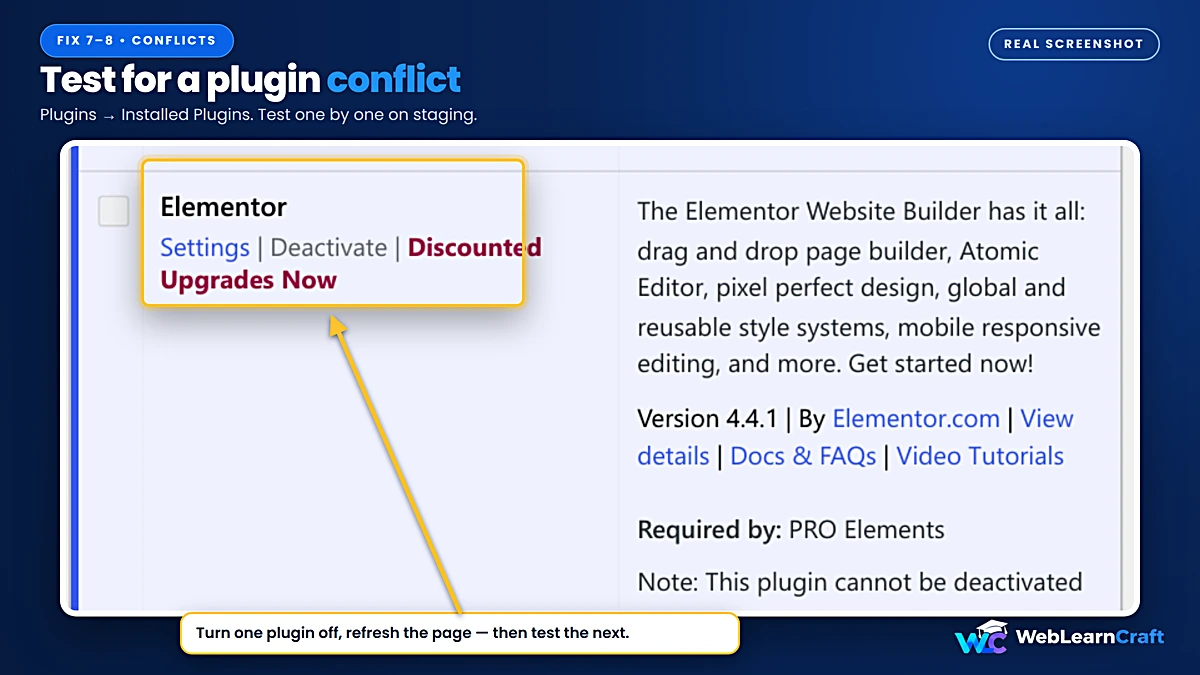
- Temporarily deactivate plugins other than Elementor and Elementor Pro, where applicable.
- Check whether the header appears correctly.
- Reactivate plugins one at a time.
- Refresh the affected page after each activation.
- If the problem remains, test a compatible default theme.
If the issue disappears after a particular plugin is disabled, investigate that plugin before removing it permanently.
Our guide explains how to create a free WordPress staging site for safer testing.
How to Confirm Your Elementor Header Is Fixed
Once you make a change, check the actual website rather than relying only on the editor preview.
- Open the homepage and several internal pages.
- Test the header at desktop, tablet and mobile widths.
- Confirm that the correct logo and menu appear.
- Check that only the intended header is displayed.
- Open the live website in a private browser window.
- Test the mobile menu and all important navigation links.
If the problem returns, record the affected page, device, template conditions and recent changes. This information will make further troubleshooting much easier.
Frequently Asked Questions
Why is my Elementor header not showing on the live website?
Why does my Elementor header show in the editor but not on the website?
Why is my Elementor header missing on mobile?
Can I create a custom header with Elementor Free?
Does Elementor Canvas hide the header?
Why is my Elementor header showing twice?
Final Thoughts
When an Elementor header disappears, rebuilding it is rarely the first step worth taking. Start with the template’s publishing status and display conditions. If only one page is affected, review its layout. If the issue occurs on mobile, check responsive visibility.
Cache, theme compatibility and plugin conflicts are worth investigating when the simpler checks do not solve the problem. Use a staging site for potentially disruptive tests and keep a backup before changing important settings.
Working through the symptoms in order makes it easier to identify the actual cause and restore your header without unnecessary changes to your WordPress website.
Want more WordPress and Elementor guides? Read our free guides on the blog, explore the homepage, or contact us if you are stuck.