
WordPress Scheduled Posts Not Publishing? How to Fix the Missed Schedule Error
So you wrote the post, picked a nice morning slot for it, hit Schedule, and went to bed feeling organised. Morning comes, you open your site with your tea… nothing. The post is nowhere. Back in the dashboard, WordPress has quietly stamped it Missed Schedule.
Frustrating? Very. But here is the thing — this happens to almost every WordPress site sooner or later, and the cause is usually embarrassingly small. Nine times out of ten it is WP-Cron not firing. Sometimes it is a wrong timezone. Sometimes WordPress cannot talk to itself (the loopback thing — more on that below), and sometimes your host is quietly blocking the request. Rather than randomly flipping settings or installing plugin number forty-one, let us figure out which one is biting you.
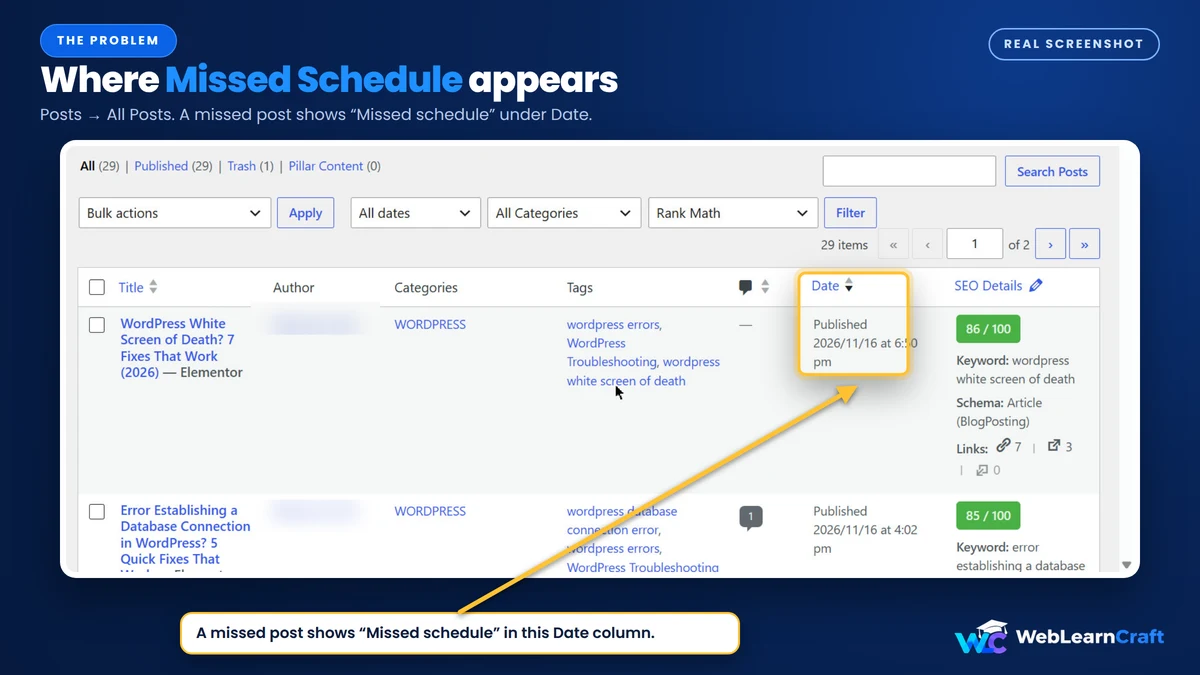
Table of Contents
- What Does Missed Schedule Mean in WordPress?
- Why Are WordPress Scheduled Posts Not Publishing?
- 1. Check the Post’s Publication Settings
- 2. Check Your WordPress Timezone
- 3. Publish an Already Missed Post Manually
- 4. Check WordPress Site Health
- 5. Check Whether WP-Cron Is Disabled
- 6. Investigate Plugin and Theme Conflicts
- 7. Ask Your Hosting Provider to Check the Server
- 8. Consider a Real Server Cron Job
- Can WP Crontrol Help?
- How to Check Whether Scheduled Publishing Works Again
- Frequently Asked Questions
- Wrapping Up
What Does Missed Schedule Mean in WordPress?
WordPress has a little scheduler living inside it called WP-Cron. Publishing your scheduled post, checking for plugin updates, sending pingbacks — all of that waits in WP-Cron’s queue.
But (and this is the part that trips everyone up) WP-Cron is not a real clock. There is no timer ticking away on your server. WP-Cron only checks its to-do list when somebody loads a page on your site. No visitor? No check. No check? Your post stays exactly where it is.
Think about a brand-new blog. Maybe five visitors a day, if you are lucky. You schedule a post for 9 AM sharp — and nobody visits at 9 AM. Or 10. Or noon. The post finally goes live whenever the next person wanders in, which could be tomorrow. That is the whole mystery behind most “delayed” posts on small sites.
If you want the technical side, the official WordPress Cron documentation explains how these scheduled tasks are processed.
Why Are WordPress Scheduled Posts Not Publishing?
A few usual suspects can interrupt scheduled publishing:
- WP-Cron problems: WordPress simply cannot process its scheduled events.
- Low website traffic: the default scheduler depends on page visits to wake up.
- Wrong timezone: your site clock does not match the time you planned the post for.
- Loopback request failures: WordPress cannot connect back to its own website.
- WP-Cron switched off: normal triggering was disabled, but nothing replaced it.
- Plugin or server conflicts: a security rule or firewall blocks the scheduled request.
1. Check the Post’s Publication Settings
Before anything fancy, rule out the dumb stuff. Did WordPress actually save the post as Scheduled?
Go to Posts > All Posts > Scheduled and look for it. Open the post and check the date, the time, and the status. I know it sounds too basic, but you would be amazed how often the answer is “oops, I clicked Save Draft.”
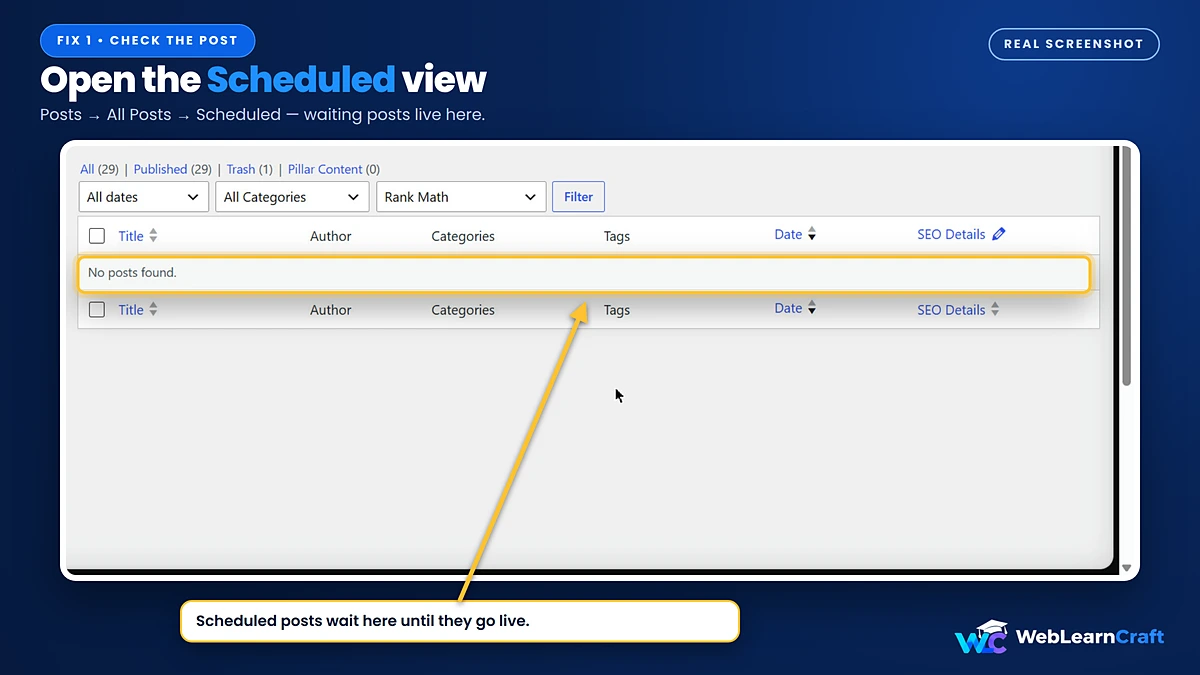
If the date or time looks wrong, fix it and save the post again. Sometimes that alone solves it.
2. Check Your WordPress Timezone
A wrong timezone will not kill a post outright. It just publishes it at some odd hour you never chose — which, when you are refreshing an empty homepage at 9 AM, feels exactly the same.
Pop into Settings > General and find the Timezone dropdown. Choose a city in your own timezone (not just a UTC offset, if you can help it), peek at the local time shown below it, and save.
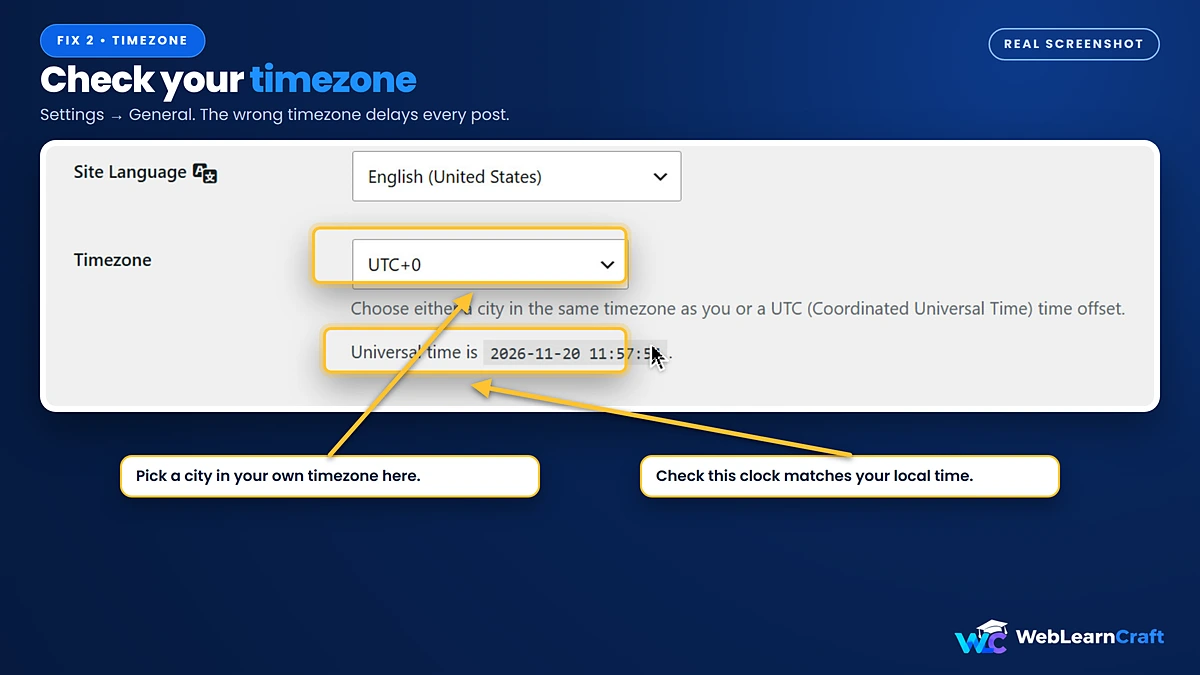
One thing people forget: after changing the timezone, go back and re-check any posts you already scheduled. Their times may now be off. WordPress explains these settings in its General Settings documentation.
3. Publish an Already Missed Post Manually
If the post should already be public, do not sit around waiting for WP-Cron. Just publish it yourself:
- Open Posts > All Posts.
- Find the missed article.
- Click Quick Edit.
- Change the Status to Published.
- Click Update.
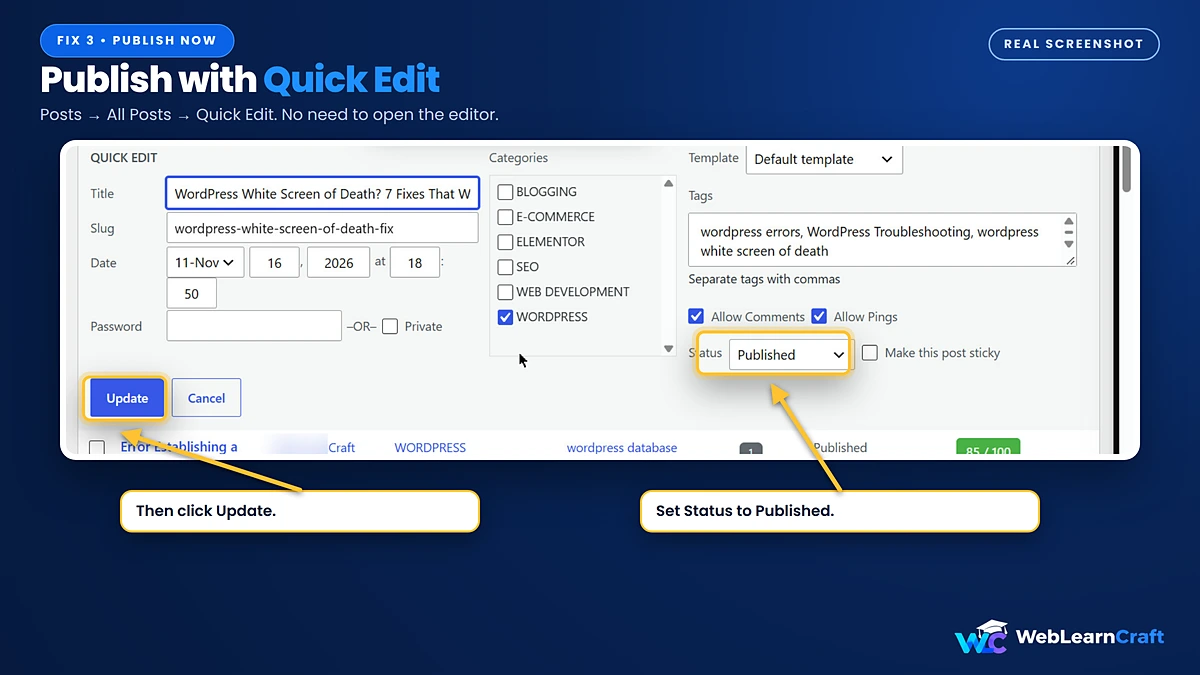
The exact buttons can look a little different depending on your editor and WordPress version, but the idea is the same. Just double-check the article is actually finished before you push it live. And keep in mind: this gets the post out today, but it does not fix whatever broke the scheduler.
4. Check WordPress Site Health
WordPress actually has a built-in health check, and almost nobody opens it. Today you are going to.
Go to Tools > Site Health > Status and skim the warnings. You are mainly hunting for anything that mentions loopback requests.
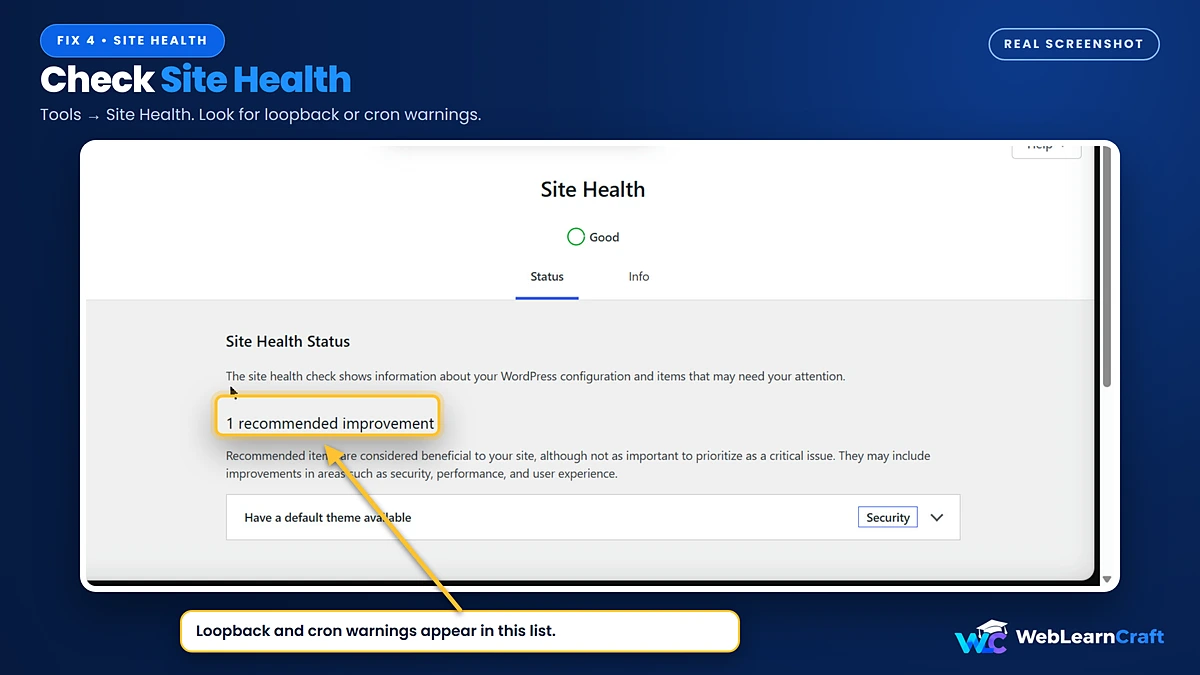
A loopback request is simply WordPress talking to itself — it loads one of its own pages in the background to kick off WP-Cron. If that little conversation fails, scheduled posts quietly stop working. The official WordPress loopback troubleshooting guide walks through the common causes.
5. Check Whether WP-Cron Is Disabled
Next suspect: a single line in your WordPress configuration called DISABLE_WP_CRON.
It looks like this:
define( 'DISABLE_WP_CRON', true );When that is set to true, WordPress stops triggering WP-Cron on page loads. That is perfectly fine — if a real server cron job was set up to take over. The trouble starts when someone disables the built-in trigger and the replacement never gets configured, or quietly stops running.
This one is worth a quick message to your hosting provider or developer: is the constant set, and is an external scheduler actually running? And before anyone touches wp-config.php, take a backup first. If you have never done that, our guide on setting up your first WordPress backup walks you through it.
6. Investigate Plugin and Theme Conflicts
Did the problem start right after an update? That timing is rarely a coincidence. But please, test on a staging copy — not on your live site.
On staging, work through it like this:
- Deactivate all plugins temporarily.
- Check whether scheduling works now.
- If it does, switch plugins back on one at a time.
- Test the scheduler after each one.
- Still broken? Try a default WordPress theme for a minute.
It is a bit tedious, but it will point straight at the culprit. If you do not have a staging site yet, our guide on creating a free WordPress staging site shows you how. And if everything still fails after all this, it is probably not your site at all — time to talk to your host.
7. Ask Your Hosting Provider to Check the Server
Sometimes everything in the dashboard looks perfectly normal, yet the server cannot complete the requests scheduled tasks depend on. You cannot see that from wp-admin — your host can.
Ask them to look into:
- Failed requests to
wp-cron.php. - Loopback request errors.
- Firewall rules that might be blocking the request.
- SSL and DNS configuration.
- The relevant PHP and server error logs.
Send them the exact Site Health warning and tell them when the post failed. Support teams work much faster with something concrete than with “my posts are not publishing.”
8. Consider a Real Server Cron Job
If scheduled publishing is central to how you run your site, a real server cron job is the grown-up solution. It runs on the server’s own schedule, so it does not care whether anyone visits your site or not.
The safe order looks like this:
- Check whether your hosting plan supports cron jobs.
- Ask your host to set up a scheduled request to
wp-cron.php. - Confirm the task actually runs.
- Test a scheduled post and a few other events.
- Only then think about disabling the built-in WP-Cron trigger.
The exact command and timing depend on your hosting setup, so let your provider handle the details. WordPress covers the concept in its system task scheduler guide. Whatever you do, do not switch off the old scheduler before the new one is proven to work.
Can WP Crontrol Help?
Yes — for looking under the hood. WP Crontrol shows you every scheduled event on your site, when it is supposed to run, and which ones are overdue. When a post goes missing, this is where you can see whether the event is even in the queue.
You will find it in the official WP Crontrol plugin directory. In current versions it lives under Cron > Cron Events (the older Tools > Cron Events menu still works too).
Just remember what it cannot do: it will not fix a firewall or a broken server config for you. And resist the urge to delete events you do not recognize — plenty of them belong to WordPress itself or your plugins.
How to Check Whether Scheduled Publishing Works Again
Once you have made your changes, prove it works before you trust it with a real post. On your staging site, create a throwaway post and schedule it a few minutes into the future.
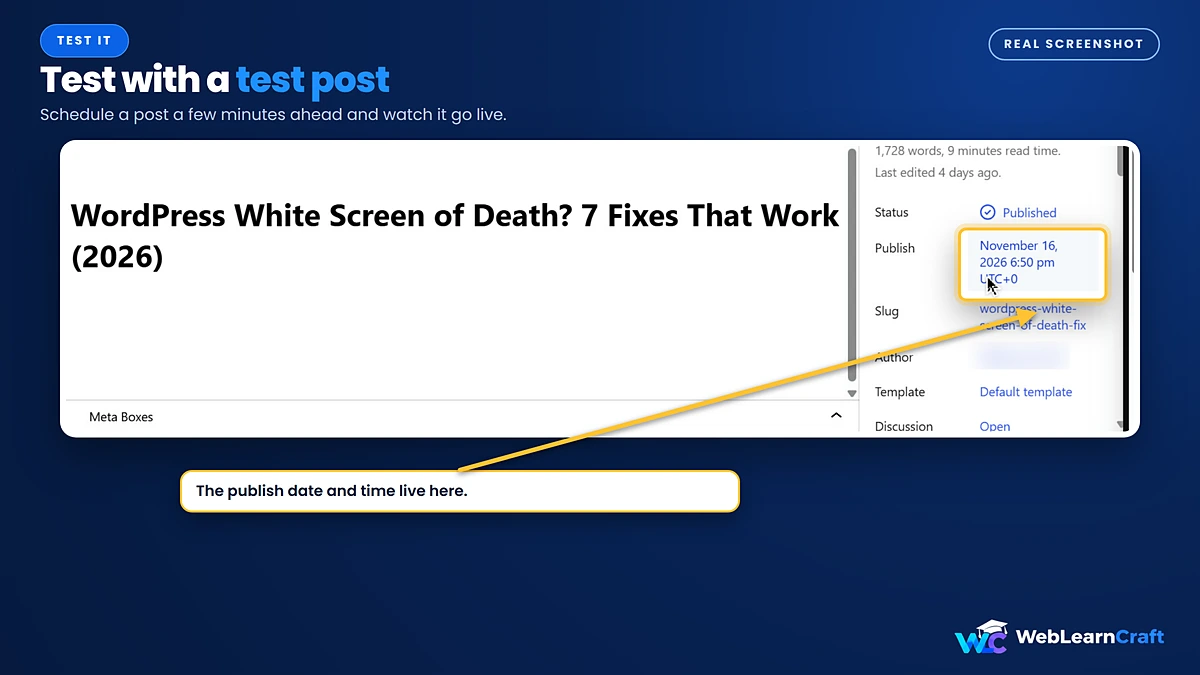
Make sure the status really says Scheduled. Then wait for the time to pass and check whether it flips to Published on its own. A quick look at Site Health and WP Crontrol afterwards does not hurt either.
If the test post goes live, your scheduler is alive again. It is not a lifetime guarantee — no test is — but it is the best confirmation you can get.
Frequently Asked Questions
Why are my WordPress scheduled posts not publishing?
Does WP-Cron depend on website visitors?
Can I publish a missed scheduled post manually?
Should I disable WP-Cron?
Which plugin can check WordPress cron events?
Wrapping Up
A missed scheduled post feels worse than it usually is. Nine times out of ten it is something small: the post was saved as a draft, the timezone is off, or WP-Cron just never got triggered. Work through the checks in order — post settings, timezone, Site Health — and only dig into server settings once the simple stuff is ruled out.
Take a backup before changing configuration, test risky fixes on staging, and let your host handle the server-side parts. That is the calm way to solve this without breaking anything else. If you are working through other WordPress errors, our guides on the database connection error and the white screen of death follow the same approach. Browse everything on our blog, start from the homepage, or contact us if you get stuck on a step.