
WordPress SEO Tips: 8 Easy Ways to Rank Higher
You publish a post you are proud of, check Google the next morning, then the next week — and your post is nowhere. Not on page one, not on page five.
That is the exact spot most new WordPress blogs start from. Below are eight simple WordPress SEO tips you can do on your own site, in order, with a free plugin and free Google tools — no coding, no paid tools, no tricks.
Table of Contents
Set Up Rank Math the Right Way
WordPress on its own does not give you much control over SEO, so these WordPress SEO tips start with a plugin. I use Rank Math because the free version covers everything in this guide. Never run two SEO plugins at once.
Install it from Plugins > Add New, search for Rank Math SEO, then click Install and Activate. Pick Advanced mode in the wizard — Easy mode hides settings you will need later.
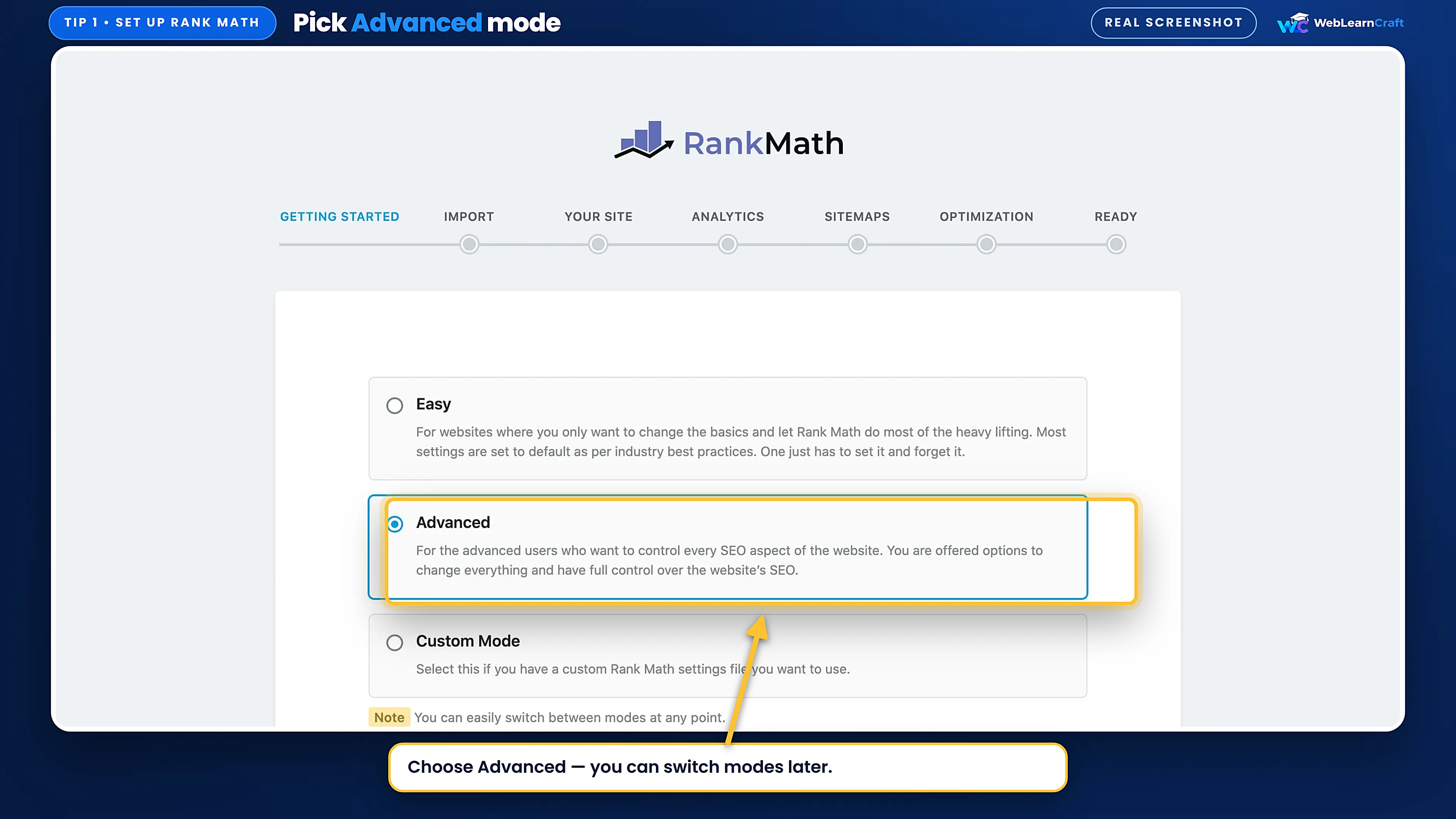
Tell the wizard your site is a blog and turn on the Sitemap, 404 Monitor, and Redirections modules.
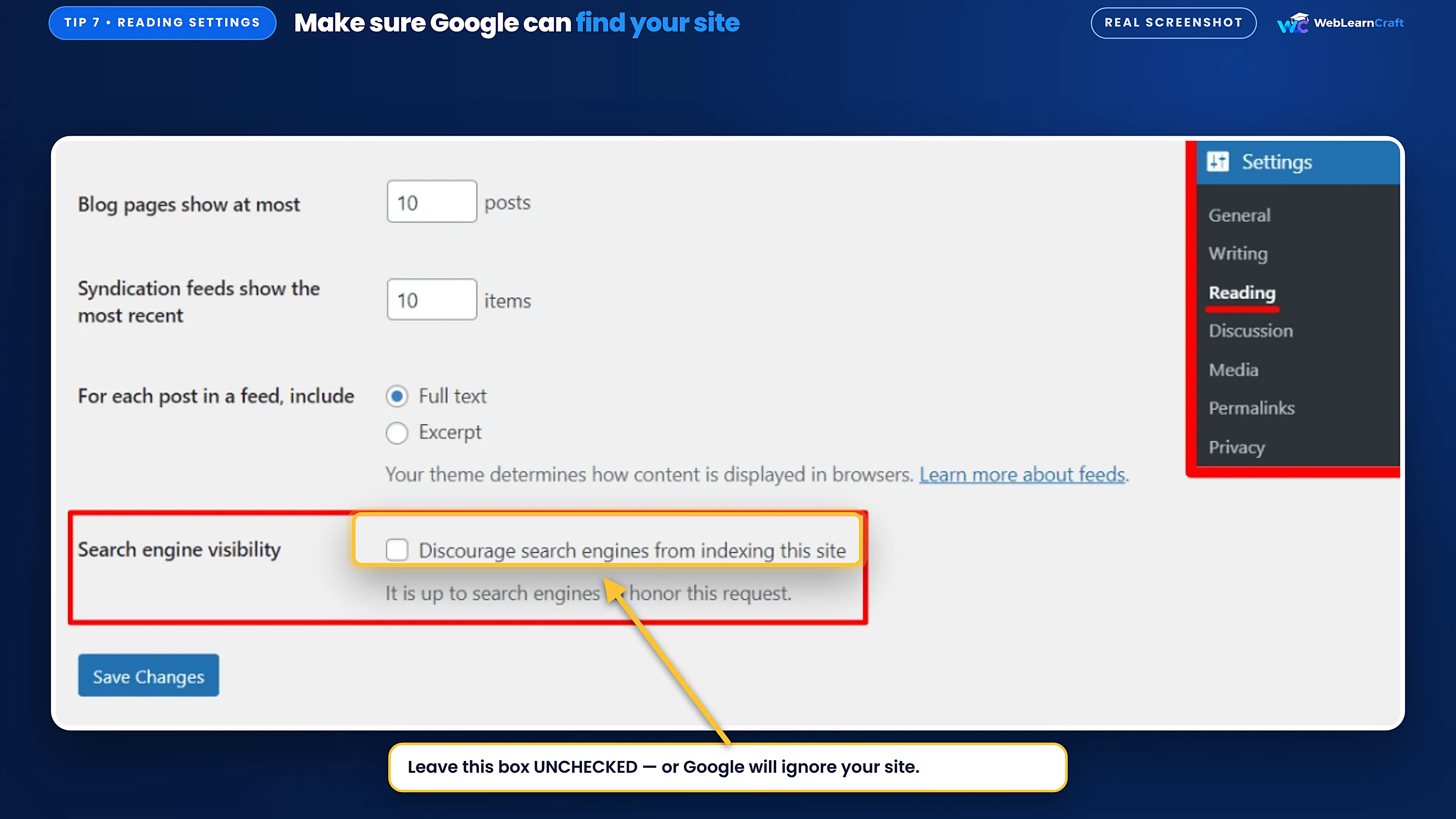
Check one setting that can hide your whole site from Google. Go to Settings > Reading and look at Search engine visibility. The box that says “Discourage search engines from indexing this site” must be unchecked on a live site.
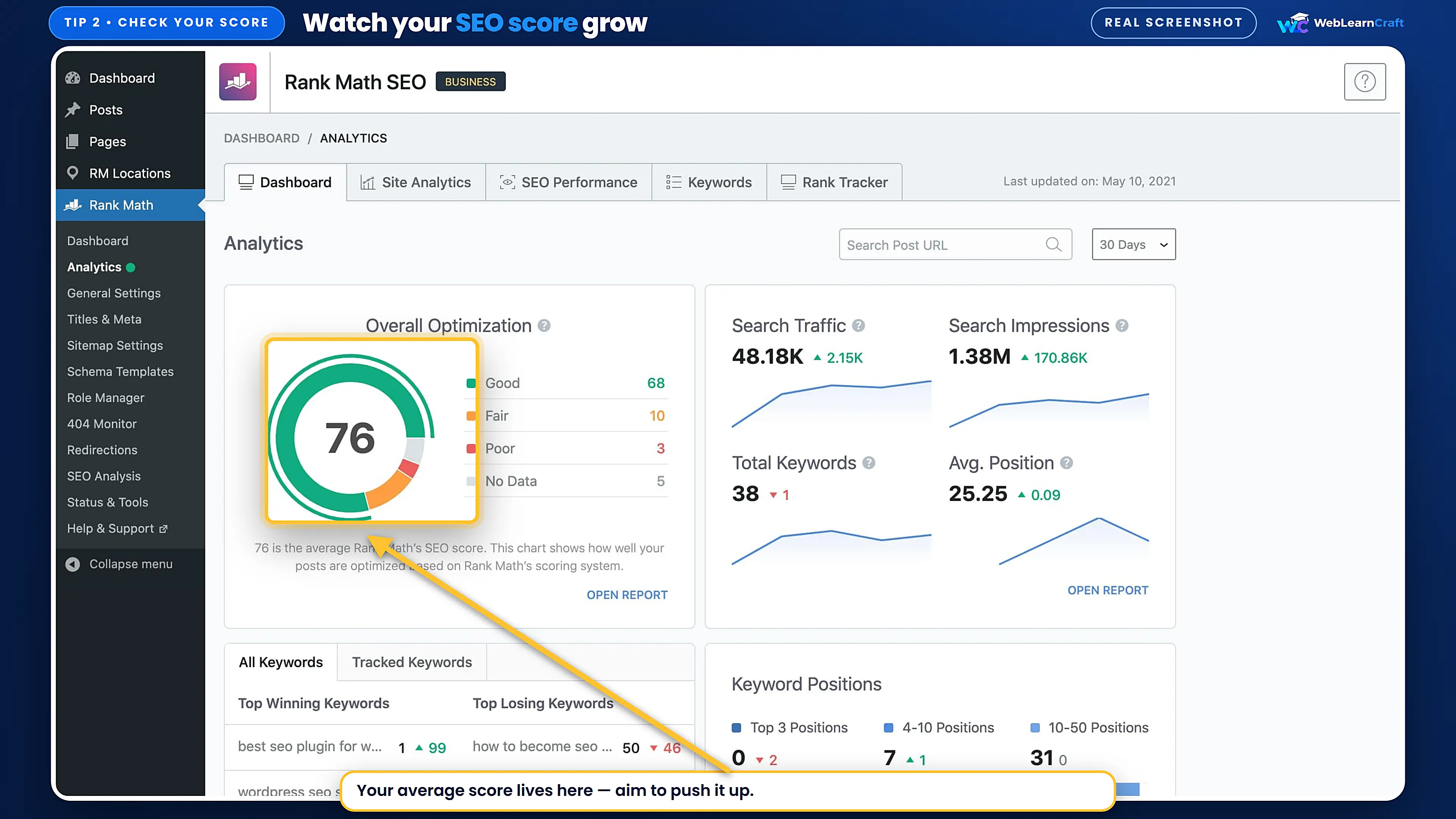
Then open Rank Math SEO > Analytics and connect Search Console to see your SEO score, traffic, and keywords. A green score on a helpful post is a good start.
Fix Your Permalinks
A permalink is the permanent web address of a post or page. WordPress starts new sites with the Plain structure, which gives you addresses like yoursite.com/?p=123 — that tells Google nothing, and it is one of the first WordPress SEO tips to fix.
Go to Settings > Permalinks and choose Post name. Your addresses become yoursite.com/wordpress-seo-tips/ — short and readable. WordPress documents all six structures in its official permalinks guide.
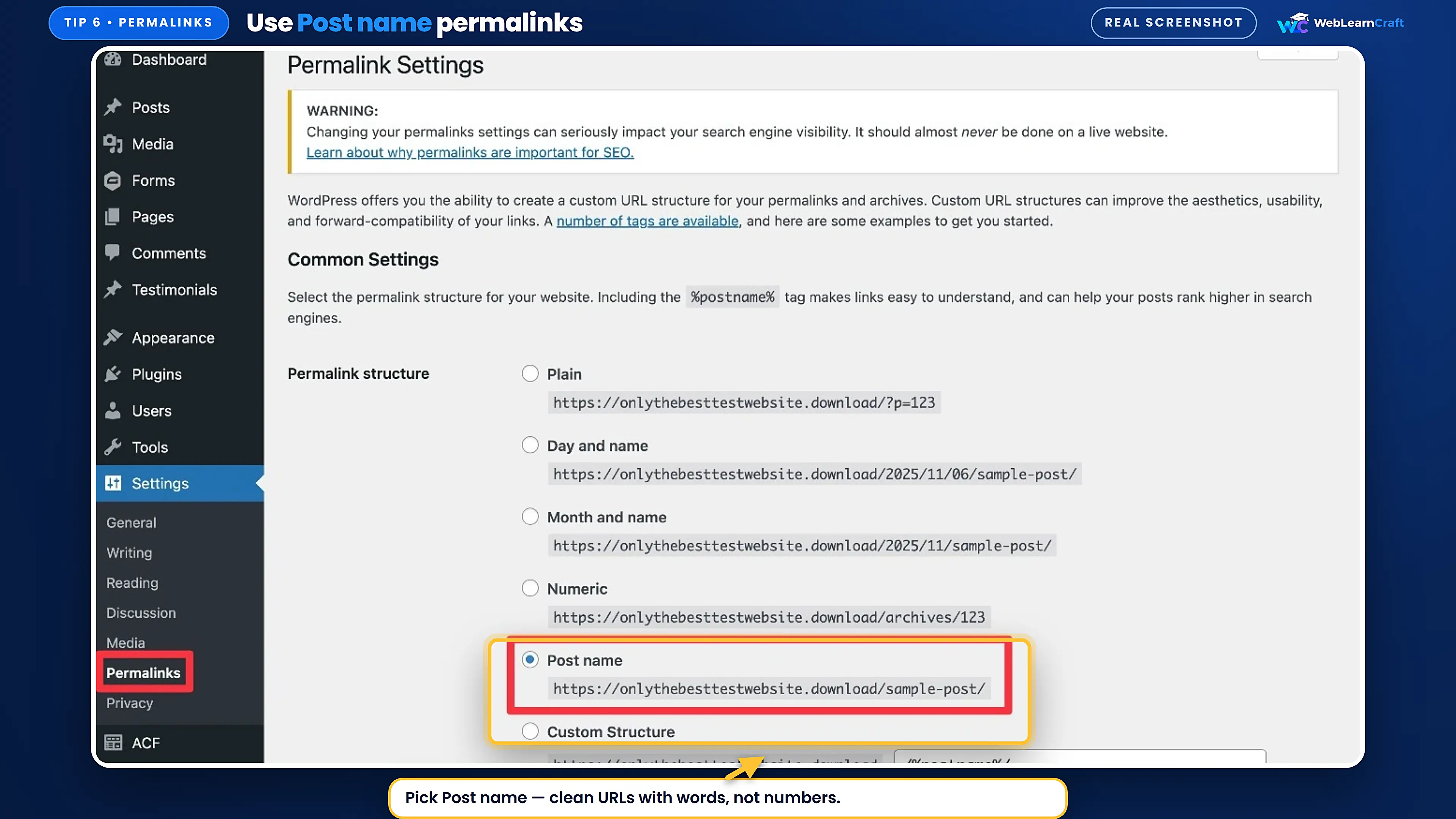
Do this early — on a new site it takes ten seconds. On an older site, changing the structure changes every post address, so set up redirects first. A slug is the last part of the address: keep it short and put your main keyword in it when it fits.
WordPress SEO Tips for Titles and Meta Descriptions
Your title is the blue link people see on Google, and the meta description is the short text under it. Nobody clicks a result they do not understand.
Keep your SEO title under 60 characters and put your main keyword near the start. “WordPress SEO Tips: 8 Easy Ways to Rank Higher” is one example — the keyword comes first. Write a different title for every post.
Write your meta description like a one-sentence promise: what the reader will learn, and why it is easy. Aim for 120 to 160 characters — a clear description gets more clicks.
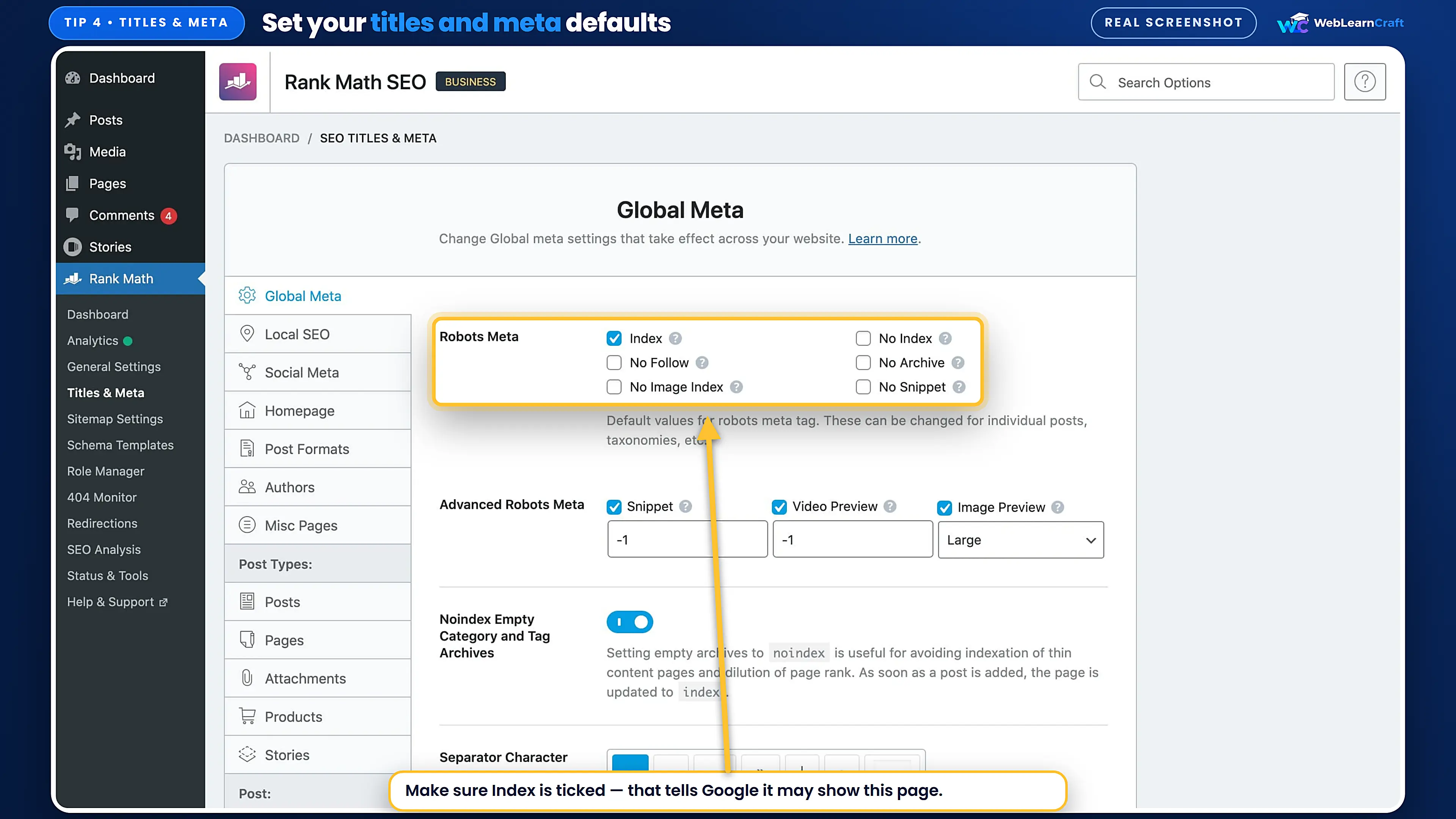
Set your defaults once in Rank Math SEO > Titles & Meta: it controls the pattern for post titles, category pages, and the homepage, plus the robots meta settings.
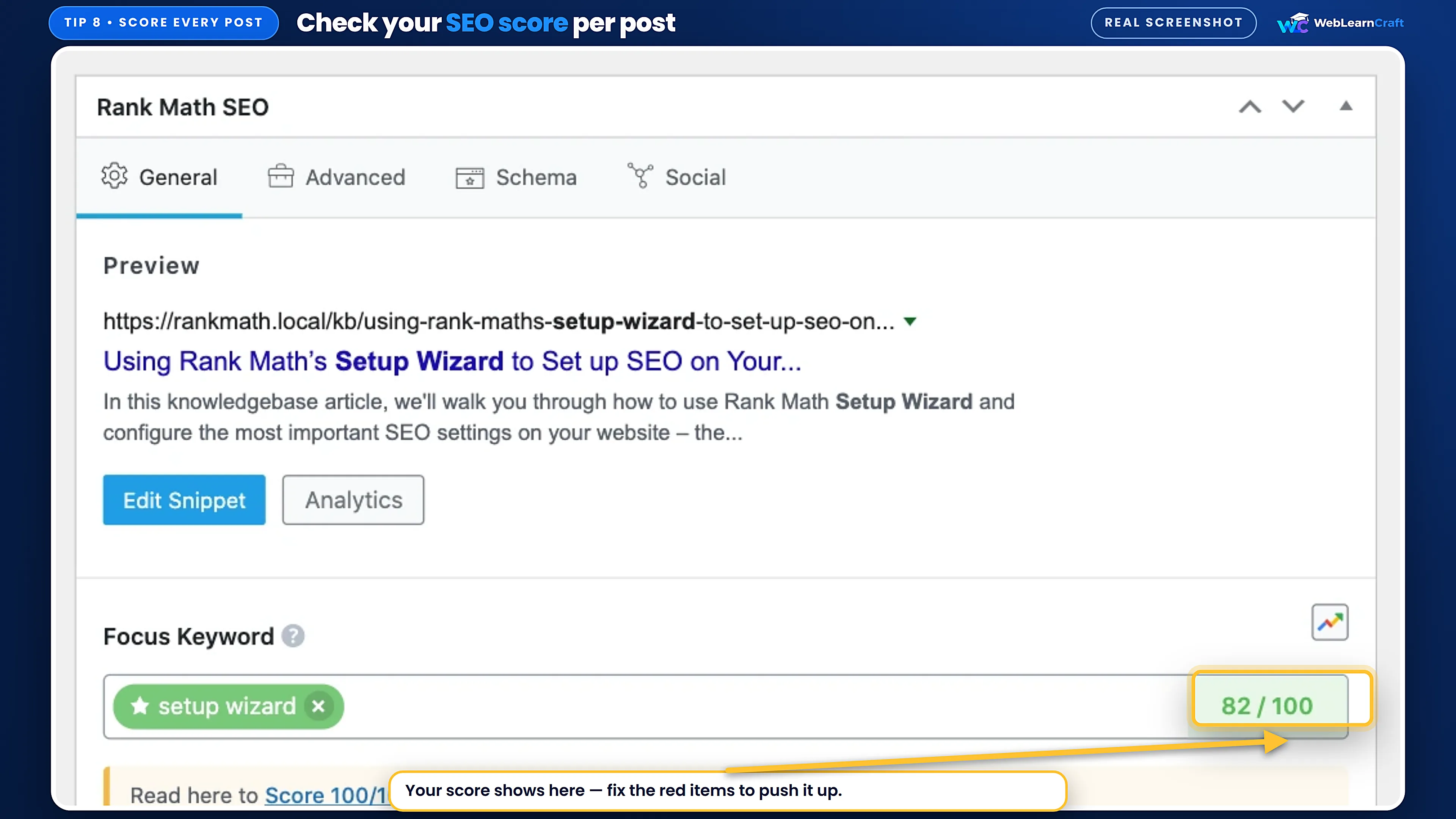
Then use the Rank Math meta box on every post. Pick one focus keyword per post — the phrase someone would type into Google to find it. If you need a free way to find keywords, our guide on keyword research with Google Keyword Planner shows the whole process. Rank Math scores the post — but write for the reader first, not for the score.
Check Your Sitemap (and Send It to Google)
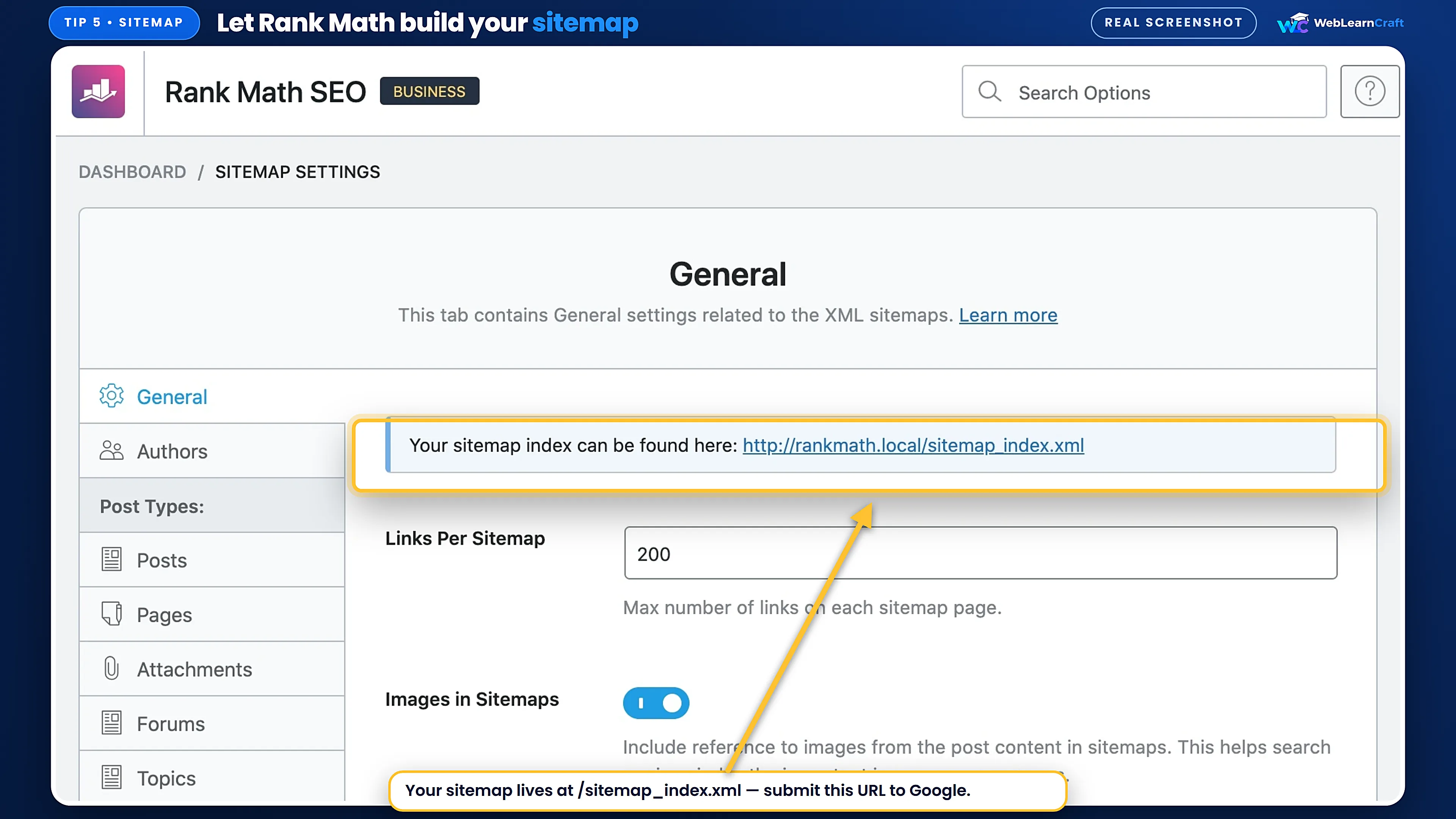
A sitemap lists every page and post on your site so Google can find them all. Rank Math builds one automatically — open yoursite.com/sitemap_index.xml and you should see your post, page, and category sitemaps. If it shows an error, check that the Sitemap module is on and your categories are set to Index.
A sitemap alone is only a hint — Google still decides what to crawl. Send it yourself: in Search Console, open Indexing > Sitemaps, paste sitemap_index.xml, and click Submit. Google’s own sitemap documentation says submitting does not guarantee Google will use it. If a page shows up as “Discovered, currently not indexed,” read our guide on how to fix Discovered, Currently Not Indexed on WordPress.
Link Your Own Posts Together
Internal links are links from one post on your site to another. They help readers find more content, and help Google understand which pages belong together. A new post with no links pointing to it is much harder for Google to find — one of the most useful WordPress SEO tips for a small blog.
Add three to five relevant internal links in every new post: link to older posts on the same topic, and back from an older post to the new one. Use anchor text that describes the page, like “keyword research with Google Keyword Planner,” not “click here.” Our internal linking strategy for a new blog explains how to plan this.
Two mistakes to avoid: do not link to the same page five times in one post — one good link is enough. And check your old links now and then: a link to a page that returns a 404 helps nobody.
Add Alt Text to Every Image
Alt text is a short description of an image, for people who cannot see it and for the times it fails to load. Screen readers read it out loud, and Google uses it to understand the image — a small bonus most WordPress SEO tips skip.
Write one plain sentence that describes the image, for example “Rank Math setup wizard with Advanced mode selected,” and add it in the Media Library’s Alternative Text field. WordPress documents the same field in its Image block guide.
Do not stuff your keyword into every alt text — use it only where the image is actually about that keyword. Keep your images light: resize them before uploading and use WebP when you can. A heavy image slows the whole page down.
Make Your Site Load Faster
Nobody waits for a slow site, so these WordPress SEO tips only work if people stay to read the page. Google counts page speed as one of the signals it looks at.
Use a light theme, keep only the plugins you use, and turn on caching — on Hostinger, LiteSpeed Cache is free. Compress your images, skip heavy sliders, and fix the biggest PageSpeed Insights warning first.
Use Google Search Console Every Week
Google Search Console is Google’s own free tool, and the only place where Google tells you how your site is doing in search. If you take one habit from these WordPress SEO tips, take this one: open it once a week.
Add your site as a property and verify you own it — the HTML tag method is easiest, because Rank Math has a field for the verification code. Then check the Performance report: real clicks, impressions, and the search phrases people typed before they found you.
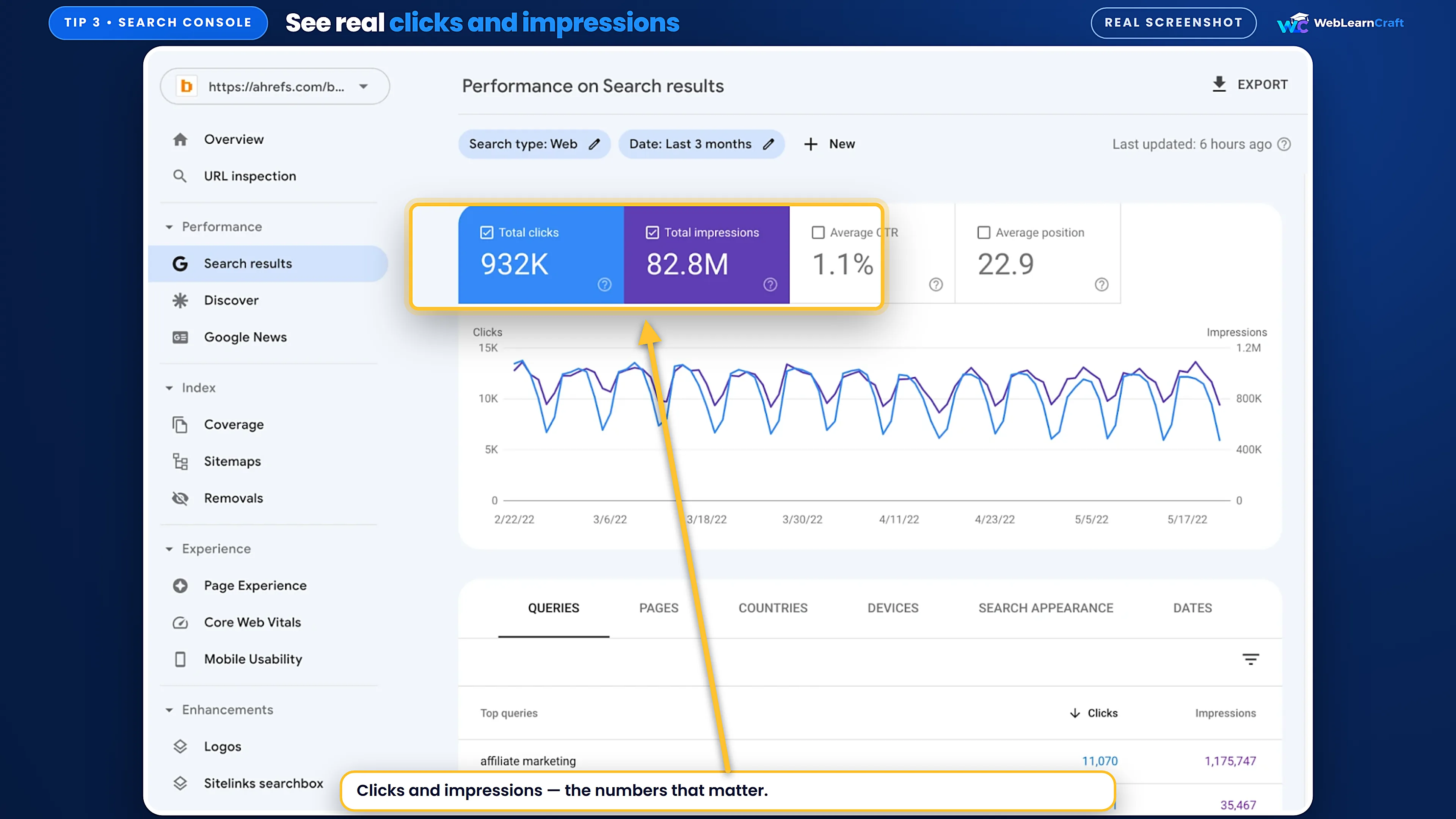
Look for queries where your site already appears on page two or three — those are your easiest wins. Also check the Pages report under Indexing for pages Google found but did not index, and fix them one by one.
Pair it with Analytics: Search Console shows how people find you, Analytics shows what they do next. Our guide on how to add Google Analytics 4 to WordPress without a plugin explains it.
Frequently Asked Questions
Do I need an SEO plugin for WordPress?
No, but a plugin like Rank Math makes the basics much easier.
How long does WordPress SEO take to work?
Usually weeks to a few months. There is no fixed date and no guaranteed ranking.
How many times should I use my keyword in a post?
Once in the title, once near the start, once in a heading, and then only where it fits naturally. There is no magic number.
Are free WordPress SEO tips enough to rank?
The WordPress SEO tips in this guide give Google a fair chance to find and understand your site. Ranking also depends on your content quality — no plugin can fix that.
Should I change my permalinks on an old site?
Be careful — changing the structure changes every post address, so set up redirects first.
Is the free version of Rank Math enough for a beginner blog?
Yes. The free version handles titles, meta descriptions, sitemaps, and the post score used in this guide.
Wrapping Up
Good WordPress SEO is not a secret trick — it is eight simple habits done on every post: Rank Math set up right, Post name permalinks, clickable titles, a submitted sitemap, internal links, alt text, a fast site, and a weekly Search Console check.
Start with the first three of these WordPress SEO tips today — they take less than an hour on a new site. Then repeat the rest with every post. It takes weeks, not days, but each post on a properly set-up site has a better chance.
WebLearnCraft publishes clear, beginner-friendly guides on WordPress, SEO and blogging. Browse the latest guides, or contact us if you need help with your site.