
How to Do Keyword Research for Free Using Google Keyword Planner
Here’s a mistake almost every new blogger makes. You pick a topic you like, write a good article, hit publish, and wait. Nothing happens. Not because the article is bad, but because nobody was searching for it.
Keyword research fixes that. You find out what people really type into Google, and then you write. And you don’t need a paid tool to start. Google Keyword Planner is free. Below is how to do keyword research for free using Google Keyword Planner, how to read the numbers without fooling yourself, and how to turn a messy list of ideas into articles worth writing.
Table of Contents
- What Keyword Planner is, and what it isn’t
- What you need
- Step 1: Create a Google Ads account
- Step 2: Open Keyword Planner
- Step 3: Discover new keywords
- Step 4: Read the columns
- Step 5: Filter and shortlist
- Step 6: Match keywords to search intent
- Step 7: Check the results in Google
- Free tools that fill the gaps
- Using your keyword in the article
- Mistakes to skip
- FAQs
- Final thoughts
What Keyword Planner Is, and What It Isn’t
Keyword Planner lives inside Google Ads. It was made for advertisers planning paid campaigns, not for bloggers. That explains the odd bits: columns about bids, a “competition” score that has nothing to do with blogging.
So why use it? Because the data comes from Google itself. Ideas, monthly searches, trends, all free. You just need to know which numbers to trust and which to ignore, and I’ll get to that.
If you want Google’s own description, here’s the official Google Keyword Planner page:
https://ads.google.com/home/tools/keyword-planner/
What You Need
You’ll need a Google account and a Google Ads account. Keyword Planner is free to use, but Google currently requires you to complete account setup, including billing information, to access basic features. Providing billing details is not the same as running an ad campaign.
Also pick a rough topic first. Running a WordPress blog? Think of two or three themes, like backups or custom fonts. Those become your starting ideas.
Step 1: Create a Google Ads Account
Go to Google Ads and sign in. Follow the account setup instructions, checking your country, time zone and currency carefully. Be prepared to provide billing information as part of the setup.
The screens and options can vary. If you see an option to continue without creating a campaign, choose it. Don’t rely on finding a “Switch to Expert Mode” link, because that option may not appear in your setup flow.
You don’t need to run ads to research keywords. Before submitting anything, check whether you’re completing account setup or publishing an advertising campaign. Only launch a campaign if you actually intend to advertise.
Step 2: Open Keyword Planner
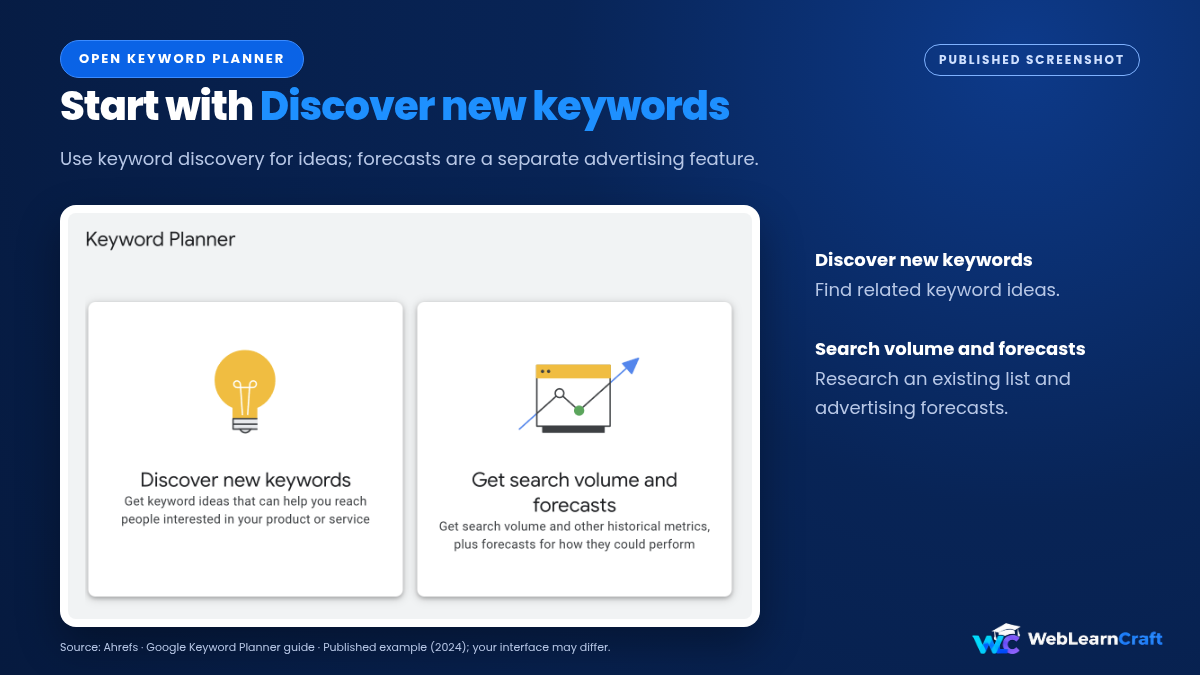
Inside Google Ads, open the Tools menu. Under Planning, pick Keyword Planner. Two options show up.
Discover new keywords is for brainstorming. Most people start here. Get search volume and forecasts is for when you already have a list and want numbers for each term.
Go with Discover new keywords for now.
Step 3: Discover New Keywords
Two ways in: Start with keywords and Start with a website.
With keywords, you type a few seed terms, like “wordpress backup” or “elementor custom fonts.” Keep them short and natural, the way a real person types. With a website, you paste a URL and Google suggests keywords linked to that page. Handy for peeking at a competitor, or checking your own pages.
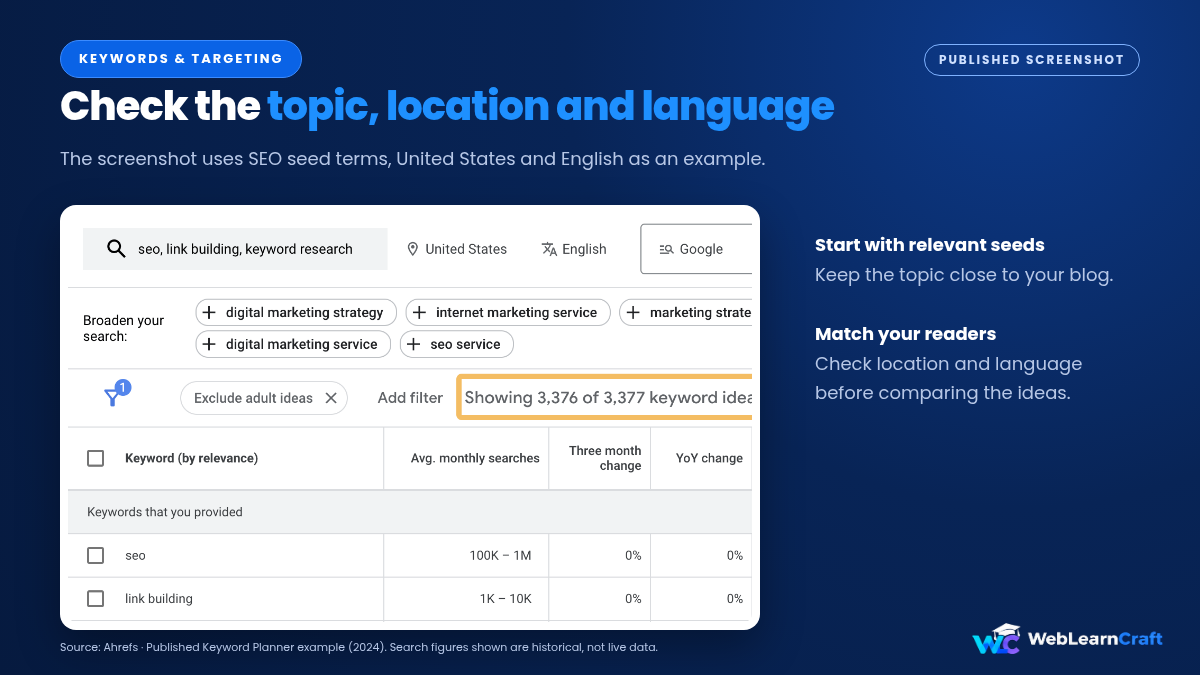
Before you hit Get results, check location and language. Match them to your real readers. Leave it too broad and the numbers get blurry.
Then Get results. You’ll get a long list, usually hundreds of ideas, each with data attached.
Step 4: Read the Columns
This is where beginners trip. The columns look simple. They aren’t.
Average monthly searches is the estimated number of searches a month. One catch: if your account has little or no ad spend, Google often shows a range instead, something like 100 to 1K. Annoying, I know. Use ranges to compare one keyword against another, not as exact figures.
Three-month and year-over-year change show whether interest is climbing or fading. Growing topics usually beat dying ones.
Competition deserves a warning. It shows how many advertisers bid on a keyword in Google Ads. It tells you almost nothing about how hard it is to rank in normal results. A “low competition” keyword can be brutal to rank for, and the reverse is just as true. Treat this column as a loose hint, at best.
Top of page bid is what advertisers might pay per click. For SEO, it hints at commercial value. A higher bid often means the searcher is closer to buying.
So for blogging, the columns that matter are the keyword, the volume range, and the trend. That’s about it.

Step 5: Filter and Shortlist
Hundreds of ideas is too many. Cut it down.
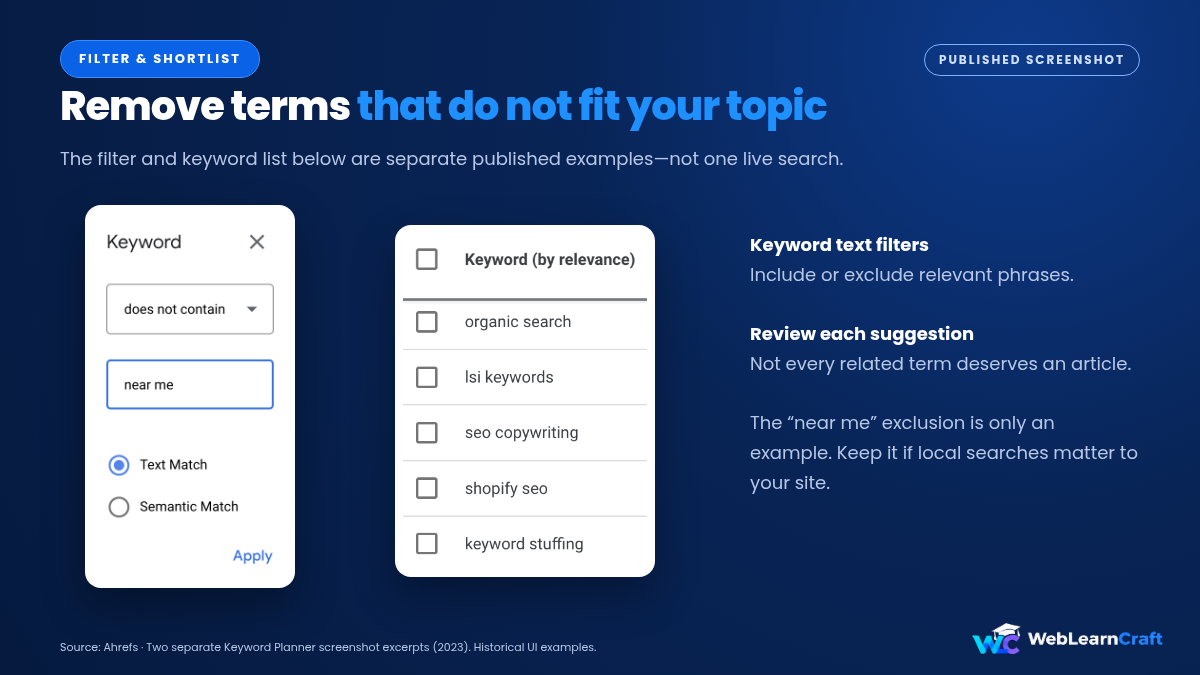
Use the filters above the results. You can set a minimum or maximum for monthly searches, hide words you don’t want, and include or exclude text. For a new blog, skip the huge, famous terms. Big sites own them. Go for long, specific phrases, like “how to add custom fonts to elementor” instead of “fonts.”

Long phrases get fewer searches each. But the people typing them know what they want, and the fight for the top spot is lighter. A new site has a real shot there.
As you scroll, keep ideas that are relevant, clearly worded and realistic for your site. Copy them into a spreadsheet. Aim for ten to twenty, not two hundred.
And remember: relevance beats volume. A modest keyword that fits your blog perfectly is worth more than a giant one that doesn’t.
Step 6: Match Keywords to Search Intent
A keyword only helps if you can satisfy the person typing it. That’s search intent.
Most searches fall into four groups. Informational: someone wants to learn, like “how to create a child theme.” Navigational: they want a specific site. Commercial: they’re comparing, like “best backup plugins.” Transactional: they’re ready to act or buy.
Bloggers mostly target the first and third. Go through your shortlist and tag each term. “How to” means a step-by-step guide. “Best” or “vs” means a comparison.
Getting intent wrong is a classic reason good articles never rank. Don’t write a product page for a “how to” search.
Planning several related articles? Group the keywords into clusters and link them together. Our guide on internal linking for a new blog shows a simple way to do it:
https://weblearncraft.com/internal-linking-strategy-for-a-new-blog/
Step 7: Check the Results in Google
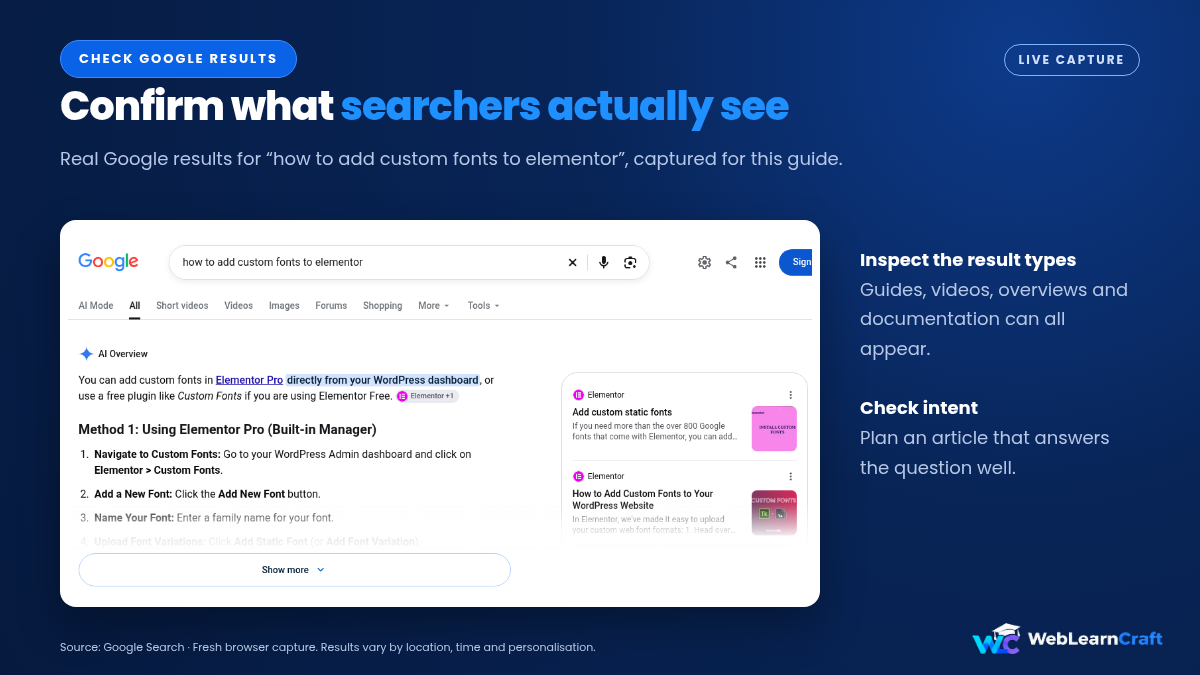
Keyword Planner gives numbers. Google gives reality. Before you commit, search your keyword and look at page one.
Ask a few honest questions. Who ranks? If it’s all big brands, a new blog will struggle. What kind of pages are they? If they’re guides and you’re writing a guide, good. If they’re product pages, think again. Can you add something they don’t? Clearer steps, better screenshots, a fresher angle?
Peek at “People also ask” and the related searches at the bottom too. They hand you follow-up questions you can answer in the same article, and those make good headings and FAQs.
It takes a few minutes per keyword, and it saves you from writing articles with no real chance.
Free Tools That Fill the Gaps
Keyword Planner has blind spots. Its volumes are rough, and its competition column is about ads. A few other free sources help.
Google Search Console
Once your site has traffic, the Performance report shows the real queries people used to find you. It’s the most honest keyword data you’ll ever see. And if pages aren’t getting indexed, our guide on pages that are discovered but not indexed covers what to check:
https://weblearncraft.com/discovered-currently-not-indexed-how-to-fix-it-on-wordpress/
Google Trends
It shows how interest in a topic moves over time, which helps you spot rising subjects.
Autocomplete and Related Searches
Start typing your keyword into Google and watch the suggestions. They come from real searches.
Use Keyword Planner for ideas, and these for confirmation.
Using Your Keyword in the Article
Once you’ve picked one, use it with care. Put it in the title, the URL, the first paragraph, and at least one heading. Write naturally. Repeating it every other sentence makes the article worse, and search engines have been good at spotting that for years.
Then write the best article you can on that topic. Cover the question fully, and add things only you can add. Original, helpful content holds up better over time. If you ever worry a page looks thin, our guide on the AdSense low value content rejection explains what reviewers look for:
https://weblearncraft.com/adsense-low-value-content-fix/
Mistakes to Skip
- Chasing only high-volume keywords. They’re usually the hardest to rank for.
- Treating the Competition column as SEO difficulty. It measures advertisers, not organic rankings.
- Reading volume ranges as exact numbers. Compare with them, don’t predict traffic from them.
- Ignoring search intent. The right keyword with the wrong kind of page won’t work.
- Skipping the check in Google. Always look at the actual first page.
- Targeting one keyword with several articles. They end up competing with each other.
- Stuffing the keyword into the text. Write for people first.
Frequently Asked Questions
Is Google Keyword Planner really free?
Yes. Keyword Planner is free to use, but you need a Google Ads account. Google currently requires completed account setup, including billing information, to access basic features.
Do I need to run ads to use Keyword Planner?
No. You don’t need an active advertising campaign to research keywords. However, you need to complete the required account setup, including billing information. Providing billing details does not mean you have to launch a campaign.
Why does it show search volume in ranges?
When an account has little or no ad spend, Google often shows broad ranges instead of exact numbers. Use them to compare keywords, not to predict traffic.
What does the Competition column mean?
It shows how many advertisers compete for a keyword in Google Ads. It doesn’t tell you how hard it is to rank organically.
What makes a good keyword for a new blog?
A specific, relevant, long phrase with a modest search range, where you can write something truly helpful. New sites do better with specific phrases than broad ones.
How many keywords should I shortlist?
Ten to twenty is plenty to start. Quality and relevance beat quantity.
Are there free alternatives?
Yes. Google Search Console, Google Trends, and Google’s own autocomplete and related searches are all free and work well alongside Keyword Planner.
Keyword research doesn’t need an expensive tool. Set up your Google Ads account, complete the required billing details, and open Keyword Planner to start with a few seed keywords. You don’t need to run an advertising campaign to research keywords.
Read the data honestly: use the ranges to compare, ignore the Competition column for SEO, and favour long, specific phrases.
Then check each keyword in Google, match it to search intent, and write the most helpful article you can. Keep doing that, and you’ll spend your time on topics people really search for.
WebLearnCraft publishes clear, beginner-friendly guides on WordPress, SEO and blogging.
https://weblearncraft.com/
Browse the latest guides:
https://weblearncraft.com/blog/
Or contact us if you need help with your site:
https://weblearncraft.com/contact-us/